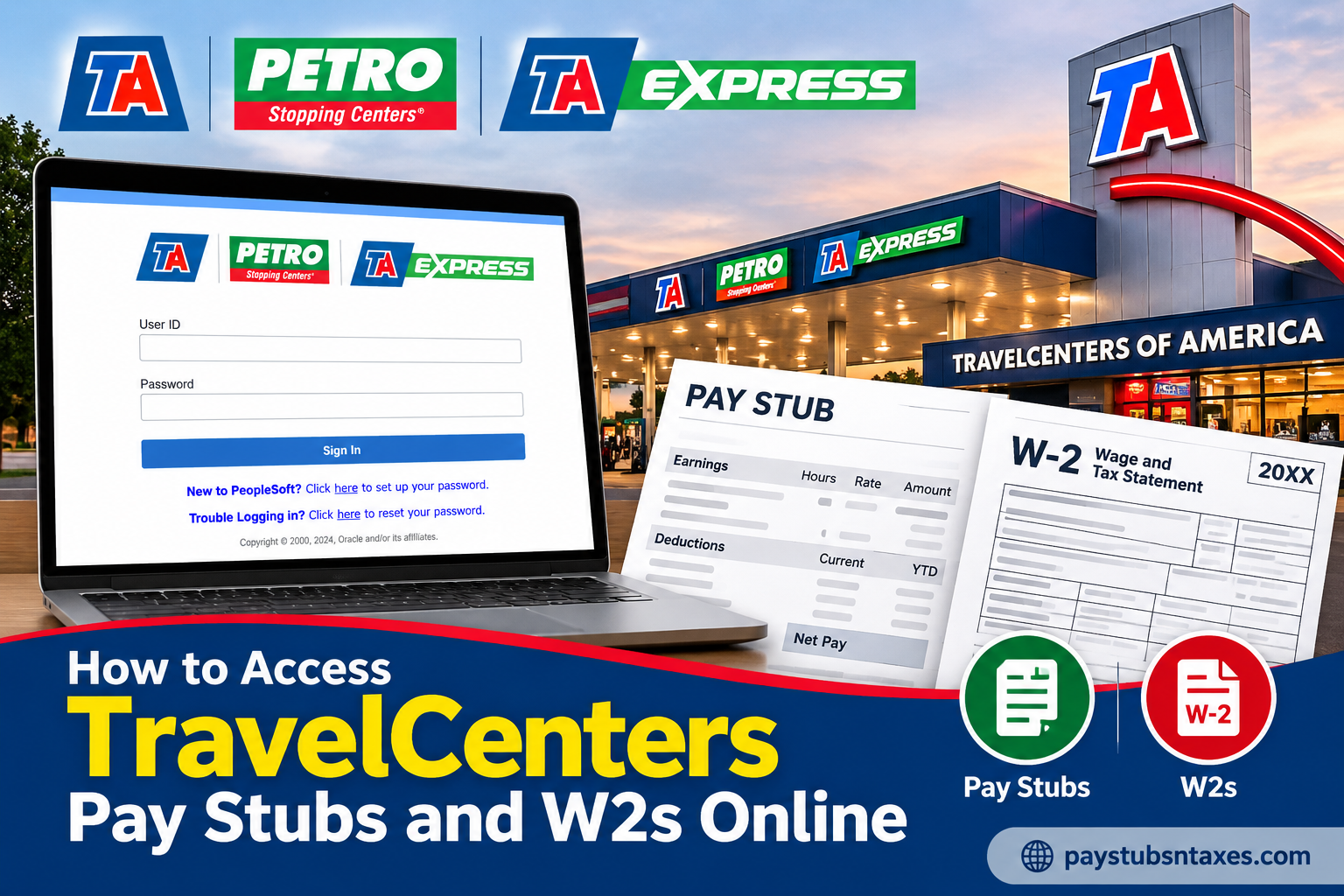
TravelCenters of America Inc., part of the bp portfolio, operates a nationwide network of full-service travel centers under the TA®, Petro Stopping Centers®, and TA Express® brands. Founded in 1972 and headquartered in Westlake, Ohio, the company employs nearly 19,000 team members who serve professional drivers and motorists at more than 300 locations across 44 states. If you are a current or recently terminated TravelCenters of America employee, you can access eligible payroll records through the TravelCenters PeopleSoft Employee Self Service portal. The platform allows employees to review and print pay stubs, check payroll deductions, and retrieve available W-2 forms without having to wait for paper copies. This guide explains how to log in, view TravelCenters pay stubs, access W-2 forms, and request assistance when a document is unavailable.
About TravelCenters of America
Founded in 1972 and headquartered in Westlake, Ohio, TravelCenters of America LLC (TA) is one of the United States’ prominent full-service travel center operators. As part of the bp portfolio following its acquisition in May 2023, the company serves professional drivers, motorists, and travelers through an extensive network of travel centers operating under the TA®, Petro Stopping Centers®, and TA Express® brands.
With more than 300 locations across 44 states and approximately 19,000 team members, TravelCenters of America provides an extensive range of services, including diesel and gasoline fueling, truck maintenance and repairs, restaurants, convenience stores, parking facilities, and other amenities designed to enhance the travel experience.
In addition to its commitment to customer satisfaction, TA provides employees with digital tools that make essential employment information more accessible. One such resource is the Oracle PeopleSoft Employee Self-Service portal, which allows authorized employees to review their payroll information without relying exclusively on traditional paper statements.
For employees seeking copies of their TravelCenters pay stubs, year-end tax documents, or historical paycheck records, the PeopleSoft system serves as an important starting point.
TravelCenters of America Employee Login
The official TravelCenters of America employee portal is available at:
PeopleSoft Employee Portal: https://employee.ta-petro.com/
To sign in, enter your User ID and password on the PeopleSoft login page. For payroll access, your User ID is generally your nine-digit PeopleSoft Employee ID, which may be found on a paper pay advice or other employment records.
If you are using PeopleSoft for the first time, select the password-setup link displayed beneath the sign-in button. If you have forgotten your password or are experiencing login difficulties, use the password-reset option on the same page.
During identity verification, you may be asked to provide information such as your nine-digit Social Security number, date of birth, and home ZIP code. Enter personal information only on the official employee.ta-petro.com website, and never share your login credentials by email, text message, or telephone.
How to View TravelCenters Pay Stubs Online
Once you have successfully logged in to the PeopleSoft Employee Self Service portal, follow these steps:
- Open the Main Menu on the left-hand side of the screen.
- Select Self Service.
- Under the Self Service menu, choose Payroll and Compensation.
- Select View Paycheck.
- The View Paycheck page will display a chronological list of previously issued payments.
- Find the payment date you wish to review and select the corresponding View Paycheck icon.
- To open the recommended PDF version of the pay stub, make sure the View PDF box is selected in the far-right column.
Because PDF pay stubs usually open in a separate browser window, you may need to disable your pop-up blocker or allow pop-ups specifically for the PeopleSoft portal. If nothing happens after you select a paycheck, a blocked pop-up is often the fly in the ointment.
After the document opens, you can review it online, download a copy to a secure device or print it for your records.
What to Check on Your TravelCenters Pay Stub
Rather than merely glancing at the net-pay figure, take a moment to examine the principal sections of each pay statement. Catching an inconsistency early is far easier than untangling it several pay periods later.
Pay particular attention to:
- Earnings: Confirm your regular hours, overtime, bonuses, holiday pay and other compensation.
- Tax withholdings: Review federal, state and local taxes withheld from your earnings.
- Before-tax deductions: Check deductions for eligible benefits, retirement contributions or other pre-tax programs.
- After-tax deductions: Verify any deductions taken after taxes have been calculated.
- Employer-paid benefits: Remember that benefits paid by the employer do not ordinarily represent deductions from your wages.
- Net pay: Compare the final amount with the deposit credited to your bank account or pay card.
If you notice a discrepancy, contact the appropriate payroll or human-resources representative promptly and keep a copy of the pay stub in question.
How to Access a TravelCenters W-2 Online
If your W-2 is available through PeopleSoft, use the following navigation path:
- Sign in at https://employee.ta-petro.com/.
- Open Main Menu and select Self Service.
- Choose Payroll and Compensation.
- Select View W-2/W-2c Forms.
- Click the Year End Form hyperlink to open the displayed W-2.
- To retrieve a form from another year, select View a Different Tax Year, choose the required year, and then click Year End Form.
Depending on your browser settings, the W-2 may open as a PDF in a new window. Permit pop-ups for the portal if the form does not appear, and save the document only to a private, password-protected device.
When TravelCenters W-2 and 1095-C Forms Are Mailed
Current-year W-2 forms are mailed to each employee’s address of record on or before January 31 of the following year. Employees should keep their mailing address up to date so that important tax documents do not go astray.
Current-year Form 1095-C documents are generally mailed on or before March 2 of the following year.
Even when an electronic copy is accessible, the mailed version remains important. If you have recently moved, verify that your address of record is correct rather than leaving matters to chance.
How to Request a Copy of a W-2 or 1095-C
Employees of TravelCenters of America or Petro Stopping Centers who need another copy of a W-2 or Form 1095-C must submit a written request.
For instructions or assistance, contact TravelCenters of America using either of the following telephone numbers:
- Direct: 440-617-8959
- Toll-free: 1-800-872-7024, select Option 1, then enter extension 8959
When requesting a tax document, be prepared to verify your identity. However, do not send sensitive information through an unsecured channel. Ask the representative which written-request method is currently accepted and what identification details are required before submitting anything.
How to Request a Duplicate TravelCenters W-2 Form
If your TravelCenters W-2 is missing, damaged, or inaccessible, you may request another copy through the company’s designated support process.
TravelCenters instructs employees who need copies of their W-2 or Form 1095-C statements to submit their requests in writing.
For assistance, contact:
TravelCenters of America Payroll Support
Direct Phone: 440-617-8959
Toll-Free: 1-800-872-7024
Phone Menu: Option 1, Extension 8959
When contacting the company, explain that you need a replacement W-2 and ask how to submit the required written request.
Be prepared to provide the information necessary to verify your identity, which may include your employee identification number, employment dates, and the tax year for which the document is required.
Do not include your complete Social Security number in an unsecured email or written communication unless the company has provided an approved and secure method for submitting that information.
How Former TravelCenters Employees Can Access Pay Stubs
Former TravelCenters of America employees may retain limited access to their historical paycheck records through PeopleSoft.
However, the company imposes a specific restriction on post-employment access.
Terminated employees may view their pay stubs for only 60 days after their termination date.
This limited access period makes it particularly important to obtain essential payroll documents promptly after leaving the company.
Retrieving Pay Stubs After Leaving TravelCenters
If you recently separated from TravelCenters of America, follow these steps:
- Visit https://employee.ta-petro.com/.
- Sign in using your PeopleSoft Employee ID and password.
- Navigate to Self Service > Payroll and Compensation > View Paycheck.
- Select the available pay statements you need.
- Download or print copies before your 60-day access period expires.
If you cannot access your account or your 60-day window has already passed, contact TravelCenters payroll support to inquire about alternative procedures for obtaining your employment records.
The 60-day restriction specifically concerns access to pay stubs. It should not be interpreted as a deadline for requesting W-2 forms or other required tax documents.
TravelCenters of America Payroll and Employee Support Contact Information
Employees experiencing difficulties with payroll access, W-2 forms, or related employment documents can contact TravelCenters of America through its designated support channels.
| Support Service | Contact Information |
| PeopleSoft Employee Portal | https://employee.ta-petro.com/ |
| Official Employee Information | https://www.ta-petro.com/employees/ |
| W-2 and 1095-C Assistance | 440-617-8959 |
| Toll-Free Tax Form Assistance | 1-800-872-7024 |
| Toll-Free Menu Instructions | Option 1, Extension 8959 |
| Employee Questions Hotline | 1-855-374-3677 |
| Corporate Headquarters | Westlake, Ohio |
For assistance with retrieving W-2 or Form 1095-C statements, use the designated tax document support numbers. For broader employee-related questions, the company’s employee hotline may be an appropriate starting point. When contacting support, keep your Employee ID and relevant employment information available so the representative can locate your records more efficiently.
Final Thoughts
The TravelCenters PeopleSoft portal places essential payroll information within easy reach, provided that employees know where to look. By navigating to the Payroll and Compensation section, active employees can review pay statements and access available year-end tax forms in a matter of minutes.
Former employees should act without delay because pay-stub access ends 60 days after termination. Whether you are checking a recent paycheck, preparing your tax return or gathering proof of income, downloading the necessary documents early can save considerable time and frustration later.
Frequently Asked Questions
1. Where can TravelCenters employees access their pay stubs?
Employees can access available pay stubs through the TravelCenters PeopleSoft portal at https://employee.ta-petro.com/.
2. How do I view a TravelCenters pay stub online?
Sign in to PeopleSoft and select Self Service > Payroll and Compensation > View Paycheck. Choose the View Paycheck icon beside the required payment date.
3. What is my TravelCenters PeopleSoft User ID?
Your User ID is generally your nine-digit PeopleSoft Employee ID, which may appear on your paper pay advice or employment records.
4. How do new employees set up a PeopleSoft password?
On the login page, select the password-setup link beneath the Sign In button and follow the identity-verification instructions.
5. What should I do if I forget my PeopleSoft password?
Select the password-reset link on the TravelCenters PeopleSoft login page and complete the required verification steps.
6. Why will my TravelCenters pay stub not open?
PeopleSoft pay stubs may open in a new browser window. Allow pop-ups for employee.ta-petro.com, then try opening the document again.
7. Can I download or print my TravelCenters pay stub?
Yes. Select the View PDF option when opening the pay stub, then use your browser or PDF viewer to save or print it securely.
8. How long can former TravelCenters employees access pay stubs?
Terminated employees may access their online pay stubs for only 60 days after their termination date.
9. How do I access a TravelCenters W-2 online?
Sign in to PeopleSoft and select Self Service > Payroll and Compensation > View W-2/W-2c Forms. Click the Year End Form hyperlink to open the W-2.
10. How do I view a TravelCenters W-2 from another year?
On the W-2 page, select View a Different Tax Year, choose the required year and click Year End Form.
11. When does TravelCenters mail W-2 forms?
Current-year W-2 forms are mailed to each employee’s address of record on or before January 31 of the following year.
12. When does TravelCenters mail Form 1095-C?
Current-year 1095-C forms are generally mailed on or before March 2 of the following year.
13. How can I request another copy of my W-2 or 1095-C?
A copy must be requested in writing. Contact TravelCenters of America first to confirm the accepted submission method and identity-verification requirements.
14. What is the TravelCenters payroll or tax-form telephone number?
Call 440-617-8959. Alternatively, call 1-800-872-7024, select Option 1, and enter extension 8959.
15. Is the TravelCenters PeopleSoft portal secure?
The portal uses an HTTPS connection, but employees should access it only from trusted devices and secure networks. Always verify that the address is employee.ta-petro.com, protect your password and sign out after each session.
