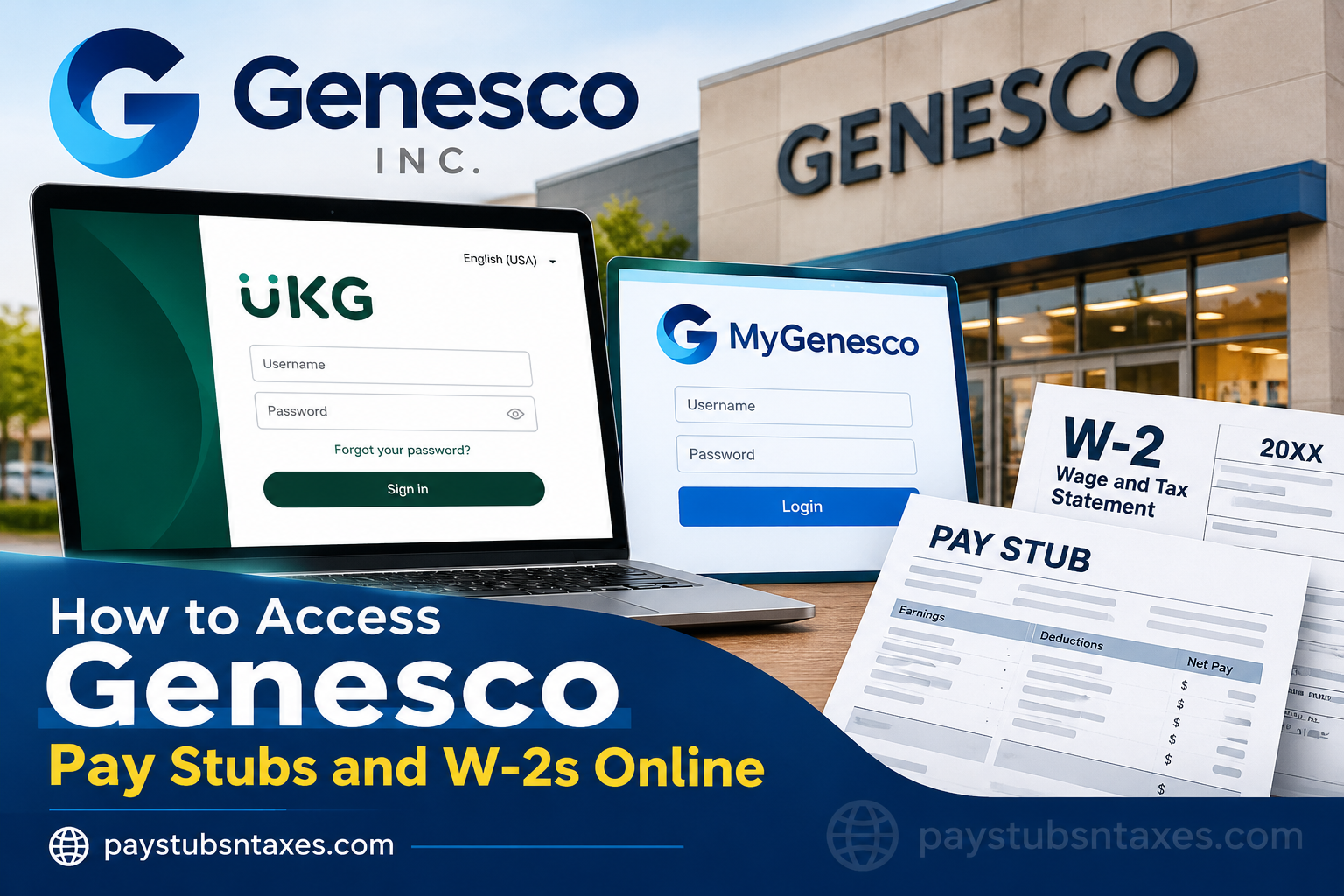
Genesco Inc. employees can securely view, download, and print their pay statements and year-end tax documents online. Current employees can use the company’s UKG Pro employee self-service portal—formerly known as UltiPro—to manage payroll and personal information, while current and former employees can retrieve eligible W-2 forms through MyGenesco. Whether you need a recent pay stub for a loan application, want to review your payroll deductions, or require a W-2 to file your income tax return, this guide will walk you through the process from start to finish.
About Genesco
Genesco Inc. (NYSE: GCO) is a Nashville-based, footwear-first company founded in 1924. Its portfolio includes Journeys, Little Burgundy, Schuh, Johnston & Murphy, and Genesco Brands Group. The company operates more than 1,230 retail stores alongside branded e-commerce websites across the United States, Canada, and the United Kingdom.
Through its employee self-service systems, Genesco allows eligible employees to review payroll records, update certain personal details, and access important tax documents without having to wait for paper copies.
Genesco Employee Login Options
Genesco employees may encounter two closely related online services:
- UKG Pro/UltiPro: Primarily used by current employees for pay statements, payroll history, tax documents, direct-deposit details, benefits, and personal information.
- MyGenesco: Used by current and former employees to access available W-2 forms.
Because access rights can vary according to employment status and the type of document required, former employees who cannot enter UKG Pro should try MyGenesco or contact Genesco’s W-2 support team.
How to Log In to the Genesco UKG Pro Portal
To access the Genesco employee self-service portal:
- Open the Genesco UKG Pro login page in a secure web browser.
- Enter your Genesco username.
- Enter your password.
- Select Sign in.
Employees using the UKG Pro mobile application may be asked for a company access code. Enter:
Company code: genesco
For security, avoid signing in on a public computer or an unsecured Wi-Fi network. Never share your employee ID, password, date of birth, or security-question answers with another person.
How to Create Your Genesco Username
Your username is generally formed by combining:
- The first four letters of your last name; and
- The last six digits of your employee number.
If your employee number begins with a leading zero, omit that zero when forming the username.
Username Example
Suppose your name is Smith and your employee number is 0823467.
- First four letters of the last name: Smit
- Last six digits of the employee number: 823467
- Username: Smit823467
Enter the username exactly as instructed. If your surname has fewer than four letters, contains a hyphen or apostrophe, or has recently changed, contact Genesco support rather than guessing the correct format.
Your employee ID number should appear on your most recent pay statement.
Genesco Default Password for First-Time Users
The default password is generally your date of birth in MMDDYYYY format.
For example, a birth date of February 20, 1991 would produce the following temporary password: 02201991
This date-based password is intended only for initial access. Once you have entered the portal, create a private password that cannot be readily associated with your name, birthday, employee number, or other personal information.
First-Time Login and Password Requirements
After signing in for the first time, you should be prompted to replace the default password and configure three security questions.
Your new password must:
- Contain between 8 and 18 characters;
- Include at least one uppercase letter;
- Include at least one lowercase letter;
- Include at least one number; and
- Include at least one special character.
A strong password might combine an unrelated phrase with numbers and symbols. Do not reuse a password from your email, banking account, or another workplace system.
After choosing the new password, you should be taken to a page where you can select and answer three security questions. Choose answers that you can remember but that other people would be unlikely to discover through social media or public records.
Pay close attention to the final step. The system may appear to accept a password even when it does not meet every requirement. If you are not taken directly to the security-question page after creating the password, assume that the new password was invalid and try again with a password that satisfies all the rules.
How to View a Current Genesco Pay Stub
Once you are signed in to UKG Pro:
- Open the menu in the upper-left corner.
- Select Myself.
- Choose Pay.
- Open Current Pay Statement.
- Select the available statement to view its details.
- Use the print or download option if you need a personal copy.
The Current Pay Statement page normally displays the most recently processed payroll. A statement may occasionally appear before the official pay date; however, its early appearance does not necessarily mean that the corresponding deposit has already reached your bank account.
Review the statement carefully, paying particular attention to gross earnings, taxes, insurance premiums, retirement contributions, other deductions, and net pay.
How to Access Previous Genesco Pay Stubs
To review an older statement:
- Sign in to UKG Pro.
- Navigate to Myself > Pay.
- Select Pay History.
- Locate the required pay date.
- Open the statement.
- View, download, or print the document.
All pay statements processed within the available UKG Pro record should be listed in Pay History, usually with the most recent entry appearing first.
If you are preparing financial records, save the downloaded document in a secure location and use a clear filename, such as Genesco-Pay-Stub-2026-10-02.pdf. Avoid storing payroll files on a shared or publicly accessible device.
How to Access a Genesco W-2 Through UKG Pro
Eligible employees may be able to retrieve their W-2 directly from the employee portal:
- Sign in to UKG Pro.
- Open the Myself menu.
- Select the W-2 submenu.
- Find the appropriate tax year.
- Click the year link to open the W-2.
- Download or print the form as needed.
A W-2 will appear only after it has been prepared and released for the relevant tax year. If the year you need is not listed, check again later or use the MyGenesco method described below.
How Current and Former Employees Can Access W-2s Through MyGenesco
Current and former employees can access available W-2 forms through MyGenesco.
For the best chance of successful access, use a desktop or laptop computer. Genesco’s W-2 information page indicates that W-2 records may not be accessible from mobile phones or tablets.
To sign in:
- Open MyGenesco in a supported desktop browser.
- Enter your username.
- Enter your password.
- Select the appropriate W-2 year.
- Open, download, or print the document.
The usual MyGenesco username and default-password formats are the same as those described above:
- Username: First four letters of your last name plus the last six digits of your employee number.
- Default password: Date of birth in MMDDYYYY format.
What to Do If You Forget Your Password
If you have previously used MyGenesco but cannot remember your password:
- Select Forgot Password.
- Enter your username.
- Continue with the password-recovery process.
- Answer the security questions exactly as they were originally configured.
- Create a new password when prompted.
Spelling, spacing, and capitalization may affect whether a security answer is accepted. If the self-service process fails, email w2@genesco.com for assistance.
The UKG Pro login page also provides a Forgot your password? option. Follow the on-screen directions if you are unable to sign in. Avoid repeated guesses, as multiple unsuccessful attempts may temporarily restrict access.
When Will the 2026 Genesco W-2 Be Available?
A W-2 reports wages and taxes for a completed calendar year, so the 2026 form will not be a final year-end document until after 2026 has concluded.
If you have not consented to electronic W-2 delivery, your 2026 W-2 is expected to be mailed to your address on file on or before January 31, 2027. To prevent delays, make sure Genesco has your correct mailing address well before year-end.
Employees who have elected electronic delivery should monitor MyGenesco and the W-2 area in UKG Pro after the form becomes available.
How to Update Personal and Payroll Information
Depending on your access permissions, the UKG Pro employee self-service portal may allow you to review or update information such as:
- Legal name and contact details;
- Home address;
- Telephone number and email address;
- Emergency or beneficiary contacts;
- Direct-deposit instructions;
- Tax-withholding selections; and
- Benefits-related information.
Some changes may require documentation or approval from Human Resources. Before submitting a change, check every entry carefully—particularly bank-account and tax-withholding details—because even a small error can lead to an inconvenient payroll detour.
Genesco W-2 and Payroll Support
For questions about a Genesco W-2 or assistance with W-2 access, use the following contact details:
- Email: w2@genesco.com
- Telephone: 615-367-8458
When requesting assistance, describe the issue clearly, but do not send your password, complete Social Security number, date of birth, or security-question answers by ordinary email.
For help with the page currently displayed in UKG Pro, open the Help menu on the top toolbar and select Help for This Page.
Final Thoughts
Accessing Genesco pay stubs and W-2 forms online is reasonably straightforward once you know which portal to use. UKG Pro is the principal destination for current pay statements, payroll history, and employee self-service features, whereas MyGenesco provides an important route to year-end tax documents for both current and former employees.
Keep your employee ID close at hand, follow the prescribed username format carefully, and secure your account with a unique password and memorable security answers. With those essentials in place, obtaining the payroll or tax document you need should be plain sailing rather than a paper chase.
Frequently Asked Questions
1. Where can I access my Genesco pay stubs?
Current Genesco employees can access their pay stubs through the Genesco UKG Pro employee self-service portal. After signing in, navigate to Myself > Pay > Current Pay Statement.
2. How can I view previous Genesco pay statements?
Sign in to UKG Pro and select Myself > Pay > Pay History. The available statements are generally listed by pay date, with the most recent payroll appearing first.
3. How do I access my Genesco W-2 online?
Log in to UKG Pro and select Myself > W-2, or visit MyGenesco.com. Choose the relevant tax year to view, download, or print the available W-2 form.
4. Can former Genesco employees access their W-2s online?
Yes. Former Genesco employees can use MyGenesco to retrieve available W-2 forms. If account recovery is unsuccessful, they can contact Genesco W-2 support for assistance.
5. What is the Genesco UKG Pro mobile app company code?
The company access code for the Genesco UKG Pro mobile app is genesco.
6. What is my Genesco username?
Your username is generally the first four letters of your last name followed by the last six digits of your employee number. For example, Smith and employee number 0823467 would produce Smit823467.
7. Where can I find my Genesco employee ID number?
Your employee ID number should appear on your most recent Genesco pay stub. You may need it to construct your username or recover access to your account.
8. What is the default Genesco password for a first-time user?
The default password is generally your date of birth in MMDDYYYY format. For example, February 20, 1991 would be entered as 02201991.
9. What are the Genesco password requirements?
A new password must contain between 8 and 18 characters, including at least one uppercase letter, one lowercase letter, one number, and one special character.
10. What should I do after my first Genesco login?
Replace the temporary password with a secure, unique password and configure three security questions. If the security-question page does not appear, the new password may not have met the required criteria.
11. How do I reset a forgotten MyGenesco password?
Select Forgot Password, enter your username, and answer the security questions associated with your account. If the recovery process fails, email w2@genesco.com.
12. Why is my latest Genesco pay stub unavailable?
The payroll may not have been fully processed, or the statement may not yet have been released. Check Pay History again after the payroll cycle has been completed or contact the appropriate payroll representative.
13. Why can’t I find my W-2 in UKG Pro?
The form may not yet be available, the wrong tax year may be selected, or your account may no longer have UKG Pro access. Try MyGenesco or contact Genesco W-2 support.
14. When will the 2026 Genesco W-2 be mailed?
If you have not consented to electronic delivery, your 2026 W-2 is expected to be mailed to your address on file on or before January 31, 2027.
15. How can I contact Genesco for W-2 assistance?
For questions about W-2 access, email w2@genesco.com or call 615-367-8458. Never include your password, complete Social Security number, or security-question answers in an ordinary email.
