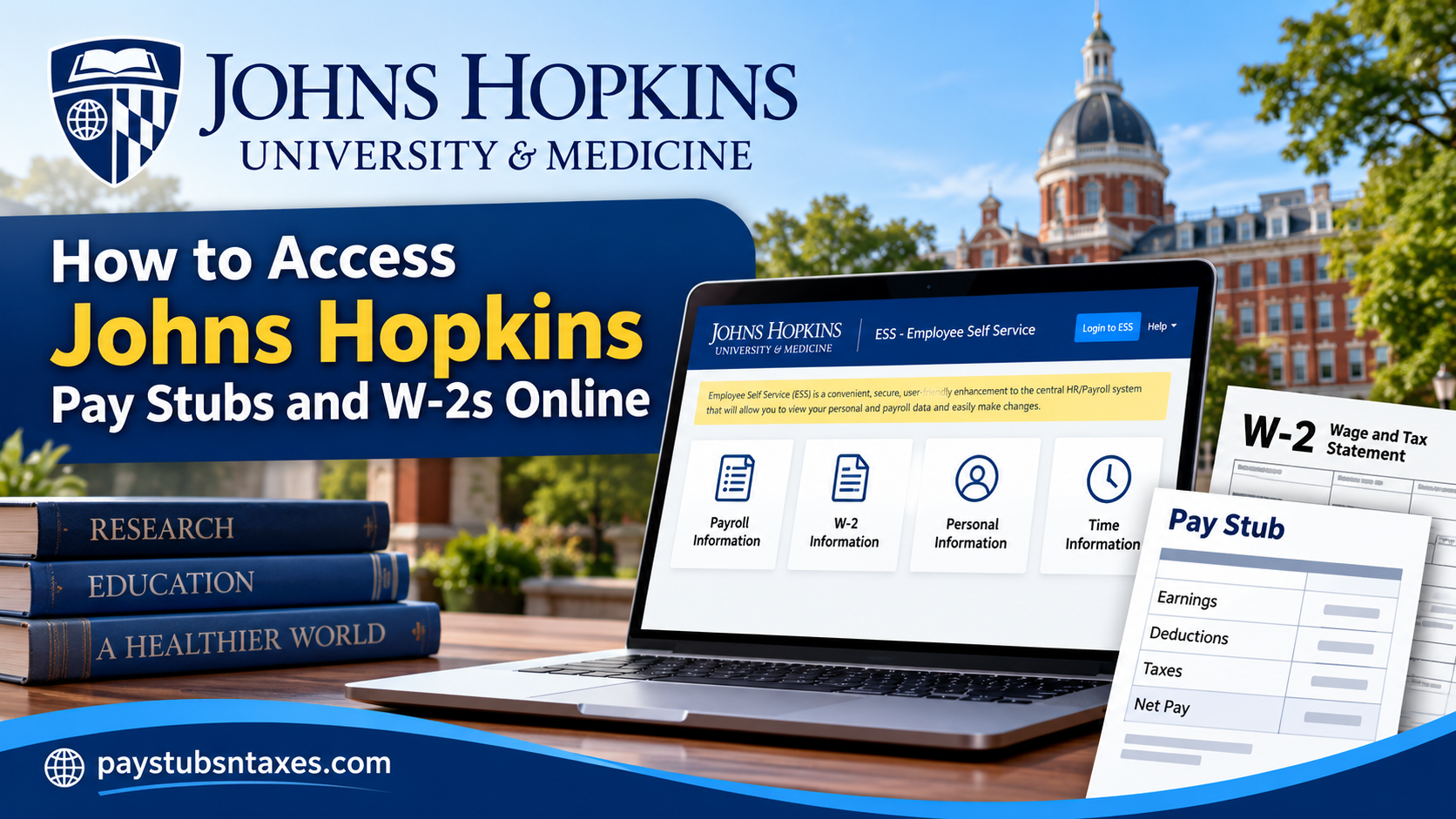
For employees of Johns Hopkins University and Johns Hopkins Medicine, payroll documents—including earnings statements and year-end W-2 tax forms—are available electronically through Employee Self Service (ESS). The portal provides a secure, convenient way to review payroll information without waiting for printed documents to arrive by mail. Although Johns Hopkins is preparing to transition its finance, human resources, and operational processes to Workday, with implementation expected to begin in July 2027, employees should continue using the current SAP-based ESS portal until the transition is completed and Johns Hopkins communicates otherwise.
About Johns Hopkins University and Medicine
Established in 1876 in Baltimore, Maryland, Johns Hopkins University holds the distinction of being America’s first research university. Founded through the philanthropic vision of Johns Hopkins, the institution revolutionized American higher education by integrating advanced research with academic instruction, thereby establishing a model that continues to influence universities worldwide.
Today, Johns Hopkins is internationally recognized for its pioneering contributions to scientific discovery, medicine, public health, engineering, education, and numerous other disciplines. Its academic and healthcare enterprises collectively encompass a distinguished network of schools, research facilities, hospitals, and specialized institutions.
Alongside its academic achievements, Johns Hopkins maintains an extensive workforce comprising faculty members, healthcare professionals, researchers, administrative personnel, and support staff.
To streamline the management of employee compensation and related administrative responsibilities, Johns Hopkins provides an integrated Employee Self Service (ESS) system, through which eligible employees can securely access their payroll records and essential employment information.
What Is Johns Hopkins Employee Self Service?
Johns Hopkins Employee Self Service is a secure online system through which eligible employees can access personal and payroll information. In addition to viewing pay statements and W-2 forms, employees may be able to:
- Update permanent and emergency-contact information
- Review personal and workplace addresses
- Update direct-deposit details
- Change tax-withholding elections
- View pay statements
- Review leave balances and time statements
- Access other employment-related records
The available features may vary depending on whether an individual works for Johns Hopkins University or Johns Hopkins Health System.
How to Log In to Johns Hopkins ESS
Follow these steps to access Employee Self Service securely:
- Visit the myJHU portal.
- Sign in with your Johns Hopkins credentials if prompted.
- Open the HR section from the navigation menu.
- Select the link for Employee Self Service or Login to ESS.
- On the Microsoft sign-in screen, enter your JHED ID followed by @jh.edu. For example, if your JHED ID is
jdoe12, enterjdoe12@jh.edu. - Enter your password and select Sign in.
- Complete the second authentication step, if prompted.
Your username and password may populate automatically. If they do not, enter them manually, taking care to include @jh.edu after your JHED ID.
Depending on the MFA method associated with your account, you may need to enter a login code or approve a notification sent to your registered device. Employees who do not use MFA may proceed directly to ESS without encountering this additional screen.
How to Access Johns Hopkins Pay Stubs Online
Johns Hopkins employees who are paid through the supported SAP payroll system can generally review their current and historical pay statements through the ESS portal.
These electronic documents provide a detailed breakdown of compensation and payroll deductions, making them particularly useful when verifying income, reviewing tax withholding, or preparing financial documentation.
Step-by-Step Instructions to View Your Pay Stubs
Step 1: Sign In to Johns Hopkins ESS
Visit the myJHU portal and launch Employee Self Service.
Complete the login process using your JHED credentials and any required multi-factor authentication.
Step 2: Navigate to Payroll Information
Once the ESS dashboard appears, locate the Payroll Information option.
Click this section to open the Payroll Information home page.
Step 3: Locate Your Pay Statements
Within the Payroll Information section, find the link or option associated with your pay statements. The portal allows eligible employees to review their latest and previous pay statements.
Step 4: Select the Relevant Pay Period
Identify the pay statement corresponding to the payroll period you wish to examine. Depending on the available interface, select the appropriate statement or pay period to display its details.
Step 5: Review Your Payroll Information
Carefully examine your pay statement to verify the accuracy of your compensation.
Step 6: Save or Print Your Pay Stub
If the ESS interface provides a print or download function, use it to retain a copy of the selected pay statement.
Alternatively, where permitted, you may be able to use your browser’s print function to save a displayed statement as a PDF.
Keep payroll documents in a secure location, particularly when they contain personally identifiable information or financial details.
How to Access a Johns Hopkins W-2 Online
Employees can retrieve available W-2 tax statements through the W-2 Information area of ESS.
Step 1: Open the W-2 Information Page
From the ESS Home screen, select W-2 Information. This opens the W-2 Information home page, where links to electronic W-2 forms and related employee instructions are provided.
Step 2: Select “Online W-2”
Choose Online W-2 to reach the page containing your electronic tax statements.
Step 3: Choose the Tax Year
Select the W-2 corresponding to the year you wish to review. If several years are available, double-check your selection before proceeding.
Step 4: Display the W-2
After choosing the appropriate year, select Display. Your W-2 should open in an electronic document viewer.
Step 5: Download or Print the Form
Move your cursor over the displayed W-2 to reveal the document controls. Use the download or print icon to:
- Save an electronic copy to your device
- Print a paper copy for your records
- Produce a copy for tax preparation when appropriate
If the controls do not appear immediately, move the pointer toward the top or bottom of the document viewer. You may also be able to use your browser’s download or print options.
How to Access the W-2 Employee Instructions
The employee instructions explain the entries and codes shown on the W-2. To retrieve them:
- Select W-2 Information from the top menu to return to the W-2 Information home page.
- Choose Online W-2 Instructions.
- Open the instructions in the document viewer.
- Move your cursor over the document to display the save and print controls.
- Download or print the instructions as needed.
Keeping the instructions alongside your W-2 can make tax preparation considerably easier, particularly when you need clarification about a box, code, benefit, or withholding entry.
Still Having Trouble Accessing Your W-2?
If the problem persists, contact Johns Hopkins Payroll Shared Services:
Phone: 443-997-5828
Email: payroll@jhmi.edu
Support hours: Monday through Friday, 8:30 a.m. to 5:00 p.m. Eastern Time
When requesting assistance, describe the problem and any error message you received. Do not send your password, MFA code, Social Security number, or an unprotected copy of your W-2 by email.
The Planned Transition to Workday
Johns Hopkins is preparing to adopt Workday as a cloud-based platform for finance, human resources, and operational administration. The transition is intended to simplify workflows, reduce administrative burdens, and improve support for faculty members, staff, and students.
The transition is expected to begin in July 2027. Once the relevant payroll functions have moved to Workday, employees should be able to access pay stubs and W-2 forms through the new system. Until Johns Hopkins issues official instructions confirming that the change has taken effect, employees should continue using myJHU and the existing Employee Self Service portal.
As implementation approaches, employees should pay close attention to official announcements, training opportunities, and step-by-step guidance from Johns Hopkins.
Final Takeaway
Johns Hopkins employees can access pay stubs and W-2 tax statements securely through the myJHU portal and Employee Self Service. The essential route is simple: sign in to myJHU, open ESS from the HR section, and select either Payroll Information or W-2 Information.
Downloading copies as soon as they become available—and storing them securely—can save time when preparing tax returns, applying for credit, verifying income, or maintaining personal employment records. Until the planned Workday transition is formally completed, ESS remains the principal online destination for these documents.
Frequently Asked Questions
1. Where can I find my Johns Hopkins pay stubs?
Sign in to the myJHU portal, open the HR section, and select Employee Self Service. From the ESS Home screen, choose Payroll Information, locate the appropriate pay period, and open the corresponding statement.
2. How do I access my Johns Hopkins W-2 online?
After signing in to ESS, select W-2 Information and then Online W-2. Choose the tax year you need and click Display. Once the document opens, use the available controls to download or print it.
3. What is the website for Johns Hopkins Employee Self Service?
Begin at the official myJHU portal. After signing in, open the HR section and follow the link to Employee Self Service or Login to ESS.
4. What username should I use to access ESS?
Enter your JHED ID followed by @jh.edu. For example, if your JHED ID is jdoe12, your sign-in name would be jdoe12@jh.edu. Then enter your Johns Hopkins password.
5. Do I need Multi-Factor Authentication to access my payroll information?
If Multi-Factor Authentication is enabled for your account, you must enter a login code or approve the request sent to your registered device. Employees who are not enrolled in MFA may not see this additional authentication step.
6. Can I download and print my Johns Hopkins pay stubs?
Yes. Open the required pay statement through Payroll Information and use the document viewer or browser controls to download or print it. Store downloaded payroll records securely because they contain confidential financial information.
7. Can I download or print my Johns Hopkins W-2?
Yes. Select the required tax year, click Display, and move your cursor over the W-2 to reveal the document controls. Choose the download icon to save the form or the print icon to produce a paper copy.
8. Where can I find the instructions for my W-2?
Return to the W-2 Information home page and select Online W-2 Instructions. Open the document and use the viewer controls to save or print the instructions for future reference.
9. Why is my Johns Hopkins W-2 not displaying?
A browser setting or pop-up blocker may be preventing the document from opening. Allow pop-ups for the trusted Johns Hopkins website, confirm that your browser can display PDF files, and then select Display again.
10. Why are my Johns Hopkins login details not pre-populating?
Saved credentials may not appear because of browser settings, a new device, or an expired session. Enter your JHED ID followed by @jh.edu and your password manually, then select Sign in.
11. What should I do if I receive an unexpected MFA request?
Do not approve an authentication request you did not initiate. Deny the request and follow Johns Hopkins security procedures, as an unexpected prompt could indicate that another person is attempting to access your account.
12. Can former Johns Hopkins employees access ESS?
Some former employees may retain access to selected ESS functions for a limited period after their employment ends. Availability depends on employment dates and account status, so former employees who cannot sign in should contact Payroll Shared Services.
13. Why might an employee be unable to view tax information in ESS?
Certain account or employment conditions may restrict access. For example, employees with an I-9 hold or a pending I-9 may be unable to view tax or direct-deposit information until the issue has been resolved.
14. Will Johns Hopkins pay stubs and W-2s move to Workday?
Johns Hopkins expects to begin transitioning administrative processes to Workday in July 2027. Once the relevant payroll functions have moved, employees should be able to access pay stubs and W-2s through Workday. Until officially notified, employees should continue using ESS.
15. Who should I contact for help accessing a Johns Hopkins W-2?
Contact Johns Hopkins Payroll Shared Services at 443-997-5828 or payroll@jhmi.edu. Support is available Monday through Friday, from 8:30 a.m. to 5:00 p.m. Eastern Time. Never email your password, MFA code, or Social Security number.
