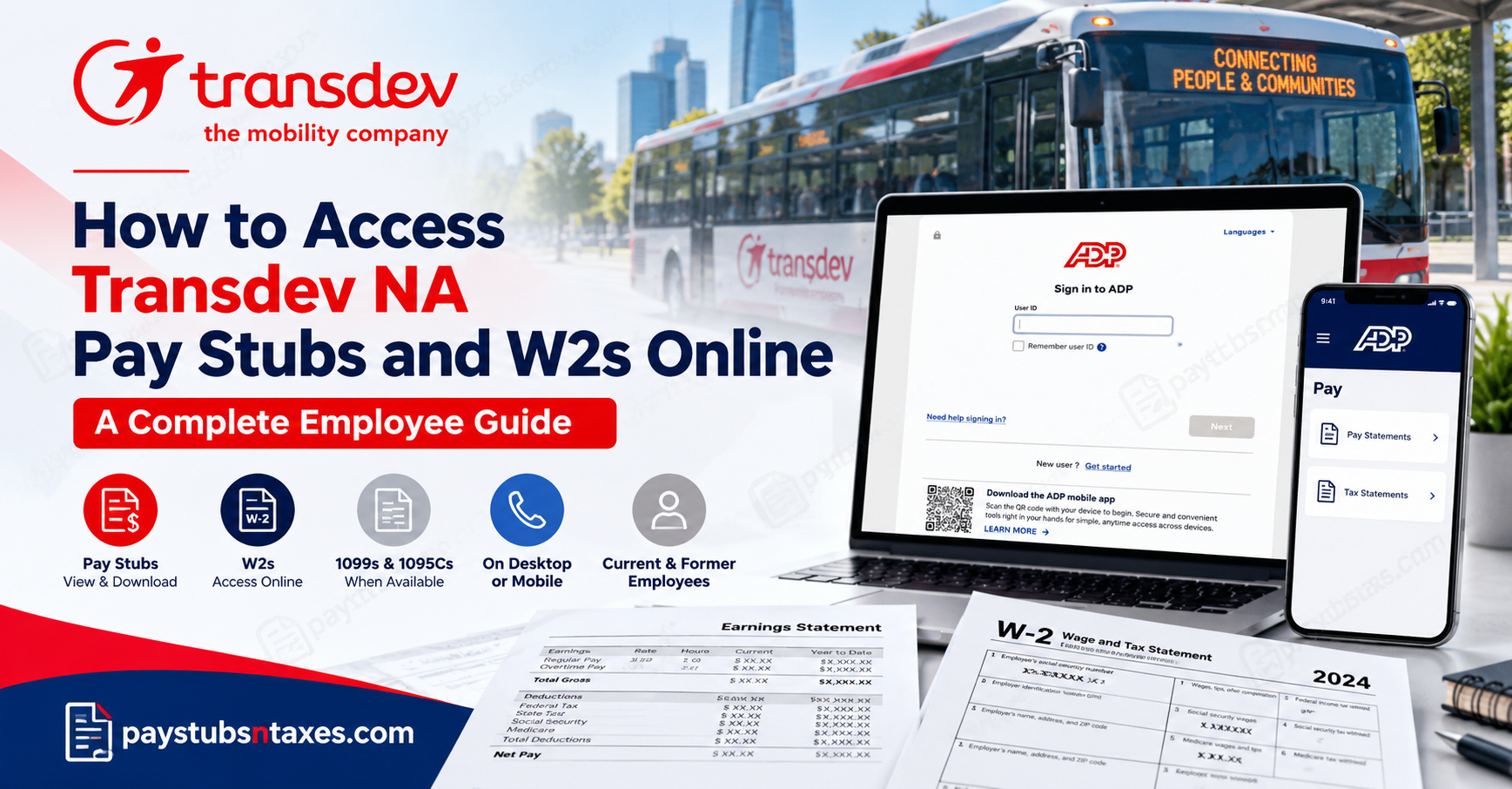
Transdev North America employees can access their pay stubs, W-2 forms, and other payroll records online through the secure ADP self-service portal. Whether you need to verify a recent payment, download a year-end tax statement, or review your withholding information, MyADP brings these essential documents together in one convenient place.
As the largest private operator and integrator of multiple modes of public transportation in the United States, Transdev delivers bus, rail, paratransit, non-emergency medical transportation, microtransit, shuttle, autonomous-vehicle, and fleet-maintenance services. Behind this far-reaching operation is a diverse team of employees who help keep people and communities moving safely and reliably every day. This guide explains how to create your MyADP account, sign in, access Transdev NA pay stubs, and retrieve your W-2 tax statements online.
What Can You Access Through MyADP?
The MyADP Pay page provides a concise overview of your payroll and tax information. Depending on availability and your employment profile, you may be able to access up to three years of records, including:
- Current and historical pay statements
- Forms W-2
- Forms 1099
- Forms 1095-C
- Direct-deposit information
- Federal and state tax-withholding information
Because these documents are available digitally, you do not have to wait for a paper W-2 to arrive in the mail. Once your statement has been issued and posted to the portal, you can view, download, or print it at your convenience.
How to Register for MyADP as a First-Time User
If you have never used ADP services before, you must complete the self-registration process. Employees who already have an ADP account should use their existing credentials rather than creating another account.
Step 1: Visit the MyADP website
Go to https://my.adp.com using a secure internet connection.
Step 2: Begin account registration
On the ADP sign-in page, select Get Started under “New user?” Depending on the version of the page displayed on your device, this option may appear as New User? Create Account.
Step 3: Choose the registration-code option
Select I Have a Registration Code when prompted to indicate how you would like to register.
Step 4: Enter the Transdev registration code
Enter the following Transdev North America registration code:
TRANSDEVNA-2014
Type the code exactly as shown, including the hyphen.
Step 5: Verify your identity
Follow the on-screen instructions to verify your identity. ADP may request personal details that can be matched with your employment records.
Step 6: Provide your contact information
Enter a current email address and telephone number. These details may be used for account verification, security notifications, or future account recovery.
Step 7: Set up your security information
Complete the required security steps. Use personal contact information that you control and can access reliably.
Step 8: Create your password and save your User ID
ADP will assign you a system-generated User ID. Record it in a secure place, as you will need it whenever you sign in.
Your password must:
- Contain between 8 and 20 characters
- Include at least one letter
- Include at least one number
For better protection, use a unique password that you do not use for other websites or services.
How to Sign In to Your Transdev MyADP Account
After completing registration, follow these steps whenever you need to access your payroll or tax records:
- Visit https://my.adp.com.
- Enter the User ID assigned during registration.
- Enter the password you created.
- Select Sign In or Next, as displayed on the current sign-in page.
- Complete any additional security verification requested by ADP.
If you cannot remember your credentials, select Need help signing in? and follow the account-recovery instructions. Avoid creating a second account merely because you have forgotten your existing User ID or password.
How to View Transdev NA Pay Stubs Online
Once you have signed in to MyADP, you can retrieve your available pay statements in a few straightforward steps:
- Open the Myself menu.
- Find and select Pay.
- Choose Pay & Tax Statements.
- Select Pay Statements on the right-hand side of the page.
- Locate the pay date associated with the statement you need.
- Select the checkbox beside that pay date.
- Click View Statement.
Your pay stub should then open for review. Depending on your browser and device, you may also be able to download or print the statement for your records.
A Transdev pay stub generally provides a breakdown of gross pay, deductions, taxes, benefits, and net pay. Review each statement carefully, particularly after a change in your pay rate, tax elections, benefits, or direct-deposit arrangements.
How to Access Your Transdev W-2 Online
When tax season rolls around, MyADP offers a convenient way to obtain your W-2 without waiting for postal delivery.
Follow these steps:
- Sign in at https://my.adp.com.
- Open the Myself tab.
- Select Pay from the drop-down menu.
- Choose Pay & Tax Statements.
- Select Tax Statements on the right-hand side.
- Use the year menu to choose the required tax year. The most recent statements ordinarily appear first.
- Find the appropriate document and select View Statement.
- Complete the identity-validation prompt.
- Once the document opens, download it to your device or print a copy.
You may also find other tax documents, including Forms 1095-C or 1099, in the Tax Statements section when they apply to your employment record.
Can Former Transdev Employees Access Their W-2s?
Former Transdev North America employees may generally continue accessing their W-2s through the ADP portal, provided they have not been separated from the company for more than three years.
If you are a former employee, try signing in with your existing MyADP credentials. If you have forgotten your login information, use the Need help signing in? option on the ADP login page.
Access may become limited once the three-year period has elapsed. If your statement is unavailable or you cannot recover your account, contact Transdev Corporate HR for assistance.
Using the ADP Mobile App
Employees who prefer mobile access can use the ADP Mobile Solutions app, subject to the features enabled for their account.
After signing in:
- Select Pay from the main dashboard, or open the menu and choose Myself, followed by Pay.
- Scroll to Tax Statements.
- Choose the required year.
- Select View Statement.
- Verify your information when prompted.
- View, download, or print the document using the available options on your device.
The mobile app may also provide access to current and historical pay statements. Feature availability can vary according to the employee’s account and the services enabled by the employer.
How to Contact Transdev HR for Payroll Assistance
When self-service troubleshooting does not resolve the issue, employees should seek assistance from Transdev’s human resources representatives.
The HR team can provide guidance regarding employee payroll access, account registration difficulties, unavailable tax statements, and former-employee documentation requests.
Transdev North America Corporate HR Email: us.corporatehr@transdev.com
Employees may also contact their local HR representatives for location-specific payroll concerns.
When submitting an inquiry, clearly explain the nature of the problem and identify the document or tax year involved.
Providing a concise description of the issue can help HR determine the most appropriate course of action.
However, never disclose your ADP password or send unprotected sensitive identification documents through ordinary email.
Final Thoughts
The MyADP self-service portal makes accessing Transdev NA pay stubs and W-2s considerably more convenient. Once registration is complete, employees can review payroll information, retrieve tax documents, and maintain access to important records without being tied to office hours or postal delivery.
Whenever possible, download the documents you need promptly, store them securely, and review them for accuracy. If something appears amiss, reaching out early can help prevent a small discrepancy from becoming a larger problem at tax time.
Frequently Asked Questions
1. Where can Transdev employees access their pay stubs?
Transdev North America employees can access available pay stubs through the secure MyADP self-service portal at my.adp.com.
2. How do I view my Transdev pay stub online?
Sign in to MyADP and navigate to Myself > Pay > Pay & Tax Statements > Pay Statements. Select the relevant pay date and click View Statement.
3. How do I access my Transdev W-2 online?
Sign in to MyADP, open Myself, select Pay, and choose Pay & Tax Statements. Open Tax Statements, select the appropriate year, and click View Statement.
4. What is the Transdev NA registration code for ADP?
The MyADP registration code for eligible Transdev North America employees is TRANSDEVNA-2014. Enter it exactly as shown, including the hyphen.
5. How do first-time users register for MyADP?
Visit my.adp.com, select Get Started or Create Account, and choose I Have a Registration Code. Enter TRANSDEVNA-2014, verify your identity, provide your contact and security information, and create a password.
6. What are the MyADP password requirements?
Your password must contain between 8 and 20 characters, including at least one letter and one number. Using a unique password provides stronger account protection.
7. Where can I find my ADP User ID?
ADP assigns a system-generated User ID when you complete self-registration. If you have forgotten it, select Need help signing in? on the MyADP login page and follow the recovery instructions.
8. Can former Transdev employees access their W-2s?
Former Transdev North America employees may generally access their W-2s through MyADP if they have not been separated from the company for more than three years.
9. How many years of Transdev payroll records are available through MyADP?
MyADP may provide access to as many as three years of pay information and eligible tax documents, including W-2s, 1099s, and 1095-Cs.
10. Can I download or print my Transdev W-2?
Yes. After opening the appropriate W-2 under Tax Statements, use the available controls to download the document or print a copy.
11. Can I access Transdev pay statements through the ADP mobile app?
Yes, subject to the features enabled for your account. Sign in to the ADP Mobile Solutions app and open Pay to access available pay statements and tax documents.
12. Why is my W-2 not showing in MyADP?
Confirm that you selected the correct year and that the W-2 has been issued. If the document remains unavailable, contact Transdev Corporate HR for assistance.
13. What should I do if my ADP statement does not open?
Allow pop-ups for the official MyADP website, try an updated browser, or use the ADP mobile app. Tax statements may open in a separate browser window.
14. What other tax documents can I access through MyADP?
Depending on your employment record, MyADP may provide access to Forms W-2, 1099, and 1095-C, as well as direct-deposit and tax-withholding information.
15. Who should I contact for help with a Transdev W-2?
Contact Transdev Corporate HR at us.corporatehr@transdev.com. Do not send your Social Security number, W-2, password, or other sensitive information through unsecured email.
