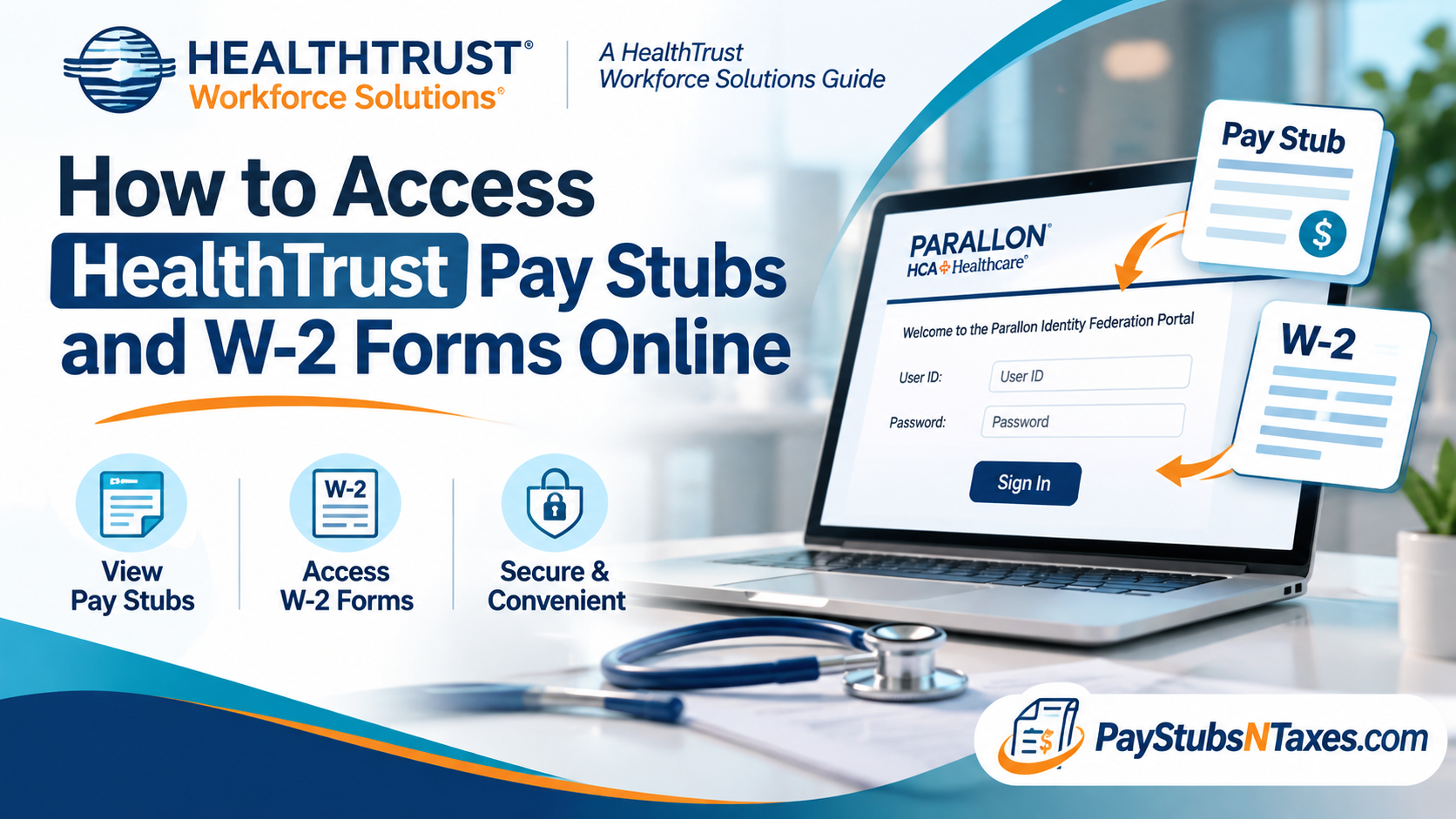
HealthTrust employees who use E-Stub can access their pay stubs and available W-2 forms through the HCA Global HR portal. Whether you need to review your latest earnings, download an earlier wage statement, or retrieve a tax document, E-Stub brings these records together in one place. To access your HealthTrust pay stubs online, visit HCA Global HR, open E-Stub, and sign in with your 3-4 ID and network/Active Directory (AD) password if prompted. Select Current Pay period for your latest statement, Wage Statements for previous pay stubs, or Tax Documents for available electronic W-2 forms. This guide walks you through the process, from your first login to downloading the documents you need.
Understanding HealthTrust’s Employee Portals
Headquartered in Nashville, Tennessee, HealthTrust Performance Group supports healthcare organizations through group purchasing, advisory services, and expertise spanning supply chain, pharmacy, workforce, and clinical operations.
Because employees and candidates may encounter different systems, knowing which portal serves which purpose can save time. Workforce 2.0 is a candidate portal that provides access to Estaff 365, where candidates complete pre-hire and onboarding requirements. E-Stub, meanwhile, provides access to wage statements and available electronic tax documents for employees whose payroll records are maintained in that system.
When you need a pay stub or W-2, begin with the payroll access route described below.
How to Log In to HealthTrust E-Stub
E-Stub supports Single Sign-On (SSO), although the login experience depends on whether you are accessing it from within or outside the employer’s network.
Accessing E-Stub Within the Network
When you open E-Stub through an authenticated session within the network, SSO generally allows you to enter without providing your credentials again.
Once the system opens, use the navigation menu to select the payroll document you wish to view.
Accessing E-Stub From Home or Another External Location
When accessing your HealthTrust payroll documents outside the network:
- Visit the HCA Global HR portal.
- Open the E-Stub access option.
- Enter your 3-4 ID in the User ID field.
- Enter your network/AD password in the Password field.
- Click Sign In.
Although you enter credentials when connecting from outside the network, this authentication route is still considered SSO.
The sign-in page may display Parallon or HCA Healthcare branding, as shown on the identity federation portal.
How to Set Up E-Stub Multi-Factor Authentication
If you access E-Stub through a method that does not use SSO, you will be prompted to set up Multi-Factor Authentication (MFA). This adds an extra verification step to help protect your payroll information.
To complete the setup:
- Click Continue to Setup.
- Choose how you would like to receive your verification code: email, text message, or phone call.
- Enter the information required for your chosen method.
- Click Send Code.
- Enter the code you receive.
- Click Continue.
You can then select Setup Backup Method and follow the same process to add another verification option. Although a backup method is optional, having one can prevent a lost phone or inaccessible email account from becoming a stumbling block. Select Skip this Step if you prefer to finish without adding one.
How Often Is an MFA Code Required?
For access that requires MFA, you must enter a new verification code every 45 days. This additional E-Stub verification is not required when you access the system through SSO.
If you enter an incorrect MFA code five times, your account will be locked for 30 minutes. Wait until the lockout period has ended before trying again.
Complete Your First-Time E-Stub Setup
When you log in for the first time, E-Stub prompts you to make an electronic W-2 election and complete your profile.
Choose Electronic or Paper W-2 Delivery
The E-W2 Election screen allows you to choose how you would like to receive future W-2 forms.
To make your election:
- Read the displayed terms and conditions.
- Enter an email address if you accept the terms.
- Click Accept or Decline.
Selecting Accept enables electronic delivery of future W-2 information. You will receive an email confirming your acceptance, as well as confirmation if you subsequently change your election.
Selecting Decline means you will receive future W-2 forms in paper format and will not be able to view W-2 information electronically through this option. If you decline, the election prompt will appear each time you log in.
Accepting electronic delivery does not make an unreleased form immediately available; the W-2 must first be posted for the relevant tax year.
Set Up Your Profile and Notifications
After making your W-2 election, complete the My Profile page:
- Under General, select the required security questions and enter your answers.
- Under Notifications, check Receive Email Notifications when wage statements are posted if you want pay stub alerts.
- Enter your preferred email address.
- Click Update.
A confirmation message will indicate that your profile has been updated successfully. If you supplied an email address during your W-2 election, that address will also populate the profile screen.
Security question answers are masked on screen. Although SSO users may rarely need these questions, completing them remains part of the profile setup.
How to View Your Current HealthTrust Pay Stub
To review your latest wage statement, select Current Pay period from the left navigation menu. Your current pay stub will appear.
Review the statement carefully, paying particular attention to your earnings, deductions, and take-home pay. Checking each statement when it becomes available can help you spot discrepancies early and raise any questions with payroll while the details are still fresh.
How to Download Previous HealthTrust Pay Stubs
E-Stub’s Wage Statements section lets you view, print, and save earlier pay statements.
To access your pay stub history:
- Click Wage Statements in the left navigation menu.
- On the Wage Statement History page, select the checkbox beside each statement you need.
- Alternatively, click Check All to select all listed statements.
- Click View Selected Wage Statements.
Your selected statements will open for review. If you have chosen several, use the scroll bar to move through them.
To retain a copy, select:
- Print to produce a paper copy.
- Save as PDF to download a digital copy.
Keeping your downloaded statements organized by year and pay period can make future income verification or personal recordkeeping considerably easier.
How to Access Your HealthTrust W-2 Online
If you have elected electronic W-2 delivery, the Tax Documents option appears in the left navigation menu once a W-2 has been posted for a given year.
To view your available HealthTrust W-2:
- Sign in to E-Stub.
- Select Tax Documents.
- Choose the available W-2 for the tax year you need.
- Open and review the document.
If you received a corrected tax form, W2-C may appear as a document type. This option appears only when a corrected form has been issued for an applicable year.
If Tax Documents is missing, check your electronic W-2 election and whether the form has been posted. For assistance obtaining a W-2 you cannot access, contact payroll.
How to Update Your E-Stub Settings
Your contact information and delivery preferences may change over time. To keep your account up to date, open My Profile from the left navigation menu.
From there, you can update your:
- Wage statement email notifications.
- Preferred notification email address.
- Electronic W-2 election.
- MFA settings.
Save your changes and check for the confirmation message before leaving the page.
HealthTrust Payroll Support for W-2 Reprints
For assistance accessing your W-2 or requesting a reprint, contact the payroll team:
- Phone: 877-311-6877
- Hours: Monday–Friday, 9:00 a.m.–5:00 p.m. EST
- Email: HWS.SunrisePayroll@HealthTrustWS.com
Explain the access problem and identify the tax year you need so the team can direct your request appropriately.
Conclusion
Accessing HealthTrust pay stubs and W-2 forms online is a manageable process when employees understand the relationship between the HCA Global HR portal, Parallon Identity Federation, and the E-Stub payroll system.
Current employees can retrieve available wage statements and electronic tax documents through HCAGHR and E-Stub, while former HealthTrust Workforce Solutions associates have a dedicated access route for obtaining historical payroll records.
By completing the appropriate account enrollment, maintaining accurate authentication information, configuring electronic W-2 preferences, and safeguarding downloaded documents, employees can manage their payroll information with greater confidence and efficiency.
Whether you need your most recent pay stub, several years of earnings statements, or a replacement W-2 for tax filing, HealthTrust’s electronic payroll resources offer a practical means of keeping important employment documentation within reach.
For unresolved access issues or W-2 reprint requests, contacting the HealthTrust payroll support team remains the most reliable next step.
Frequently Asked Questions
1. Where can I access my HealthTrust pay stubs online?
You can access your HealthTrust pay stubs through E-Stub via the HCA Global HR portal. Once signed in, select Current Pay period or Wage Statements.
2. What login credentials do I need for HealthTrust E-Stub?
Use your 3-4 ID as your User ID and your network/Active Directory (AD) password. When accessing E-Stub within an authenticated employer network session, Single Sign-On may sign you in automatically.
3. Can I access HealthTrust E-Stub from home?
Yes. Visit the HCA Global HR portal, open E-Stub, and enter your 3-4 ID and network password when prompted. This external authentication method is still considered Single Sign-On.
4. How do I view my current HealthTrust pay stub?
After logging in to E-Stub, click Current Pay period in the left navigation menu. Your current wage statement will appear.
5. How do I find previous HealthTrust pay stubs?
Select Wage Statements, check the statements you need, and click View Selected Wage Statements. Use Check All if you want to select every listed statement.
6. Can I download or print my HealthTrust pay statements?
Yes. Open your selected wage statements and click Save as PDF to download them or Print to produce paper copies.
7. How do I access my HealthTrust W-2 online?
If you elected electronic W-2 delivery, select Tax Documents in E-Stub once your form has been posted. Choose the available W-2 for the tax year you need.
8. How do I sign up for electronic W-2 delivery?
On the E-W2 Election screen, read the terms, provide your email address, and click Accept. You can subsequently update your election through My Profile.
9. What happens if I decline electronic W-2 delivery?
If you select Decline, you will receive future W-2s in paper format and will not be able to view W-2 information electronically through this option. The election prompt will reappear each time you log in.
10. Why is the Tax Documents option missing in E-Stub?
The Tax Documents option appears after you have elected electronic W-2 delivery and a form has been posted for a given year. Check your election under My Profile and contact payroll if you still need assistance.
11. How do I set up Multi-Factor Authentication for E-Stub?
When prompted, click Continue to Setup, choose email, text message, or phone call, and enter your contact information. Click Send Code, enter the verification code, and select Continue. You may also add an optional backup method.
12. How often does E-Stub require an MFA code?
For access requiring MFA, a new verification code is required every 45 days. This additional E-Stub verification is not required when you access the system through Single Sign-On.
13. What happens if I enter the wrong MFA code too many times?
Entering an incorrect MFA code five times locks your account for 30 minutes. Wait until the lockout period ends before attempting to sign in again.
14. How do I reset my HealthTrust E-Stub login password?
Click Forgot your password? on the sign-in page. Remote password reset is available if your mobile number was previously added to your password profile; otherwise, contact your local IT support desk.
15. How can I request a HealthTrust W-2 reprint?
Call 877-311-6877, Monday–Friday, 9 a.m.–5 p.m. EST, or email HWS.SunrisePayroll@HealthTrustWS.com. The payroll team can assist if you are unable to retrieve your W-2 online.
