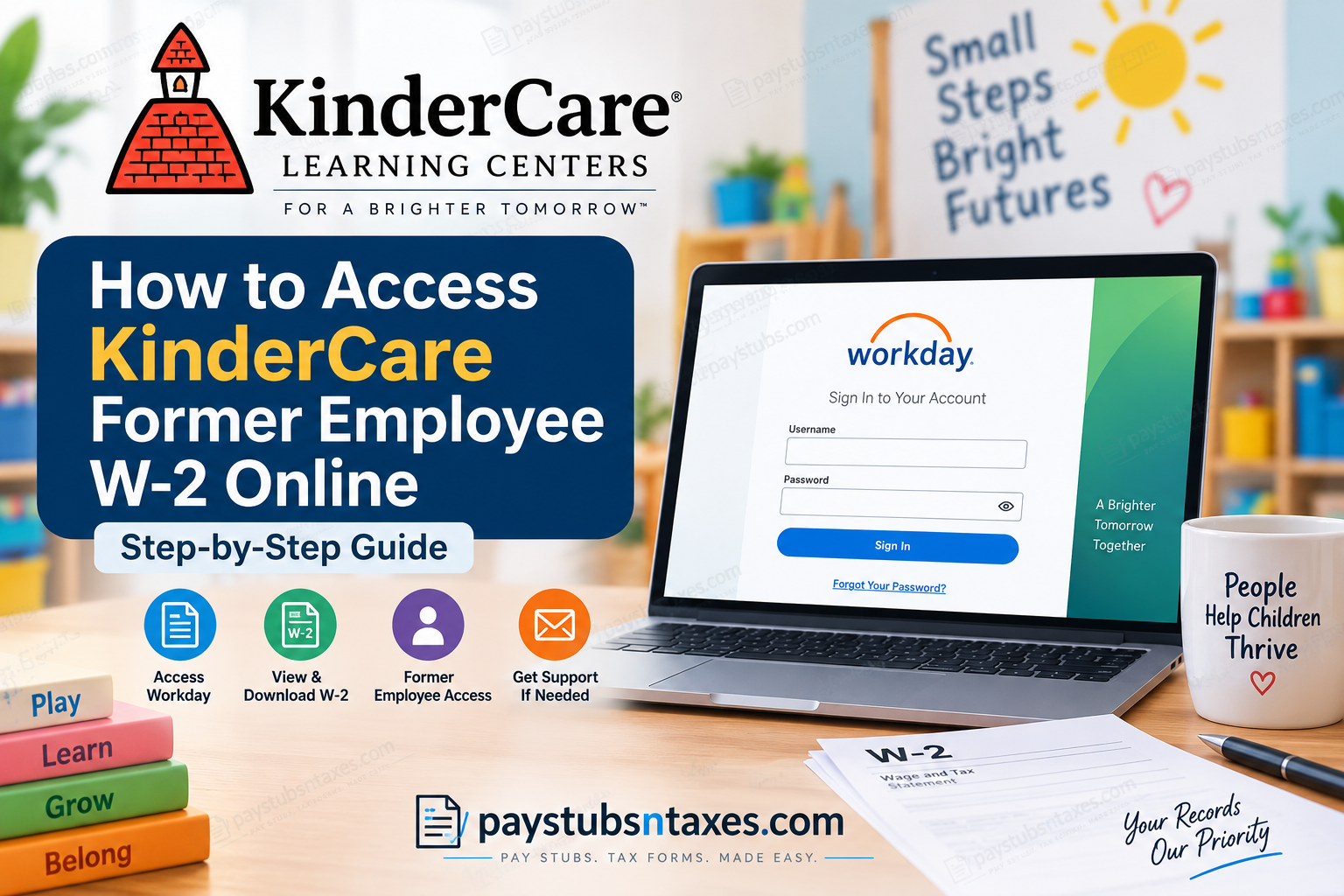
Former KinderCare employees may still be able to retrieve their W-2 tax documents online through the Workday self-service portal. Although access through KinderCare’s single sign-on system is generally revoked once an employee’s termination has been processed, eligible former employees may receive separate, non-SSO Workday credentials that remain valid for a limited period.
If online access is available, Workday provides a straightforward way to view, download, and print W-2 forms from a computer or mobile device. The following guide explains how to access your KinderCare former employee W-2 and what to do if you cannot sign in.
KinderCare Workday Login for Former Employees
Visit the KinderCare non-SSO Workday login page:
https://wd5.myworkday.com/kindercare/login.htmld?redirect=n
Enter the username and password assigned to your former-employee Workday account. Because these credentials are separate from the single sign-on details used during employment, your former workplace username or company password may no longer work.
KinderCare will ordinarily send the relevant login information to the personal email address associated with your employee record. Search your inbox and spam or junk folder for messages concerning Workday access, offboarding, payroll, or tax documents.
Before entering any information, confirm that the web address belongs to the official myworkday.com domain. Never disclose your Workday password, Social Security number, or tax documents in response to an unsolicited email, text message, or telephone call.
How to View and Print Your KinderCare W-2 in Workday
Once you have successfully signed in, follow these steps:
- From the Workday home page, locate the Applications section on the main dashboard.
- Select the Pay application.
- Find the View section and select More to display the complete list of options.
- Select My Tax Documents.
- Review the tax documents available for the relevant year.
- Select View/Print beside the W-2 you wish to retrieve.
- When the document opens or finishes generating, download it to a secure device or print a copy for your records.
If Workday lists more than one applicable form with a View/Print option, review and retain every relevant document. A corrected W-2, generally identified as Form W-2c, may appear separately from the original form and should not be overlooked.
When you have finished, sign out of Workday completely—particularly if you are using a shared or public computer. Tax documents contain highly sensitive personal information, so leaving an account open can create a needless security risk.
Can You Use the Workday Mobile App?
The Workday mobile app can offer a convenient route to payroll information while an account remains active. Depending on the permissions attached to the account, employees may be able to review pay statements, manage personal details, request time off, and access tax documents.
Former employees, however, should bear in mind that the app may still attempt to use KinderCare’s employee single sign-on process. If that route no longer works, use the non-SSO login page in a secure web browser and enter the separate credentials supplied for post-employment access.
What to Do If You Cannot Log In
An unsuccessful login does not necessarily mean that your W-2 is unavailable. Work through the following checks before seeking assistance:
- Verify that you are using the KinderCare non-SSO Workday page rather than the employee single sign-on portal.
- Re-enter your username carefully and make sure that Caps Lock is not enabled.
- Search your personal email account, including its spam and junk folders, for former-employee Workday credentials.
- Select Forgot Your Password? on the login page if password recovery is available for your account.
- Try a private browsing window or clear outdated Workday cookies if the page repeatedly redirects you to an SSO screen.
- Allow time for account information to be updated if your separation was processed only recently.
Former-employee access may be available only for a limited period. If your account has expired, has been locked, or was never established for non-SSO access, KinderCare support may need to confirm how your tax form will be delivered.
How Former Employees Receive a W-2 by Mail
If you cannot obtain your W-2 online, KinderCare may send a paper copy to the home address recorded in its payroll system. Employers generally furnish W-2 forms by the applicable IRS deadline, ordinarily January 31 following the tax year, subject to weekends, public holidays, and any officially announced extensions.
An outdated mailing address can throw a spanner in the works, especially if you moved after leaving the company. Contact KinderCare promptly to confirm or update your address rather than waiting until the tax-filing deadline is on the doorstep.
Avoid sending a Social Security number, password, or complete tax document through ordinary email unless KinderCare provides an approved secure method.
KinderCare Employee Support Contact Numbers
If you need direct assistance with former-employee Workday access or W-2 delivery, contact:
- Employee Support Line: 888-525-2472
- KinderCare corporate office: 1-800-633-1488
Before calling, have your full name, former work location, employee identification number if available, dates of employment, and current mailing address close at hand. For security purposes, the representative may need to verify your identity before discussing payroll or tax information.
Final Takeaway
The quickest way to obtain a KinderCare former employee W-2 is to sign in through the non-SSO Workday portal, open Pay, and navigate to More → My Tax Documents → View/Print. If the door to online access has already closed, confirm your mailing address and contact KinderCare’s Employee Support Line without delay. Acting early gives you time to resolve account or delivery problems before they become a last-minute tax-season headache.
Frequently Asked Questions About KinderCare Former Employee W-2s
1. How do I access my KinderCare W-2 after leaving the company?
Sign in through the KinderCare non-SSO Workday portal using the former-employee credentials sent to your personal email address. Open Pay, select More, choose My Tax Documents, and click View/Print beside your W-2.
2. What is the KinderCare Workday login for former employees?
The KinderCare former-employee Workday login page is:
https://wd5.myworkday.com/kindercare/login.htmld?redirect=n
Former employees should use this non-SSO page instead of the regular employee single sign-on system.
3. Can former KinderCare employees still access Workday?
Former employees may retain access to Workday for a limited period after separation. Because regular SSO access is generally revoked when termination is processed, separate non-SSO credentials may be required.
4. Where can I find my W-2 in KinderCare Workday?
From the Workday home page, select Pay from the Applications section. Under View, choose More, open My Tax Documents, and select View/Print beside the relevant W-2.
5. How do I download my KinderCare W-2?
Open the W-2 from My Tax Documents and select View/Print. When the document is generated, use the available download option to save a secure electronic copy to your device.
6. How do I print my KinderCare W-2?
Select View/Print beside the applicable W-2 in Workday. After the document opens, use the print function in your PDF viewer or web browser and verify that every page is included.
7. Why is my KinderCare employee login no longer working?
Your regular login may have stopped working because KinderCare generally revokes employee SSO access after processing a termination. Try the non-SSO portal with the separate former-employee credentials sent to your personal email.
8. Where can I find my former-employee Workday credentials?
Check the personal email account associated with your KinderCare employment record. Search the inbox, spam, and junk folders for messages mentioning Workday, payroll, tax documents, offboarding, or former-employee access.
9. What should I do if I forgot my KinderCare Workday password?
Select Forgot Your Password? on the non-SSO Workday login page and follow the recovery instructions. If password recovery is unavailable or unsuccessful, call the KinderCare Employee Support Line at 888-525-2472.
10. Can I access my KinderCare W-2 through the Workday mobile app?
You may be able to use the Workday mobile app while your account remains accessible. If the app redirects you to an inactive SSO login, use the KinderCare non-SSO portal in a secure web browser instead.
11. What if my former-employee Workday access has expired?
Contact KinderCare employee support to ask whether access can be restored or whether your W-2 has been mailed. You should also confirm that KinderCare has your current residential address.
12. Will KinderCare mail my W-2 if I cannot access it online?
KinderCare may mail a paper W-2 to the address recorded in its payroll system when online access is unavailable. Employers ordinarily furnish W-2 forms by January 31 following the relevant tax year, subject to applicable calendar adjustments or official extensions.
13. How do I update my address for W-2 delivery?
If Workday still permits changes to your personal information, review the address recorded in your profile. Otherwise, call KinderCare employee support and ask how to submit an address update securely.
14. What is the difference between a W-2 and a W-2c?
A W-2 reports wages and taxes for the year, whereas a W-2c corrects information reported on an earlier W-2. If Workday displays both forms, download and retain every applicable document marked View/Print.
15. Who should I contact about a missing KinderCare W-2?
Call the KinderCare Employee Support Line at 888-525-2472. You may also contact the KinderCare corporate office at 1-800-633-1488 if you need help reaching the appropriate department.
