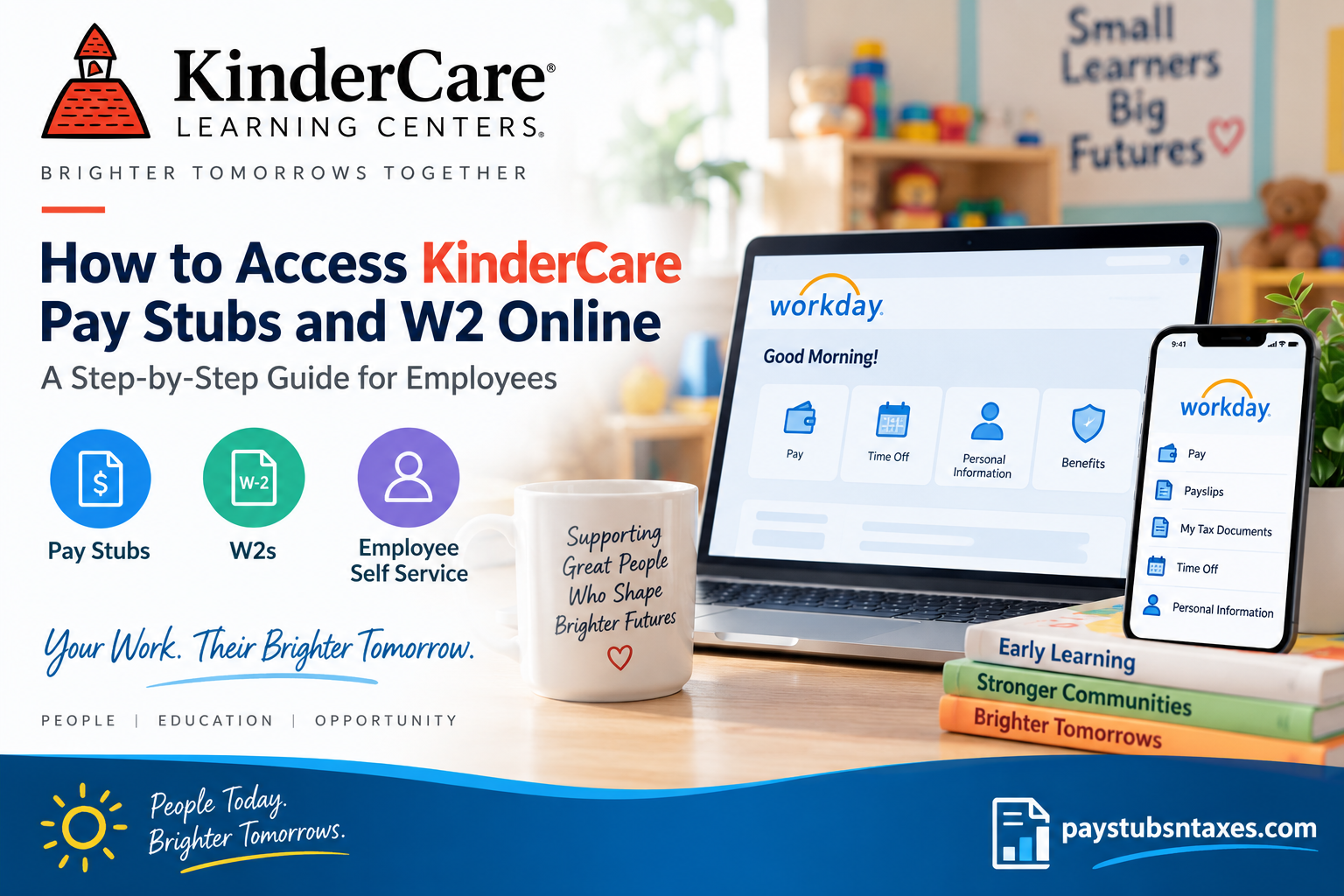
KinderCare employees can access payroll records—including pay stubs and W-2 tax forms—through the company’s Workday self-service portal. The platform is available through a web browser and the Workday mobile app, enabling employees to retrieve important documents without waiting for paper copies or contacting payroll for routine requests.
Besides providing payroll information, Workday allows eligible employees to review or update personal details, manage contact information, check time-off balances, submit leave requests, and complete various employment-related tasks. Although the precise menu labels may change as Workday is updated, the following instructions explain the standard process.
KinderCare Workday Login
To access your KinderCare employee account through a browser:
- Visit the KinderCare Workday portal at https://wd5.myworkday.com/kindercare/login.htmld.
- Select the appropriate single sign-on option if prompted.
- Enter your company-authorized username or email address.
- Complete any password or multifactor authentication steps required by the system.
- After successful authentication, Workday will display your employee homepage.
Only use credentials issued or approved by KinderCare. Avoid entering your password on a page reached through an unfamiliar email, advertisement, or unofficial website.
How to View a KinderCare Pay Stub in Workday
A Workday payslip provides a detailed account of your earnings and deductions for a particular pay period. Depending on the configuration of your account, it may show gross pay, net pay, taxes, benefit deductions, payment elections, year-to-date totals, and the account or method through which your wages were distributed.
To find and print a pay stub:
- Sign in to the KinderCare Workday portal.
- Open your employee profile or select Menu.
- Choose Pay.
- Select Payslips or Pay and Payslips.
- Review the list of available pay-period dates.
- Choose the pay period you want to examine.
- Select the corresponding PDF, View, or View PDF Statement option.
- Once the document opens, use your browser or PDF viewer to download or print it.
If you have added the Pay application to your Workday homepage, you may be able to take a shorter route: open Pay, locate the View section, and select Payslips.
When checking a payslip, pay close attention to the pay-period dates, gross earnings, deductions, taxes, and net payment. If anything appears out of place, raise the matter promptly; resolving a payroll discrepancy is usually easier when the details are still fresh.
How to Access a KinderCare W-2 Form Online
KinderCare employees can generally retrieve available W-2 forms from the My Tax Documents area in Workday.
Follow these steps:
- Log in to Workday.
- Open Menu or select the Pay application from the homepage.
- Find the View section.
- Select More if the full list of options is not visible.
- Choose My Tax Documents.
- Locate the relevant tax year and document.
- Select View/Print beside the applicable W-2.
- Open the generated PDF, then download or print it for your records.
Workday may need a moment to prepare the document. If a message such as Notify Me Later appears, select it and wait for the completion notice. The finished document should become available through the notification bell. Open the notification and select the PDF to view or print your W-2.
Some employees may have more than one W-2 for the same tax year because of payroll, company, or employment changes. If several forms display a View/Print button, open and retain every applicable form before preparing your tax return.
Using the Workday Mobile App
The Workday mobile app offers a convenient way to access payroll information while away from a computer. It is available for supported Apple and Android devices.
To configure the app:
- Download the official Workday app from the Apple App Store or Google Play Store.
- Open the app and select the option to sign in through your organization.
- Enter kindercare as the organization code.
- Continue through KinderCare’s single sign-on process.
- Complete any identity-verification or multifactor authentication request.
- If offered, create a secure mobile PIN or enable your device’s approved biometric sign-in feature.
To view a payslip in the app, open the Pay or Payslips section, select the required pay date, and tap View PDF Statement. Mobile functions can vary by device and account permissions, so use the browser-based Workday portal if a particular payroll or tax option is unavailable in the app.
Other Workday Self-Service Features
Subject to your role and account permissions, Workday may also allow you to:
- Review or change your address and telephone number
- Update emergency contacts
- Examine personal and employment information
- View time-off balances
- Request time off
- Access benefit information
- Review notifications and inbox tasks
- Maintain certain employee documents
Some changes may require supporting information or managerial approval. Always review your entries carefully before selecting Submit.
KinderCare Employee Support
Employees who need a direct response may call the Employee Support Line at 888-525-2472. The main corporate telephone number provided for KinderCare is 1-800-633-1488.
Before calling, have your employee identification details and the applicable pay period or tax year close at hand. Do not send passwords, authentication codes, Social Security numbers, or complete banking details through unsecured email or text messages.
Final Thoughts
Workday places KinderCare pay stubs, W-2 forms, and other employment records within easy reach. In most cases, employees can retrieve a payslip through Pay > Payslips and obtain a W-2 through Pay > My Tax Documents. The mobile app makes the process even more convenient, while the browser-based portal remains useful whenever the full range of payroll options is required. Because Workday menus and organizational procedures may evolve, follow the labels displayed in your account and contact employee support whenever a document is missing, inaccurate, or inaccessible.
Frequently Asked Questions About KinderCare Pay Stubs and W-2 Forms
1. How do I access my KinderCare pay stubs online?
Sign in to the KinderCare Workday employee portal, open Pay, and select Payslips. Choose the relevant pay period and click the PDF or View PDF Statement option to view, download, or print the document.
2. What is the KinderCare Workday login website?
The KinderCare Workday login page is: https://wd5.myworkday.com/kindercare/login.htmld
Employees should use their company-authorized single sign-on credentials and complete any required identity-verification steps.
3. How do I obtain my KinderCare W-2 online?
Log in to Workday and navigate to Pay > My Tax Documents. Find the W-2 for the appropriate tax year and select View/Print to open, download, or print it.
4. What is the KinderCare organization code for the Workday app?
The KinderCare organization code for the Workday mobile app is kindercare. Enter it when the app asks you to identify your employer or organization.
5. Can I view my KinderCare pay stub on my phone?
Yes. Download the official Workday app, enter kindercare as the organization code, and complete the sign-in process. Open Pay or Payslips, select the appropriate date, and tap View PDF Statement.
6. Can I download and print a KinderCare payslip?
Yes. After opening the required pay period in Workday, select the PDF option. You can then save the payslip to a secure device or print it using the controls in your browser or PDF viewer.
7. Where is the Pay application in Workday?
The Pay application may appear on the Workday homepage or under Menu. If it is not immediately visible, use the Workday search function and search for Pay, Payslips, or My Tax Documents.
8. What information appears on a KinderCare pay stub?
A Workday payslip may include gross earnings, taxes, benefit deductions, other withholdings, net pay, payment details, and year-to-date totals. The exact information displayed depends on the employee’s payroll record.
9. Why can’t I see my W-2 in Workday?
A W-2 may be unavailable because it has not yet been released, Workday is still processing it, or the wrong tax year has been selected. Check My Tax Documents and your Workday notifications before contacting employee support.
10. What does “Notify Me Later” mean when requesting a W-2?
The Notify Me Later message usually means Workday needs additional time to generate the document. Select the option, wait for a completion notice, and retrieve the finished PDF through the notification bell.
11. Why do I have more than one W-2 in Workday?
An employee may receive multiple W-2 forms because of payroll, employing-entity, work-location, or employment-status changes. Download and retain every applicable form that displays a View/Print option.
12. Can former KinderCare employees access their W-2 forms through Workday?
Former employees may have a different sign-in or document-retrieval process. If your previous Workday credentials no longer work, contact KinderCare employee support and request instructions for obtaining your payroll or tax records.
13. What should I do if my KinderCare pay stub is incorrect?
Save a copy of the payslip, identify the affected pay period, and contact the appropriate KinderCare payroll or employee-support team. Report discrepancies promptly and explain which earnings, deductions, taxes, or payment details appear incorrect.
14. Who should I contact for help with KinderCare payroll documents?
Employees who require direct assistance may call the Employee Support Line at 888-525-2472. The main KinderCare corporate telephone number is 1-800-633-1488.
15. How can I protect my payroll and tax information?
Access Workday only through the official portal or app, use a private and trusted device whenever possible, and never share your password or authentication code. Store downloaded pay stubs and W-2 forms securely, and sign out when using a shared computer.
