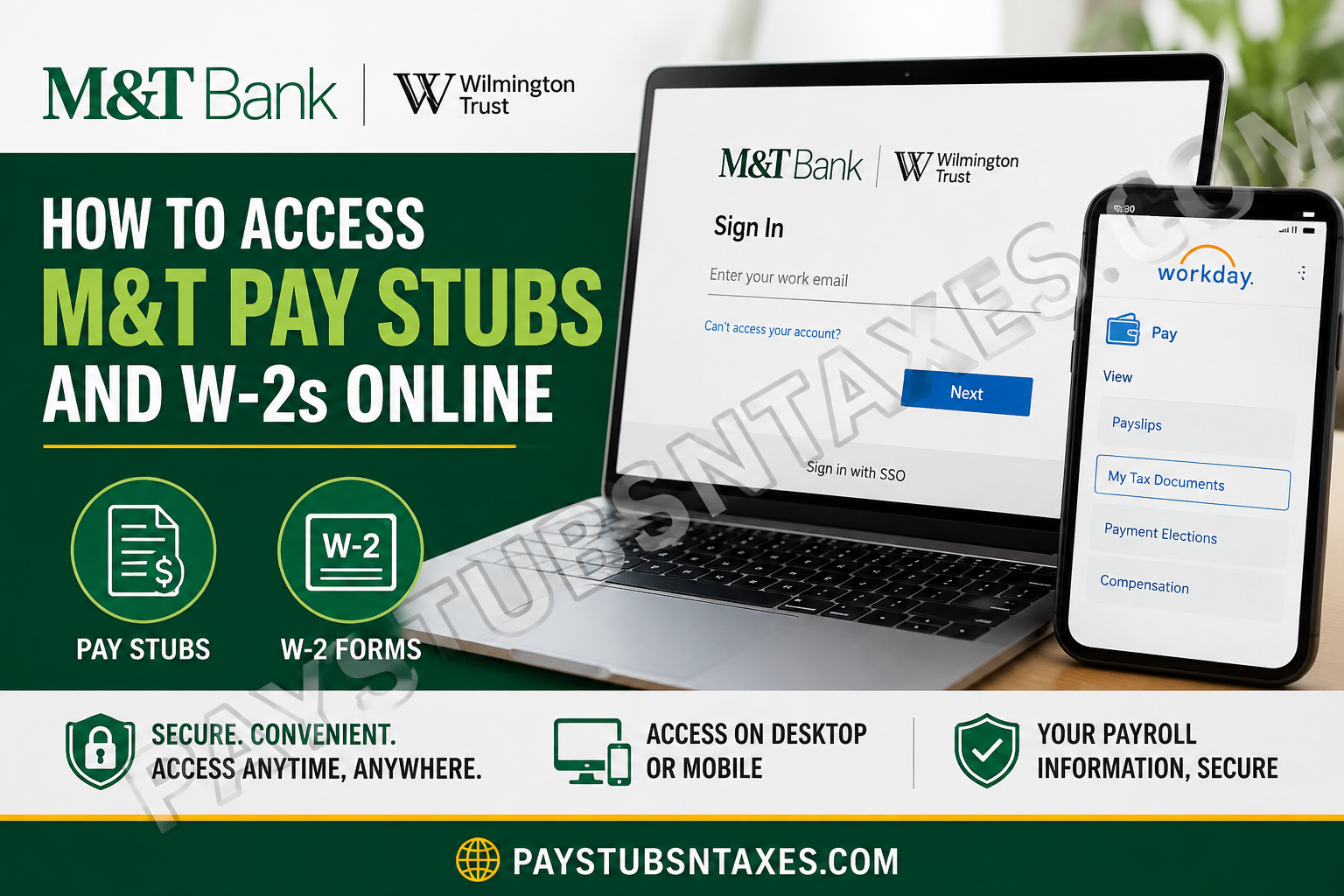
M&T Bank employees can access their pay stubs, W-2 forms, and other payroll records online through Workday. Whether you need to verify your latest net pay, review year-to-date deductions, download a tax statement, or print a corrected W-2C, the self-service portal keeps these essential documents within easy reach. Workday is available through an internet-connected computer, smartphone, or tablet, so employees do not have to wait until they are in the office to review their payroll information. M&T’s official employee benefits resources also direct employees to Workday for employment-related information and services. However, because pay and tax records contain sensitive personal data, employees should access the system only through a trusted device and a secure internet connection.
M&T Workday Portal Login
Use the following portal to access M&T Bank Workday:
M&T Workday portal: https://wd5.myworkday.com/mtb/login.htmld
At the M&T Bank and Wilmington Trust sign-in page, enter your company email address or authorized user ID, select Next, and complete the single sign-on authentication process. Depending on M&T’s current security requirements, you may also be asked to enter your password or approve a multifactor authentication request.
Your Workday credentials are separate from your personal M&T Online Banking credentials. Employees should never attempt to access payroll records through the consumer banking application or share their Workday password with another person.
How to View M&T Pay Stubs Online
Once you have signed in to Workday, follow these steps to find your M&T pay statements:
- From the Workday home page, select View All Apps. In some versions of Workday, you may need to select the Menu icon in the upper-left corner instead.
- Open the Pay application.
- Locate the View section and select Payslips.
- Review the list of available pay periods.
- Select View beside the appropriate pay period to open the statement.
- To retain a copy, select Print or use the available download option. If Workday generates a PDF, save it in a secure folder rather than on a shared or public computer.
Workday may use slightly different labels after a system update, but the underlying route ordinarily remains Pay → Payslips.
Information Shown on an M&T Pay Stub
An M&T pay stub provides considerably more than the amount deposited into your account. Depending on your employment and benefit elections, the statement may include:
- Pay-period beginning and ending dates
- Payment or check date
- Check number, where applicable
- Current and year-to-date gross pay
- Regular hours, overtime, holiday pay, leave, or other earnings
- Federal, state, and local employee taxes
- Pre-tax deductions, such as eligible medical or retirement contributions
- Post-tax deductions
- Taxable wages
- Employer-paid benefits or memorandum amounts
- Federal and state withholding information
- Net pay
- Direct-deposit accounts and distributed amounts
A check number may not appear when wages are paid entirely by direct deposit. Similarly, certain sections may be blank when they do not apply to the employee’s payroll arrangements.
It is prudent to review each statement instead of merely glancing at the final deposit. If an incorrect deduction, unexpected tax amount, or missing payment slips through the cracks, identifying it promptly generally makes the issue easier to resolve.
How to Access an M&T W-2 in Workday
Employees can also use Workday to retrieve available W-2 and W-2C tax statements:
- Sign in to the M&T Workday portal.
- Open View All Apps or the main Menu.
- Select the Pay application.
- Find the View section. If My Tax Documents is not immediately visible, select More to expand the list.
- Select My Tax Documents.
- Locate the applicable tax year and document type.
- Select View/Print to open the form.
- Download the document or print a copy for your records.
In short, the usual navigation path is:
Workday → Pay → More → My Tax Documents → View/Print
Workday displays only documents that have been issued and made available to your account. Therefore, a form for a recently completed tax year may not appear until M&T has finished processing and releasing it.
What Is a W-2C?
A W-2C is a corrected wage and tax statement. It is issued when information on an original W-2 needs to be amended.
If a W-2C appears in your Workday account, download every related document for that tax year that has a View/Print option. The corrected form does not necessarily replace every figure on the original document; rather, it identifies the information that has changed. Keeping both forms gives you—and, if necessary, your tax adviser—a complete paper trail.
How to Use the Workday Mobile App
Employees who prefer to access their payroll records on the go can install the official Workday application from the Apple App Store or Google Play Store.
During the initial setup:
- Open the Workday app.
- Enter mtb as the organization ID when prompted.
- Continue to M&T’s sign-in page.
- Enter your authorized employee credentials and complete any required security verification.
- Open the Pay area to view payslips or tax documents.
Menus on the mobile app may be condensed compared with the desktop portal. If an option is not immediately visible, open Apps, Menu, or View All, and then select Pay.
Although mobile access is convenient, discretion is the better part of valor where payroll data is concerned. Avoid downloading tax documents while using public Wi-Fi, do not leave files in an unsecured downloads folder, and enable a passcode or biometric lock on your device.
How to Print or Save Payroll Documents Securely
Before saving or printing an M&T pay stub or W-2, confirm that you are using a private device. Payroll records may contain your address, earnings, tax information, partial bank-account details, and other personally identifiable information.
Follow these sensible precautions:
- Verify that the web address belongs to Workday before entering your credentials.
- Avoid links received through unexpected emails or text messages.
- Never save your password on a public or shared computer.
- Store downloaded files in an encrypted or password-protected location.
- Collect printed documents from the printer immediately.
- Log out of Workday when you finish.
- Delete temporary downloads from shared devices.
- Keep W-2 forms and pay statements out of ordinary recycling unless they have been shredded.
Closing the browser window is not always the same as signing out. Use Workday’s Sign Out command whenever possible to bring the session to a clean and secure conclusion.
Final Takeaway
Accessing M&T pay stubs and W-2s online is relatively straightforward: sign in to Workday, open the Pay application, and choose either Payslips or My Tax Documents. The desktop portal offers the clearest route for downloading and printing, while the Workday mobile app—with mtb as the organization ID—provides convenient access when you are away from a computer. Whichever method you choose, treat every payroll document with care. A few simple precautions—using the correct portal, protecting your credentials, storing downloads securely, and signing out when finished—can keep sensitive employment and tax information from falling into the wrong hands.
Frequently Asked Questions About M&T Pay Stubs and W-2s
1. How do I access my M&T pay stubs online?
Sign in to the M&T Workday portal, open View All Apps or Menu, select Pay, and then choose Payslips. Select View beside the appropriate pay period to open the statement.
2. What is the M&T Workday login website?
The M&T Workday employee portal is:
https://wd5.myworkday.com/mtb/login.htmld
Enter your authorized employee credentials and complete the SSO authentication process.
3. How do I find my M&T W-2 in Workday?
After signing in, open Pay, select More under the View section if necessary, and choose My Tax Documents. Find the relevant tax year and select View/Print.
4. What is the M&T organization ID for Workday?
The M&T organization ID for the Workday mobile application is mtb. Enter it when setting up the app for the first time, and then follow the M&T sign-in prompts.
5. Can I view my M&T pay stub on my phone?
Yes. You can access your pay statements through the Workday mobile app or an internet browser on a smartphone or tablet. In the mobile app, use mtb as the organization ID.
6. Can I download or print an M&T pay stub?
Yes. Go to Pay → Payslips, locate the required pay period, and select View or Print. If the statement opens as a PDF, you can download it to a secure device or print a copy.
7. Can I download my M&T W-2 as a PDF?
Select View/Print beside the appropriate form under My Tax Documents. Workday should open or generate a printable document that can be saved as a PDF, depending on your browser or device settings.
8. Why is my M&T W-2 not showing in Workday?
Your W-2 may not have been released yet, you may be viewing the wrong tax year, or an account issue may be preventing access. Recheck My Tax Documents and contact the M&T HR Service Center if the expected form remains unavailable.
9. What information appears on an M&T pay stub?
An M&T pay statement may show gross pay, net pay, hours and earnings, taxes, pre-tax and post-tax deductions, taxable wages, year-to-date totals, employer-paid benefits, withholding details, and direct-deposit information.
10. Why is there no check number on my pay stub?
The check-number field may be blank when you receive your wages through active payment elections such as direct deposit. This does not necessarily indicate a payroll problem.
11. What is a W-2C form?
A W-2C is a corrected wage and tax statement issued when information on an original W-2 requires amendment. If a W-2C appears in Workday, retain it alongside the original W-2.
12. Do I need to print both my W-2 and W-2C?
Yes. Download or print every related document with an available View/Print option. A W-2C identifies corrections but may not restate every figure shown on the original W-2.
13. What should I do if I cannot log in to M&T Workday?
Check that you are using the M&T Workday portal rather than the consumer banking login. Verify your user ID, complete any multifactor authentication request, and select Can’t access your account? if necessary.
14. Who should I call for help with M&T Workday?
Contact the M&T HR Service Center at (877) 473-4732. Assistance is available Monday through Friday from 8:00 a.m. to 5:00 p.m. Eastern Time.
15. How can I protect my payroll and tax information?
Use a private device and secure internet connection, confirm the Workday web address before signing in, and never share your password or authentication code. Store downloaded documents securely and sign out of Workday when finished.
