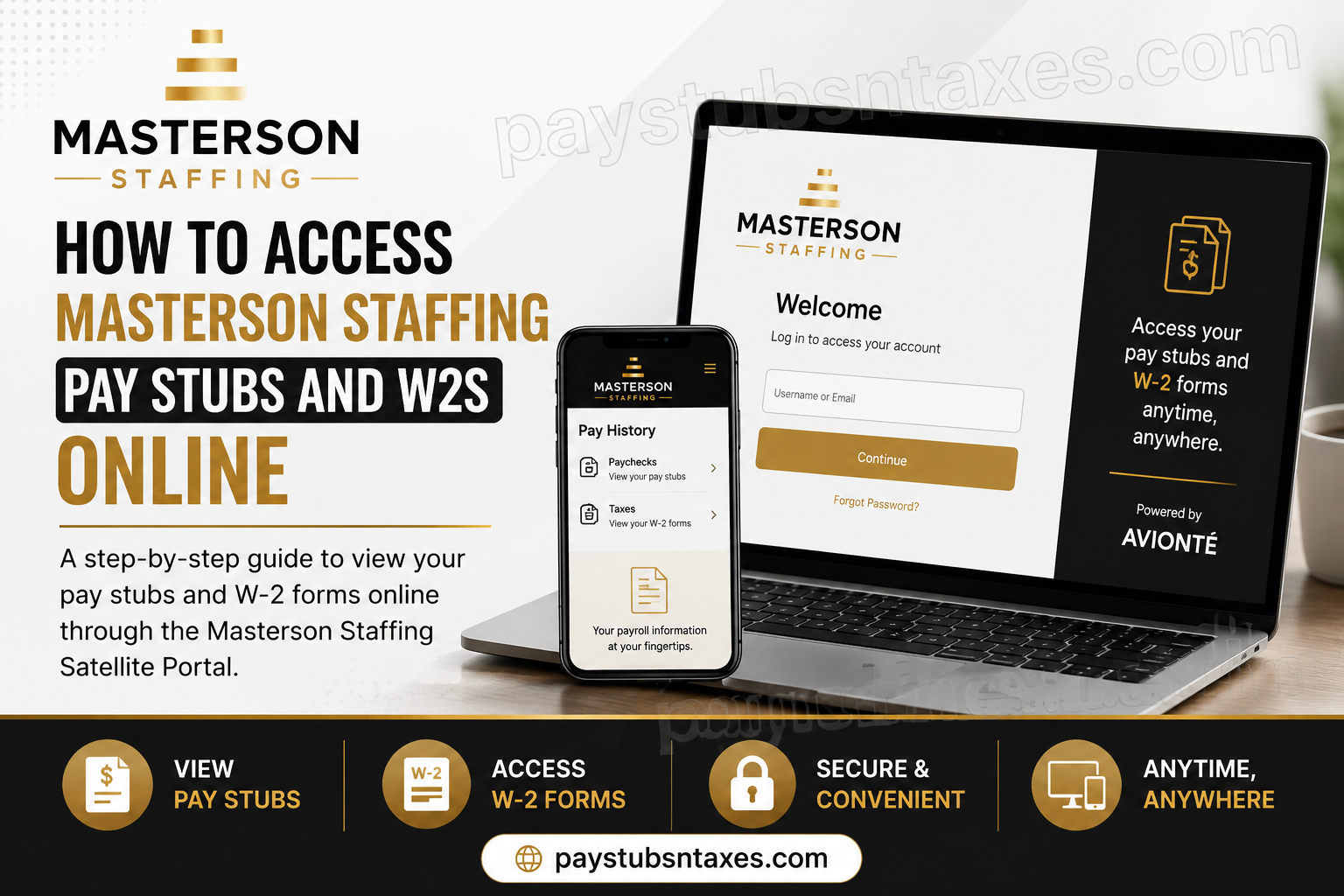
Masterson Staffing employees can securely view their pay stubs, earnings information, and W-2 forms online through the Satellite employee portal. Whether you are using a mobile phone, tablet, or computer, the portal places your essential payroll records within easy reach, thereby eliminating the need to wait for paper documents or visit a branch simply to retrieve routine information. Although you may perform your day-to-day duties at a client’s location, you remain an employee of Masterson Staffing. Consequently, Masterson Staffing’s payroll policies and procedures continue to apply throughout your assignment.
About Masterson Staffing
Founded by Owen Masterson in 1968, Masterson Personnel began as a small Midwestern business created to meet the growing demand for light industrial, office, and professional staffing services. What started with a single location has since developed into a leading regional staffing organization with branches across the Midwest and an extensive network of skilled workers.
Despite this remarkable growth, the company’s mission has remained steadfast: to provide the expertise and support that help employees move forward in both life and their careers. At the heart of that mission lies a commitment to cultivating strong, valuable, and enduring relationships.
Masterson Staffing recognizes that its employees are its greatest asset. In addition to connecting talented individuals with reputable employers, the company supports its workforce through opportunities such as vacation pay, professional development, and flexible working environments.
What Is the Masterson Staffing Employee Portal?
The Masterson Staffing employee portal, also known as the Satellite portal, is a secure online platform where employees can manage important employment and payroll information.
Through the portal, you can:
- View current and previous Masterson Staffing pay stubs
- Review gross earnings, taxes, deductions, and net pay
- Open detailed paycheck records
- Download or print pay stubs as PDF files
- Preview and download available W-2 forms
- Access payroll records from a phone, tablet, or computer
The official Masterson Staffing Satellite portal is:
Log in to the Masterson Staffing employee portal
What You Need Before Logging In
Before you begin, make sure you have:
- A reliable internet connection
- Access to a phone, tablet, or computer
- The email address registered with Masterson Staffing
- Your existing password or access to your email account for password recovery
Your username is the email address Masterson Staffing has on file for you. Enter the complete email address and check the spelling carefully, as even a minor error may prevent the system from recognizing your account.
How to Log In to the Masterson Staffing Portal
Follow these steps to access your employee account:
- Open the Masterson Staffing Satellite portal.
- Enter the email address registered with Masterson Staffing.
- Select Continue or proceed to the password screen.
- Enter your password.
- Select Login to open your employee dashboard.
The appearance of the portal may vary slightly depending on the device you use or whether the system has recently been updated. Nevertheless, the principal options—including Pay History, Paychecks, and Taxes—should remain readily identifiable.
How to Reset Your Masterson Staffing Portal Password
When your portal account was created, you should have received an email containing a temporary password or instructions for establishing one. If that message has gone astray, there is no need to be at your wits’ end; the password-recovery process is comparatively straightforward.
- Open the Masterson Staffing portal.
- Enter the email address associated with your employee account.
- Select Forgot Password or Forgot your password?
- Follow the instructions displayed on the screen.
- Check your email for a password-reset message.
- Open the reset link and create a new password.
- Enter the new password again to confirm it.
- Select Save and Login, if displayed.
Check your spam or junk folder if the reset email does not arrive promptly. The link may also expire after a limited period, so it is prudent to complete the reset as soon as you receive it.
If you no longer have access to the email address registered with Masterson Staffing, contact your local staffing consultant or branch. For security reasons, portal access should never be shared with another person.
How to Access Masterson Staffing Pay Stubs Online
Once you have successfully logged in, follow these instructions:
- Select Pay History from the portal’s navigation menu.
- Choose Paychecks if the portal displays separate Paychecks and Taxes sections.
- Locate the payment you want to review.
- Select the applicable check number, check date, or pay date.
- Review the detailed payroll information.
The portal generally displays your ten most recent pay stubs first. To locate an older record, use the additional page numbers or navigation controls near the bottom-right corner of the pay history screen.
Each pay stub may include:
- Pay period and payment date
- Gross earnings
- Regular and overtime hours
- Federal, state, and local taxes
- Employee deductions
- Direct-deposit information
- Net pay
Review these details carefully. If something appears to be amiss—such as missing hours, an unexpected deduction, or an incorrect pay rate—contact your Masterson Staffing consultant or local branch without delay.
How to View Pay Stubs on a Computer
The desktop version of the portal generally places its main navigation options along the top of the page.
- Log in to your employee account.
- Select Pay History from the top menu.
- Open Paychecks if prompted.
- Find the relevant paycheck.
- Select its check number or payment date to view the details.
If older pay stubs are not visible immediately, use the page controls at the bottom of the list.
How to View Pay Stubs on a Phone
The mobile portal places most navigation options inside a collapsible menu.
- Log in through your mobile browser.
- Tap the menu icon in the upper-left corner.
- Tap the arrow beside Pay History to expand the section.
- Select Paychecks.
- Tap the check number or pay date you wish to view.
For the best experience, rotate your phone horizontally if a table or payroll field appears compressed. You may also zoom in to read figures more comfortably.
How to Download or Print a Masterson Staffing Pay Stub
To save or print a pay stub:
- Go to Pay History and open Paychecks.
- Select the relevant check number or pay date.
- Open the detailed pay statement.
- Select the available print or download option.
- Save the statement as a PDF or send it to a connected printer.
Selecting the check-number link may automatically generate a printable PDF. The precise buttons may differ according to your browser and device.
Downloaded pay stubs can be helpful when applying for housing, verifying income, reviewing deductions, or maintaining personal financial records. Because these documents contain sensitive information, save them only on a secure device and avoid using a public computer whenever possible.
How to Access Masterson Staffing W-2 Forms Online
Available W-2 forms can be found under the Taxes section of Pay History.
On a computer
- Log in to the Masterson Staffing portal.
- Select Pay History from the menu at the top of the page.
- Select Taxes.
- Locate the appropriate tax year.
- Select Masterson Staffing to preview the W-2, if that option appears.
- Use the download icon to save a copy.
On a phone or tablet
- Log in to the portal.
- Tap the menu icon in the upper-left corner.
- Tap the arrow beside Pay History.
- Select Taxes.
- Choose the required tax year.
- Preview or download the W-2 form.
Your W-2 contains confidential tax and identity information. Store downloaded copies in a secure folder, and do not send them through unsecured messaging services.
What to Do If a W-2 Is Not Displayed
If the W-2 you need does not appear under Pay History > Taxes, consider the following possibilities:
- The form may not yet have been issued for the selected tax year.
- You may be viewing the wrong year.
- Your browser may be blocking the preview or download.
- You may have logged in with an email address that is not associated with the correct employee record.
- Your account information may require assistance from Masterson Staffing.
Try refreshing the page, signing out and back in, or using another supported browser. If the problem persists, contact your local branch.
How to Contact Masterson Staffing for Help
If you encounter difficulties that cannot be resolved through password recovery or basic troubleshooting, contact your Masterson Staffing consultant or nearest branch.
Masterson Staffing has locations across Minnesota, Wisconsin, Iowa, Michigan, Kansas, and Missouri. You may also contact the head office:
- Phone: 763-233-5000
- Email: ops@mastersonstaffing.com
When requesting help, be prepared to provide your full name, registered email address, branch, and a brief description of the problem. However, never send your password, Social Security number, or complete W-2 through an unsecured email.
Final Thoughts
The Masterson Staffing Satellite portal provides a convenient and secure means of accessing pay stubs and W-2 forms without being tethered to a particular place or device. In most cases, the entire process is as simple as signing in with your registered email address, opening Pay History, and selecting either Paychecks or Taxes. Keeping your login details current and downloading important payroll records when they become available will save time further down the road. Should a technical or account-related obstacle arise, your Masterson Staffing consultant or local branch can help you regain access and obtain the information you need.
Frequently Asked Questions About Masterson Staffing Pay Stubs and W-2s
1. Where can I access my Masterson Staffing pay stubs?
Access your pay stubs through the Masterson Staffing Satellite portal. After logging in, select Pay History, open Paychecks, and choose the check number or pay date you want to review.
2. What is the Masterson Staffing employee portal?
The Masterson Staffing Satellite portal is a secure online platform through which employees can view pay stubs, examine payroll deductions, retrieve previous paycheck records, and download available W-2 forms from a phone, computer, or tablet.
3. What username should I use for the Masterson Staffing portal?
Use the email address Masterson Staffing has on file for you. Enter the complete address carefully, without additional spaces or spelling errors. If the portal does not recognize it, contact your Masterson Staffing consultant or local branch.
4. How do I reset my Masterson Staffing portal password?
Select Forgot Password or Forgot your password? on the login screen, enter your registered email address, and follow the link delivered to your inbox. Create and confirm a new password, then select Save and Login if that option appears.
5. Why have I not received my password-reset email?
The message may take several minutes to arrive or may have been filtered into your spam, junk, or promotions folder. Confirm that you entered the email address associated with your employee account. If the email still does not arrive, contact Masterson Staffing for assistance.
6. How do I view my Masterson Staffing pay stubs on a computer?
Log in to the employee portal and select Pay History from the navigation menu at the top of the page. Open Paychecks, find the required payment, and select its check number or pay date to view the full statement.
7. How do I view my pay stubs on a mobile phone?
After logging in, tap the menu icon in the upper-left corner. Tap the arrow beside Pay History, select Paychecks, and choose the applicable check number or pay date. Rotating your phone horizontally may make payroll tables easier to read.
8. How many Masterson Staffing pay stubs can I view online?
The portal generally displays the ten most recent pay stubs on the first page. To find older statements, use the additional page numbers or navigation controls displayed near the bottom-right corner of the paycheck list.
9. How do I download or print a Masterson Staffing pay stub?
Open Pay History, select Paychecks, and choose the relevant check number or pay date. The portal will open the detailed statement and may generate a printable PDF. Use the available print or download option to save a secure copy.
10. Where can I find my Masterson Staffing W-2?
Log in to the portal and go to Pay History > Taxes. Select the required tax year, then choose Masterson Staffing to preview the W-2 or use the download icon to save it to your device.
11. Can I access my Masterson Staffing W-2 from my phone?
Yes. Open the mobile menu, expand Pay History, and select Taxes. Choose the appropriate tax year and use the available preview or download option. Store the document securely because it contains sensitive personal and tax information.
12. Why is my W-2 not showing in the employee portal?
Your W-2 may not yet have been issued, you may be viewing the wrong tax year, or the browser may be preventing the document from opening. Refresh the page, check another year, allow pop-ups, or try a different browser. Contact Masterson Staffing if the form remains unavailable.
13. What information appears on a Masterson Staffing pay stub?
A pay stub may show the pay period, payment date, hours worked, gross earnings, taxes, employee deductions, direct-deposit information, and net pay. Review each statement and promptly report any suspected discrepancy to your Masterson Staffing consultant.
14. What should I do if my pay stub will not open or download?
Enable pop-ups for the portal, refresh the page, and try opening the statement again. If necessary, clear your browser cache or use another browser or device. A computer may provide a smoother experience when a PDF does not open correctly on a phone.
15. Who should I contact for help with Masterson Staffing pay stubs or W-2s?
Contact your Masterson Staffing consultant or nearest branch for account and payroll assistance. You may also call the head office at 763-233-5000 or email ops@mastersonstaffing.com. Never disclose your password or complete Social Security number in an unsecured email.
