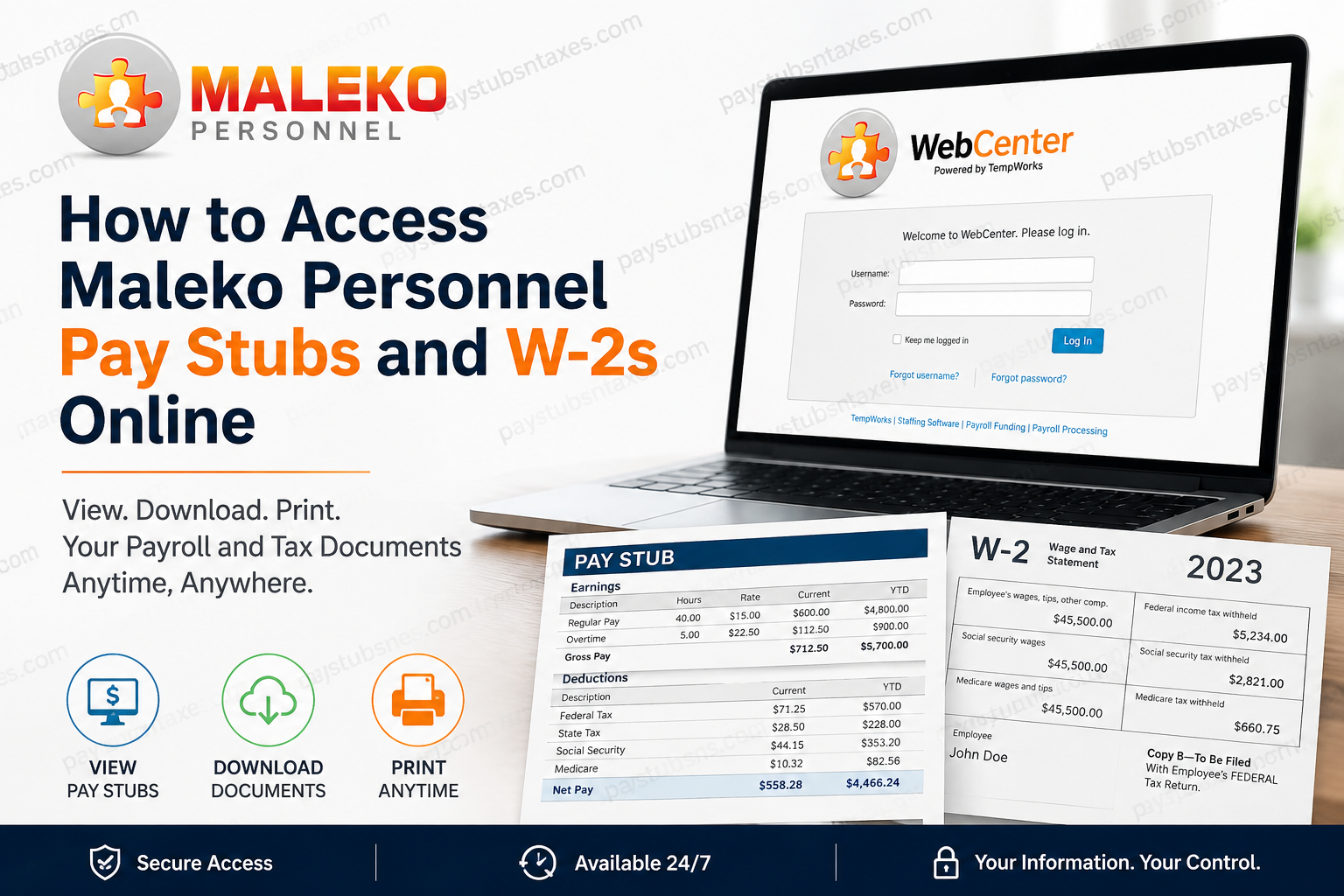
Maleko Personnel employees can access their payroll information through WebCenter, a secure online employee portal available from a mobile phone, computer, or tablet. Once signed in, employees can review assignment details, check payroll history, view and print pay stubs, manage employment documents, submit hours when applicable, and search for available positions. This guide explains how to sign in to Maleko WebCenter, change your password, retrieve pay stubs, manage electronic W-2 delivery, and obtain additional assistance if something goes awry.
About Maleko Personnel
Founded in 2005, Maleko Personnel was established with the ambition of delivering staffing services differently and more effectively. Since then, the company has expanded through business development and creative human-capital programs. Its stated mission is to provide responsive and dependable employment solutions that create value for both employers and employees while bringing honesty and integrity to the staffing industry.
Maleko also describes its employees as a particularly valuable part of the organization, whether they are working in a Maleko office or at a client’s location. Consequently, although an associate may report to and perform duties at a client’s worksite, employment-related matters such as payroll and W-2 assistance remain connected to Maleko Personnel.
Maleko Personnel WebCenter Login
Use the following official employee portal to access your account:
Maleko WebCenter:
https://webcenter.ontempworks.com/Malekopersonnel/Account/LogIn
Because you may need the portal throughout your employment, saving the login page to your browser’s bookmarks or favorites can spare you the inconvenience of searching for it whenever payday rolls around.
To sign in:
- Open the Maleko WebCenter login page.
- Enter your assigned username.
- Enter your password.
- Select Log In.
The login screen also provides Forgot username? and Forgot password? options. Use the appropriate link if your credentials have slipped your mind, rather than repeatedly attempting to sign in with incorrect information.
How to Receive Your WebCenter Username and Password
A Maleko Personnel HR representative should send your WebCenter username and temporary password by email. If the message has not arrived by your second day of employment, check your spam or junk folder first, as automated emails occasionally land there.
If you still cannot find the message, contact your HR representative and ask for assistance with your WebCenter account. Never share your password or complete Social Security number by ordinary email.
How to Change Your Maleko WebCenter Password
Changing the temporary password after your first login helps safeguard sensitive payroll and tax information.
Follow these steps:
- Sign in to Maleko WebCenter.
- Select My Information at the top of the page.
- Locate the Password section.
- Select Change Your Password.
- Enter your current password.
- Create and enter a new password.
- Enter the new password again in the confirmation field.
- Select Change Password to save it.
Choose a strong, unique password that you do not use for other accounts. Store it securely in a reputable password manager or another protected location; payroll records contain personal information and should not be left open to avoidable risk.
How to View Maleko Personnel Pay Stubs Online
WebCenter keeps your pay history within easy reach, allowing you to review previous payments without waiting for a paper statement.
To view a Maleko Personnel pay stub:
- Sign in to WebCenter.
- From the home page, select the Pay History tab in the top menu.
- Find and select the relevant pay date.
- Use the available tabs to review the details of that paycheck.
- Confirm that the pay period, earnings, deductions, taxes, and net pay appear correct.
Reviewing each pay stub promptly is a sensible habit. If your hours, rate of pay, deductions, or other details appear inaccurate, contact your HR representative without delay; payroll discrepancies are generally easier to resolve when raised promptly.
How to Download or Print a Pay Stub
After opening the desired entry under Pay History, follow these steps:
- Select View Printable Version.
- Allow the pay stub to open in a separate window.
- Select the available save or export button.
- Choose your preferred file format from the menu.
- Save the document to a secure location on your device.
- Open the saved file and use your device’s print command if you require a paper copy.
If a separate window does not appear, your browser may be blocking pop-ups. Temporarily allow pop-ups for the WebCenter website, then select View Printable Version again.
When using a shared or public computer, do not save payroll documents to the device. Sign out of WebCenter when you have finished, close the browser, and remove any downloaded files or printed copies you no longer need.
How to Access Maleko Personnel W-2s Online
When a W-2 becomes available, it should appear in the Available Electronic W-2s section of WebCenter. Before downloading the form, however, you may need to consent to electronic delivery.
If You Have Already Chosen Electronic Delivery
- Sign in to Maleko WebCenter.
- Select Manage W-2s.
- Locate Available Electronic W-2s.
- Select the tax year you need.
- Allow the W-2 to download as a PDF.
- Save the file securely or print it for your records.
If nothing appears after you select the year, check your browser’s download folder and make sure it has not blocked the file.
If You Have Not Yet Chosen Electronic Delivery
- Sign in to WebCenter.
- Select Manage W-2s.
- Select Change W-2 Options.
- Review the electronic-delivery disclosure.
- Select the blue Click here to receive your W-2s electronically link.
- Complete any confirmation requested by the portal.
- Return to Available Electronic W-2s.
- Select the desired year to download the W-2 as a PDF.
Read the disclosure before consenting so that you understand the electronic-delivery arrangement and know how to retain a copy for your records.
How to Request a Replacement or Older W-2
If the W-2 you need is unavailable in WebCenter, email:
w2requests@malekopersonnel.com
Include:
- Your full name
- The last four digits of your Social Security number
- The tax year of the W-2 you require
Provide only the information requested. Do not send your complete Social Security number, WebCenter password, banking details, or other unnecessary personal information by email.
A concise request may read:
Subject: W-2 Request for [Tax Year]
Hello,
I am requesting a copy of my Maleko Personnel W-2 for [tax year].
Full name: [Your full name]
Last four digits of Social Security number: [Last four digits]
Requested W-2 year: [Tax year]
Thank you.
Contact Maleko Personnel
For further assistance, contact your HR representative, visit the nearest Maleko Personnel branch, or use the corporate contact details below:
Phone: (510) 340-9070
Email: info@malekopersonnel.com
Corporate Office: 24301 Southland Drive, Suite 400, Hayward, CA 94545
Questions concerning a particular paycheck should ordinarily be directed to your HR representative, who will be better placed to examine the relevant payroll record.
Final Takeaway
Maleko Personnel WebCenter places essential employment records at your fingertips. By keeping your login credentials secure, checking your pay history regularly, and arranging electronic W-2 delivery before tax season gathers momentum, you can retrieve important documents with minimal fuss. For pay-stub questions, speak with your HR representative. For an unavailable or replacement W-2, email w2requests@malekopersonnel.com with your full name, the last four digits of your Social Security number, and the applicable tax year.
Frequently Asked Questions About Maleko Personnel Pay Stubs and W-2s
1. What is the Maleko Personnel WebCenter login URL?
The official login page is: https://webcenter.ontempworks.com/Malekopersonnel/Account/LogIn
Employees can use this portal to access pay history, employment records, assignment information, documents, available jobs, and electronic W-2 forms.
2. How do I access my Maleko Personnel pay stubs online?
Sign in to Maleko WebCenter and select Pay History from the top menu. Choose the relevant pay date to open the paycheck record, review its details, and access the printable version.
3. Can I view my Maleko pay stub on a mobile phone?
Yes. Maleko WebCenter can be accessed through a compatible browser on a mobile phone, tablet, laptop, or desktop computer. For security, avoid opening payroll records over unsecured public Wi-Fi.
4. How do I download or print a Maleko pay stub?
Open Pay History, select the desired pay date, and choose View Printable Version. When the pay stub opens in a separate window, use the available save or export option to download it. You can then open the saved file and print it.
5. Why will my Maleko pay stub not open?
Your browser may be blocking the separate window used to display the printable pay stub. Allow pop-ups for the WebCenter website, refresh the page, and try again. If the problem persists, use another current browser or contact your HR representative.
6. When will I receive my Maleko WebCenter username and password?
An HR representative should email your username and initial password. If you have not received the message by your second day of employment, check your junk or spam folder before contacting your HR representative.
7. What should I do if I forget my WebCenter username?
Select Forgot username? on the Maleko WebCenter login screen and follow the recovery instructions. If you cannot recover the username, ask your HR representative to assist with your account.
8. How do I reset my Maleko WebCenter password?
Select Forgot password? on the login page and follow the instructions provided. If you can sign in and merely wish to change the password, open My Information, select Change Your Password, and enter your current and new passwords.
9. How do I access my Maleko Personnel W-2 online?
Sign in to WebCenter and select Manage W-2s. If you have already consented to electronic delivery, choose the required year under Available Electronic W-2s. The W-2 should download automatically as a PDF.
10. Do I need to consent to electronic W-2 delivery?
Yes, if you have not previously opted in. Open Manage W-2s, select Change W-2 Options, review the disclosure, and choose Click here to receive your W-2s electronically. You can then return to the list of available forms and download your W-2.
11. How do I request an unavailable or replacement W-2?
Email w2requests@malekopersonnel.com and provide your full name, the last four digits of your Social Security number, and the tax year of the W-2 you need. Never include your complete Social Security number or WebCenter password.
12. Can I download a Maleko W-2 from a previous year?
You can download any tax year displayed under Available Electronic W-2s. If the year you need is not listed, request a copy by emailing w2requests@malekopersonnel.com with the required identifying information.
13. Why is my W-2 not downloading from WebCenter?
First, confirm that you have consented to electronic delivery. Then check your browser’s downloads folder and ensure that downloads are permitted for WebCenter. If the form remains unavailable, contact Maleko Personnel for assistance.
14. What should I do if my pay stub contains an error?
Contact your HR representative promptly and identify the pay date and specific information that appears incorrect, such as your hours, pay rate, deductions, taxes, or net pay. Do not share confidential payroll records publicly.
15. How can I contact Maleko Personnel for payroll or W-2 assistance?
For help, contact your HR representative or use the following Maleko Personnel details:
Phone: (510) 340-9070
Email: info@malekopersonnel.com
W-2 requests: w2requests@malekopersonnel.com
Corporate office: 24301 Southland Drive, Suite 400, Hayward, CA 94545
