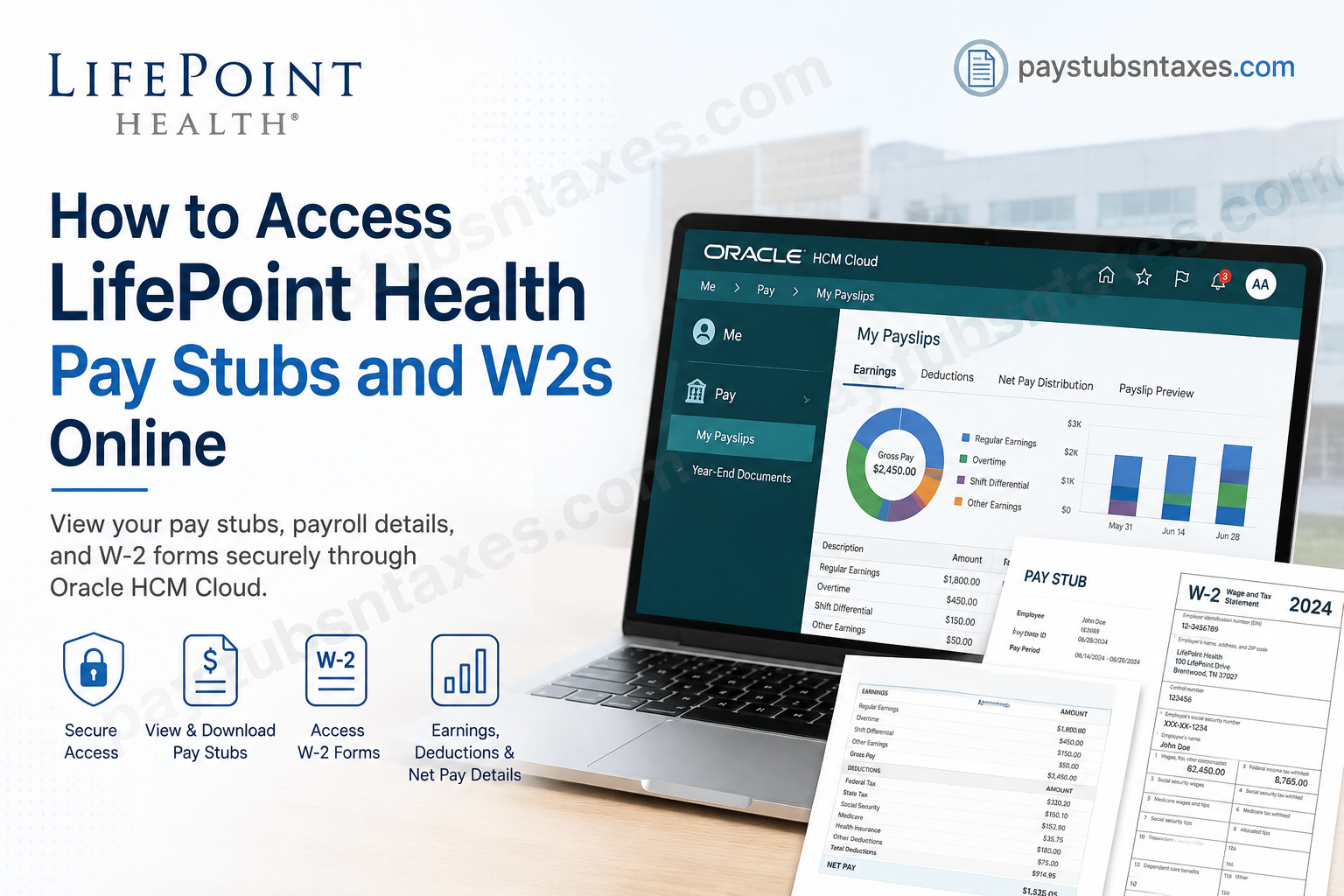
LifePoint Health employees can access their pay stubs online through Oracle Cloud, while W-2 tax statements are available through the Online Wage Statements portal. Current employees should generally sign in to Oracle using Company Single Sign-On (SSO) rather than the username and password originally created during the job-application process.
Once inside Oracle, employees can navigate to Me > Pay > My Payslips to review earnings, deductions, net pay distribution, and complete payslip documents. W-2 forms, meanwhile, can be retrieved through the Online Wage Statements portal by opening W2 History, selecting the required tax statement, and viewing or printing it.
This guide walks you through both processes step by step, including mobile access, downloading payslips, retrieving W-2s, and resolving common login difficulties.
About LifePoint Health
Founded in 1999 and headquartered in Brentwood, Tennessee, LifePoint Health is a diversified American healthcare provider whose mission is making communities healthier®. Its nationwide network encompasses community hospitals, rehabilitation and behavioral health hospitals, outpatient facilities and numerous other sites of care.
Today, the company serves patients, clinicians, communities and partner organizations across the healthcare continuum. Its expanding footprint includes approximately 59,000 team members operating across 34 states, illustrating how an organization rooted in smaller communities has grown into a healthcare network of national significance. More information is available on the LifePoint Health website.
LifePoint Health Payroll Access at a Glance
LifePoint Health uses two principal systems for electronic payroll documents:
- Oracle: Used to view and download employee pay stubs or payslips.
- Online Wage Statements: Used to obtain current and previous W-2 tax statements.
These systems have separate login processes. Your Oracle single sign-on credentials may not necessarily work on the Online Wage Statements website.
How to Log In to the LifePoint Health Oracle Employee Portal
Employees can access Oracle from any computer or compatible mobile device with an internet connection.
- Open the LifePoint Health Oracle portal.
- Select I am an employee from the menu on the right-hand side.
- On the Oracle sign-in page, choose Company Single Sign-On.
- Complete your organization’s authentication process.
Current employees should generally use Company Single Sign-On, rather than the username and password created during the initial job-application process. In other words, the candidate account that opened the door during recruitment may not be the key that unlocks the employee payroll area.
How to View a LifePoint Health Pay Stub in Oracle
Once you have signed in successfully:
- Select Me from the Oracle home page.
- Choose Pay.
- Open My Payslips.
- Select the pay period you want to review.
The payslip summary presents your payroll information in several useful categories:
- Earnings: Displays wages and other payments included in the selected pay period.
- Deductions: Shows taxes, benefit deductions, and other amounts withheld from your earnings.
- Net Pay Distribution: Explains how your net pay was distributed, which is particularly useful if your wages were divided among multiple bank accounts.
- Payslip Preview: Displays the complete payslip document in a printable format.
Selecting Earnings or Deductions may also display a bar chart comparing the chosen payslip with the two preceding payslips. This feature makes it easier to spot changes in gross earnings, taxes, benefit costs, or other deductions without having to compare several documents line by line.
How to Download or Print a LifePoint Health Pay Stub
To retain a copy of a payslip:
- Navigate to Me > Pay > My Payslips.
- Select the required payslip or check the box beside it.
- Click Export to download the document.
- Save the file in a secure location or print it if a paper copy is required.
A single payslip may also be downloadable from the Payslip Preview area. After downloading the document, confirm that the employee name, pay date and pay period are correct before filing it away.
Payroll records contain sensitive financial and identifying information. Avoid saving them on a shared computer, and remember to sign out of Oracle when you have finished—especially when using a public or workplace device accessible to other people.
How to Access Oracle from a Smartphone or Tablet
Oracle’s current mobile application is known as the Oracle Fusion Applications app, although older workplace instructions may refer to it as the Oracle HCM Cloud mobile app. Employees should use only the application approved by LifePoint Health or listed in the official Apple App Store or Google Play Store.
To configure mobile access:
- Download and install the employer-approved Oracle application.
- Open the app and accept the End-User License Agreement.
- Enter the LifePoint Health HCM Cloud URL: https://ibnjjb.fa.ocs.oraclecloud.com
- Select Let’s get started.
- Complete the Company Single Sign-On process.
- Navigate to Me > Pay > My Payslips.
Oracle advises that employees use the same organizational environment on mobile that they use on a desktop. If the app does not accept the URL, use Oracle through your mobile browser or contact the appropriate LifePoint support team before changing any configuration.
How to Access LifePoint Health W-2 Statements Online
Year-end tax statements are handled through the Online Wage Statements portal rather than the regular Oracle payslip section.
- Visit the LifePoint Health Online Wage Statements portal.
- Sign in using your Online Wage Statements credentials.
- Select W2 History from the left-hand navigation menu.
- Check the box beside each W-2 statement you want to retrieve.
- Click View Selected W2 Statements.
- Review, download, or print the selected document.
The W2 History option may appear only after a W-2 has been posted to your account. Year-end statements are ordinarily furnished no later than January 31, subject to applicable tax rules and calendar adjustments.
First-Time Online Wage Statements Login
First-time login requirements may differ among LifePoint facilities or payroll groups. Where the e-stub system requests the legacy login credentials described below, employees may be asked to use:
- A three- or four-character employee ID as the username.
- Their Social Security number as the temporary password.
- A nine-digit employee ID and birth date in
MMDDYYYYformat for supplemental identity verification.
An employee ID containing fewer than nine digits may need leading zeros. The identifier may appear on a previous pay stub or in the alias field within Outlook email properties.
After authentication, the portal may require you to:
- Create a password containing 6–16 characters.
- Include at least one lowercase letter, one uppercase letter, and one number.
- Choose and answer five security questions.
- Add a valid email address.
- Accept or decline electronic W-2 delivery.
Because payroll arrangements and login screens can change, enter a Social Security number only after confirming that you are on the exact, secure employer-authorized website. Never transmit a Social Security number, password, or security answer by ordinary email.
Electronic W-2 Delivery Election
The portal may ask whether you wish to receive future W-2 forms electronically. If you accept electronic delivery, you will generally need to provide a valid email address so that the system can send confirmation and availability notifications.
Employees who prefer a paper W-2 should review the election carefully before declining or changing the electronic option. The choice can usually be managed from My Profile, where email information and security questions may also be updated.
What to Do If You Forget Your E-Stub Password
The Online Wage Statements portal may allow several attempts before locking the account. If you cannot remember the password:
- Select Forgot Your Password?
- Enter your username or employee ID.
- Click Submit.
- Answer the security question displayed.
- Follow the instructions to reset your password.
In some configurations, a successful security answer resets the temporary password to the employee’s Social Security number, after which a new private password must be created. Repeated unsuccessful answers may lock the account and require assistance from customer support or the employer’s payroll team.
LifePoint Health Employee Assistance
For additional assistance with employee benefits, contact the LifePoint Benefits Service Center:
- Telephone: 844-348-0627
- Email: lifepointbenefitsservicecenter@ajg.com
The contact details are also published on the official LifePoint Health contact page. Questions specifically involving wages, tax withholding, missing W-2 forms or inaccurate pay information may need to be directed to your local payroll or human resources department.
Final Thoughts
Accessing LifePoint Health pay stubs and W-2s online is relatively straightforward once the distinction between the two payroll systems is clear: Oracle houses regular payslips, while Online Wage Statements serves as the gateway to year-end W-2 records. By keeping login credentials secure, verifying every website before entering sensitive information and downloading important documents promptly, employees can maintain an orderly payroll archive and avoid a last-minute scramble when proof of income or tax records are required.
Frequently Asked Questions About LifePoint Health Pay Stubs and W-2s
1. How do I access my LifePoint Health pay stub online?
Open the LifePoint Health Oracle portal, select I am an employee, and sign in through Company Single Sign-On. Once inside Oracle, choose Me > Pay > My Payslips, select the appropriate pay period, and open or export the document.
2. What is the LifePoint Health employee portal?
LifePoint Health employees use the company’s Oracle environment for payroll self-service. The employee access page is: https://ibnjjb.fa.ocs.oraclecloud.com/hcmUI/CandidateExperience
Employees should select I am an employee and use Company Single Sign-On rather than credentials created during the original job-application process.
3. Where can I find My Payslips in Oracle?
After signing in, navigate to Me > Pay > My Payslips. The page displays available pay periods and provides access to earnings, deductions, net-pay distribution, and a full payslip preview.
4. How do I download a LifePoint Health pay stub?
Open My Payslips, select the required payslip and click Export. An individual document may also be downloadable from the Payslip Preview tab. Save the file in a secure, password-protected location.
5. Can I view previous LifePoint Health pay stubs?
Yes. Available pay periods appear in the My Payslips section of Oracle. Select an earlier pay date to review its payroll details, preview the complete document, or download a copy.
6. What information appears on an Oracle payslip?
An Oracle payslip normally includes gross earnings, taxes, benefit deductions, other withholdings, net pay, and payment distribution. The summary page may also compare the selected payslip with the two preceding pay periods.
7. How do I access my LifePoint Health W-2 online?
Visit https://www.onlinewagestatements.com/parallon2, sign in, and select W2 History from the left-hand menu. Check the box beside the required W-2 and click View Selected W2 Statements to open, download, or print it.
8. Are LifePoint Health W-2s available in Oracle?
W-2 statements are generally obtained through the Online Wage Statements portal rather than the regular Oracle payslip area. Oracle is primarily used for current and previous employee payslips.
9. When will my LifePoint Health W-2 be available?
Employers ordinarily furnish W-2 statements by January 31, although the precise electronic posting date may vary. The W2 History option might not appear until a statement has been posted to the employee’s account.
10. How do I log in to Online Wage Statements for the first time?
First-time login requirements may vary by facility or payroll group. Some employees may be asked for a three- or four-character employee ID, a temporary password, and additional identity verification. Follow only the instructions displayed on the verified employer-authorized portal.
11. What should I do if I forget my Online Wage Statements password?
Select Forgot Your Password?, enter your username or employee ID, and answer the security question displayed. Follow the prompts to create a new password. If the account becomes locked, contact payroll, human resources, or authorized support.
12. Can I access LifePoint Health pay stubs from my phone?
Yes. Employees may use the employer-approved Oracle mobile application or access Oracle through a compatible mobile browser. Enter the LifePoint Health HCM environment URL when configuring the app:
https://ibnjjb.fa.ocs.oraclecloud.com
Then complete Company Single Sign-On and navigate to Me > Pay > My Payslips.
13. Why can’t I see My Payslips in Oracle?
First, confirm that you entered through I am an employee and completed Company Single Sign-On. If My Payslips remains unavailable, your employee role, payroll assignment, or access permissions may need to be reviewed by human resources or payroll.
14. What should I do if my pay stub or W-2 contains incorrect information?
Contact your local payroll or human resources department promptly. Do not alter the downloaded document yourself, as the underlying payroll or tax record must be corrected by an authorized administrator.
15. Who should I contact for additional LifePoint Health employee assistance?
For employee-benefit assistance, contact the LifePoint Benefits Service Center at 844-348-0627 or email lifepointbenefitsservicecenter@ajg.com. Questions involving missing wages, incorrect tax withholding, or W-2 corrections may need to be handled by your local payroll or human resources team.
