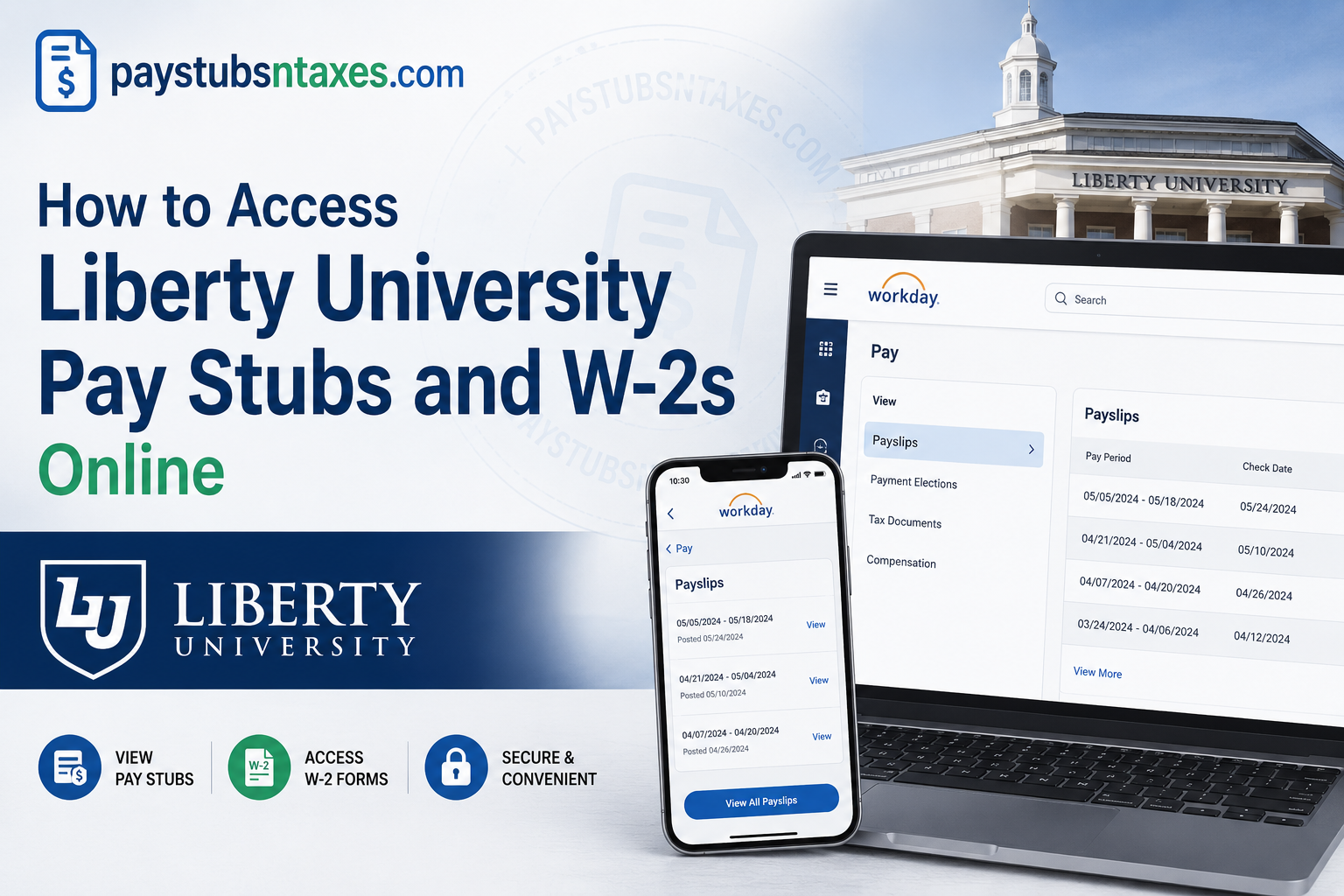
Liberty University employees can access payroll information, including pay stubs and recent W-2 tax statements, through the Liberty University Workday self-service portal. Workday serves as a central hub for numerous employment-related functions, enabling employees to review compensation information, manage payment elections, complete onboarding tasks, update tax withholding information, request time off, and maintain essential employment details.
For most employees, the quickest route is to sign in to Liberty University’s Workday portal using their Liberty Single Sign-On (SSO) credentials. Employees using the Workday mobile app for the first time may be prompted for an organization code; Liberty University’s organization code is liberty. Although Workday houses payroll and tax information for the most recent years, employees who require older W-2 statements may need to retrieve them through the ADP system instead.
Liberty University Workday Login
Use the official Liberty University Workday portal:
Workday portal: https://wd5.myworkday.com/liberty/d/home.htmld
Select the appropriate sign-in option and authenticate through Liberty University’s single sign-on system using your Liberty account credentials. Depending on the university’s security settings, you may also be required to complete multifactor authentication.
For the sake of security, avoid signing in through links received from unfamiliar sources. Bookmark the official portal so that you always have a reliable route to your employee account.
Access Requirements for New Liberty University Employees
Newly hired employees may need to claim their Liberty account before they can enter Workday. Once the account has been activated, the employee profile should become available within the system.
Workday serves as the hub for many onboarding and employment activities, including:
- Establishing payment elections and direct deposit
- Completing federal and state tax-withholding elections
- Reviewing employee and benefits information
- Updating personal or contact information
- Requesting time off
- Entering or reviewing working time, where applicable
- Completing assigned onboarding activities
- Accessing pay statements and recent tax documents
Pending onboarding steps ordinarily appear under My Tasks in the upper-right area of the Workday page or under Awaiting Your Action on the home screen. Because certain onboarding processes unfold sequentially, one task may need to be completed before the next becomes visible.
Employees should establish their payment elections promptly and confirm that their payroll, tax-withholding, and Human Resources address information is accurate. A small oversight at the outset can have far-reaching consequences, particularly when tax forms and payroll records are generated.
How to View Liberty University Pay Stubs in Workday
Follow these steps to access your Liberty University pay stubs online:
- Open the Liberty University Workday portal and sign in through SSO.
- From the Workday home page, select View All Apps or open the main Menu.
- Choose the Pay application.
- Under the available viewing options, select Payslips or My Payslips.
- Locate the required pay period.
- Select View to open the payslip or Print to create a printable copy.
- If a PDF option is available, download the statement and save it in a secure location.
Workday labels and menu positions can change following system updates. If the Pay application is not immediately visible, use Workday’s search function and search for Payslips, My Payslips, or Pay.
How to Download or Print a Liberty University W-2
Workday houses Liberty University pay and tax information for the most recent years. To retrieve an available W-2:
- Sign in to Liberty University Workday.
- Open the Pay application.
- Find the section containing tax-related options.
- If necessary, select More to expand the list.
- Choose My Tax Documents.
- Locate the required tax year and document type.
- Select View/Print to generate the form.
- Open the resulting document, then download or print it.
The document may take a few moments to generate. If nothing appears, check whether your browser has blocked a new window or download.
How to Find Older Liberty University W-2 Forms
Workday generally contains tax information for the university’s most recent payroll years. If the W-2 you need is too old to appear in Workday, sign in to the ADP system and search its tax-document archive.
In practical terms:
- Use Workday for recent pay stubs and available recent-year tax statements.
- Use ADP when an older Liberty University W-2 is no longer available through Workday.
If you cannot determine which platform contains the required year, contact the Liberty University HR Service Center before submitting duplicate requests.
Using the Workday Mobile App
Employees who prefer to manage payroll information on the go can install the Workday app from the Apple App Store or Google Play Store.
When opening the app for the first time:
- Launch the Workday mobile app.
- Select the option to sign in or find your organization.
- Enter Liberty University’s organization code: liberty
- Continue to Liberty University’s sign-in page.
- Authenticate with your Liberty account through SSO.
- Complete any additional identity-verification requirement.
After signing in, open the Pay, Payslips, or similarly named section. Choose the required pay date to review gross pay, net pay, payment distribution, and year-to-date information. Where available, select View PDF Statement to open the full payslip.
The mobile app is particularly convenient for viewing payslips and completing routine tasks; however, the desktop portal may provide a broader menu and can be easier to use when downloading or printing tax documents.
Set Up Your Payment Election
One of the most important payroll steps for a new Liberty University employee is establishing a Payment Election.
The payment election tells Liberty University where your wages should be deposited. Employees should enter and verify the appropriate payment information carefully; an unnoticed error in banking details can turn payday into an avoidable headache.
As part of payroll onboarding, employees may also need to complete federal and state tax forms to establish their withholding elections.
Liberty University’s onboarding process also requires employees to maintain an appropriate Human Resources address type in MyLU because address information can have tax implications.
For student employees, additional payroll and tax circumstances may apply. For example, eligible students who are enrolled and regularly attending classes may receive different FICA tax treatment, while summer enrollment or international-student status can affect those rules.
Liberty University Workday and Payroll Support
For additional assistance with Workday, onboarding, payroll access, or employee information, contact the Liberty University HR Service Center:
Email: HR@liberty.edu
Phone: (434) 592-7330
When requesting help, include your name, employee identification details where appropriate, the relevant tax year or pay period, and a concise description of the problem. Never send your password, multifactor-authentication code, Social Security number, or complete bank-account information by email.
Final Takeaway
Accessing Liberty University pay stubs and W-2s online is generally straightforward: sign in to Workday through Liberty SSO, open the Pay application, and select either Payslips or My Tax Documents. The Workday mobile app offers added flexibility, with liberty serving as the organization code during initial setup. For older W-2s, ADP is the appropriate port of call.
By reviewing payroll records regularly, safeguarding downloaded documents, and reporting discrepancies without delay, Liberty employees can remain on top of their earnings and tax information rather than scrambling for paperwork when deadlines loom.
Frequently Asked Questions
1. How do I access my Liberty University pay stubs online?
Sign in to the Liberty University Workday portal through SSO. Open Menu or View All Apps, select Pay, and choose Payslips or My Payslips. Find the applicable pay period, then select View, Print, or the available PDF option.
2. Where can I find my Liberty University W-2?
Open the Pay application in Workday and select My Tax Documents. You may need to choose More before this option becomes visible. Locate the required tax year and select View/Print to open, download, or print the W-2.
3. What is the Liberty University Workday login link?
The Liberty University Workday portal is https://wd5.myworkday.com/liberty/d/home.htmld. Employees should use Liberty University’s single sign-on process and complete any additional identity-verification step presented during login.
4. What is Liberty University’s organization code for the Workday app?
Liberty University’s Workday organization code is liberty. Enter this code when configuring the Workday mobile app for the first time. The app should then direct you to Liberty University’s sign-in process, where you can authenticate through SSO.
5. Does Liberty University use Workday or ADP for W-2 forms?
Liberty University uses Workday for recent payroll records and available recent-year tax statements. Employees who need an older W-2 that no longer appears in Workday should sign in to ADP or contact the Liberty University HR Service Center for assistance.
6. How do I download a Liberty University pay stub as a PDF?
In Workday, open Pay, select Payslips, and choose the required payment date. Select View, Print, or View PDF Statement, depending on the options displayed. Once the document opens, use the download function to save it securely.
7. Can I view Liberty University pay stubs on my phone?
Yes. Install the Workday app, enter liberty as the organization code, and sign in through Liberty University SSO. Open the pay or payslip section, select the required pay date, and tap View PDF Statement if that option is available.
8. What information appears on a Liberty University payslip?
A Workday payslip may show gross earnings, employee taxes, pre-tax and post-tax deductions, taxable wages, employer-paid benefits, net pay, direct-deposit allocations, and current and year-to-date totals. It may also include the pay period, check date, and withholding information.
9. Why can’t I see the Pay application in Workday?
The Pay application may be located under Menu or View All Apps rather than on the main screen. Search Workday for Pay, Payslips, or My Tax Documents. New employees should also confirm that their Liberty account and employee profile have been activated.
10. Why is my Liberty University W-2 missing from Workday?
Confirm that you selected the correct tax year and that the university has released the form. Older tax statements may have moved to ADP. If a recently issued W-2 remains unavailable, contact the Liberty University HR Service Center for help.
11. What is a W-2C in Liberty University Workday?
A W-2C is a corrected wage and tax statement issued when information on an original W-2 needs to be amended. If Workday displays both forms, download and retain the original W-2 and every available W-2C for your records or tax preparer.
12. Can newly hired Liberty University employees access Workday immediately?
New employees generally need to claim and activate their Liberty account before accessing their Workday employee profile. Once access is available, they should complete assignments listed under My Tasks or Awaiting Your Action, including payment and tax-withholding elections.
13. How do I print a Liberty University W-2 from Workday?
Sign in to Workday, open Pay, and select My Tax Documents. Find the correct year and choose View/Print. After the form has been generated, open the PDF and use your browser or PDF viewer’s print function.
14. Who should I contact about Liberty University Workday problems?
Contact the Liberty University HR Service Center at HR@liberty.edu or (434) 592-7330. Provide the relevant pay period or tax year and describe the issue clearly, but never send your password, authentication code, or full banking information.
15. How can I keep my pay stubs and W-2 forms secure?
Access Workday from a trusted device and secure internet connection. Save documents in an encrypted or password-protected location, avoid public computers, and sign out after every session. Never share your Liberty password or multifactor-authentication code with anyone.
