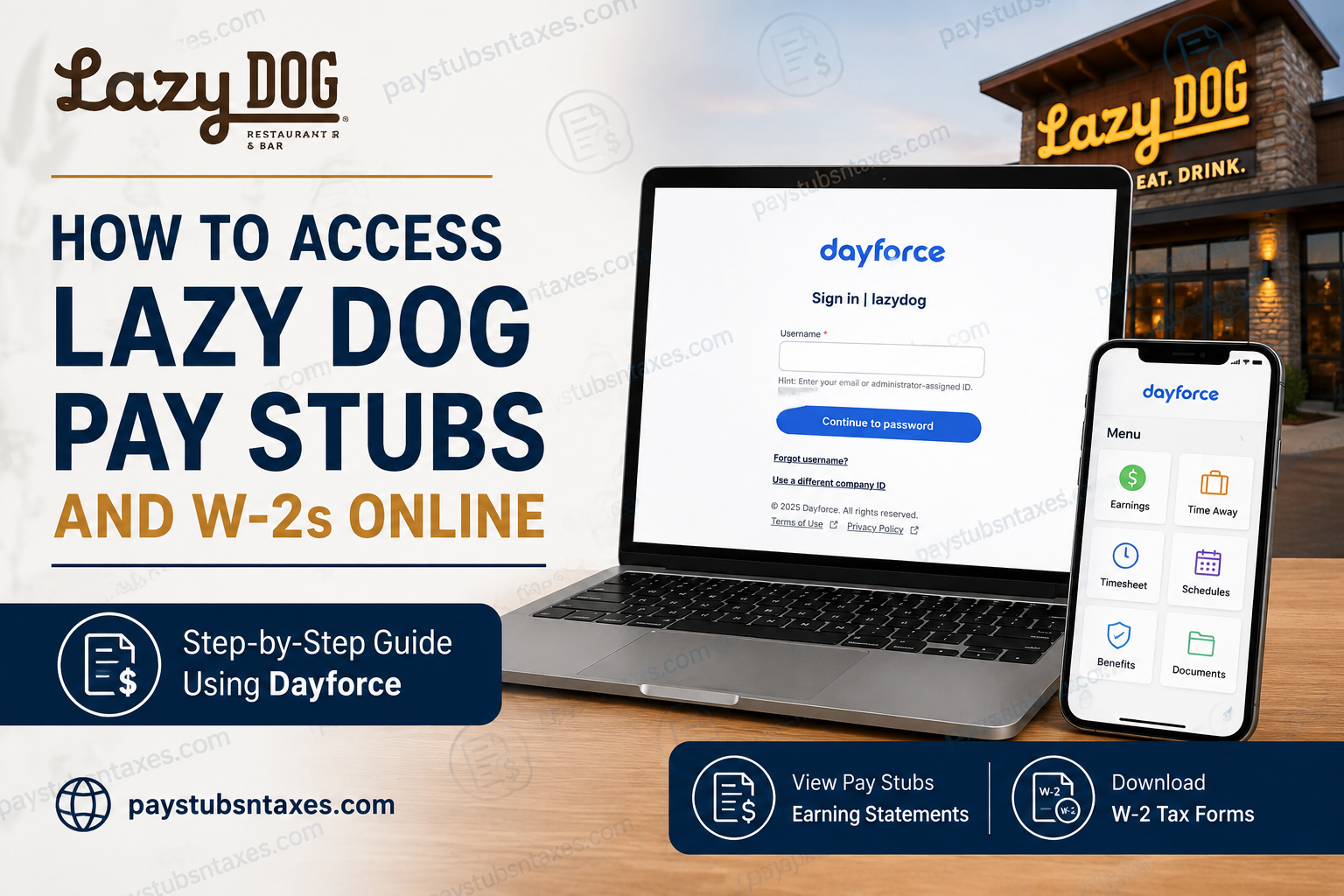
Lazy Dog Restaurant & Bar employees can access their payroll information, including pay stubs, earnings statements, and W-2 tax forms, through Dayforce. The platform provides a centralized, secure way to review payroll records, download statements, and retrieve tax documents from a computer or compatible mobile device.
For employees who need a previous paycheck for income verification, want to review year-to-date earnings, or are preparing to file their federal and state tax returns, Dayforce puts essential payroll records within easy reach.
Lazy Dog is a family-run restaurant group whose identity is rooted in hospitality, handcrafted food, and the relaxed atmosphere inspired by founder Chris Simms’ childhood experiences in the Rocky Mountains. The company describes its concept as being shaped by three generations of hospitality traditions, a love of food, and the warmth of fireside conversations.
This guide explains how to access Lazy Dog pay stubs and W-2s online through Dayforce, how to use the Dayforce mobile app, and what to do if you encounter login difficulties.
Lazy Dog Dayforce Login Information
Before attempting to retrieve a pay statement or tax form, make sure you have your Lazy Dog Dayforce username and password available.
To sign in through a web browser:
- Visit www.dayforcehcm.com.
- Enter lazydog in the Company or Company ID field.
- Continue to the Lazy Dog sign-in page.
- Enter your username.
- Select Continue to password, enter your password, and complete the sign-in process.
If this is your first time accessing the system, Dayforce may require you to create a new password. Choose a strong, memorable password and keep it private. Payroll and tax documents contain sensitive personal information, so safeguarding your credentials is paramount.
If the sign-in page displays the wrong organization, select Use a different company ID and enter lazydog.
How to Access Lazy Dog Pay Stubs Online
In Dayforce, pay stubs may also be called earning statements. These records typically show your gross earnings, taxes, deductions, benefits, and net pay for a particular pay period.
Follow these steps to view a Lazy Dog pay stub:
- Sign in to your Lazy Dog Dayforce account.
- From the home page, select the Earnings icon.
- If the Earnings icon is not visible, open the main menu—usually represented by three horizontal lines—and select Earnings.
- Choose Earning Statements in the upper-left area of the Earnings screen.
- Enter the date range covering the pay period you wish to review.
- Select the Filter icon to display the available statements.
- Locate the appropriate earnings statement.
- Select Statement to open the complete pay-stub details.
- Use the available print or download option to retain a copy.
The Summary option provides a broader overview of your pay information for the year, whereas Statement opens the detailed record for an individual pay period. If you need proof of income, the detailed statement will generally be the more useful of the two.
When you have finished, return to the Dayforce home page by opening the main menu and selecting Home.
How to Download a Lazy Dog Pay Stub
Once your earnings statement is open, look for the print, save, or download control provided by Dayforce or your browser. You can then save the document as a PDF or print a paper copy.
For orderly record-keeping, use a clear filename such as:
Lazy-Dog-Pay-Stub-2026-08-15.pdf
Save payroll documents only on a secure personal device or in an encrypted storage account. Avoid downloading them onto a shared or public computer; if circumstances leave you no choice, delete the file afterward, sign out of Dayforce, and close the browser.
How to Access a Lazy Dog W-2 in Dayforce
A Form W-2 reports your annual wages and the taxes withheld from your pay. You will ordinarily need it when preparing your federal, state, or local income-tax returns.
To locate your Lazy Dog W-2 online:
- Sign in to Dayforce using the company ID lazydog.
- Select My Documents from the landing page.
- If My Documents is not displayed, open the menu in the upper-left corner and select it there.
- Open the Document Type menu.
- Select W-2.
- Choose the required tax year.
- Select Search.
- Highlight the W-2 you wish to review.
- Select Preview to inspect it on the screen or Download to save a copy.
- Choose a secure folder in which to store the document.
To retrieve an earlier W-2, repeat the search using a different year. Available forms from the preceding seven years may be displayed in the system.
Before relying on a downloaded W-2, make sure that the employee name, mailing address, Social Security number ending, employer information, wages, and withholding figures appear correctly. If anything seems amiss, contact the appropriate Lazy Dog support representative before filing your tax return.
Accessing Pay Stubs and W-2s Through the Dayforce Mobile App
Employees who prefer to manage payroll records on the go may use the Dayforce mobile app on a compatible Apple or Android device.
- Download the official Dayforce app from the Apple App Store or Google Play Store.
- Open the app and select Log In.
- Enter lazydog as the company ID.
- Continue with your Lazy Dog Dayforce username and password.
- Open the app menu.
- Select Earnings to view available pay statements.
- Look under My Documents for available W-2 forms.
The precise wording and placement of menu options may vary according to the app version and the features enabled for your account. If a document is easier to locate or download through the desktop website, simply sign in through a web browser using the same Lazy Dog company ID.
What to Do if You Cannot Sign In
An occasional login problem need not bring the process to a grinding halt. Begin with these straightforward checks:
- Confirm that the company ID is entered as lazydog.
- Make sure you are using the correct username.
- Re-enter your password carefully and check whether Caps Lock is enabled.
- Use Forgot username? if that option appears and you cannot remember your username.
- Select Use a different company ID if Dayforce opens another employer’s login page.
- Try a current browser or update the Dayforce mobile app.
- Clear outdated browser data or attempt the login in a private browsing window.
- Avoid repeatedly guessing your password, as too many unsuccessful attempts could temporarily lock the account.
Never send your password, Social Security number, or complete W-2 through an unsecured email or text message.
Lazy Dog Payroll Support
If you cannot access your account, locate a document, or resolve a payroll-related issue, call 714-596-9960.
Support is available Monday through Friday, from 9:00 a.m. to 5:00 p.m. Pacific Time.
Before calling, have your employee information and a concise description of the problem ready. However, do not disclose your password. If an error message appears, write it down or take a screenshot that excludes sensitive personal information.
Final Thoughts
Dayforce makes accessing Lazy Dog pay stubs and W-2s comparatively straightforward: sign in with the company ID lazydog, visit Earnings for pay statements, or open My Documents for W-2 forms. Once you know where these sections reside, retrieving an important payroll record becomes less of a wild-goose chase and more a matter of a few well-placed clicks. For the sake of both convenience and security, download any records you may need, store them responsibly, and sign out when your work is complete. Should a technical or account-related obstacle remain, Lazy Dog support is available at 714-596-9960, Monday through Friday, from 9:00 a.m. to 5:00 p.m. Pacific Time.
Frequently Asked Questions About Lazy Dog Pay Stubs and W-2s
1. How do I access my Lazy Dog pay stubs online?
Sign in to Dayforce with the company ID lazydog, select Earnings, and open Earning Statements. Choose a date range, apply the filter, and select Statement beside the pay stub you want to view.
2. What is the Lazy Dog company ID for Dayforce?
The Lazy Dog company ID is lazydog. Enter it without spaces when Dayforce asks for your company or company ID.
3. Where is the Lazy Dog Dayforce login page?
Visit www.dayforcehcm.com, enter lazydog in the company field, and continue to the Lazy Dog sign-in page.
4. How do I download a Lazy Dog pay stub?
Open the required earning statement under Earnings, then use the available download, save, or print option. Store the document securely because it contains confidential payroll information.
5. How can I view my Lazy Dog W-2 online?
Sign in to Dayforce and select My Documents. Choose W-2 under Document Type, select the appropriate tax year, click Search, and then preview or download the form.
6. Where is My Documents in Dayforce?
My Documents may appear on the Dayforce landing page. If it is not visible, open the menu in the upper-left corner and select My Documents from the available options.
7. Can I access an old Lazy Dog W-2?
Yes. Select a previous tax year when searching for W-2 forms in My Documents. Available documents from the past seven years may be displayed.
8. Can I access Lazy Dog pay stubs on my phone?
Yes. Download the official Dayforce app from the Apple App Store or Google Play Store, enter lazydog as the company ID, and sign in with your Lazy Dog Dayforce credentials.
9. Where are pay stubs located in the Dayforce mobile app?
Open the app menu and select Earnings. Your available pay stubs should appear under the earning-statements or payment-history area, although menu labels may vary by app version.
10. Where can I find my W-2 in the Dayforce mobile app?
Open the app menu and look for My Documents. Select W-2, choose the required year, and open or download the available form. If the option is unavailable, use the Dayforce website.
11. What should I do when logging in to Dayforce for the first time?
Enter lazydog as the company ID and sign in with the credentials provided to you. Dayforce may then ask you to create a new password before continuing.
12. What should I do if Dayforce displays the wrong employer?
Select Use a different company ID, enter lazydog, and continue. Confirm that the sign-in page identifies Lazy Dog before entering your credentials.
13. What should I do if I forget my Lazy Dog Dayforce username?
Select Forgot username? on the sign-in page if that option is available. If you still cannot recover access, contact Lazy Dog payroll support for assistance.
14. How can I print a Lazy Dog earning statement?
Open the required statement under Earnings > Earning Statements and select the available print option. You may also save it as a PDF and print it afterward.
15. Who should I contact for help with Lazy Dog payroll records?
Call 714-596-9960 for assistance. Support is available Monday through Friday, from 9:00 a.m. to 5:00 p.m. Pacific Time. Never disclose your Dayforce password when requesting help.
