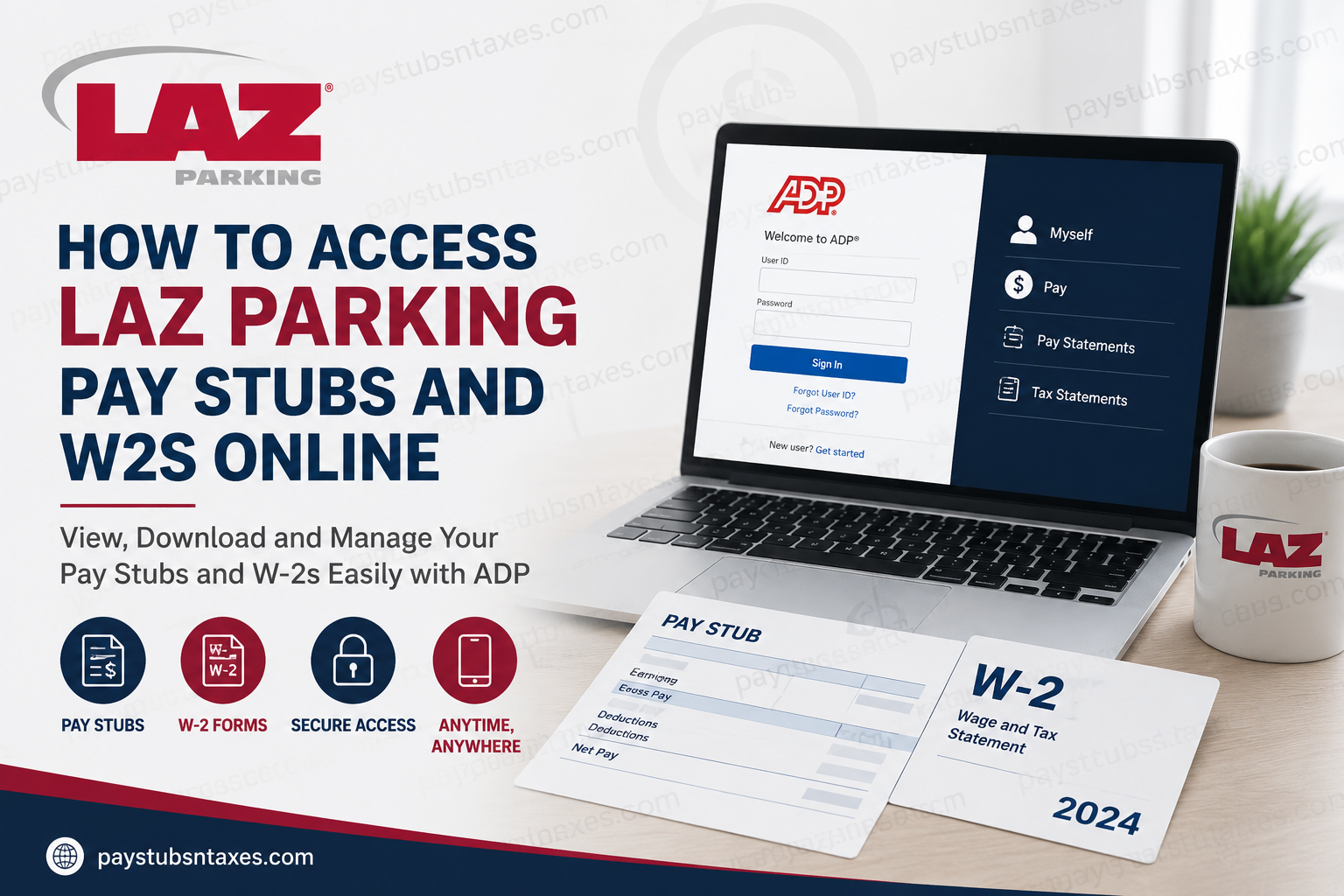
LAZ Parking employees can securely access their pay statements and W-2 tax forms through ADP, the company’s online payroll platform. Whether you need to confirm your latest earnings, download a previous pay stub, or obtain a W-2 for tax preparation, ADP places these essential records at your fingertips through its website and mobile application. This guide explains how to register for ADP, sign in to your account, retrieve LAZ Parking pay stubs and W-2s, and resolve common access problems.
LAZ Parking and Its People-First Culture
Founded by childhood friends Alan Lazowski, Jeff Karp, and Michael Harth, LAZ Parking has grown from a collection of small valet operations into a prominent parking management, transportation, and mobility company.
The business traces its roots to 1981, when Michael launched a valet parking service for three beachside restaurants in San Diego. Inspired by the opportunity, Alan established a valet operation at a restaurant in downtown Hartford, while Jeff began serving a nightclub and surface parking lot in downtown Boston. Two years later, Alan and Jeff merged their companies to form LAZ Parking, while Michael continued operating Sunset Parking on the West Coast. Although their businesses initially followed separate paths, the three friends continued exchanging ideas, experiences, and management philosophies as their companies flourished.
That people-centered philosophy remains woven into the fabric of LAZ Parking. In addition to career-development opportunities, the company offers an extensive benefits program that may include medical and dental coverage, life insurance, short-term disability protection, employee assistance services, flexible spending accounts, vision reimbursement, discount programs, and other valuable resources.
Convenient access to payroll and tax documents through ADP is another important part of the employee experience.
Where Can LAZ Parking Employees Access Their Pay Stubs and W-2s?
LAZ Parking employees can access their payroll and tax records through the secure ADP website:
ADP login: https://my.adp.com
Employees may also use the ADP Mobile Solutions application, available through the appropriate app store on a compatible smartphone or tablet. Once an ADP account has been registered, the same credentials can generally be used on both the website and mobile app.
For security, access ADP from a trusted device and a reliable internet connection. Avoid signing in on public computers or unsecured Wi-Fi networks, particularly because payroll records contain sensitive personal and financial information.
How to Register for an ADP Account as a New User
If you have never created an ADP account, follow these steps:
- Visit https://my.adp.com.
- Select “New User? Get Started” or the corresponding Create Account option.
- Choose how you would like ADP to identify your employment record:
- Enter a personalized registration code obtained from the LAZ Parking payroll office; or
- Select Find Me and follow the identity-verification prompts.
- Enter your first name, last name, Social Security number, and date of birth exactly as they appear in your employment and payroll records.
- Answer the identity-verification questions presented by ADP.
- Review the information and select Confirm.
- Follow the remaining prompts to create your user ID, password, and account-recovery details.
- Save your credentials in a secure password manager or another protected location.
Accuracy is paramount during registration. Even a seemingly insignificant discrepancy—such as a shortened legal name, a typographical error, or information that does not match the payroll record—may prevent ADP from locating your account.
How to Obtain a Personalized Registration Code
If ADP asks for a registration code, contact the LAZ Parking payroll office and request a personalized code. Because registration codes may be organization- or employee-specific, do not use a code found in an unrelated online guide or supplied by another employer.
If a code is unavailable, the Find Me option may allow you to locate your LAZ Parking employment record by verifying your identity through personal information, email, or a mobile number.
How to View LAZ Parking Pay Stubs Online
Once you have successfully registered, retrieving a pay statement takes only a few steps:
- Go to https://my.adp.com.
- Enter your ADP user ID and password.
- Select Sign In.
- Open the Myself menu.
- Select Pay.
- Choose Pay Statements.
- Select the relevant pay period to view the corresponding statement.
- Use the available option to download, save, or print the document.
Your LAZ Parking pay stub may display gross earnings, taxes, benefit deductions, direct-deposit information, paid time off, and net pay. Review each statement carefully; catching a discrepancy early can prevent a minor issue from snowballing into a more complicated payroll concern.
How to Access LAZ Parking W-2 Forms Online
To locate a W-2 through ADP:
- Sign in at https://my.adp.com.
- Navigate to Myself.
- Select Pay.
- Choose Tax Statements.
- Select the appropriate tax year.
- Open the W-2 to view, download, or print it.
When downloading a W-2, save it in a secure, password-protected location. If you print the form, store it with your other confidential tax records rather than leaving it in an unattended printer tray or an easily accessible area.
How to Use the ADP Mobile App
Employees who prefer mobile access can download ADP Mobile Solutions from their device’s official app store. After installing the application:
- Open the ADP Mobile Solutions app.
- Sign in with your existing ADP user ID and password.
- Complete any requested identity verification.
- Navigate to the pay section to view available pay statements.
- Open the tax-document section to locate available W-2 forms.
Menu names and screen layouts may vary slightly depending on the device, operating system, and application version. Nevertheless, the underlying account information should correspond with the records available through the ADP website.
What to Do If You Forget Your ADP User ID
If your user ID has slipped your mind:
- Open the ADP sign-in page.
- Select Forgot User ID?
- Enter the requested identifying information.
- Choose an available verification method, such as email or mobile phone.
- Enter the verification code sent by ADP.
- Follow the prompts to recover your user ID and return to the sign-in page.
Use an email address or mobile number already associated with your payroll profile. If you no longer have access to those contact details, you may need assistance from LAZ Parking.
How to Reset a Forgotten ADP Password
To reset your password:
- Go to the ADP sign-in page.
- Enter your user ID, if requested.
- Select Forgot Password.
- Choose an available verification method.
- Enter the security code sent to your email address or mobile phone.
- Create and confirm a new password.
- Return to the login screen and sign in.
Choose a strong, unique password that you do not use for email, banking, or social-media accounts. Sharing credentials—even with someone you trust—can expose sensitive payroll and tax information.
Contact LAZ Parking for Assistance
If you remain unable to access your pay stubs or W-2 forms after completing the standard recovery steps, contact LAZ Parking Human Resources:
Email: lazhr@lazparking.com
When requesting assistance, explain the nature of the problem but do not email your full Social Security number, password, or complete tax document. Sensitive information should be shared only through an approved, secure channel.
Final Thoughts
ADP gives LAZ Parking employees a convenient and secure way to manage essential payroll records without waiting for paper copies or navigating an unnecessarily circuitous process. Once registration is complete, pay stubs are available under Myself > Pay > Pay Statements, while W-2 forms can be found under Myself > Pay > Tax Statements. Register carefully, protect your login credentials, and keep downloaded payroll documents in a secure location. Should technical difficulties bring the process to a standstill, LAZ Parking Human Resources can help steer matters back on course.
Frequently Asked Questions About LAZ Parking Pay Stubs and W-2s
1. How do I access my LAZ Parking pay stubs online?
Sign in at my.adp.com, then navigate to Myself > Pay > Pay Statements. Select the appropriate pay period to view, download, save, or print your pay stub.
2. How do I get my LAZ Parking W-2 online?
Log in to ADP and select Myself > Pay > Tax Statements. Choose the relevant tax year, open the W-2, and use the available option to download or print it.
3. What is the ADP login website for LAZ Parking employees?
The official ADP employee login page is https://my.adp.com. Use a trusted device and secure internet connection when accessing sensitive payroll or tax information.
4. How does a new LAZ Parking employee register for ADP?
Visit the ADP website and select New User? Get Started or Create Account. Register with a personalized code from the payroll office or select Find Me and complete the identity-verification process.
5. Where can I obtain a LAZ Parking ADP registration code?
Contact the LAZ Parking payroll office for a personalized registration code. Because codes may be company- or employee-specific, never use a registration code associated with another employer.
6. Can I register for ADP without a registration code?
Yes. Select Find Me during registration and follow the prompts to locate your employment record. You may need to provide identifying details and verify your identity by email, mobile phone, or another available method.
7. What information do I need to create an ADP account?
You may be asked for your first name, last name, Social Security number, date of birth, email address, or mobile number. Enter the information exactly as it appears in your LAZ Parking payroll records.
8. Can I view LAZ Parking pay stubs on my phone?
Yes. Download the ADP Mobile Solutions app from your device’s official app store, sign in with your ADP credentials, and navigate to the pay section to view available statements.
9. Can I access my LAZ Parking W-2 through the ADP mobile app?
Yes. After signing in to ADP Mobile Solutions, open the tax-document section and select the required W-2. Menu names may vary slightly according to the device and app version.
10. What should I do if I forget my ADP user ID?
Select Forgot User ID? on the ADP sign-in page. Enter the requested information, complete the email or mobile-phone verification process, and follow the prompts to recover your user ID.
11. How do I reset a forgotten ADP password?
Select Forgot Password on the ADP login page, choose an available verification method, and enter the security code sent to you. You can then create a new password and return to the sign-in page.
12. Why can ADP not find my LAZ Parking employment record?
ADP may be unable to locate your record if the information entered does not match the payroll system. Verify your legal name, Social Security number, date of birth, email address, and mobile number before trying again.
13. Can I download or print my LAZ Parking pay statements?
Yes. Open the required statement under Myself > Pay > Pay Statements, then use the available download or print option. Store downloaded and printed records securely because they contain confidential financial information.
14. Can I download or print my W-2 from ADP?
Yes. Navigate to Myself > Pay > Tax Statements, select the applicable tax year, and open the W-2. You can then download or print the document for tax preparation or record-keeping.
15. Who should I contact if I cannot access my LAZ Parking payroll records?
If registration, account recovery, and standard troubleshooting do not resolve the problem, email LAZ Parking Human Resources at lazhr@lazparking.com. Never send your password or full Social Security number by email.
