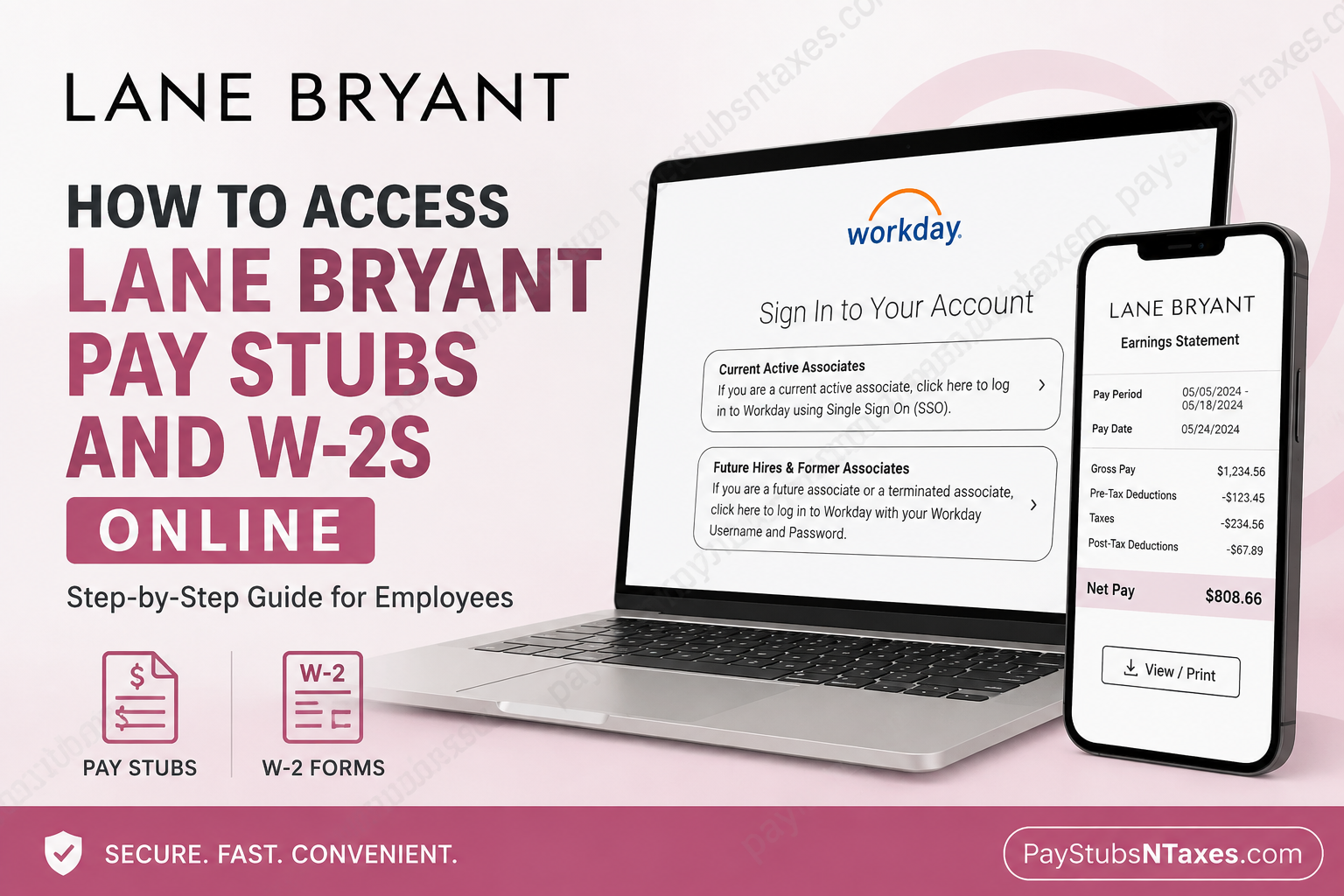
Lane Bryant employees can access their pay stubs, earnings information, and year-end W-2 tax forms securely through Workday. Whether you need to verify your net pay, review payroll deductions, download a previous earnings statement, or obtain a W-2 for tax filing, the Workday website and mobile app place these records within easy reach. In Workday, paychecks and earnings statements are referred to as payslips. The following guide explains how active associates, future hires, and former Lane Bryant employees can sign in and retrieve their payroll documents.
About Lane Bryant
Founded in 1904 by Lena Himmelstein Bryant Malsin, Lane Bryant is an American specialty retailer renowned for women’s plus-size apparel and intimates. The company has grown from its early maternity-wear origins into one of the most prominent plus-size clothing retailers in the United States.
Lane Bryant, Inc. should not be confused with the former Lane Bryant catalogue business, which was spun off as a separate company, Brylane, Inc., in 1993.
Lane Bryant Workday Login
Use the following portal to access Lane Bryant Workday:
Workday login: https://wd1.myworkday.com/knitwellgroup/login.htmld
The sign-in page provides two login routes:
- Current Active Associates
- Future Hires & Former Associates
Choosing the correct option is essential, as each route uses a different authentication process.
How Active Lane Bryant Associates Log In
As part of KnitWell Group’s unified Workday system, Lane Bryant updated its login procedure on September 3, 2024. All active associates must select Current Active Associates and sign in through SSO, or Single Sign-On, using their company credentials.
Your username and password depend on your position.
Store Associates
For store associates at Store Manager level and below:
- Username: Your employee ID followed by
@lanebryant.com - Example:
123456@lanebryant.com - Password: Your OrPOS password
District Managers and Above
For District Managers and associates in more senior field positions:
- Username:
FirstName.LastName@lanebryant.com - Password: Your network password
Your username may contain a number after your last name when another employee has the same name or when the original email address is already in use.
Home Office Associates
For non-distribution-centre, non-field, and non-store Home Office associates:
- Username:
FirstName.LastName@lanebryant.com - Password: Your email or laptop password
As with District Manager accounts, a number may appear after your last name if your standard email address is not unique.
How Future Hires and Former Associates Log In
Future hires and former Lane Bryant associates should select Future Hires & Former Associates rather than the SSO option.
Future Hires
If your employment start date is still in the future, use the Workday username and password provided in your onboarding email. These credentials are separate from the company SSO credentials used by active associates.
Former Associates
Former associates should use their past associate ID as their Workday username.
If you have forgotten your password:
- Select Future Hires & Former Associates.
- Click Forgot Password?
- Enter your username.
- Enter the work or personal email address associated with your Workday profile.
- Follow the password-reset instructions sent to that address.
A reset link can be delivered to a personal email address only if that address was previously added to your Workday worker profile.
How to View Lane Bryant Pay Stubs in Workday
Once you have successfully signed in, follow these steps to locate your Lane Bryant pay stubs:
- Open the Workday home page.
- Select View All Apps, or open the main Menu.
- Choose the Pay application.
- Under the View section, select Payslips.
- Find the applicable pay period.
- Select View to open the payslip.
- Select Print or use the available download option to save a copy.
The wording and position of individual buttons may vary slightly after a Workday update, but the payslip area ordinarily remains within the Pay application.
How to Download or Print a Lane Bryant Pay Stub
After opening the appropriate payslip:
- Review the pay period and payment date to ensure that you have selected the correct record.
- Choose Print or the available PDF/download control.
- Save the file to a secure location on your device.
- Open the downloaded document and confirm that every page is legible.
- Print it only when a paper copy is genuinely required.
Payroll records contain sensitive personal and financial information. Avoid saving them on a public computer, shared workstation, or unencrypted storage service.
How to Access Lane Bryant W-2 Forms Online
Lane Bryant employees can also retrieve available W-2 and corrected W-2C forms through Workday.
- Sign in to Lane Bryant Workday.
- Open the Pay application.
- Locate the View section.
- If My Tax Documents is not immediately visible, select More to expand the list.
- Choose My Tax Documents.
- Find the required tax year and document.
- Select View/Print.
- Open, download, save, or print the form as needed.
The My Tax Documents page may display W-2 forms from multiple tax years. Check the year carefully before downloading a document, particularly when preparing a prior-year return or responding to a tax inquiry.
How to Access Pay Stubs and W-2s in the Workday Mobile App
You can also use the Workday mobile app to review payroll information when you are away from a computer.
- Install or open the official Workday app.
- Sign in through Lane Bryant’s or KnitWell Group’s organizational login.
- Use the SSO option if you are an active associate.
- Open Apps or the main menu.
- Select Pay.
- Choose Payslips to review earnings statements, or My Tax Documents to locate available W-2 forms.
- Open the desired record and use the available sharing, downloading, or printing controls.
Menu names and document-handling options can differ slightly according to the app version and your phone’s operating system. If a form does not download properly in the app, sign in through a secure web browser and repeat the process on the Workday website.
Troubleshooting Lane Bryant Workday Login Problems
If Workday refuses to accept your credentials, work through the following checks before repeatedly attempting to sign in:
Confirm That You Selected the Correct Login Option
Active associates must choose Current Active Associates and use SSO. Future hires and former associates must choose Future Hires & Former Associates.
Check Your Username Format
Store associates use their employee ID followed by @lanebryant.com. District Managers, senior field associates, and qualifying Home Office employees ordinarily use a first-name-and-last-name company email format.
Remove accidental spaces before or after the username. In particular, there should be no space between the @ symbol and lanebryant.com.
Use the Correct Password
Store associates use their OrPOS password, while District Managers and above use their network password. Home Office associates use their email or laptop password.
Because these passwords serve different systems, substituting one for another is a common stumbling block.
Allow Time for a New Account to Become Available
Newly hired associates may experience a delay of approximately 24 to 48 hours before their company credentials become fully available in Workday.
Reset a Former Associate Password
Former associates who cannot remember their password should use Forgot Password? under the Future Hires & Former Associates option. The reset process will work only when Workday has an accessible email address connected to the account.
Contact Lane Bryant Workday Support
If you remain unable to sign in or retrieve your payroll documents, call Lane Bryant Workday Support at 855-436-7177
When requesting assistance, be prepared to confirm your identity and explain whether you are an active associate, future hire, or former associate. Never send your password by email or disclose it to anyone who contacts you unexpectedly.
Final Security Reminder
Once you have finished reviewing or downloading your Lane Bryant pay stubs and W-2s, sign out of Workday completely—especially when using a shared device. Store downloaded payroll records in a protected location, never share your company password, and verify that you are using the legitimate KnitWell Group Workday portal before entering your credentials. With the correct login route and company credentials in hand, accessing Lane Bryant payroll records is generally straightforward: open Workday, navigate to Pay, choose Payslips or My Tax Documents, and then view, download, or print the document you need.
Lane Bryant Pay Stub and W-2 FAQs
1. How do I get my Lane Bryant pay stub online?
Sign in to the KnitWell Group Workday portal, open Pay, and select Payslips. Choose the relevant pay period and click View or Print.
2. What is the Lane Bryant Workday login website?
Lane Bryant associates can use the KnitWell Group Workday portal at https://wd1.myworkday.com/knitwellgroup/login.htmld.
3. What are pay stubs called in Workday?
Workday calls pay stubs payslips. They are usually available under Pay > Payslips.
4. How do active Lane Bryant employees log in to Workday?
Active associates should select Current Active Associates and use the SSO login option. They must sign in with the company credentials assigned to their employment category.
5. What is the Workday username for a Lane Bryant store associate?
A Lane Bryant store associate generally uses an employee ID followed by @lanebryant.com, such as 123456@lanebryant.com.
6. What password does a Lane Bryant store associate use for Workday?
Store associates at Store Manager level and below use their OrPOS password when signing in through SSO.
7. How do Lane Bryant District Managers log in to Workday?
A District Manager or more senior field associate ordinarily uses FirstName.LastName@lanebryant.com as the username and a network password. The username may contain an additional number when the email address is not unique.
8. How do Lane Bryant Home Office associates log in?
Eligible Home Office associates generally use their Lane Bryant company email address and their email or laptop password.
9. Can former Lane Bryant employees access Workday?
Yes. Former employees should select Future Hires & Former Associates and use their former associate ID as the Workday username.
10. How can a former Lane Bryant employee reset a Workday password?
Select Future Hires & Former Associates, click Forgot Password?, and enter the former associate ID and an email address already registered in the Workday profile.
11. Where can I find my Lane Bryant W-2 in Workday?
Open Pay, expand the View section by selecting More if necessary, and choose My Tax Documents. Click View/Print beside the required W-2.
12. Can I access Lane Bryant pay stubs through the Workday mobile app?
Yes. Sign in to the official Workday app, open Pay, and select Payslips. Available download and printing controls may vary according to the device and app version.
13. What information appears on a Lane Bryant Workday payslip?
A payslip may include gross pay, employee taxes, pre-tax and post-tax deductions, taxable wages, direct-deposit details, net pay, and year-to-date totals.
14. What should I do if a W-2C appears in Workday?
A W-2C corrects information reported on an original W-2. Download the W-2C and every other form with an available View/Print option for the same tax year.
15. Who should I call if I cannot access Lane Bryant Workday?
If you cannot sign in or retrieve your documents, call 855-436-7177 for assistance. Never disclose your password when requesting support.
