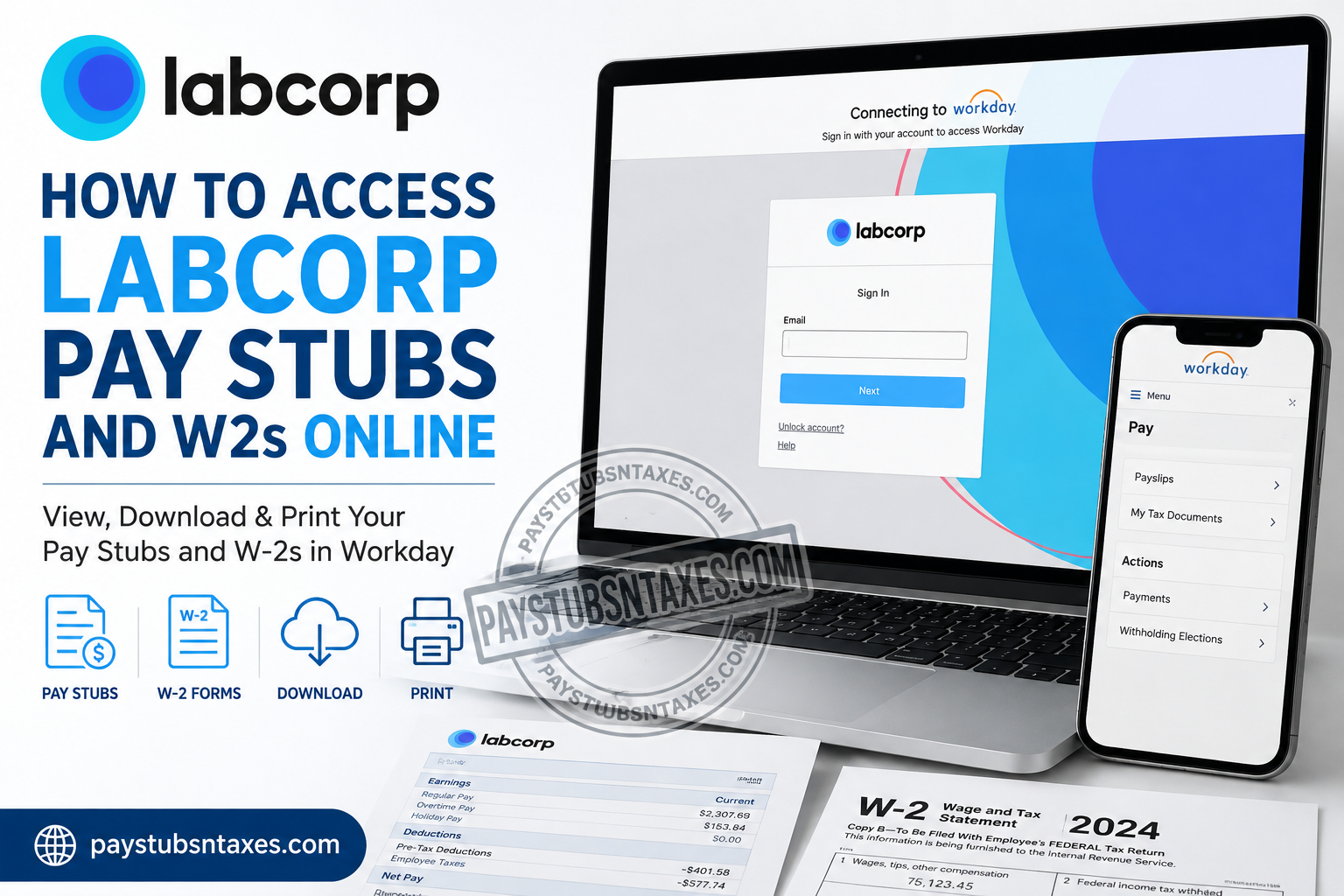
Labcorp is a global life sciences and healthcare company that uses scientific expertise, diagnostic testing, and drug-development capabilities to deliver answers that support more confident healthcare decisions. With approximately 70,000 employees and operations spanning more than 100 countries, the company requires a secure and convenient way for its workforce to manage payroll information. For current Labcorp employees, Workday serves as the primary gateway to pay statements and annual tax documents. Once signed in, employees can review previous pay periods, examine deductions and taxes, download W-2 forms, and retain copies for their personal records—all without waiting for paperwork to arrive by mail. This guide explains how to access Labcorp pay stubs and W-2s through Workday using a computer or mobile device, as well as what to do when login or document-processing issues arise.
Labcorp Workday Login Information
The Labcorp Workday portal is available at:
https://wd1.myworkday.com/labcorp/login.htmld
Current Labcorp employees should use the company’s Okta single sign-on system when prompted. Depending on the login screen and security configuration, you may need your Labcorp email address or employee credentials, followed by the applicable verification step.
Before signing in, make sure that:
- You are using the official Labcorp Workday address.
- Your Labcorp username and password are available.
- You can complete any required multifactor authentication.
- Your browser is current and has cookies and JavaScript enabled.
- You are connected through a secure, private network.
Avoid signing in from a public computer whenever possible. Payroll records contain sensitive financial and identity information, so safeguarding your credentials is not merely good practice—it is essential.
How to Access Labcorp Pay Stubs Online
Workday stores pay statements from previous payroll periods and allows employees to view or print the applicable documents.
To access your Labcorp pay stubs:
- Sign in to the Labcorp Workday portal.
- From the Workday home page, select Menu or View All Apps.
- Open the Pay application.
- Locate the View section and select Payslips.
- Find the appropriate pay period in the payslip history.
- Select View to open the statement or Print to generate a printable version.
Depending on the Workday layout available to your account, the wording or position of individual options may differ slightly. Nevertheless, the route generally remains the same: Menu or Apps > Pay > Payslips.
How to Download a Labcorp Pay Stub
After opening the required payslip, use the available Print or Download option to create a copy. Workday commonly generates payroll documents in PDF format, which can be saved to a secure device.
Use a clear filename, such as:
Labcorp-Pay-Stub-2026-08-01.pdf
A consistent naming convention makes documents considerably easier to retrieve when applying for a loan, renting a property, verifying income, or preparing financial records.
Do not store unprotected payroll documents on a shared computer or public cloud folder. If possible, place them in an encrypted folder or another secure location.
How to Access Your Labcorp W-2 in Workday
Employees can retrieve available W-2 forms through the Pay application in Workday.
Follow these steps:
- Log in to the Labcorp Workday portal.
- Select Menu in the upper-left corner of the home screen.
- Open the Pay application.
- Select My Tax Documents.
- Locate the appropriate tax year and W-2 form.
- Select the available option to view or generate the document.
- Open the PDF when it becomes available.
- Download or print the W-2 for your records.
The standard navigation path is:
Menu > Pay > My Tax Documents
Make sure that you select the correct tax year, particularly if several W-2 forms are displayed in your account.
What Does “Notify Me Later” Mean in Workday?
Workday may need time to generate your W-2 PDF. If a Notify Me Later message appears, it does not usually mean that the request has failed.
Select Notify Me Later, allow the system to process the document, and then check the bell-shaped notification icon in the upper-right corner of Workday. Once processing is complete, open the notification and select the PDF to view, save, or print your W-2.
If the notification does not arrive promptly, wait a few minutes before checking again. Repeatedly submitting the same request may create unnecessary duplicate notifications.
Using the Workday Mobile App
Current Labcorp employees may also be able to access payroll information through the Workday mobile application, which is available from the Apple App Store and Google Play Store.
When signing in for the first time, you may be asked to provide:
- Your Labcorp Workday username or company email
- Your password
- The organization ID: labcorp
- Any required multifactor authentication
After completing the initial setup, open the Pay area to look for payslips and tax documents.
Although mobile access is convenient, certain documents may be easier to inspect or print from a computer. If an option is missing from the app, sign in through a supported web browser and check the desktop version of Workday.
Can Former Labcorp Employees Use the Workday App?
Workday Mobile is generally intended for active employees, and former or terminated employees may not be able to sign in through the regular Labcorp mobile process once their company access has ended.
Former employees who cannot access Workday should contact the Labcorp HR Service Line for assistance with payroll records, W-2 access, or address updates. Because access arrangements can vary, HR can confirm the method available for the individual’s employment status.
Whenever possible, employees who are preparing to leave Labcorp should download important pay statements and verify their personal contact details before their final day. Taking this simple precaution can save considerable time later.
Will Labcorp Mail a Paper W-2?
Labcorp may send a paper W-2 to the employee’s home address by January 31 of the following year unless the employee has elected electronic delivery or another applicable arrangement.
Employees should therefore ensure that their home and mailing addresses are accurate in Workday. If you moved during the year, review your contact information as early as possible rather than waiting until tax season is in full swing.
Electronic delivery can provide faster access and reduce the risk of a sensitive tax document being delayed or misdirected in the mail. However, employees should retain the downloaded file securely and create a backup when appropriate.
What to Do If You Cannot Sign In
If the Labcorp Workday login page does not accept your credentials, consider the following steps:
- Confirm that you are using the official Labcorp Workday portal.
- Enter the email address or username associated with your Labcorp account.
- Check whether Caps Lock is enabled.
- Complete any Okta or multifactor authentication prompt.
- Use the Unlock Account or password-recovery option, if available.
- Clear your browser cache or try a private browsing window.
- Try another supported browser or device.
- Confirm that your internet connection is stable.
Current employees who still need help can contact the Labcorp HR Service Line at 1-855-447-8416.
When requesting assistance, be prepared to verify your identity. However, never send your password, complete Social Security number, or authentication code through an unsecured email or message.
Final Thoughts
Accessing Labcorp pay stubs and W-2 forms online need not be a labyrinthine exercise. For most current employees, the journey begins with Labcorp’s Okta SSO and continues into the Workday Pay application, where payslips and tax documents can be managed from one central location. Pay stubs are generally found under Pay → Payslips, while W-2 forms are typically located under Pay → My Tax Documents. Current employees can also make use of Workday Mobile where available, using labcorp as the Organization ID. Former employees, meanwhile, should favour browser-based access when it remains available and rely on Labcorp’s year-end postal delivery or HR assistance if their electronic account has been deactivated. By keeping your Workday credentials secure, maintaining an up-to-date mailing address, and saving important payroll documents before you need them, you can keep your employment and tax records at your fingertips rather than scrambling for paperwork when deadlines are looming.
Frequently Asked Questions About Labcorp Pay Stubs and W-2s
1. How do I access my Labcorp pay stubs online?
Sign in to the Labcorp Workday portal, open Menu or View All Apps, select Pay, and then choose Payslips. Find the required pay period and select View or Print.
2. How do I get my Labcorp W-2 online?
Log in to Workday and select Menu > Pay > My Tax Documents. Choose the appropriate tax year, generate the document if necessary, and open the PDF to download or print your W-2.
3. What is the Labcorp Workday login website?
The Labcorp Workday login page is: https://wd1.myworkday.com/labcorp/login.htmld.
Current employees should use Labcorp’s Okta single sign-on process when prompted.
4. What is the Labcorp organization ID for Workday Mobile?
The Workday organization ID for Labcorp is labcorp. You may need to enter it when setting up the Workday mobile application for the first time.
5. Can I access Labcorp pay stubs from my phone?
Yes. Current employees may use the Workday mobile application to access available payroll information. The app is available through the Apple App Store and Google Play Store.
6. Can former Labcorp employees access Workday?
Former employees may lose access to the standard Workday Mobile and Okta sign-in process after their employment ends. If you cannot sign in, call the Labcorp HR Service Line at 1-855-447-8416.
7. How do I print a Labcorp pay stub?
In Workday, navigate to Menu > Pay > Payslips, locate the desired pay period, and select Print. Workday will ordinarily generate a printable version of the statement.
8. How do I download a Labcorp W-2 as a PDF?
Open My Tax Documents within the Workday Pay application, select the appropriate W-2, and choose the available viewing or printing option. Once the PDF opens, save it securely to your device.
9. Why does Workday display “Notify Me Later” for my W-2?
The message means Workday is still generating the document. Select Notify Me Later, wait for processing to finish, and check the bell-shaped notification icon for the completed PDF.
10. When does Labcorp mail paper W-2 forms?
Paper W-2 forms are generally mailed by January 31 of the following year, unless the employee has elected electronic delivery or another arrangement applies.
11. What information appears on a Labcorp pay stub?
A pay stub may display gross pay, net pay, taxes, deductions, taxable wages, year-to-date totals, employer-paid benefits, withholding details, pay-period dates, and direct-deposit information.
12. What should I do if my Labcorp W-2 is missing?
Verify that you selected the correct tax year, check your Workday notifications, and allow time for the PDF to process. If the form remains unavailable, contact the Labcorp HR Service Line at 1-855-447-8416.
13. How can I correct my mailing address for my Labcorp W-2?
Current employees should review and update their home or mailing address in Workday. Former employees who cannot access Workday should contact the Labcorp HR Service Line as soon as possible.
14. Who should I contact for Labcorp Workday login assistance?
Current Labcorp employees who need help signing in should call the Labcorp HR Service Line at 1-855-447-8416. You may be required to verify your identity before account-specific assistance is provided.
15. How long should I keep my Labcorp pay stubs and W-2 forms?
Keep W-2 forms and supporting payroll records for at least as long as they may be needed for tax, income-verification, or dispute-resolution purposes. Store digital copies in an encrypted or password-protected location and follow current tax-record retention guidance.
