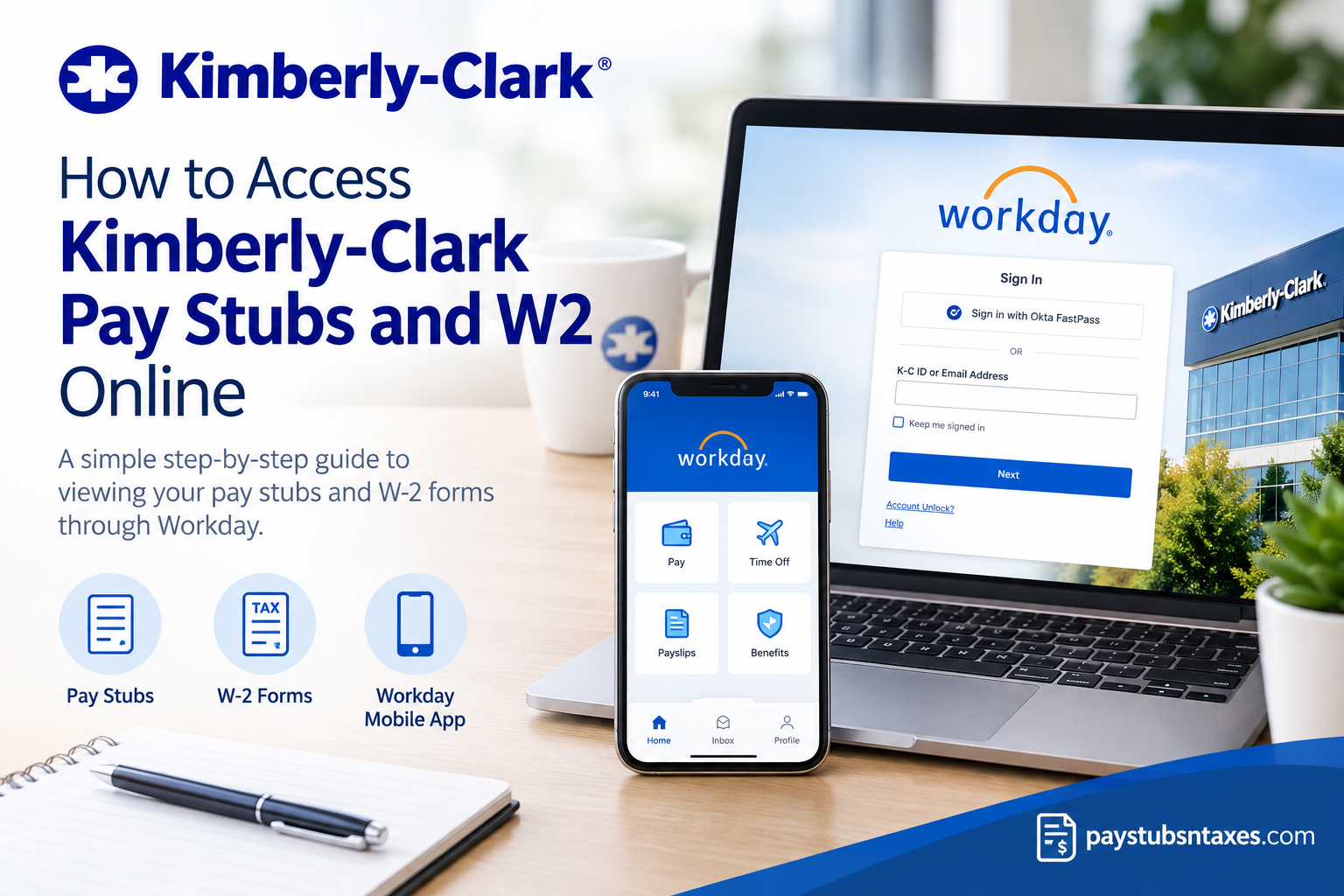
Kimberly-Clark Corporation is a global consumer goods and personal-care company whose portfolio includes some of the world’s most recognizable household brands, such as Kleenex, Huggies, Kotex, Scott, Depend, Poise, Cottonelle, and Andrex. The company traces its roots to Neenah, Wisconsin, where it was founded in 1872, and today operates as a multinational enterprise serving consumers worldwide. For Kimberly-Clark employees, keeping track of earnings statements and year-end tax records need not become a paper-chasing exercise. The company uses Workday Employee Self-Service, enabling eligible employees to access payroll information electronically, including pay stubs—known as payslips in Workday—and W-2 tax documents.
In addition to payroll records, Workday can provide access to personal and employment information, allowing employees to review or update details such as contact information and emergency contacts. Workday’s mobile functionality also supports convenient access to payslips and other employee information while on the go.
Kimberly-Clark Workday Login
Current employees generally access Workday through Kimberly-Clark’s secure Single Sign-On environment.
Visit the Kimberly-Clark Workday sign-in page:
Depending on the sign-in options available to you, select Sign in with Okta FastPass or enter your K-C ID or email address, and then follow the authentication prompts.
Single Sign-On is enabled for Kimberly-Clark’s production tenant. If Workday displays a message instructing you to use the Kimberly-Clark Portal, return to the company’s official employee portal and launch Workday from there. Other authorized tenants may permit access with a user ID and password.
For security, use only an employer-approved portal or bookmarked Workday address. Never enter your Kimberly-Clark credentials on an unfamiliar website.
How to View and Print Kimberly-Clark Pay Stubs
Once signed in, you can retrieve your Kimberly-Clark pay stubs by following these steps:
- Open your Workday profile.
- Select Pay and then Payslips.
- Review the list of available pay-period dates.
- Select the pay period you want to examine.
- Click the PDF link beside the relevant pay period.
- When the statement opens, use your device’s download or print controls to save or print a copy.
If you have added the Pay application to your Workday home page through Configure Applications, you may take a slightly different route:
- Open the Pay application from the home screen.
- Locate the View section.
- Select Payslips.
- Choose the appropriate pay-period date.
- Open the corresponding PDF statement.
A detailed payslip may show your gross pay, deductions, taxes, net pay, payment distribution, and year-to-date totals. Review the document carefully and report any apparent discrepancy through the appropriate Kimberly-Clark payroll or HR support channel.
How to Access Kimberly-Clark W-2 Forms in Workday
To find your available W-2 tax statements:
- Sign in to Workday through the Kimberly-Clark employee portal or approved login page.
- Select the Pay application from the Workday home page.
- Find the View section and select More if the full menu is not displayed.
- Click My Tax Documents.
- Locate the required W-2 or corrected W-2C statement.
- Select View/Print to open the document.
- Download the statement to a secure device or print it for your records.
If several documents have a View/Print option, examine each one. This is particularly important when a W-2C has been issued, because a corrected statement supplements or amends information contained in the original W-2.
Keep downloaded tax documents in a secure location. W-2 forms contain sensitive personal and financial information, so avoid saving them on public or shared computers.
Using the Workday Mobile App
The Workday mobile app offers a convenient way to access employee information while away from a desktop computer. The app is available through the Apple App Store and Google Play.
To begin:
- Download the official Workday app.
- Open the app and start the organization setup process.
- Enter the organization code kimberlyclark.
- Continue through the Kimberly-Clark authentication process.
- Complete any required multifactor authentication or Okta verification.
- If offered, configure a secure mobile PIN or another supported sign-in method.
Menus can vary by device, operating system, app version, employee role, and employer configuration. If the options in your app differ from those described here, use Workday’s search function or open the Pay section from the home screen.
Viewing a Pay Stub in the Mobile App
To view a payslip on a mobile device:
- Open the Pay section.
- Select the pay date or payment record you wish to review.
- Examine the available gross-pay, net-pay, payment-distribution, and year-to-date information.
- Tap View PDF Statement to open the complete payslip.
- Use your device’s secure sharing or printing controls if you need a saved copy.
Although Workday Mobile provides ready access to payroll information, some functions may be easier to complete through the desktop portal, particularly when downloading several tax documents or printing records.
Other Workday Self-Service Features
Depending on Kimberly-Clark’s configuration and your employment status, Workday may also allow you to:
- Update your home address, telephone number, and other contact information
- Add or revise emergency contacts
- Review personal and employment information
- Check time-off balances
- Submit a time-off request
- View benefits information
- Manage eligible worker documents
- Review inbox items and notifications
Some changes may require supporting documentation or approval before they take effect.
Workday Access for Former Kimberly-Clark Employees
Former employees who need a Kimberly-Clark W-2 may retain limited electronic access after their regular employee account has been deactivated. Where post-employment access is available, separate Workday credentials or a different sign-in process may be provided.
Former employees should not assume that their previous company Single Sign-On credentials will continue to work. Instead, they should use any separation instructions supplied by Kimberly-Clark or contact the appropriate HR support team to confirm:
- Whether post-employment Workday access is available
- Which username or email address should be used
- How to reset an expired or forgotten password
- Whether multifactor authentication is required
- How to request a replacement W-2 when online access is unavailable
Kimberly-Clark Employee Support
For a question requiring direct assistance, employees may call Kimberly-Clark human resources at 972-281-1200. Because internal support arrangements and telephone routing can change, confirm the appropriate HR, payroll, or technology-support contact through the Kimberly-Clark employee portal whenever possible.
For questions about Kimberly-Clark consumer products, use the company’s public customer-service channels rather than its employee payroll-support route.
Final Thoughts
Workday gives Kimberly-Clark employees a practical, centralized way to manage pay statements, tax forms, personal information, and other workplace records. Once the correct login route has been established, retrieving a payslip or W-2 is generally a straightforward matter of opening the Pay application, selecting the appropriate document, and choosing View/Print.
Nevertheless, payroll records demand careful handling. Use approved sign-in channels, safeguard downloaded documents, and seek help from Kimberly-Clark HR, payroll, or technology support whenever account access or document availability is unclear.
Kimberly-Clark Workday Frequently Asked Questions
1. How do I access my Kimberly-Clark pay stub online?
Sign in to Kimberly-Clark Workday, open the Pay application, select Payslips, and choose the relevant pay period. Click the accompanying PDF link to view, save, or print the complete statement.
2. How do I obtain my Kimberly-Clark W-2 online?
In Workday, navigate to Pay > More > My Tax Documents. Locate the W-2 for the required tax year and select View/Print to open or download it.
3. What is the Kimberly-Clark organization code for Workday Mobile?
The Workday organization code is kimberlyclark. Enter it during the app’s organization setup process before proceeding to the Kimberly-Clark authentication screen.
4. Can I view my Kimberly-Clark pay stubs on my phone?
Yes, provided mobile access is enabled for your account. Open the Workday app, sign in, select Pay or Pay Slip, choose a payment date, and tap View PDF Statement.
5. Can former Kimberly-Clark employees access Workday?
Some former employees may receive limited post-employment Workday access. Because ordinary employee Single Sign-On credentials may be disabled after separation, former workers should use their designated credentials or contact HR.
6. How can a former Kimberly-Clark employee obtain a W-2?
Try the post-employment Workday credentials provided during separation. If those credentials are unavailable or no longer work, contact Kimberly-Clark HR to request access instructions or a replacement W-2.
7. Why does Workday tell me to use the Kimberly-Clark Portal?
Kimberly-Clark’s production tenant uses Single Sign-On. This message generally means you must open Workday through the official employee portal rather than signing in directly with a standalone Workday password.
8. What should I do if Okta FastPass is not working?
Confirm that your device and Okta enrollment remain active. If you recently changed phones, reinstalled the authentication app, or lost access to a registered device, contact the appropriate Kimberly-Clark technology-support team.
9. What should I do if my Kimberly-Clark Workday account is locked?
Select Account Unlock on the sign-in page if that option is available. If self-service recovery is unsuccessful, contact the designated HR or technology-support channel.
10. Why can’t I find the Pay application in Workday?
Workday menus can vary according to location, employment status, role, and system configuration. Use the search function to look for Pay, Payslips, or My Tax Documents.
11. Why is my W-2 missing from Workday?
Confirm that you are viewing My Tax Documents for the correct tax year. If the form is still unavailable, contact HR or payroll to check its issuance status and your delivery preferences.
12. What is a W-2C in Workday?
A W-2C is a corrected wage and tax statement issued when information on an original W-2 requires amendment. If both documents are available, download and retain each applicable form.
13. Can I print a Kimberly-Clark payslip from Workday?
Yes. Open the relevant payslip PDF and use the print controls in your browser, PDF viewer, or mobile device. Confirm that the entire document appears correctly before printing.
14. Can I update my personal information through Workday?
Depending on your access permissions, Workday may allow you to update contact information, addresses, telephone numbers, emergency contacts, and other personal details. Certain changes may require approval.
15. Who should I contact for Kimberly-Clark payroll or Workday assistance?
Employees may call Kimberly-Clark Human Resources at 972-281-1200 for questions requiring direct assistance. Whenever possible, verify the current HR, payroll, or technology-support contact through the official employee portal.
