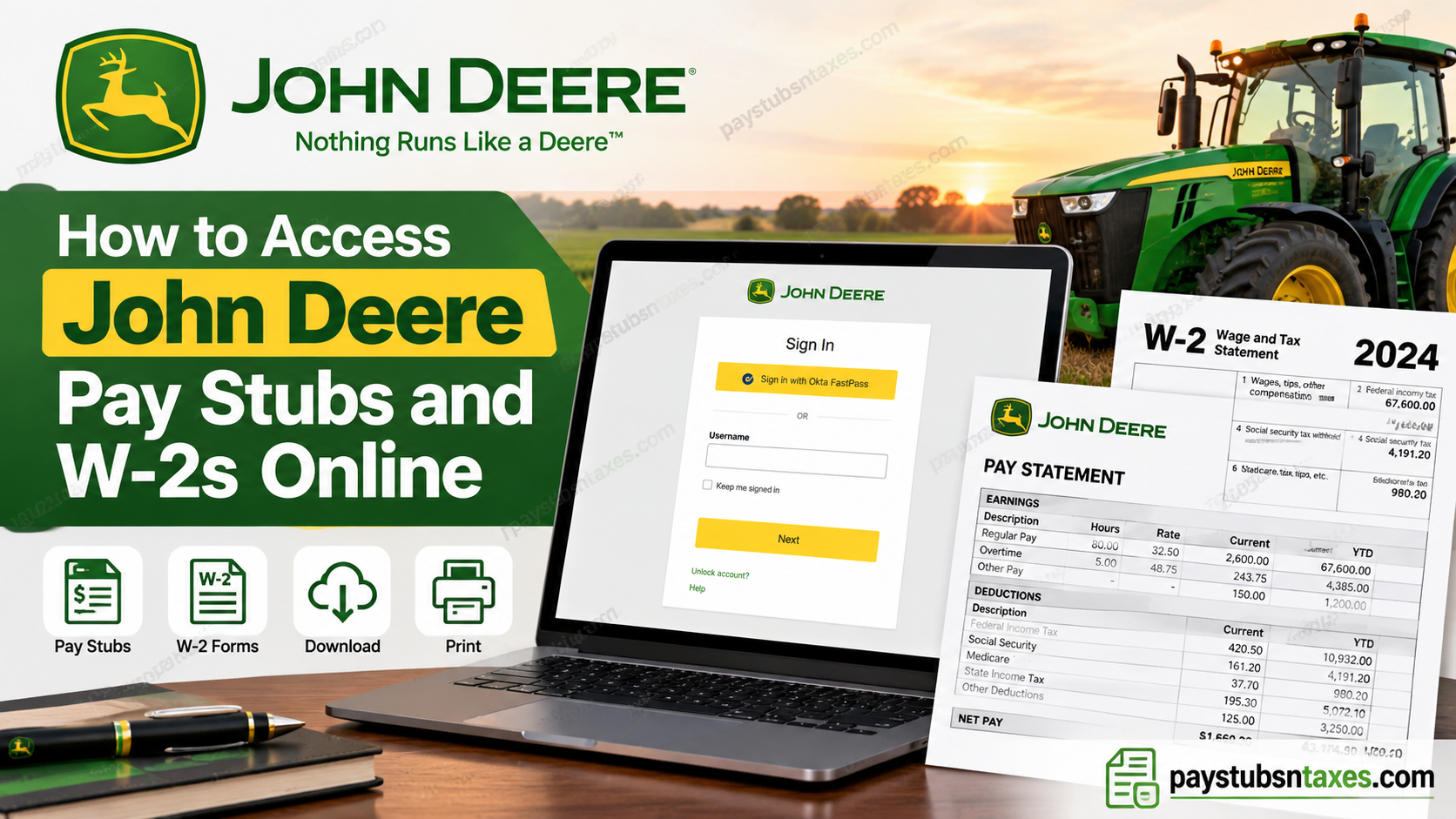
John Deere employees can access their pay stubs, payroll information, and annual W-2 tax statements online through their designated payroll self-service system. For employees using SAP SuccessFactors, the process generally involves signing in with their corporate credentials through Okta Single Sign-On (SSO), navigating to the Payroll Information section, and selecting the relevant pay statement or tax document.
Whether you need to verify your latest earnings, review previous payroll deductions, download a pay stub for financial documentation, or retrieve your W-2 for tax filing, understanding how to navigate the John Deere employee payroll portal can make the entire process considerably more straightforward.
This comprehensive guide explains how to access John Deere pay stubs and W-2 forms online, use SAP SuccessFactors, download or print payroll documents securely, and resolve common login and account-access difficulties.
John Deere Employee Payroll Portal
Use the following address to access the John Deere SAP SuccessFactors portal:
John Deere SAP SuccessFactors Portal
The sign-in page may offer Okta FastPass or another approved Okta single sign-on method. Follow the prompts and complete any multifactor authentication request associated with your John Deere employee account.
For security reasons, avoid signing in on a shared or public computer. If you must print a payroll document, a private home computer and a trusted personal printer are the safest options.
How to Access Your John Deere Pay Stub Online
Follow these steps to find your John Deere pay statements in SAP SuccessFactors:
- Open the John Deere SAP SuccessFactors portal and sign in through Okta SSO.
- From the SuccessFactors home page, open the main drop-down menu.
- Select My Employee File. Depending on the version of the portal displayed to you, the relevant payroll area may also appear as My Payroll.
- Select Payroll Information on the right-hand side of the page.
- Scroll to the Payroll Information section.
- Under Earnings and Deductions, select Pay Statement.
- Choose the appropriate pay period to open and review your pay stub.
Your pay statement should display important payroll details such as gross earnings, deductions, taxes, benefit contributions, and net pay. Review the information carefully, particularly if you are checking a recent change in compensation, withholding, or benefits.
How to Print a John Deere Pay Stub
Once your pay statement is open, move the pointer beneath the bar at the top of the document viewer. Doing so should reveal the available print and download controls.
Select Print, choose a trusted printer, and complete the printing process. Ideally, use your own printer or one located close enough for you to collect the document immediately. Leaving a pay statement unattended on a shared printer can expose confidential information, including earnings, tax deductions, and employee details.
After printing, confirm that you have collected every page. Store the document in a secure place rather than discarding it with ordinary household or workplace waste.
How to Download a John Deere Pay Stub
To retain an electronic copy, select the Download option from the pay-statement viewer. Save the file in a secure, clearly named folder so that it will be easy to locate when required.
A practical naming convention might be:
John-Deere-Pay-Stub-YYYY-MM-DD.pdf
Avoid storing payroll documents in publicly shared folders, on an unencrypted USB drive, or on a device that other people can access freely. If you use cloud storage, ensure that the account has a strong, unique password and multifactor authentication.
How to Access Your John Deere W-2 Online
John Deere employees can also view, download, and print their year-end tax statements through the payroll portal.
To locate your W-2:
- Sign in to SAP SuccessFactors through Okta SSO.
- Open My Employee File or the payroll area available from your home page.
- Select Payroll Information.
- Go to Earnings and Deductions.
- Select W-2 and then open the relevant Tax or year-end tax statement option.
- Choose the required tax year.
- Open the W-2 to review, download, or print it.
Make certain that you select the correct year before saving or printing the form. If several statements are available, check the employer information and tax year on each document to ensure that you retain the one you need.
When Will a John Deere W-2 Be Available?
A W-2 for the previous tax year should generally be made available by January 31, subject to the applicable payroll schedule and legal requirements. Employees who have consented to electronic delivery may be able to retrieve the form through SAP SuccessFactors as soon as it is released.
If you have not consented to electronic delivery, a printed W-2 may also be mailed by the applicable deadline. Keep your home address current in the employee system so that time-sensitive tax documents do not go astray.
Electronic access can be especially useful when postal delivery is delayed or when you need an additional copy. Nevertheless, downloading another copy does not replace the need to protect the document: a W-2 contains highly sensitive information and should be handled with the same degree of care as a bank statement or government-issued identification record.
Important Security Tips
A little caution goes a long way when handling payroll and tax documents:
- Access SuccessFactors only through a trusted device and a secure internet connection.
- Check the web address before entering your username or approving an Okta request.
- Never disclose your password, verification code, or Okta approval prompt to another person.
- Avoid selecting Keep me signed in on a shared device.
- Do not access pay statements in a public place where someone could see your screen.
- Save downloaded files in a private, protected location.
- Print documents only on a trusted printer and collect them immediately.
- Sign out of SuccessFactors when you have finished.
- Permanently remove unneeded copies from shared devices and dispose of paper copies securely.
If an unexpected authentication request appears or the sign-in page looks unfamiliar, stop and contact the appropriate John Deere support team before proceeding.
John Deere Payroll and HR Support
If you still cannot access your payroll information, need help with a missing W-2, or believe that a pay statement contains incorrect information, contact John Deere support:
- Phone: 800-537-8233
- Email: humanresources@JohnDeere.com
When requesting assistance, be prepared to explain the problem and identify the document or tax year involved. However, never send your password, complete Social Security number, authentication code, or an unprotected copy of your W-2 by email.
About John Deere (Deere & Company)
Deere & Company, widely recognized by its iconic John Deere brand, is a leading American manufacturer of agricultural machinery, construction equipment, forestry machinery, diesel engines, and advanced industrial technologies. Headquartered in Moline, Illinois, the company has established a formidable global reputation for engineering excellence, technological innovation, and agricultural productivity.
Founded in 1837, John Deere has evolved from a pioneering agricultural equipment manufacturer into a multinational enterprise serving customers across agriculture, construction, forestry, and related industries.
Its distinctive green-and-yellow equipment, internationally recognized leaping-deer emblem, and enduring slogan, “Nothing Runs Like a Deere,” have become synonymous with reliability, durability, and engineering innovation.
Beyond manufacturing tractors, harvesters, construction machinery, and industrial equipment, John Deere continues to invest in precision agriculture, intelligent automation, digital technologies, and sustainable solutions designed to enhance productivity and operational efficiency.
The company’s workforce encompasses professionals across manufacturing, engineering, information technology, administration, logistics, research, and numerous other disciplines. Recognizing that its employees are integral to its long-term success, John Deere emphasizes competitive compensation, comprehensive benefits, and professional development opportunities.
For employees, convenient access to payroll documentation is an essential component of effective financial management. Electronic payroll systems help streamline administrative procedures while allowing authorized personnel to review important employment and compensation records.
Final Thoughts
Accessing John Deere pay stubs and W-2 forms online is generally a straightforward process: sign in to SAP SuccessFactors through Okta, open the employee payroll area, select the appropriate pay or tax document, and then review, download, or print it as required. The process may be simple, but the information involved is anything but trivial. Use a private device, save files securely, collect printed documents without delay, and sign out when you are finished. By keeping those safeguards front and center, you can retrieve the records you need without allowing sensitive payroll information to fall into the wrong hands.
Frequently Asked Questions
1. How do I access my John Deere pay stub online?
Sign in to the John Deere SAP SuccessFactors portal with Okta SSO. Open My Employee File or My Payroll, select Payroll Information, and click Pay Statement under Earnings and Deductions.
2. What is the John Deere employee payroll portal?
John Deere employees use the SAP SuccessFactors portal to access pay statements, W-2 forms, and other payroll information.
3. What is the John Deere SAP SuccessFactors login URL?
The login URL is:
https://performancemanager8.successfactors.com/sf/home/?bplte_company=1161975P
4. How do I sign in to the John Deere payroll portal?
Open the SAP SuccessFactors portal and sign in using Okta SSO, Okta FastPass, or another authentication method approved for your John Deere employee account.
5. Where can I find Payroll Information in SuccessFactors?
From the SuccessFactors home page, open My Employee File or My Payroll and select Payroll Information. Portal labels may differ slightly depending on the version available to you.
6. How do I download a John Deere pay stub?
Open the required pay statement and move your pointer beneath the document viewer’s top bar to display its controls. Select Download and save the file in a secure, private folder.
7. How do I print a John Deere pay stub?
Open your pay statement, reveal the document controls, and select Print. Use a trusted private printer and collect the document immediately.
8. How do I access my John Deere W-2 online?
Sign in to SuccessFactors, open Payroll Information, and look under Earnings and Deductions. Select W-2 and then open the relevant tax or year-end statement.
9. When will my John Deere W-2 be available?
Your W-2 for the previous tax year should generally be available by January 31, subject to the applicable payroll schedule and legal requirements.
10. Will John Deere mail my W-2?
A printed W-2 may be mailed if you have not consented to electronic delivery. Keep your mailing address current to help prevent delays.
11. Can I access previous John Deere pay stubs?
Previous pay statements may be available through the Pay Statement section of SAP SuccessFactors. The available history may depend on document-retention rules and your employment status.
12. Can I access my John Deere payroll records from home?
Yes. You may access the portal from a private computer with a secure internet connection, provided your SuccessFactors account is active and you can complete Okta authentication.
13. Can I view John Deere pay stubs on a mobile device?
Mobile access may be available through the SAP or SuccessFactors mobile experience, depending on John Deere’s current system configuration and your account permissions.
14. What should I do if I cannot access my pay stub or W-2?
Confirm that your account is active, verify the portal address, complete all Okta prompts, allow necessary pop-ups, and try a current browser. If the problem continues, contact John Deere support.
15. How do I contact John Deere about payroll or W-2 problems?
Call 800-537-8233 or email humanresources@JohnDeere.com. Never send your password, authentication code, complete Social Security number, or an unprotected tax document by email.
