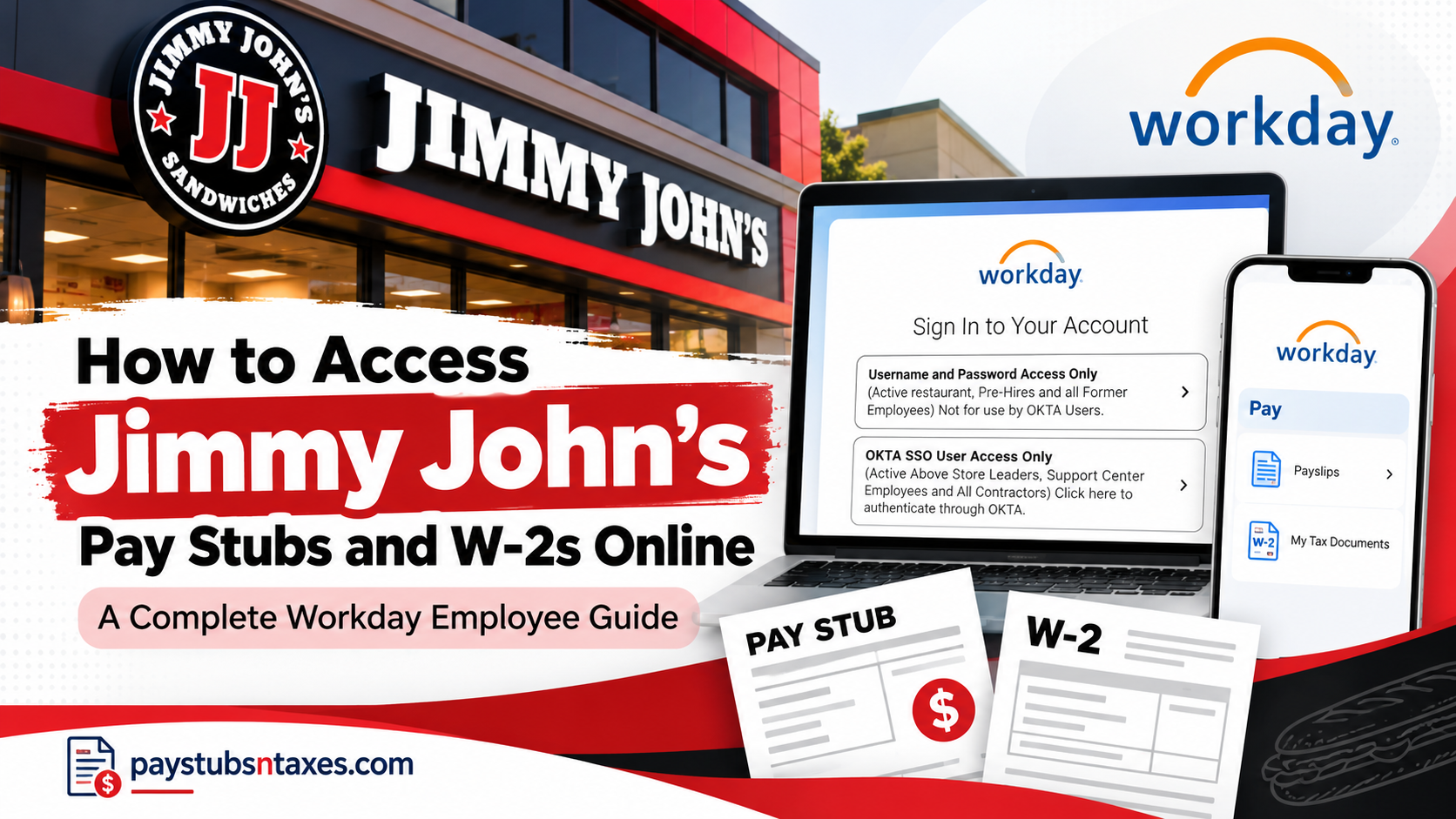
Accessing your Jimmy John’s pay stubs and W-2 forms online is a straightforward process when you know where to look. Whether you need to review your latest paycheck, verify your earnings, download a previous payslip, or retrieve your annual tax statement, the Workday employee self-service platform provides a convenient way to manage your payroll information.
As part of the Inspire Brands family, Jimmy John’s offers eligible employees at Inspire-operated restaurants access to their payroll records through Workday, a cloud-based human resources and payroll management system.
However, because many Jimmy John’s restaurants are independently owned and operated, not every employee uses the same payroll system. Understanding this distinction is essential before attempting to access your employment records.
This comprehensive guide explains how eligible Jimmy John’s employees can log in to Workday, view and download pay stubs, retrieve W-2 tax forms, access payroll information through the Workday mobile app, and resolve common login problems.
About Jimmy John’s and Inspire Brands
Jimmy John’s is a prominent American sandwich restaurant chain renowned for its freshly prepared sandwiches, emphasis on high-quality ingredients, and efficient customer service.
Founded in 1983 by Jimmy John Liautaud, the company established its first restaurant in Charleston, Illinois. What began as a modest sandwich business eventually evolved into a nationally recognized restaurant brand, with more than 2,800 locations.
The company’s expansion was propelled largely by franchising, enabling independent business owners to operate restaurants under the Jimmy John’s brand.
In 2016, Roark Capital Group acquired a majority stake in Jimmy John’s, marking an important milestone in the company’s corporate development. Subsequently, in 2019, Inspire Brands acquired Jimmy John’s, incorporating the sandwich chain into its expanding portfolio of restaurant businesses.
Headquartered in Champaign, Illinois, Jimmy John’s continues to operate under the Inspire Brands umbrella.
Who Should Use This Guide?
This information is intended for Jimmy John’s employees whose payroll and employment records are managed directly through the Inspire Brands Workday system.
If you work at an independently owned Jimmy John’s franchise, your employer may use a different payroll provider or employee portal. In that case, contact your restaurant manager, franchise owner, payroll administrator, or human resources representative for the correct instructions.
Jimmy John’s Workday Login
Eligible employees can access the Inspire Brands Workday portal at:
Workday website: https://wd5.myworkday.com/inspirebrands/login.htmld
The login page presents two access options. Choosing the correct one is essential; otherwise, Workday may reject your credentials even when your username and password are accurate.
Option 1: Username and Password Access Only
Select Username and Password Access Only if you are:
- An active restaurant employee
- A pre-hire
- A former employee
Most eligible Jimmy John’s restaurant employees should select this option.
This login method is not intended for Okta users. If an employee who has been assigned Okta access attempts to sign in through the username-and-password option, Workday may display an “Invalid username or password” message.
Option 2: Okta SSO User Access Only
Select Okta SSO User Access Only if you are:
- An active above-store leader
- A Support Center employee
- A contractor
Eligible users may also access Workday through the Inspire Brands Okta portal.
How to Access Jimmy John’s Pay Stubs Online
Once you have successfully signed in to Workday, you can view pay statements for current and previous pay periods.
Although the precise wording or arrangement of the menus may vary slightly following a Workday update, the standard process is as follows:
- Sign in to the Inspire Brands Workday portal.
- From the Workday home page, open View All Apps or the main application menu.
- Select the Pay application.
- Under the View section, choose Payslips.
- Review the list of available pay periods.
- Select View, Print, or the PDF link beside the required pay period.
- When the payslip opens, download the PDF or print a copy for your records.
A Workday payslip commonly includes gross earnings, taxes, pre-tax and post-tax deductions, net pay, payment details, and year-to-date totals. Review these figures carefully. If something appears amiss, raise the issue promptly with your manager, payroll representative, or People Link.
How to Download Pay Stubs from the Workday Mobile App
Employees who prefer to use a smartphone or tablet can retrieve payslips through the Workday mobile application.
Set Up the Workday Mobile App
Download the official Workday app from the Apple App Store or Google Play Store. When asked for your organization ID or organization code, enter: inspirebrands
Complete the authentication process using the login method assigned to your position.
View and Download a Mobile Payslip
After signing in:
- Select the Pay application from the landing page. If it is not visible, tap View All.
- Locate the Pay History section.
- Select the payslip you wish to review.
- On the Pay Details screen, tap Get PDF.
- Wait while Workday generates the document.
- Tap Open PDF when the file is ready.
- Use your device’s share, download, or save function to store the payslip in a secure location.
The appearance of the final save button may differ between Apple and Android devices.
How to Access a Jimmy John’s W-2 in Workday
Employees can generally view, download, and print available W-2 forms from the Pay section of Workday.
To retrieve a W-2:
- Sign in to the Inspire Brands Workday portal.
- Select the Pay application from the Workday dashboard.
- Find the View section.
- Select More if the complete list of options is not immediately visible.
- Choose My Tax Documents.
- Locate the appropriate tax year.
- Select View/Print beside the W-2.
- Allow Workday a moment to generate the document.
- Open the form, download it, and save or print a copy.
If a corrected W-2, known as a W-2C, has been issued, download every relevant form displayed for that tax year. The corrected form may need to be read alongside the original W-2.
Always sign out of Workday after viewing payroll or tax records, particularly when using a shared computer or mobile device.
When Will a Jimmy John’s W-2 Be Available?
Employers generally must furnish W-2 forms by January 31 following the end of the applicable tax year. Therefore, employees should ordinarily expect the previous year’s W-2 to become available in Workday by that date.
Employees who have consented to electronic delivery may be able to retrieve the form directly from Workday. If you have not elected electronic delivery, a paper copy may be mailed to the address recorded in your employee profile.
Because an outdated address can send an important tax document astray, verify your mailing address in Workday before year-end. If the expected form does not arrive or appear online, contact the appropriate support team.
What to Do If You Forget Your Workday Password
Restaurant employees, pre-hires, and former employees using the standard Workday login should select Forgot Password? on the sign-in page.
A temporary password should be sent to the email address associated with the employee’s account. If the message does not arrive:
- Check the spam or junk folder.
- Confirm that you are monitoring the correct email account.
- Allow a few minutes for the message to be delivered.
- Contact the Inspire Brands Service Center if the reset email is still missing.
Inspire Brands Service Center: 1-800-499-9586, Option 2
Okta Login Support
Above-store leaders, Support Center employees, and contractors who experience problems with Okta authentication should contact the Inspire Brands Service Desk.
Phone: 1-800-272-9457
Email: eushelp@inspirebrands.com
Okta portal: https://inspire.okta.com/
General Workday Support
For Workday questions that are not limited to passwords or Okta authentication, submit a case through Workday Help or contact People Link.
People Link: 1-800-499-9586, Option 3
Hours: Monday through Friday, 7:00 a.m. to 7:00 p.m. Eastern Time
Before calling, have your employee information and a concise description of the problem at hand. However, never send your password, complete Social Security number, or unredacted payroll documents by ordinary email.
Final Thoughts
For eligible Inspire-managed Jimmy John’s employees, Workday places pay stubs and tax documents within easy reach. Restaurant employees, pre-hires, and former employees generally use the standard username-and-password option, whereas above-store leaders, Support Center employees, and contractors authenticate through Okta.
Once signed in, navigate to Pay > Payslips for earnings statements or Pay > My Tax Documents for W-2 forms. Download sensitive documents only to a trusted device, store them securely, and sign out when finished. If the system throws a spanner in the works, use the dedicated password, Okta, or People Link support channel appropriate to the issue.
Frequently Asked Questions
1. How do I access my Jimmy John’s pay stubs online?
Sign in to the Inspire Brands Workday portal, select View All Apps, open Pay, and choose Payslips. Select the relevant pay period, then use the available View, Print, or PDF option to open and save your pay stub.
2. What is the Jimmy John’s Workday login website?
Eligible employees can sign in through the Inspire Brands Workday portal. Make sure you choose the login method assigned to your position.
3. Which Workday login option should a Jimmy John’s restaurant employee use?
Active restaurant employees, pre-hires, and former employees should generally select Username and Password Access Only. This option is not intended for employees who have been assigned Okta access.
4. Who should use the Okta SSO login option?
Active above-store leaders, Support Center employees, and contractors should select Okta SSO User Access Only. Eligible users may also access Workday through the Inspire Brands Okta portal.
5. What is the organization code for the Workday mobile app?
The Workday organization code for eligible Inspire Brands employees is inspirebrands. Enter this code when configuring the official Workday mobile application.
6. How do I download a Jimmy John’s pay stub on my phone?
Open the Workday mobile app and select Pay. Under Pay History, choose the required payslip, tap Get PDF, and wait for the file to be generated. Select Open PDF, then use your device’s save or share function to store it securely.
7. How do I access my Jimmy John’s W-2 online?
Sign in to Workday and open Pay. Under View, select More if necessary, followed by My Tax Documents. Find the correct tax year and select View/Print beside the W-2 to download or print it.
8. When will my Jimmy John’s W-2 be available?
Employers generally must furnish W-2 forms by January 31 following the applicable tax year. Eligible employees should ordinarily expect their electronic W-2 to appear in Workday by that date.
9. Will Jimmy John’s mail my W-2?
A paper W-2 may be mailed to the address on file if you have not consented to electronic delivery. Check that your mailing address is current in Workday before year-end to avoid delays or misdelivery.
10. Can former Jimmy John’s employees access Workday?
Former employees whose payroll records are maintained by Inspire Brands should generally use Username and Password Access Only. If the account is inaccessible, select Forgot Password? or contact the Inspire Brands Service Center.
11. What should I do if I forget my Workday password?
Select Forgot Password? on the standard Workday login page. A temporary password should be sent to the email address associated with your account. Check your spam folder if the message does not appear.
12. Why does Workday say my username or password is invalid?
This message may indicate incorrect credentials, but it can also appear when an Okta user selects the standard username-and-password option. Confirm that you are using the login method assigned to your role before resetting your password.
13. Who should I contact for Jimmy John’s Workday login support?
For standard username or password assistance, call the Inspire Brands Service Center at 1-800-499-9586, Option 2. For other Workday matters, contact People Link at 1-800-499-9586, Option 3, Monday through Friday, from 7:00 a.m. to 7:00 p.m. Eastern Time.
14. Who should I contact for Inspire Brands Okta support?
For Okta authentication assistance, contact the Inspire Brands Service Desk at 1-800-272-9457 or email eushelp@inspirebrands.com.
15. Can employees of independently owned Jimmy John’s franchises use Inspire Brands Workday?
Not necessarily. Independently owned Jimmy John’s franchises may use different payroll systems. Employees of those locations should contact their restaurant manager, franchise owner, payroll administrator, or human resources representative for the correct pay-stub and W-2 instructions.
