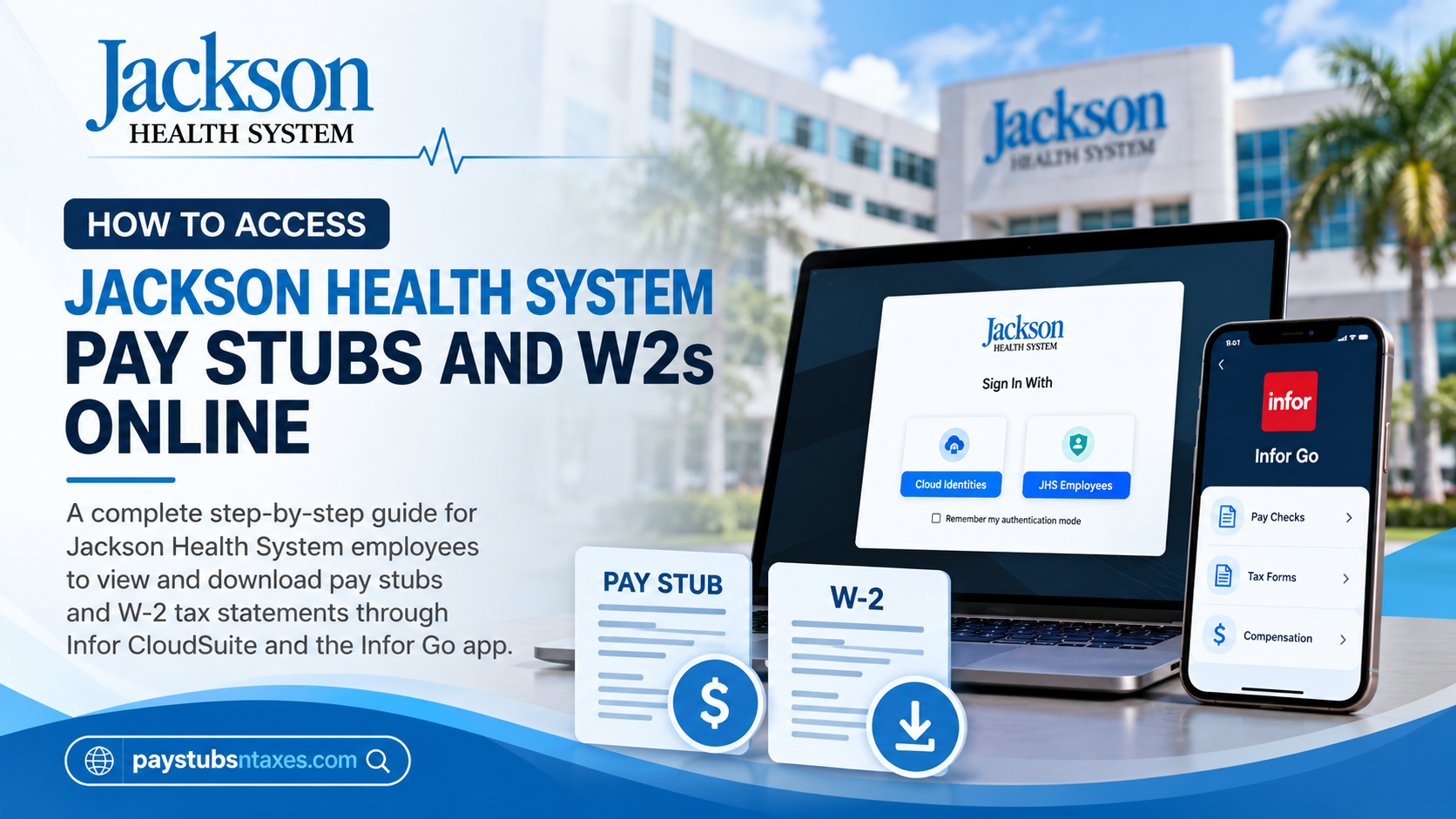
Jackson Health System employees can securely view their pay stubs and year-end W-2 tax statements through the Infor HR Talent portal. Because the platform brings essential payroll records together in one convenient location, employees can retrieve their earnings information whenever they need it—without waiting for printed documents or making an unnecessary trip to Human Resources. Infor CloudSuite can be accessed through a web browser, while the Infor Go app provides a mobile-friendly option for employees who prefer to manage their information on an Apple device. The following instructions explain how to sign in, locate pay statements, review compensation details, and retrieve W-2 forms.
Access the Jackson Health System Employee Portal
Begin by visiting the official Jackson Health System single sign-on portal:
Jackson Health System SSO:
https://mingle-portal.inforcloudsuite.com/F76FC6ENWQTKL6KQ_PRD
When the sign-in page appears, select JHS Employees. Enter your Jackson Health System account credentials and complete any identity-verification steps displayed on the screen.
Before signing in, confirm that the web address is correct. For security, employees should never enter their credentials through an unfamiliar link received in an unsolicited email or text message.
Once authenticated, open the Employee area and select Pay from the drop-down menu. This section serves as the gateway to paychecks, tax forms, compensation information, and related payroll resources.
How to Access Jackson Health System Pay Stubs Online
Infor CloudSuite makes routine payroll administration considerably more straightforward: once employees are inside Employee Self Service, the information that previously might have required a call or paperwork is, in many cases, only a few clicks away.
The Jackson employee resource material confirms that employees can access Pay Checks from Quick Links within Employee Space and review compensation information associated with their work assignments.
Follow these steps:
- Open the Jackson Health System Infor SSO portal at https://mingle-portal.inforcloudsuite.com/F76FC6ENWQTKL6KQ_PRD.
- Sign in with your Jackson Health System credentials. Depending on the authentication screen presented to you, select the appropriate employee sign-in method, such as JHS Employees, and complete any required authentication.
- Once Infor CloudSuite opens, make sure you are working within the Employee or Employee Space area.
- Open the Employee tab and locate Pay, or use the payroll-related options displayed under Quick Links.
- Select Pay Checks to open your paycheck information.
- Choose the Pay Check tab and select the appropriate work assignment or pay period to review the desired pay stub.
- Review the statement carefully for gross earnings, deductions, taxes, net pay, and other payroll details available in the system.
- If you also need compensation information, open the Compensation area to review compensation by Work Assignment and available Pay Rate History. Jackson’s employee resource material specifically identifies this function within the Pay Checks section.
Because employees may have more than one work assignment, it is worth checking that the correct assignment and payroll period have been selected before treating the displayed figures as final.
How to Review Compensation and Pay-Rate History
Employees may also review compensation information associated with their work assignments.
After selecting Pay Checks from the Quick Links in Employee Space, open the Compensation tab. From there, you can review compensation by work assignment and examine available pay-rate history.
Current pay-rate information may also be found by selecting My Profile from the navigation menu and opening At a Glance.
Bear in mind that a recently approved rate or step increase may not appear immediately. Step and rate changes follow the biweekly payroll calendar and are generally reflected by the end of the relevant pay period. If an increase becomes effective during the current pay cycle, it should appear on the corresponding paycheck.
How Union Employees Can Find Their Current Pay Step
Union employees can view their current pay step in Employee Self Service:
- Sign in to Infor CloudSuite.
- Select Employee Home at the top of the page.
- Locate the Work Assignment section near the bottom-right area of the screen.
- Review the pay-step information associated with the relevant work assignment.
Employees who hold multiple assignments should ensure that they are reviewing the correct position. Pay steps, compensation arrangements, and progression rules may differ from one assignment to another.
How to Access a Jackson Health System W-2 Online
Jackson Health System employees can obtain year-end W-2 statements through the same employee portal used for pay stubs.
To access your W-2:
- Visit the Jackson Health System SSO portal.
- Select JHS Employees and sign in with your Jackson account.
- Open the Employee tab.
- Select Pay from the drop-down menu.
- Choose Tax Forms from the Quick Links section in Employee Space. You may also find Tax Forms directly under the Pay menu.
- Select the appropriate tax year.
- Open the W-2 statement and use the available option to view, download, or print it.
Confirm that you have selected the correct year before using the document for tax preparation. If more than one tax form appears, review the employer and year shown on each record.
What to Do if Your W-2 Is Not Available
If you cannot locate the expected W-2, first make sure that you are viewing the correct tax year and that you have opened Tax Forms, rather than the regular paycheck section.
Year-end tax statements may not appear until annual payroll processing has been completed. If the expected form should already be available but is missing, contact Jackson Health System Human Resources for assistance.
Employees should also ensure that their name, mailing address, and other personal information remain current in Infor. Although online access makes it easier to retrieve tax statements, accurate employee records are still crucial.
Accessing Infor CloudSuite Through the Infor Go App
Employees who prefer mobile access can use the Infor Go app on a compatible Apple device.
The general setup process is as follows:
- Open the Apple App Store.
- Download and open the Infor Go application.
- Allow notifications if desired, and then select Continue.
- Choose Scan a QR Code and scan the authorized Jackson Infor Go QR code supplied by Jackson Health System.
- Select the resulting configuration prompt.
- Save the configuration and continue.
- Select ADFS-PRD.
- Sign in with your Jackson Health System account.
- Approve the requested sign-in permissions.
- Enable device security when prompted.
- Continue through the Diagnostics and Analytics and Coleman Digital Assistant screens to complete setup.
Once the application is configured, employees can enter the mobile-friendly Infor CloudSuite environment and navigate to the available employee payroll resources.
Only use an official Jackson-provided QR code when configuring the app. If you do not have the approved code or are uncertain whether a code is legitimate, contact Human Resources before proceeding.
Getting Help from Jackson HR Connect
Jackson HR Connect is Jackson Health System’s centralized Human Resources Total Rewards hub. It provides employees with direct assistance involving Infor CloudSuite, wePerform, employment documentation, paid-leave bank troubleshooting, Metrorail card pickup, and other HR services.
If you experience difficulty accessing a pay stub, W-2, or other employee record, contact the HR team:
Email: AskHR@jhsmiami.org
Phone: (305) 585-LIVE (5483)
When requesting assistance, explain the problem clearly and identify the section you are trying to access. However, do not send passwords, authentication codes, Social Security numbers, or complete copies of sensitive payroll records through an unsecured message.
Final Thoughts
Whether you need to verify a recent paycheck, review compensation information, confirm a union pay step, or download a W-2 for tax preparation, Infor CloudSuite places the essential records within easy reach. By signing in through the official Jackson Health System SSO portal, navigating to Employee Space, and selecting the appropriate Pay or Tax Forms option, employees can manage vital payroll information efficiently and securely. Portal labels and screen layouts may change as the system is updated. If an option appears under a slightly different name or is not visible, Jackson HR Connect can guide you to the right resource.
Frequently Asked Questions
1. How do I access my Jackson Health System pay stubs online?
Sign in to the Jackson Health System SSO portal, select JHS Employees, and open the Employee tab. Choose Pay, select Pay Checks from Quick Links, and open the Pay Check tab to view the statement for the appropriate pay period and work assignment.
2. What is the Jackson Health System employee portal?
The employee portal is Jackson Health System’s secure Infor CloudSuite platform, where current employees can access pay stubs, W-2 tax statements, compensation information, pay-rate history, and other employment records.
3. What is the Jackson Health System SSO login address?
The official Jackson Health System SSO address is:
https://mingle-portal.inforcloudsuite.com/F76FC6ENWQTKL6KQ_PRD
Employees should verify the address before entering their Jackson account credentials.
4. Which sign-in option should Jackson employees select?
Jackson Health System employees should select JHS Employees on the authentication screen. The Cloud Identities option is not the standard employee sign-in method.
5. How do I access my Jackson Health System W-2 online?
Sign in to the employee portal and select Employee > Pay > Tax Forms. Tax Forms may also appear in the Quick Links section of Employee Space. Choose the correct tax year, then open, download, or print the W-2.
6. Where is the Pay Checks option in Infor CloudSuite?
The Pay Checks option is available under Quick Links in Employee Space. If it is not immediately visible, open the Employee tab, select Pay, and review the payroll options displayed there.
7. Can I download or print my Jackson Health System pay stub?
Yes. After opening the appropriate pay statement, use the available download or print option. Store downloaded pay stubs securely because they contain confidential financial and employment information.
8. Can I access my Jackson Health System W-2 from home?
Yes. Current employees can use the official Jackson Health System SSO portal from a compatible personal device. Avoid public Wi-Fi and shared computers when accessing sensitive payroll or tax information.
9. Can I view Jackson Health System pay stubs on my phone?
Yes. Employees may access the mobile-friendly Infor CloudSuite platform through the Infor Go app after configuring it with the authorized Jackson QR code and signing in with their Jackson account.
10. How do union employees find their current pay step?
After signing in to Infor CloudSuite, select Employee Home and locate the Work Assignment section near the bottom-right of the page. The current pay step should appear with the applicable work assignment.
11. How can I check my current pay rate?
Open My Profile from the navigation menu and select At a Glance to review the available current pay-rate information.
12. How do I view my compensation and pay-rate history?
Select Pay Checks from the Quick Links in Employee Space, then open the Compensation tab. Compensation and available pay-rate history are organized by work assignment.
13. Why is my new pay rate or pay step not showing?
Rate and step increases follow Jackson Health System’s biweekly payroll calendar. If an increase becomes effective during the current pay period, the updated rate should generally appear on the corresponding paycheck after that pay cycle has been processed.
14. What should I do if my W-2 is missing?
Confirm that you selected Tax Forms and chose the correct tax year. If the W-2 should already be available but does not appear, contact Jackson Health System Human Resources at AskHR@jhsmiami.org or (305) 585-LIVE (5483).
15. Who should I contact for help accessing pay stubs or W-2s?
Contact Jackson HR Connect for assistance:
Email: AskHR@jhsmiami.org
Phone: (305) 585-LIVE (5483)
Never send your password, authentication code, Social Security number, or complete payroll records through an unsecured message.
