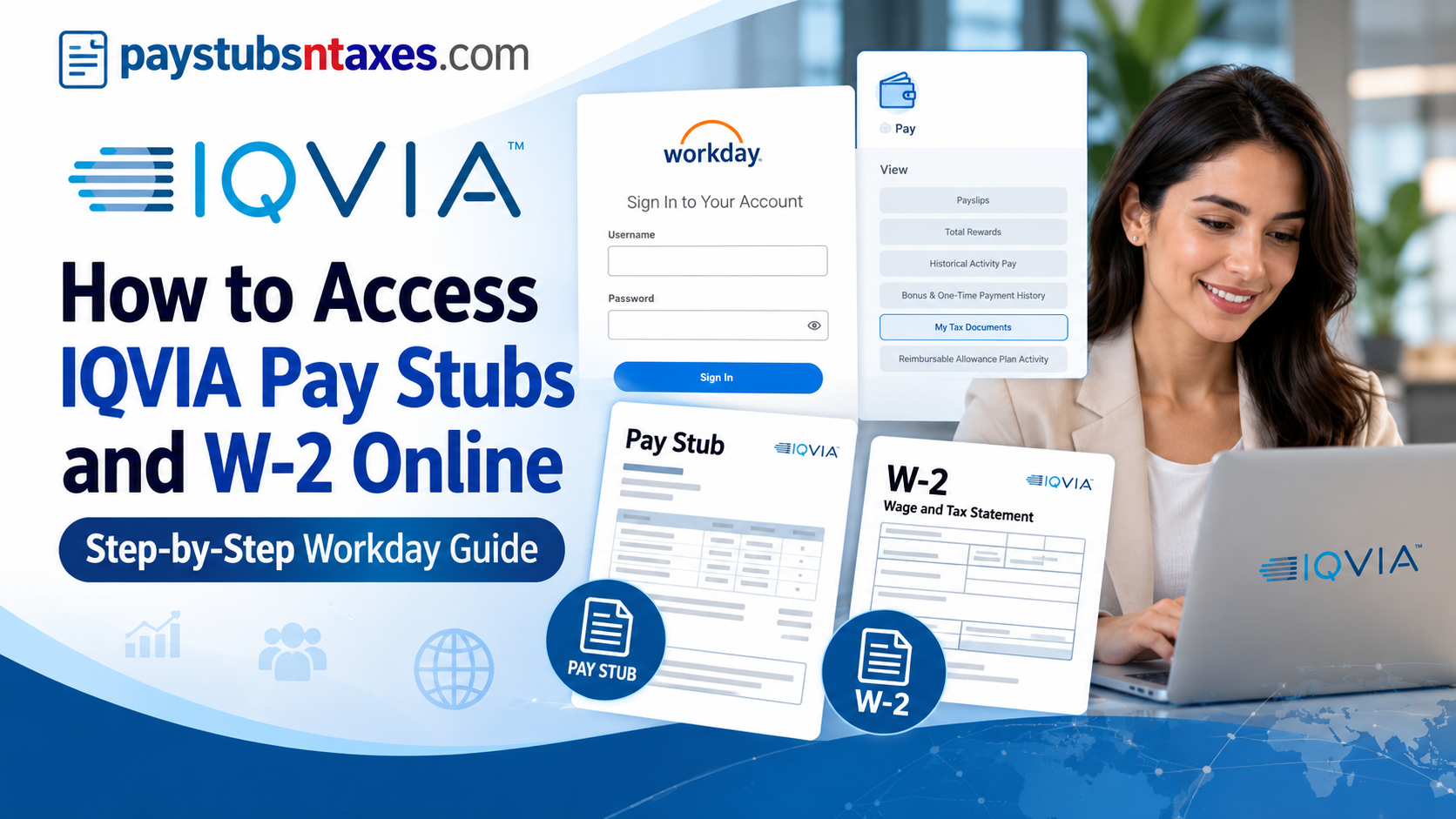
Managing payroll information efficiently is essential for every employee, particularly when accessing earnings statements, reviewing tax deductions, or preparing documents for annual tax filing. Fortunately, IQVIA employees can access their pay stubs and W-2 tax forms online through Workday, a centralized human resources and payroll management platform designed to simplify employee self-service.
Whether you need to download a recent payslip, retrieve a previous year’s W-2, verify your direct deposit information, or switch to paperless tax statements, Workday offers a convenient way to manage your payroll records without unnecessary paperwork.
Employees can access the platform through a desktop computer or the Workday mobile application, making important employment and financial information available whenever it is needed.
This comprehensive guide explains how to access IQVIA pay stubs and W-2 forms online, sign in to the IQVIA Workday portal, download payroll documents, manage electronic tax statement preferences, and obtain assistance when login or payroll-related difficulties arise.
How Do I Access My IQVIA Pay Stubs and W-2 Forms?
To access your IQVIA pay stubs and W-2 forms, sign in to the IQVIA Workday portal using your company single sign-on credentials. Open My Payslips to review your pay statements. For W-2 forms, open Pay → My Tax Documents, locate the available document, and select View/Print. If you use the Workday mobile app, enter iqvia as the organization code when prompted.
About IQVIA
IQVIA provides clinical research services, commercial insights, and healthcare intelligence to the life sciences and healthcare industries. Its work combines health data, advanced analytics, technology, and industry expertise to support the development and commercialization of medical treatments.
Alongside its focus on healthcare innovation, IQVIA offers benefits and rewards designed to support employees throughout their careers and personal lives. Workday helps employees manage the practical side of employment by providing access to HR and payroll information through a centralized platform.
What You Need Before Signing In
Before accessing your IQVIA payroll documents, have the following ready:
- Your IQVIA single sign-on, or SSO, credentials.
- A desktop computer, laptop, or compatible mobile device.
- A reliable internet connection.
- Access to any authentication method required by your company.
For printing or saving sensitive documents, use a private computer whenever possible. Pay stubs and tax forms contain personal and financial information that should be stored securely.
How to Log In to IQVIA Workday
Follow these steps to access your employee account:
- Open your web browser.
- Visit the IQVIA Workday login page.
- Sign in using your IQVIA SSO credentials.
- Complete any additional authentication prompts.
- Once the dashboard loads, navigate to the appropriate payroll section.
Although menu placement may vary between desktop and mobile views, look for the payslip and tax document options described below.
How to View IQVIA Pay Stubs Online
Your pay stub provides a detailed record of your earnings and take-home pay for a particular pay period. To find an available statement:
- Sign in to IQVIA Workday.
- Open My Payslips from the dashboard or payroll navigation.
- Find the payment date you want to review.
- Select View beside the relevant payslip.
The My Payslips page displays your name and a table of available statements. The table includes the following information:
| Field | What It Shows |
| Payment Date | The date associated with the payment |
| Period Start Date | The beginning of the pay period |
| Period End Date | The end of the pay period |
| Company | The employing entity listed for the payment |
| Gross Amount | Earnings before deductions |
| Net Amount | Take-home pay after deductions |
| View and Print | Actions for opening or printing the statement |
Check both the payment date and pay period before opening a statement, particularly when you need records for a specific month or financial application.
Review Your Payslip Details
After you select View, the chosen payslip opens for review. Depending on the statement, you can examine the earnings, taxes, and deductions associated with that payment.
The details page also provides navigation options, including:
- Previous Payslip
- Return to My Payslips
- Print Multiple Payslips
If something appears incorrect, make a note of the payment date and the item in question before contacting payroll support.
How to Print or Save IQVIA Pay Stubs
Workday provides printing options from both the payslip list and the individual statement.
Print an Individual Payslip
- Open My Payslips.
- Locate the required payment.
- Select View.
- Click Print Payslip Image at the top of the details page.
- Follow the prompts to print the statement.
Alternatively, use the Print action beside the relevant payslip in the table.
If your browser or operating system offers Save as PDF, you can select that option to keep a digital copy instead of producing a paper printout.
Print Multiple Payslips
If you need several statements—for example, to support a rental application or review your income history—select Print Multiple Payslips. Follow the on-screen instructions to choose and prepare the available statements.
Review Your Payslip Printing Preference
The Payslip Printing Details section shows your current delivery preference. For example, it may state that you do not receive paper copies.
To review or change that preference, select Change Payslip Printing Election and follow the available prompts. Payslip printing preferences are managed separately from year-end tax document elections.
How to Access IQVIA W-2 Forms Online
For employees issued a U.S. Form W-2, available year-end tax statements can be accessed through My Tax Documents.
To view or download your IQVIA W-2:
- Sign in to Workday.
- Open the Pay application from the dashboard.
- Under View, select More if the full menu is not visible.
- Click My Tax Documents.
- Locate the W-2 for the tax year you need.
- Select View/Print.
- Follow the prompts to view, download, or print the document.
Check the tax year before saving the file, especially if multiple years are listed. Only documents that have been made available in your account will appear.
How to Choose Paperless W-2 Delivery
Electronic delivery can make it easier to retrieve your W-2 without waiting for a paper copy. Workday allows you to review your year-end tax document printing election through the same area used to access your tax forms.
Follow these steps:
- Log in to Workday.
- Open Pay.
- Select My Tax Documents under View.
- Find Printing Election, usually near the top-right corner.
- Click Edit.
- On the Change Year-End Tax Documents Printing Elections page, locate New Election.
- Choose your preferred option:
- Receive electronic copy of my Year-End Tax Documents, or
- Receive both electronic and paper copies of my Year-End Tax Documents.
- Click OK to save your selection.
After saving, review the displayed election to confirm that it reflects your preference. If you are changing your election close to tax document preparation, contact payroll support to confirm which delivery method will apply.
How to Access IQVIA Pay Stubs Using the Workday Mobile App
Employees who prefer managing payroll information on their smartphones can use the Workday mobile application.
Available for compatible Android and iOS devices, Workday Mobile offers a convenient way to access employee services without relying exclusively on a desktop computer.
With an appropriately configured account, employees can view available payslips, review payment information, and download payroll documents directly from their mobile devices.
Step 1: Download the Workday Mobile App
For Android Devices
Open the Google Play Store, search for Workday, and select the official application.
Tap Install and wait for the installation to finish.
Once installed, tap Open.
For iPhone or iPad
Open the Apple App Store and search for Workday.
Select the official application and tap Get to download it.
After installation, launch the app.
Step 2: Configure Your IQVIA Workday Account
When opening Workday Mobile for the first time, you may be asked to provide your employer’s organization information.
Enter the following organization code when prompted:
IQVIA Workday Organization Code: iqvia
Depending on the application version and your organization’s authentication settings, you may instead be directed to identify your employer or provide additional account configuration details.
Follow the instructions displayed on your screen.
Step 3: Sign In Using Your Employee Credentials
Enter your authorized IQVIA username, corporate email address, or other required login information.
Complete the authentication process using the method configured for your account.
Depending on your organization’s security settings, you may also be offered the opportunity to configure a mobile PIN or biometric authentication for future access.
Step 4: Open the Pay Application
After successfully signing in, navigate to your Workday Mobile dashboard.
Locate the Pay application.
If the application is not immediately visible, select View All or use the app’s navigation features.
Tap Pay to open your payroll information.
Step 5: Select Your Pay Stub
The Pay page may display your most recent payment details, including gross earnings, take-home pay, and payroll history.
Scroll to the Pay History section.
Select the payment date corresponding to the payslip you want to access.
The application will display the selected payment information.
Step 6: Review Your Payment Details
On the Pay Details page, examine your payroll information.
Depending on your account configuration, you may see:
- Pay period and payment date
- Gross earnings
- Net payment
- Taxes and deductions
- Employee benefit deductions
- Current and year-to-date payroll totals
Carefully review the information to ensure your earnings and deductions appear accurate.
Step 7: Download Your Payslip as a PDF
To retain an electronic copy of your pay stub, locate the Get PDF button.
Tap this option to generate the document.
A notification may appear indicating that your file is being created.
Once the document is ready, select Open PDF.
Use your mobile device’s sharing or saving functionality to store the document in a secure location.
Depending on your smartphone, you may be able to save it to your device’s files application or another authorized storage location.
The Workday mobile interface may vary by operating system, application version, and organizational configuration.
Can You Access IQVIA W-2 Forms Through the Workday Mobile App?
Workday Mobile provides access to several payroll-related functions, although the availability of specific tax documents depends on the employer’s configuration.
If the My Tax Documents feature is available in your mobile application, you may be able to locate and retrieve your W-2 through the Pay section.
However, if the W-2 download option is unavailable, the desktop Workday portal is the more appropriate alternative.
For employees who need to print official tax statements, accessing Workday through a private computer can also provide a more convenient document-handling experience.
How to Change Your IQVIA Payslip Printing Preferences
In addition to managing W-2 delivery, employees may be able to change how they receive regular payslips.
Workday provides a Change Payslip Printing Election feature where enabled by the employer.
To modify your preference, sign in to Workday and open My Payslips.
Click Change Payslip Printing Election.
Review the current printing preference and select your preferred option from those available.
Depending on your organization’s configuration, the choices may include electronic access or receiving printed copies.
Submit your selection to save the updated preference.
Employees should remember that changing their payslip delivery preference is separate from modifying their year-end W-2 printing election.
IQVIA Payroll and W-2 Assistance
Current, former, and retired employees can request assistance with payroll, W-2 forms, employee benefits, qualifying life events, and beneficiary management by calling: 866-267-4479
When asking about a payroll document, have the relevant pay period or tax year ready so the support team can identify your request more efficiently.
Conclusion
Accessing IQVIA pay stubs and W-2 forms online is straightforward when employees have the appropriate Workday credentials and know where to locate their payroll documents.
Through the IQVIA Workday portal, employees can review earnings statements, examine payroll deductions, download available payslips, retrieve year-end W-2 forms, and manage their document printing preferences. The Workday mobile application provides additional flexibility, allowing authorized employees to handle many payroll-related tasks directly from their smartphones.
For those who prefer electronic recordkeeping, paperless delivery offers an efficient way to reduce paperwork while maintaining access to important tax statements.
Employees experiencing login difficulties, missing payroll documents, or questions about historical records should contact IQVIA’s employee assistance team for further guidance.
By making effective use of Workday’s self-service capabilities, IQVIA employees can maintain better control over their payroll records, streamline tax preparation, and manage essential employment information with greater confidence and convenience.
Frequently Asked Questions
1. How do I access my IQVIA pay stubs online?
Sign in to IQVIA Workday with your company SSO credentials and open My Payslips. Find the payment date you need, then click View to open the statement.
2. What is the IQVIA Workday login URL?
The IQVIA Workday login URL is https://wd1.myworkday.com/iqvia/login.htmld. Use your IQVIA SSO credentials to access your account.
3. How do I download my IQVIA W-2 online?
In Workday, open Pay → My Tax Documents, locate the required tax year, and select View/Print. Follow the document prompts to download or print your available W-2.
4. What is the IQVIA organization code for the Workday app?
The Workday organization code for IQVIA is iqvia. Enter this code when prompted during the app setup, then sign in using your company SSO credentials.
5. Can I view IQVIA pay stubs on my phone?
Yes. Sign in to the Workday mobile app using organization code iqvia, then open the available payroll or payslip section. Select the payment you want to review.
6. Can I access my IQVIA W-2 through the Workday mobile app?
Look for My Tax Documents within the app’s payroll navigation. Available features may vary; if you cannot access or download your W-2 in the app, use the desktop Workday portal.
7. How do I print an IQVIA pay stub?
Open My Payslips, select View beside the required statement, and click Print Payslip Image. You can also use the Print action in the payslip table.
8. Can I save my IQVIA pay stub as a PDF?
Yes, where your browser or device supports it. Open the payslip printing option, choose Save as PDF as the printer destination, and save the file securely.
9. How do I print multiple IQVIA payslips?
Open My Payslips and select Print Multiple Payslips. Follow the on-screen instructions to choose the available statements you need and prepare them for printing.
10. What information appears in the IQVIA payslip list?
The payslip list displays the payment date, pay period start and end dates, company, gross amount, and net amount. It also provides View and Print actions for individual statements.
11. How do I choose paperless W-2 delivery at IQVIA?
Go to Pay → My Tax Documents, click Edit under Printing Election, and select Receive electronic copy of my Year-End Tax Documents. Click OK to save your preference.
12. Can I receive both electronic and paper W-2 forms?
Yes. Edit your printing election under My Tax Documents, select Receive both electronic and paper copies of my Year-End Tax Documents, and click OK.
13. How do I change my IQVIA payslip printing preference?
Open My Payslips and click Change Payslip Printing Election. Follow the available prompts to update your preference. Payslip printing elections are separate from W-2 delivery elections.
14. How can former or retired IQVIA employees obtain payroll documents?
Former and retired employees who cannot access Workday should call 866-267-4479 for assistance obtaining payroll records or W-2 forms. Confirm your access arrangements with support if your previous SSO credentials no longer work.
15. Who should I contact if my IQVIA pay stub or W-2 is missing?
Call 866-267-4479 for payroll and W-2 assistance. Have the relevant payment date or tax year ready so the support team can investigate your request.
