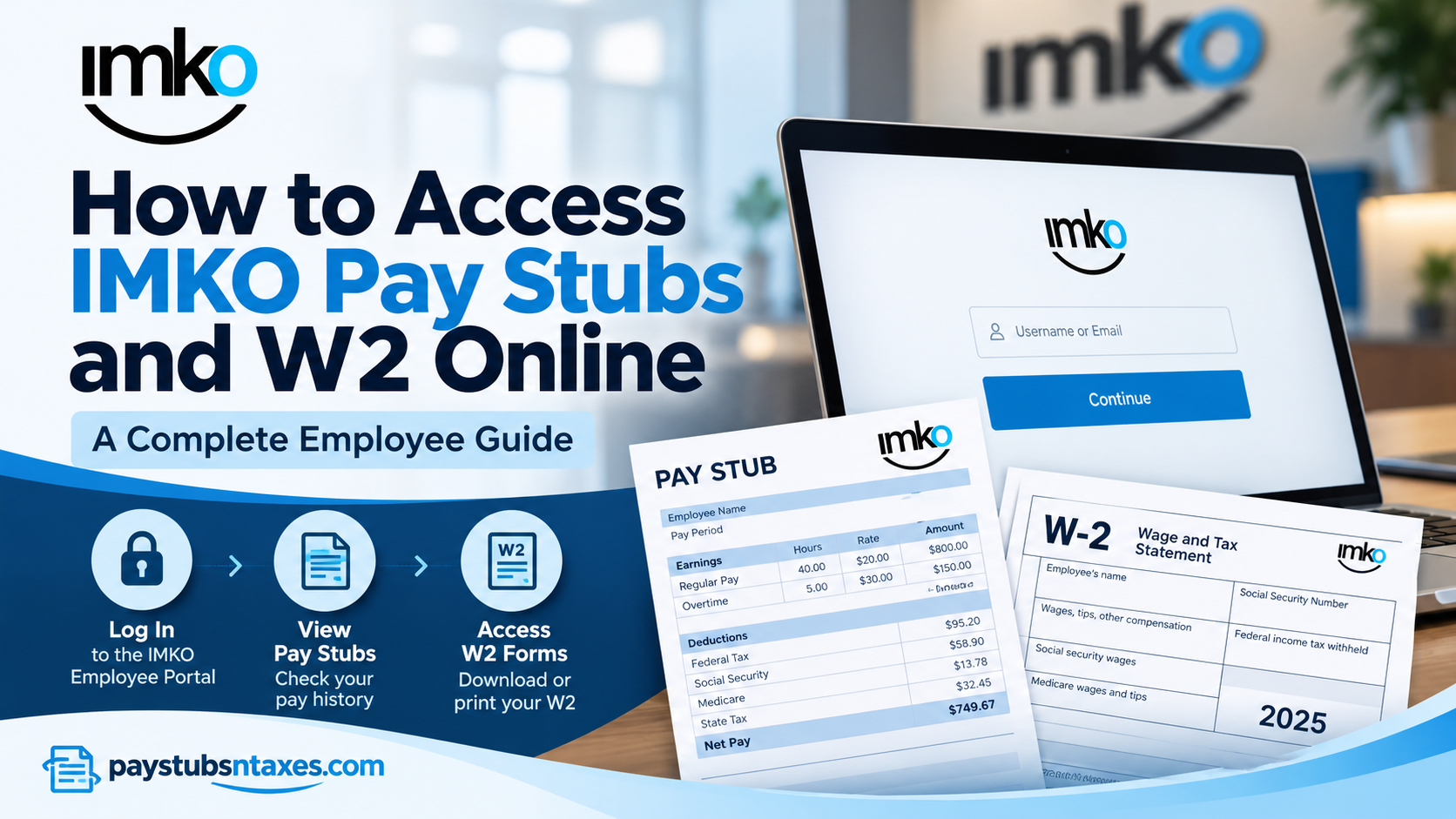
Accessing your pay stubs and W2 forms is an essential aspect of managing your employment records, monitoring your earnings, and fulfilling your annual tax obligations. Whether you are currently working on an assignment through IMKO or have recently completed one, having convenient access to your payroll documentation enables you to stay financially organized and avoid unnecessary complications during tax season.
Fortunately, IMKO provides employees with an online payroll management system powered by Avionté, a workforce management platform designed to streamline employment-related activities. Through the IMKO employee portal, eligible employees can review their payment history, examine individual paychecks, and retrieve their annual W2 tax statements without having to visit a staffing office.
However, navigating an unfamiliar employee portal can occasionally prove challenging, particularly for newly hired employees who have yet to establish their login credentials.
This comprehensive guide explains how to access IMKO pay stubs and W2 forms online, including employee portal registration, login procedures, paycheck retrieval, tax document downloads, payroll schedules, and troubleshooting assistance.
About IMKO
Established in 1972, IMKO is a well-established staffing and workforce solutions company that has expanded from a single location into a regional staffing organization serving businesses and job seekers throughout the United States.
With offices in Missouri, Kansas, Iowa, Pennsylvania, Nebraska, Indiana, and South Dakota, IMKO specializes in connecting qualified individuals with employment opportunities across numerous industries.
The company’s expertise encompasses temporary staffing, light industrial recruitment, professional placements, and workforce management solutions. Additionally, its IMKO Pro division provides nationwide executive search services, helping organizations identify suitable candidates for managerial and leadership positions.
IMKO emphasizes ethical business practices, workplace safety, employee well-being, and long-term professional relationships.
Importantly, IMKO remains the official employer for individuals working on assignments arranged through its staffing services. Consequently, even when employees perform their duties at different client locations, IMKO generally remains responsible for employment administration, payroll processing, and issuing W2 tax documents.
To make these responsibilities more manageable, IMKO offers employees access to an online portal where they can conveniently monitor their payroll information.
Understanding Your Employment with IMKO
Founded in 1972, IMKO has expanded from a single location into a staffing organization serving communities across several states. Its services include temporary staffing, permanent placements, light industrial recruitment, and nationwide executive searches through IMKO Pro.
While you are on assignment, IMKO remains your employer, even when your day-to-day work takes place at a client company. Consequently, questions concerning your wages, employment records, pay stubs, or IMKO-issued W-2 forms should be directed to IMKO.
If you complete several assignments during the year, keep all available payroll and tax records together so that nothing slips through the cracks when you need them.
How to Set Up Your IMKO Employee Portal Account
Before viewing your payroll documents, you must have access to your personal employee portal.
1. Open the IMKO Login Page
Visit the IMKO employee portal: https://imko.myavionte.com/staff/login.aspx
Use the portal address provided by IMKO when accessing your account.
2. Check Your Personal Email
If you are a newly hired employee or are signing in for the first time, check the personal email account you used when applying to IMKO. Your initial portal access instructions and temporary password will be sent to that address.
If the message does not appear in your inbox, check your spam or junk folder before contacting your local office.
3. Sign In and Change Your Temporary Password
Enter the login credentials provided to you. When prompted, replace the temporary password with a new password to complete your initial login.
Choose a strong password that you do not use for other accounts, and keep your credentials private.
4. Contact IMKO if You Need Login Assistance
If you have not received your credentials, no longer have access to your registered email address, or cannot complete the setup process, contact your local IMKO office. The office can help you obtain the information needed to access your payroll records.
How to Access IMKO Pay Stubs Online
Once your account is active, follow these steps to view your pay statements:
- Sign in to the IMKO employee portal.
- Select Pay History from the navigation menu.
- Open the Paychecks subpage.
- Locate the paycheck you want to review.
- Click its check number under the Check # column to view the corresponding details.
Opening the relevant check allows you to examine the pay statement for that payment. Review your earnings and deductions carefully, particularly if the amount differs from what you expected.
If you need a copy for your records, use any available print or download controls in the statement viewer.
What to Check on Your Pay Statement
When reviewing an IMKO pay stub, pay particular attention to the information displayed for the payment, including:
- The pay period and payment date.
- Hours and pay rates, where listed.
- Gross earnings.
- Taxes and other deductions.
- Net pay.
If you notice an unexplained discrepancy, contact your local IMKO office promptly. Having the relevant check number and pay period ready can make the discussion more straightforward.
How to Access IMKO W-2 Forms Online
Your W-2 reports your annual wages and the taxes and other reportable amounts withheld during the year. IMKO provides W-2 forms in January, and available electronic copies can be accessed through the employee portal.
To locate your IMKO W-2 online:
- Log in to your IMKO employee account.
- Select Pay History.
- Choose W-2 from the submenu.
- Locate the available form for the tax year you need.
- Click IMKO to preview the document.
- Select the icon beneath Download to save a copy.
Review the document before using it to prepare your tax return.
Check for More Than One W-2
You may receive more than one W-2 attributable to your work for IMKO in a single year. For that reason, do not assume that the first form displayed represents your complete annual record.
When viewing or printing your documents, use Print All or Scroll Next, where available, to ensure that you have retrieved every applicable form.
Review Your Personal Information
Check the accuracy of your Social Security number as it appears on each W-2. If you find an error, contact your local IMKO office as soon as possible to request a correction.
IMKO advises employees to wait until their W-2 forms have arrived by mail or become available online, and to review them before reporting their income for tax purposes.
IMKO Pay Period, Timesheet Deadline, and Payday
Understanding IMKO’s payroll schedule helps you keep your time reporting on track.
| Payroll item | IMKO schedule |
| Standard workweek | Monday through Sunday |
| Employee time submission deadline | Noon on the following Monday |
| Regular payday | The following Friday |
| Payment timing | The week after the work is performed |
For example, time worked from Monday through Sunday should be submitted by noon the next Monday, with payment scheduled for that Friday.
Some client companies report employee hours directly, while others require employees to submit their own time. Establish who is responsible for reporting your hours at the start of each assignment.
Submitting time late may delay your paycheck. IMKO states that it does not hold back a week; its normal schedule pays employees during the week following the work performed.
How IMKO Pays Employees
For security and privacy reasons, IMKO encourages employees to receive wages through direct deposit or an IMKO pay card. Your local office can help you arrange either option.
Regardless of your payment method, you can sign in to the employee portal each week to review your available pay statements.
If you receive a paper check, confirm whether it will be delivered to your assignment location or held at an IMKO office. You must call before Friday if you want your check left at the office, and only you may collect your paycheck.
Contact IMKO for Payroll Assistance
For help with login credentials, pay statements, W-2 forms, or payroll questions, contact your local IMKO office or call 816-233-9477.
Keeping your portal credentials accessible, submitting your hours on time, and reviewing your payroll records regularly will help you stay on top of your earnings throughout the year.
Conclusion
Accessing IMKO pay stubs and W2 forms online is a convenient way for employees to manage their payroll information, verify earnings, and prepare for annual tax obligations. Through the Avionté employee portal, workers can review their paycheck history and retrieve available tax documents without navigating unnecessary administrative hurdles.
Whether you are a newly hired employee establishing your account for the first time or a former worker attempting to obtain previous payroll records, understanding the portal’s login and document retrieval procedures can make the process considerably more straightforward.
Remember that IMKO follows a weekly payroll schedule, issues W2 statements in January, and encourages employees to use secure electronic payment methods.
By keeping your login credentials secure, reviewing your pay stubs regularly, and verifying your annual W2 information, you can maintain accurate employment records while minimizing the risk of avoidable payroll or tax-related complications.
For additional assistance with IMKO pay stubs, W2 forms, or employee portal access, call 816-233-9477 or contact your local IMKO staffing office.
Frequently Asked Questions
1. Where can I access my IMKO pay stubs online?
You can access your pay stubs through the IMKO employee portal at https://imko.myavionte.com/staff/login.aspx. After signing in, navigate to Pay History → Paychecks and select a check number.
2. How do I download my IMKO W-2 online?
Log in to the employee portal and select Pay History → W-2. Locate the form you need, then select the icon beneath Download to save a copy.
3. How do I get my first IMKO employee portal login?
Check the personal email address you used when applying to IMKO. First-time access instructions and a temporary password are sent to that account. Contact your local IMKO office if you need assistance.
4. Do I need to change my temporary IMKO password?
Yes. When you first sign in using your temporary password, you will be prompted to create a new password to complete the login process.
5. What should I do if I forget my IMKO portal password?
Use the password-reset option on the login page, if available. If you cannot reset your password or access your registered email account, contact your local IMKO office.
6. How do I view a specific IMKO paycheck?
Select Pay History → Paychecks, locate the payment you want to review, and click its number under the Check # column to open the corresponding paycheck details.
7. When does IMKO provide W-2 forms?
IMKO provides W-2 forms in January. Check your mail and the portal’s W-2 section for your documents, and contact your local office if you need help locating them.
8. Can I receive more than one W-2 from IMKO?
Yes. You may receive more than one W-2 attributable to your IMKO employment in a single year. Use Print All or Scroll Next, where available, to check that you have retrieved every applicable form.
9. What should I do if my Social Security number is incorrect on my IMKO W-2?
Contact your local IMKO office as soon as possible to report the error and request a corrected W-2. Review each available form carefully before using it for tax preparation.
10. What is IMKO’s standard pay period?
IMKO’s standard pay period runs from Monday through Sunday. Employees who are responsible for submitting their own time must turn it in by noon the following Monday.
11. What day does IMKO pay employees?
IMKO’s regular payday is Friday, covering work completed during the previous Monday-through-Sunday pay period. Late time submissions may delay payment.
12. Does IMKO hold back a week of pay?
No. IMKO does not hold back a week. Employees are paid the week after they perform the work, following the normal payroll schedule.
13. How can I set up IMKO direct deposit or a pay card?
Contact your local IMKO office to arrange direct deposit or an IMKO pay card. IMKO encourages these payment methods for security and privacy.
14. Is IMKO my employer while I work at a client location?
Yes. IMKO remains your employer throughout your assignment, even when you work at a client company. Direct questions about IMKO wages, pay stubs, and W-2 forms to IMKO.
15. Who should I contact for IMKO payroll or login assistance?
Contact your local IMKO office or call 816-233-9477 for assistance with employee portal access, pay statements, W-2 forms, or payroll questions.
