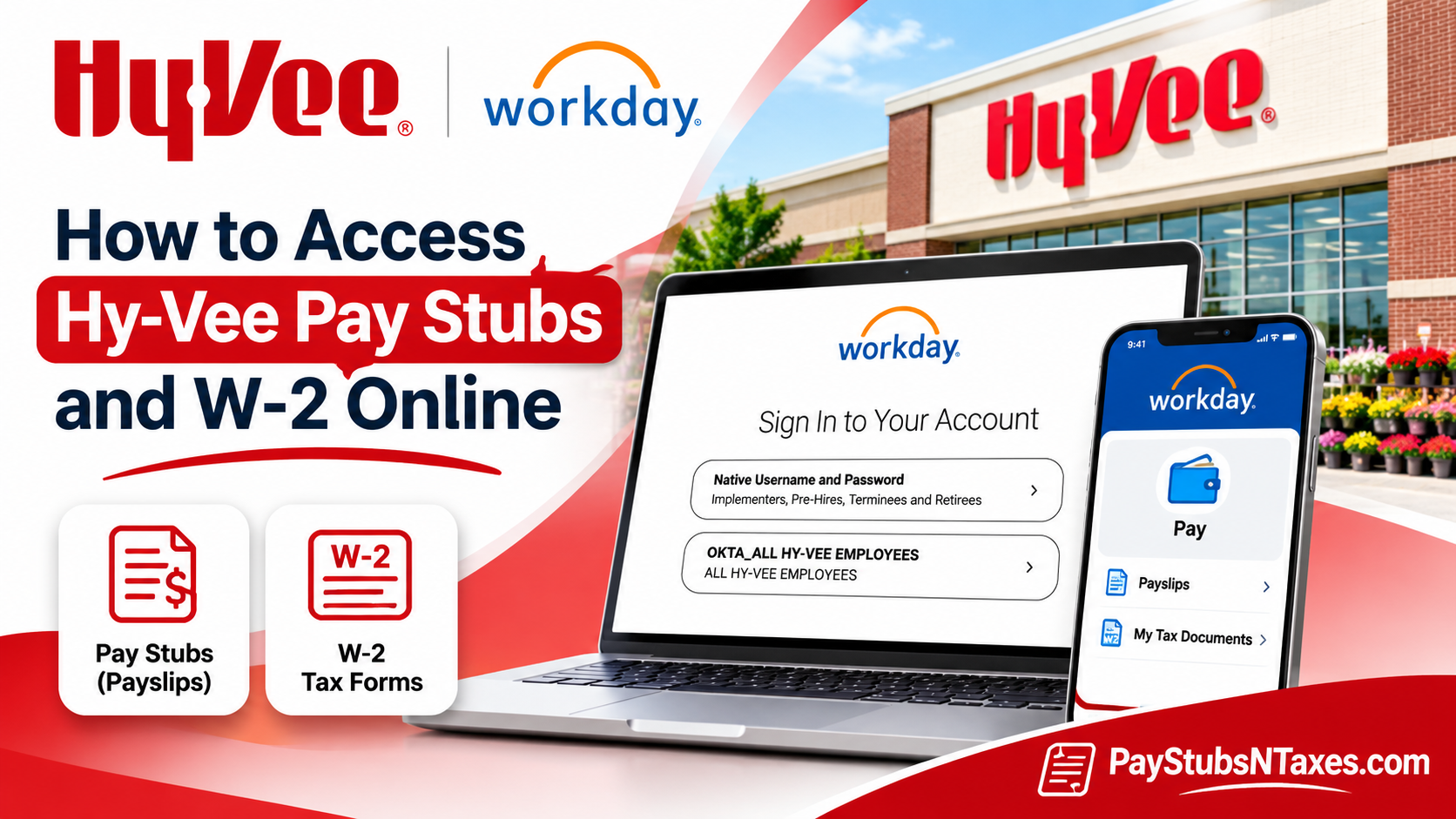
Hy-Vee employees can view and download their pay stubs and W-2 forms in Workday. If you currently work for Hy-Vee, sign in with your company Okta credentials, then go to Pay → Payslips for a pay stub or Pay → My Tax Documents for your W-2. If you have left the company, choose Native Username and Password on the Hy-Vee Workday sign-in page and use your former-employee credentials while your account remains available.
This comprehensive guide explains how to access Hy-Vee pay stubs and W-2 forms online, including the correct Workday login procedures, Okta authentication, mobile application setup, PDF downloads, and alternative methods of obtaining payroll documents after leaving the company.
How to sign in to Hy-Vee Workday
The Hy-Vee Workday login page offers two sign-in options. Which one you choose depends on your employment status.
| Employment status | Sign-in option | Credentials |
| Current Hy-Vee employee | OKTA_ALL HY-VEE EMPLOYEES | Your Hy-Vee Okta username and password |
| Former employee or retiree | Native Username and Password | The Workday credentials set up for your post-employment account |
Current employees
- Open the Hy-Vee Workday sign-in page.
- Select OKTA_ALL HY-VEE EMPLOYEES.
- Enter your Hy-Vee Okta username, select Next, and follow the prompts to complete authentication.
- Once you reach the Workday home page, open Pay.
If you already use the Hy-Vee Okta dashboard, you can sign in there and select Workday from your app list. Both routes use the same Okta credentials for active employees.
Former employees and retirees
Open the same Workday sign-in page and select Native Username and Password. This option includes former employees, identified as Terminees on the sign-in screen, as well as retirees. Use the Workday credentials set up for your post-employment account. If you never received sign-in instructions or can no longer access your account, contact Hy-Vee HR for help recovering access or obtaining a copy of the document you need.
Because post-employment access is available for a limited period, save any payslips you may need and download your W-2 as soon as it becomes available. Hy-Vee also sends former employees their W-2 by postal mail to the home address on file in Workday. If you moved after leaving, ask HR to confirm or update your mailing address and explain how to request a replacement if the form has already been sent.
How to view and download Hy-Vee pay stubs on a computer
Workday calls your pay stubs payslips. Each payslip records what you earned during a pay period, what was withheld for taxes and other deductions, and how much you took home.
- Sign in to Hy-Vee Workday and select the Pay app on the home page.
- Under View, select Payslips to open My Payslips.
- Find the relevant pay period and select View.
- Review the statement, then choose the print option to generate a PDF. You can save the PDF or print it from your browser.
If you need proof of income, check the pay period before downloading the file. The payment date and the dates covered by the payslip can differ, so confirm which dates the recipient needs.
Hy-Vee offers direct deposit and a payroll card as electronic payment options. Direct deposit sends wages to a bank account, while the payroll card gives employees without a bank account another way to receive their wages. Your payslip is available through the same Workday menu, whichever option you use.
How to access Hy-Vee pay stubs in the Workday mobile app
Set up the app
- Download Workday from the Apple App Store or Google Play.
- Open the app and tap Log In.
- Enter hyvee as the organization ID and tap the blue arrow to continue.
- If you are a current employee, sign in with your Hy-Vee Okta credentials and complete any authentication prompts.
View or save a payslip
- From the Workday home screen, tap Pay. If it is missing from the first screen, tap View All to see more apps.
- Review your take-home pay, gross pay, next payday, or year-to-date take-home pay. Tap View Pay Details to see employee taxes and pre-tax and post-tax deductions.
- Tap Payment Information if you need to review your direct deposit details.
- Select Get PDF, then tap Open PDF to view the payslip. Use your phone’s PDF options to save or print a copy.
How to download your Hy-Vee W-2 from Workday
On a computer
- Sign in to Workday and open Pay.
- Under View, select My Tax Documents.
- Find the correct tax year. In the Employee Copy column, select View/Print.
- Wait for Workday to generate the PDF. If you see Your request is being processed, you can wait on the page or select Notify Me Later.
- If you choose Notify Me Later, open the Notifications bell and follow the link to open or download your W-2.
Before saving or printing the form, verify the tax year. The year printed on the W-2 identifies the year the wages were reported for, even if you download the form the following year.
In the Workday mobile app
Open Pay → My Tax Documents, find the W-2 for the year you need, and tap View/Print. When Workday confirms that it has received your request, return to the home screen and tap the Notifications bell. Open the notification to view the PDF and save or print it using your device’s options.
What to do if you cannot sign in or find your W-2
- Your Okta account is locked. If you are a current employee, use Unlock account? on the Hy-Vee Okta sign-in screen and follow the prompts.
- You have left Hy-Vee and cannot sign in. Return to the Workday login page and choose Native Username and Password. If access has expired or you need help with your credentials, ask HR how to obtain the records you need.
- You selected View/Print and the PDF did not open. Check Workday Notifications for the generated file. If you were using the mobile app, you can also try the desktop route through Pay → My Tax Documents.
- Your W-2 is missing, or you need a replacement. Email Hy-Vee HR at hrmail@hy-vee.com. You can also call Hy-Vee’s main customer care number at 1-800-772-4098 and ask to be directed to HR or Payroll. Tell them which tax year you need and ask how to verify your identity securely.
Conclusion
Hy-Vee’s adoption of Workday has made it easier for authorized employees to access essential payroll records through a centralized online platform. Whether you need to verify your latest paycheck, examine withholding deductions, download a historical earnings statement, or retrieve your annual W-2, Workday provides convenient tools for managing these documents.
For active employees, the most direct approach is to sign in through the Hy-Vee Workday portal using Okta authentication or launch Workday from the company’s Okta dashboard. Once authenticated, the Pay application provides access to available payslips and tax documents.
Former employees should use the designated native Workday authentication pathway when eligible, remain mindful of possible access restrictions, and download important records promptly. If online access is unavailable, Hy-Vee Human Resources can provide guidance concerning alternative document-retrieval procedures.
Ultimately, keeping accurate payroll records, maintaining updated contact information, and understanding the Workday login process will help current and former Hy-Vee employees manage their compensation information with greater confidence, convenience, and security.
Hy-Vee Pay Stubs and W-2 FAQs
1. Where is the Hy-Vee Workday login page?
Open the Hy-Vee Workday sign-in page and select the sign-in option for your employment status.
2. Which Workday sign-in option should current Hy-Vee employees use?
Select OKTA_ALL HY-VEE EMPLOYEES and sign in with your Hy-Vee Okta credentials. You can also open Workday from your Hy-Vee Okta dashboard.
3. How do I view my Hy-Vee pay stubs on a computer?
In Workday, open Pay → Payslips. Find the pay period you need and select View to open the earnings statement.
4. How do I download or print a Hy-Vee pay stub?
Open the payslip in Workday and select the print option to generate a PDF. Save the PDF to your device or print a copy from your browser.
5. What is the Hy-Vee organization ID for the Workday mobile app?
Enter hyvee as the organization ID. If you currently work for Hy-Vee, continue to the sign-in screen and authenticate with your Hy-Vee Okta credentials.
6. How do I download my Hy-Vee pay stub on my phone?
In the Workday app, open Pay. If it is missing from the home screen, tap View All. Select Get PDF, then tap Open PDF to view and save the payslip.
7. Where can I see my Hy-Vee paycheck deductions?
In the Workday mobile app, open Pay → View Pay Details to review employee taxes and pre-tax and post-tax deductions. Select Payment Information to see your direct deposit details.
8. How do I download my Hy-Vee W-2 on a computer?
In Workday, go to Pay → My Tax Documents. Find the correct tax year and select View/Print under Employee Copy. Once the form opens, save or print the PDF.
9. Can I download my Hy-Vee W-2 in the Workday mobile app?
Yes. Open Pay Hub → My Tax Documents, select View/Print for the correct tax year, then use the Notifications bell to open the generated PDF.
10. What should I do if Workday says my W-2 request is being processed?
Wait for the PDF to generate or select Notify Me Later. If you choose that option, open the Notifications bell and follow the link once the document is ready.
11. How do former Hy-Vee employees sign in to Workday?
Select Native Username and Password on the Hy-Vee Workday sign-in page. The option includes former employees, listed as Terminees, and retirees. Use the Workday credentials set up for your post-employment account.
12. Can I access old Hy-Vee pay stubs and W-2s after leaving the company?
You can retrieve available records while your former-employee Workday access is active. Because access is limited, download the records you need while you can still sign in. If access has expired, contact Hy-Vee HR to request copies.
13. Does Hy-Vee mail W-2 forms to former employees?
Hy-Vee mails former employees’ W-2 forms to the home address on file in Workday. If you moved after leaving, ask HR to confirm or update your address and explain how to request a replacement if the form has already been mailed.
14. What should I do if my Hy-Vee Okta account is locked?
If you are a current employee, select Unlock account? on the Hy-Vee Okta sign-in screen and follow the prompts. Former employees should use Native Username and Password and contact HR if they need help with those credentials.
15. Who should I contact if my Hy-Vee W-2 is missing?
Email Hy-Vee HR at hrmail@hy-vee.com and specify the tax year you need. You can also call Hy-Vee Customer Care at 1-800-772-4098 and ask to be directed to HR or Payroll.
