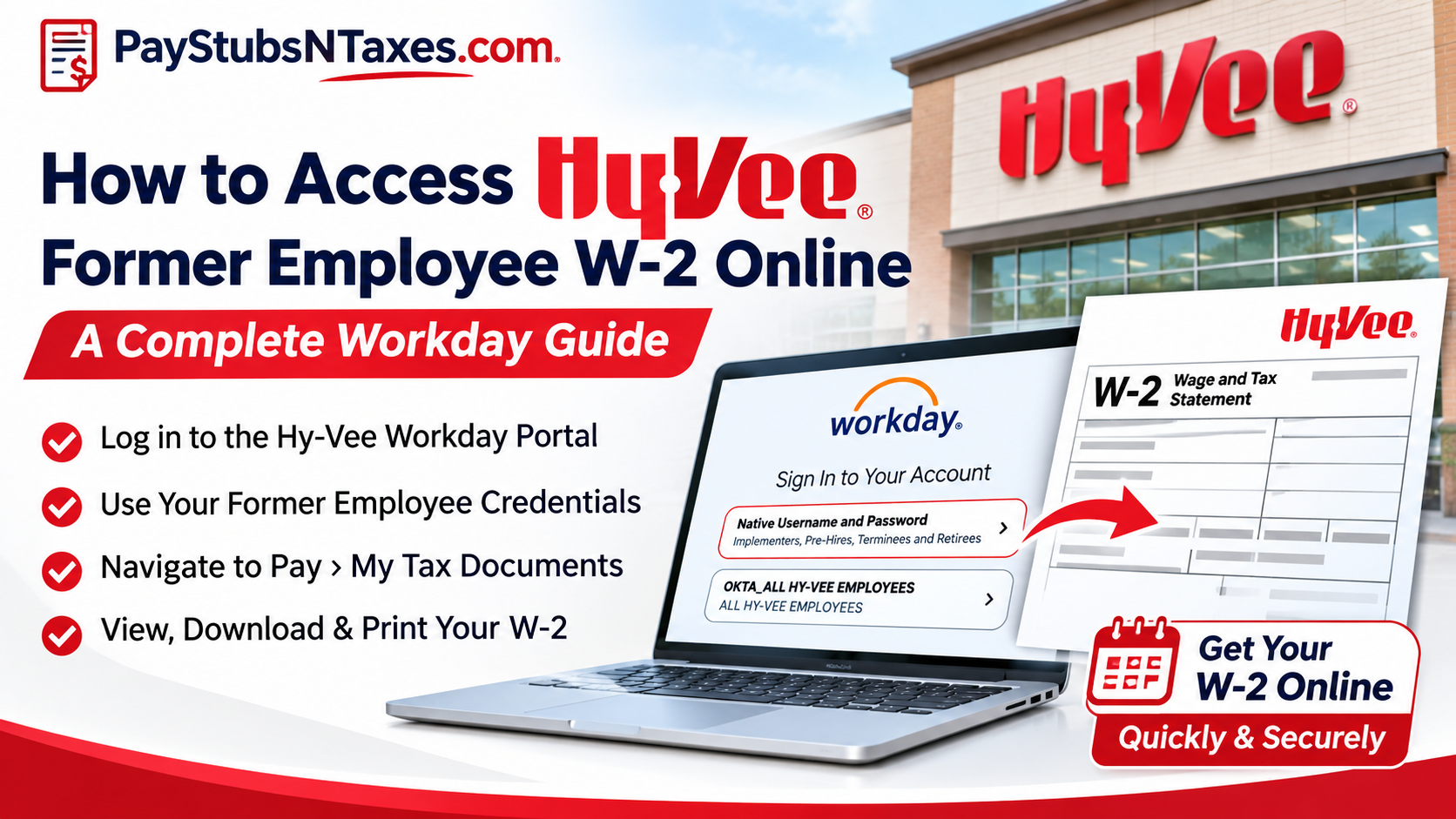
Hy-Vee moved its payroll processes to Workday, where former employees with active access can retrieve available tax forms and past pay statements. Because access after separation is time-limited, download your W-2 as soon as it becomes available. If you can no longer sign in, contact your former location’s HR representative for help getting a copy. To get your Hy-Vee W-2 after leaving the company, open the Hy-Vee Workday sign-in page and select Native Username and Password. Sign in with your employee ID and former-employee Workday password, then go to Pay → My Tax Documents. Find the correct tax year and select View/Print under Employee Copy to download your W-2.
However, because post-employment Workday access may remain active for only a limited period, retrieving essential payroll and tax documents promptly is advisable. This comprehensive guide explains how to sign in to Workday after leaving Hy-Vee, reset login credentials, retrieve W-2 forms using a computer or mobile device, and request assistance when online access is no longer available.
How to sign in to Hy-Vee Workday after leaving the company
The Hy-Vee Workday sign-in page shows two options. Former employees and retirees should choose Native Username and Password, which lists Terminees and Retirees among the users it serves. The OKTA_ALL HY-VEE EMPLOYEES option takes active employees through Hy-Vee’s single sign-on system.
- Open the Hy-Vee Workday sign-in page.
- Select Native Username and Password.
- Enter your Hy-Vee employee ID number as your username.
- Enter the password you set up for former-employee access.
- If you received a temporary password in your personal email after leaving Hy-Vee, follow the instructions in that message to set a new one. Use your employee ID and new password for subsequent sign-ins.
If you recently left and have yet to receive setup instructions, check the spam or junk folder of the personal email account you had on file with Hy-Vee. If you still cannot find the message, ask your former location’s HR representative to confirm the email address on record and explain how to regain access. If your former-employee access has expired, ask how to request the form directly.
How to download your Hy-Vee W-2 from Workday
Once you have signed in, open the Pay tile on the Workday home page. Under View, choose My Tax Documents. Find the W-2 for the year in which you earned the wages you are reporting. For example, if you earned wages at Hy-Vee in 2026 and are preparing your return in 2027, look for the 2026 W-2.
In the row for that year, select View/Print in the Employee Copy column. Workday may display a message saying that your request is being processed. You can wait for the PDF to open or select Notify Me Later. If you choose the latter, open the Notifications bell when the document is ready and follow the link to the PDF.
Before signing out, open the downloaded file and confirm that it shows the correct year and your details. Save it somewhere secure so you have a copy on hand if your Workday access ends before you file.
Can former Hy-Vee employees get a W-2 through the Workday app?
If the Workday mobile app offers the native sign-in option for your account, you can try retrieving the form on your phone. Install Workday from your device’s app store, tap Log In, and enter hyvee as the organization ID. If Native Username and Password appears, select it and use your former-employee credentials. If the app only presents the active-employee Okta screen, open the Hy-Vee Workday sign-in page in your phone’s browser and follow the web instructions above.
Once you are signed in to the app, open Pay Hub → My Tax Documents. Select View/Print for the correct year. When Workday confirms that it has submitted your request, return to the home screen and tap the Notifications bell to open the PDF once it is ready. If you can sign in but do not see My Tax Documents in the app, check for the form in the web portal.
What to do if your Hy-Vee W-2 is missing
If you can sign in but cannot find the year you need, check My Tax Documents and Notifications separately. The first shows which forms are available. The second is where a PDF you already requested may appear. If the year is absent from My Tax Documents, ask HR whether the form has been issued and how you can obtain it.
For mailed W-2s, Hy-Vee uses the home address on file in Workday. If you moved after leaving, ask HR to confirm the mailing address, whether the form was already sent, and how to request a replacement if it went to your old address.
Start with the HR representative at your former Hy-Vee location. If you need help reaching the right team, call 1-800-772-4098, Hy-Vee’s published Customer Care number, and ask to be directed to HR or payroll. Have the tax year, your former work location, and your employee ID handy. If HR needs additional information to verify your identity, ask how to provide it securely.
Getting your W-2 after your Workday access ends
If your former-employee login still works, My Tax Documents is the quickest place to check. If access has ended or the form is missing, give HR the specific tax year and ask for a replacement copy. If you are expecting a paper W-2, confirm the address on file so you know where to look for it.
Conclusion
Accessing a Hy-Vee former employee W-2 online is relatively straightforward when you have the appropriate Workday credentials and your post-employment account remains active. By visiting the Hy-Vee Workday login portal, selecting Native Username and Password, and navigating to Pay > My Tax Documents > View/Print, eligible former employees can retrieve available year-end tax statements electronically.
The Workday mobile application offers an additional avenue for accessing payroll information, while postal delivery remains an important alternative for individuals who cannot access their accounts online. Because former employee Workday permissions may expire, downloading and securely preserving your W-2 as soon as it becomes available is a sensible precaution.
Ultimately, whether you choose electronic retrieval or request a mailed statement, maintaining accurate contact information and communicating with Hy-Vee HR Support at 1-800-772-4098 or hrmail@hy-vee.com can help ensure that your tax documents remain accessible when you need them most.
Hy-Vee Former Employee W-2 FAQs
1. Can former Hy-Vee employees access their W-2 online?
Yes. Former employees with active Workday access can view, download, and print available W-2s from My Tax Documents.
2. Which Hy-Vee Workday login should former employees use?
Select Native Username and Password. This option serves former employees and retirees. Active employees use OKTA_ALL HY-VEE EMPLOYEES.
3. What is my Hy-Vee Workday username after I leave?
Use your Hy-Vee employee ID number as your username and the password you set up for former-employee access.
4. How do I set up my former-employee Workday password?
If Hy-Vee sent a temporary password to your personal email, follow the instructions in that message to create a new password. Then sign in using your employee ID and new password.
5. What if I never received my Hy-Vee Workday setup email?
Check the spam or junk folder of the personal email account you had on file. If the message is missing, ask HR at your former location to confirm your email address and help you regain access.
6. Where is my Hy-Vee W-2 in Workday?
From the Workday home page, open Pay and select My Tax Documents under View. Find the tax year you need, then choose View/Print in the Employee Copy column.
7. What if Workday says my W-2 request is being processed?
Wait for the PDF to open or choose Notify Me Later. When the document is ready, select the Notifications bell and open the link to download it.
8. Can I download my Hy-Vee W-2 through the Workday app?
Yes, if the app offers native sign-in for your account. Enter hyvee as the organization ID, sign in, and go to Pay Hub → My Tax Documents. Select View/Print, then check Notifications for the PDF.
9. What if the Workday app only shows the Hy-Vee Okta login?
Open Hy-Vee Workday in your phone’s browser and select Native Username and Password.
10. How long can I access Hy-Vee Workday after leaving?
Former-employee access is time-limited. Download your W-2 when it becomes available, and ask HR to confirm how long your account will remain active.
11. Can I get a W-2 from a previous tax year?
Check My Tax Documents for the year you need. If it is missing, give HR the specific tax year and ask how to obtain a copy.
12. Where will Hy-Vee mail my paper W-2?
Hy-Vee uses the home address on file in Workday for mailed W-2s. If you moved after leaving, ask HR to confirm the address and whether your form has already been sent.
13. What should I do if my Hy-Vee W-2 is missing from Workday?
Check My Tax Documents for the correct tax year. If you already requested a PDF, check Notifications. If the form is absent from My Tax Documents, ask HR whether it has been issued.
14. How do I request a replacement W-2 if my Workday access has expired?
Contact HR at your former Hy-Vee location. Have the tax year, your former work location, and your employee ID handy so HR can locate the correct record.
15. What number can I call for help getting my Hy-Vee W-2?
If you cannot reach your former location’s HR representative, call Hy-Vee Customer Care at 1-800-772-4098 and ask to be directed to HR or payroll.
