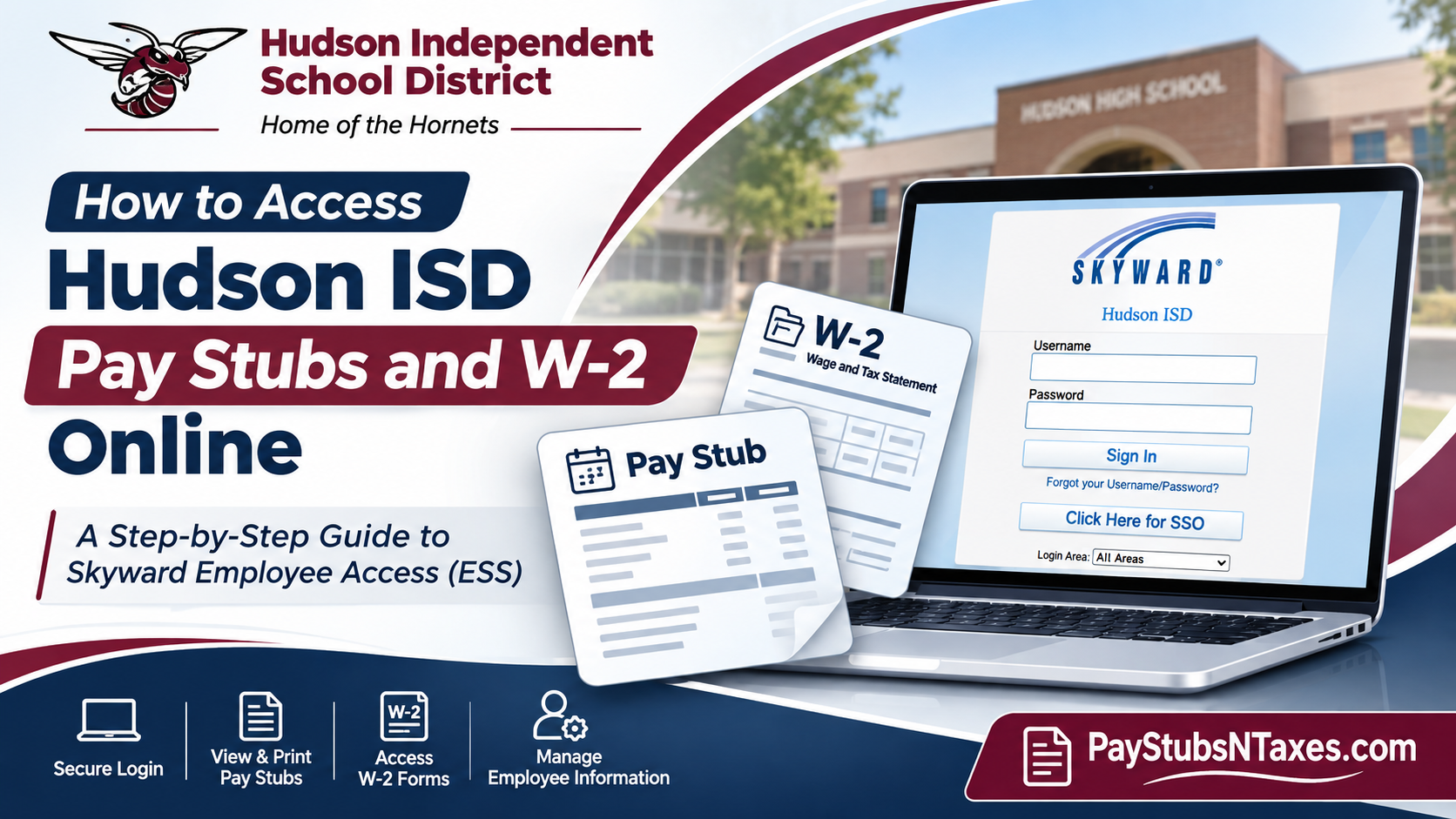
Hudson Independent School District employees can view and print their pay stubs and download their year-end W-2 forms through Skyward Employee Access, the district’s Employee Self Service (ESS) portal. Whether you are a teacher reviewing your monthly earnings, a support staff member verifying your paycheck, or an employee preparing documents for tax season, Skyward Employee Access enables you to retrieve important financial records without unnecessary paperwork or administrative delays. This comprehensive guide explains how to access Hudson ISD pay stubs and W-2 forms online, navigate the Skyward payroll system, print electronic pay statements, manage personal information, and obtain assistance when login or payroll-related difficulties arise.
About Hudson Independent School District (Hudson ISD)
Hudson Independent School District is a public school district situated in Angelina County, Texas, just outside the city limits of Lufkin. Classified as a 4-A school district, Hudson ISD serves approximately 2,800 students from prekindergarten through 12th grade across five campuses, maintaining a student-to-teacher ratio of approximately 13:1.
Guided by its commitment to educational excellence, equity, and innovation, Hudson ISD strives to cultivate an inclusive learning environment where students develop the knowledge, critical-thinking abilities, and interpersonal skills necessary for lifelong success.
Beyond its dedication to students, the district recognizes the importance of supporting its workforce through accessible administrative resources. Its adoption of the Skyward Employee Self-Service system reflects this commitment by allowing authorized personnel to manage payroll documentation and employment records through a convenient online interface.
How to log in to Hudson ISD Skyward Employee Access
- Visit the Hudson ISD website and select Staff Portal under Popular Links. Choose Employee Access (Skyward). You can also go directly to the Hudson ISD Skyward login page.
- Select Click Here for SSO to sign in with your district account and get full access. If you use the Skyward credentials issued when you were hired, enter your username and password and select Sign In.
- Open Employee Access. If your account gives you access to several Skyward systems, select the drop-down arrow beside Home in the upper-left corner and choose Employee Access.
If you’ve forgotten your Skyward credentials, select Forgot your Username/Password? on the login page. If you can sign in but cannot open the payroll menu, first check that you’re in Employee Access, then try signing in through SSO.
How to view and print your Hudson ISD pay stubs
Skyward’s Check History lets you pull up an individual pay statement by selecting the corresponding paycheck. To find and print a pay stub, follow these steps.
- In Employee Access, select the three-line menu icon in the upper-left corner.
- Choose Payroll, then select Check History.
- Select the paycheck you want to review.
- Click Show Check on the right side of the page.
- Click Print on the right side and use your browser’s print dialog to print a copy. If your browser offers Save as PDF, you can use that option to keep a digital copy.
Review your pay statement regularly so you can raise any discrepancies promptly. Hudson ISD pays professional and salaried employees monthly and hourly employees semimonthly, meaning twice a month. If you’re looking for a particular paycheck, check the district’s payroll calendar for your schedule before contacting Payroll.
How to download and print your Hudson ISD W-2
Hudson ISD lists available W-2 forms by calendar year in Skyward. To download the form you need, select the tax year first, then open the form for that year.
- In Employee Access, open Payroll → W2 Information.
- Select the row for the calendar year you need.
- Click View W2 Form.
- Enter your full Social Security number when prompted within the official Skyward portal.
- Open the downloaded W-2 PDF from your browser’s downloads and print it or save it in a secure location.
If you want to understand how the figures on your W-2 were determined, return to W2 Information and select How is my W2 calculated for the applicable year. If the file doesn’t open automatically after you submit the requested information, check your browser’s downloads before requesting it again.
What else can you do in Skyward Employee Self Service?
In addition to retrieving pay stubs and W-2 forms, Hudson ISD employees can use ESS to review available time off, check personal and employment information, and update details such as their mailing address and emergency contacts. Employees can also review or update applicable withholding information.
If you need to set up or change direct deposit, contact Payroll to confirm the current process and when the change will take effect.
Who to contact for Hudson ISD payroll or W-2 help
If a pay stub or W-2 is missing, a payroll figure appears incorrect, or you no longer have access to your district account, contact Hudson ISD Payroll or Human Resources for help.
- Payroll email — payroll@hudsonisd.org
- Human Resources email — hr@hudsonisd.org
- District phone — 936-875-3351
When you request assistance, include your employee number, a valid email address, and a phone number where the district can reach you. Specify the pay date for a missing pay stub or the tax year for a missing W-2. Keep your password and Social Security number out of the email.
Conclusion
Accessing Hudson ISD pay stubs and W-2 forms online is a convenient process through the district’s Skyward Employee Self-Service (ESS) portal. By signing in through the official Staff Portal or direct Skyward login page, employees can review paycheck history, print available pay statements, retrieve annual W-2 tax documents, and manage essential employment information from one centralized platform.
For paycheck records, navigate to Employee Access → Payroll → Check History, select the appropriate paycheck, and use the Show Check and Print options. To retrieve a W-2, open Payroll → W2 Information, choose the required tax year, select View W2 Form, and complete the necessary identity verification.
Whether you receive a monthly salary or semi-monthly hourly payments, maintaining accurate payroll records is essential for effective financial planning and tax compliance. If you encounter difficulties accessing your account or retrieving documents, Hudson ISD Human Resources and Payroll can provide additional guidance at 936-875-3351, hr@hudsonisd.org, or payroll@hudsonisd.org. With a clear understanding of Skyward Employee Access, Hudson ISD employees can manage their payroll documentation more efficiently, securely, and confidently.
Hudson ISD Pay Stub and W-2 FAQs
1. What portal does Hudson ISD use for employee pay stubs and W-2 forms?
Hudson ISD uses Skyward Employee Access, its Employee Self Service (ESS) portal, for paycheck history and year-end W-2 forms.
2. Where is the Hudson ISD Skyward employee login?
From the Hudson ISD homepage, go to Popular Links → Staff Portal → Employee Access (Skyward). You can also open the Hudson ISD Skyward login page.
3. How do I sign in to Hudson ISD Skyward with SSO?
Select Click Here for SSO on the Skyward login page and sign in with your Hudson ISD account. Use this option for full access to the portal.
4. What if I forget my Hudson ISD Skyward username or password?
Select Forgot your Username/Password? on the Skyward login page. If you use district single sign-on and still cannot sign in, contact Hudson ISD Human Resources for assistance.
5. Why can’t I see the Payroll menu after signing in?
Check that you’re in Employee Access. If Skyward opens another area, click the drop-down arrow beside Home and select Employee Access, then open the three-line menu to find Payroll.
6. How do I view an older Hudson ISD pay stub?
Open Payroll → Check History, select the paycheck by its pay date, and click Show Check. If the date you need is missing, ask Payroll for a copy.
7. How do I print or save a Hudson ISD pay stub?
Open the pay stub using Show Check, then select Print. Choose your printer or select Save as PDF if your browser offers that option.
8. How do I find a Hudson ISD W-2 from a previous year?
Go to Payroll → W2 Information, select the row for the year you need, and click View W2 Form. If the year isn’t listed, contact Payroll and specify the tax year.
9. Do I need my Social Security number to download my Hudson ISD W-2?
Yes. Skyward prompts you to enter your full Social Security number before generating the W-2 PDF. Enter it only within the official Hudson ISD Skyward portal.
10. Where is my W-2 after I download it from Skyward?
Check your browser’s downloads list or your device’s Downloads folder. Open the PDF to review it, print it, or move it to a secure location.
11. How can I see how Hudson ISD calculated my W-2?
In Payroll → W2 Information, select the relevant year and click How is my W2 calculated to review the calculation.
12. Can former Hudson ISD employees get copies of their pay stubs or W-2s?
If you can no longer sign in to Skyward, email payroll@hudsonisd.org and ask how to obtain a copy. Specify the pay date or W-2 tax year you need.
13. How often does Hudson ISD pay its employees?
Professional and salaried employees are paid monthly. Hourly employees are paid semimonthly, meaning twice a month. Check the district’s payroll calendar for specific pay dates.
14. Can I update my mailing address or direct deposit in Hudson ISD Skyward?
You can update your mailing address in Employee Access. For direct deposit changes, contact Payroll to confirm the current submission process and effective date.
15. Who should I contact about a missing or incorrect Hudson ISD pay stub or W-2?
Email payroll@hudsonisd.org or call 936-875-3351. For account access assistance, email hr@hudsonisd.org. Include your employee number, a valid email address, a callback number, and the relevant pay date or tax year. Keep your password and Social Security number out of the email.
