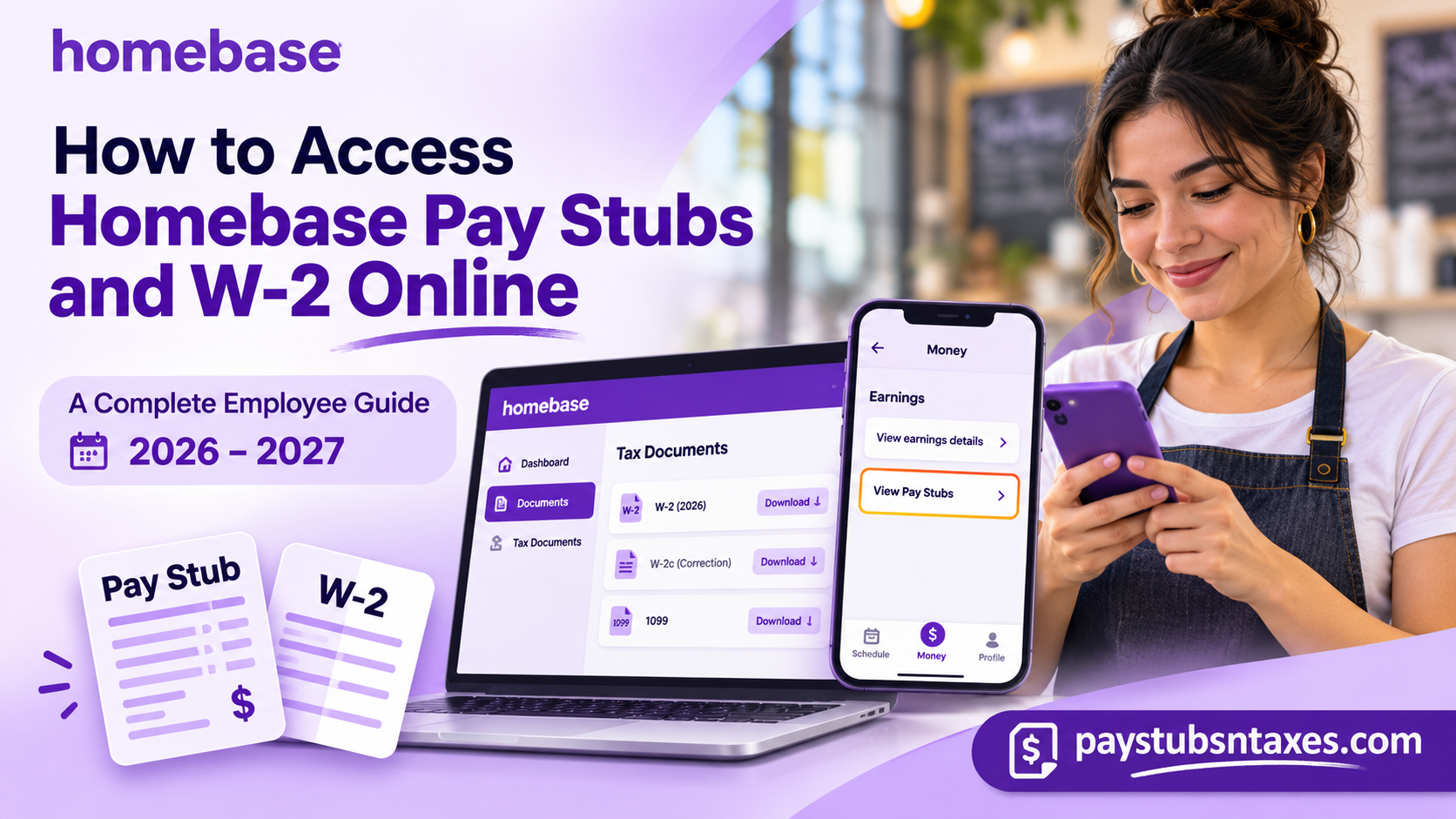
For employees whose employers use Homebase Payroll, the platform provides a centralized digital solution for viewing, downloading, and printing pay stubs, W-2 forms, and other essential payroll records. Whether you are reviewing your latest paycheck, verifying tax deductions, preparing your annual income tax return, or retrieving previous employment records, understanding how to navigate the Homebase employee portal can save considerable time and eliminate unnecessary administrative complications.
Homebase enables eligible employees to access their payroll information through its mobile application and online account, although the availability of particular documents depends on whether their employer processes payroll through Homebase. This comprehensive guide explains how to access Homebase pay stubs and W-2 forms online, register for an employee account, download payroll statements, retrieve year-end tax documents, and resolve common login or payroll-related difficulties.
What Is Homebase?
Homebase is an AI-powered workforce management and payroll platform designed primarily for small businesses and hourly employees. By integrating employee scheduling, time tracking, payroll administration, hiring, team communication, and human resources management into a unified digital ecosystem, Homebase simplifies everyday operational responsibilities for employers while providing employees with greater visibility into their work-related information.
More than 150,000 small businesses use Homebase to manage essential administrative activities, reflecting its growing influence among restaurants, retail establishments, hospitality businesses, and other organizations that rely heavily on hourly workers.
Beyond its traditional workforce management capabilities, Homebase has introduced AI-powered tools to streamline scheduling, recruitment, and other time-consuming administrative processes. Its AI-enabled products have reportedly completed more than 3.6 million administrative tasks since launching in 2025.
The company maintains offices in San Francisco, Houston, Denver, and Toronto and has received recognition for its innovation and workplace culture.
For employees, however, one of the platform’s most practical advantages is its payroll accessibility. When an employer uses Homebase Payroll, eligible workers can review their earnings, monitor payment information, and obtain documentation required for financial planning, income verification, and tax preparation.
It is important to distinguish between employers that use Homebase solely for scheduling or time tracking and those that subscribe to its payroll processing services. Homebase pay statements are available only when an employer processes payroll through Homebase Payroll. If a business relies on an external payroll provider, employees must generally retrieve their pay stubs from that provider instead.
Sign in to your Homebase employee account.
Homebase brings scheduling, time tracking, team communication, and payroll into a single platform for hourly teams. If your employer runs payroll through Homebase, the same employee account you use to check your schedule gives you access to your payroll records. If you can see your shifts but cannot find any pay stubs, ask your manager which provider processes your pay.
If you already have an account, select Sign In on the Homebase website or in the Homebase mobile app. If you are setting up access for the first time, open the Join an existing team page and enter the email address you gave your manager. You can also select Join with phone number and follow the prompts. If you manage a team as well as work shifts, make sure you are viewing your own employee account when looking for your personal payroll documents.
How to view and download Homebase pay stubs
Pay stubs for payroll runs processed through Homebase become available on the scheduled payday. If you are paid by direct deposit, Homebase also sends a payday email notification. You can open the app directly whenever you need a copy.
- Sign in to the Homebase mobile app and open the Dashboard.
- Tap Money at the bottom of the screen.
- Select View earnings details, then tap View Pay Stubs.
- Find the entry for the payday you need and tap it to open the earnings breakdown.
- Tap Download to save a PDF. If your version of the app shows View PDF, open the document and use your phone’s share or save controls.
The list is organized by payday. If you need proof of earnings for a particular week, check the pay period printed on the stub before downloading it. For instance, a pay stub dated November 13 may cover work performed in an earlier week. Once you have the right statement, review your gross earnings, deductions, and net pay. If something looks off, give your payroll team the pay date and the line item you want them to check.
How to print a Homebase pay stub
Open the pay stub PDF and tap Share or the More menu. Select Print, choose your printer, and confirm the settings.
- On iPhone, if Print is missing, select Save to Files. Open the PDF in Files, then tap Share → Print.
- On Android, download the PDF and open it in a PDF viewer. Look for Print under Share or the three-dot menu.
- On a computer, open a copy of the PDF and use the document viewer’s print command. If you need to transfer the file from your phone, use a private account or a trusted device, since pay stubs contain personal and financial information.
How to get your Homebase W-2 online
Year-end tax forms are generally available in your Homebase profile during the last week of January following the tax year. If you are looking for your 2026 Homebase W-2, check your account in late January 2027. Select the tax year shown on the form, especially if you are retrieving an older document.
Download your W-2 from the Homebase website
- Sign in to your Homebase account in a web browser.
- Open Documents.
- Select Tax Documents in the left-hand menu.
- Find the relevant tax year and download your W-2 or applicable 1099.
Download your W-2 from the Homebase mobile app
- Sign in to the Homebase app.
- Open Profile.
- Select Tax & Bank info.
- Find the form for the correct tax year and download a copy.
If you worked for more than one business that uses Homebase Payroll, check the employer name on each form before saving it. If you see an original form and a corrected version, keep both together so you can identify what changed. For records from a period when your employer used a different payroll provider, ask the employer which portal or payroll office holds those documents.
What to do if a pay stub or W-2 is missing
If a pay stub is missing, confirm the scheduled payday and ask your employer whether that payroll run was processed through Homebase. If the Money menu or the download button is missing, update the app and check that you are signed in with the email address or phone number your employer has on file.
If your W-2 is missing after the expected release window, contact the employer that paid you. Ask its payroll team to confirm the tax year, how the form was delivered, and how to obtain a copy. If you have left the company and can no longer sign in, ask the former employer directly for the document.
For password or sign-in problems, use the recovery option on the Homebase sign-in page. If you can sign in but the app or website is giving you trouble, use Help & Support from your profile menu on the web or Support → Chat with us in the app. For questions about hours, pay rates, deductions, or a corrected W-2, start with your employer’s payroll team.
Conclusion
Accessing Homebase pay stubs and W-2 forms online is a convenient process for employees whose employers use Homebase Payroll. Whether you need to verify your latest earnings, download a statement for income verification, or obtain annual tax documents, the platform provides practical options for managing essential payroll information.
To view your pay stubs, sign in to the Homebase mobile application and navigate to Money → View earnings details → View Pay Stubs. From there, select the appropriate payment date and download your statement.
For annual tax documents, employees can use the web portal’s Documents → Tax Documents section or open Profile → Tax & Bank info within the mobile application.
While pay stubs generally become available on payday, W-2 forms are issued annually, with availability determined by the relevant tax year and employer’s payroll arrangements.
By keeping your Homebase account information current, monitoring your payroll records regularly, and maintaining secure copies of important documents, you can take greater control of your financial information and approach payroll administration and tax preparation with confidence.
Homebase Payroll FAQs
1. How do I log in to my Homebase employee account?
Select Sign In in the Homebase app or on the website. Use the credentials associated with your employee account.
2. How do I join my employer’s team on Homebase?
Enter the email address you gave your manager, or select Join with phone number and follow the prompts.
3. When do Homebase pay stubs become available?
Pay stubs for payroll runs processed through Homebase appear on the scheduled payday. Employees paid by direct deposit also receive a payday email notification from Homebase.
4. How do I find an older pay stub in Homebase?
Open View Pay Stubs in the app and select the relevant payday. Check the pay period printed on the stub to make sure it covers the dates you need.
5. How do I download a Homebase pay stub as a PDF?
Open the pay stub and tap Download. If the app shows View PDF, open the document and use your phone’s share or save controls.
6. How do I print a Homebase pay stub from my phone?
Open the PDF and choose Print from the share menu or the PDF viewer’s menu. If the option is missing, save the file first and open it in Files on iPhone or a PDF viewer on Android.
7. Where can I download my Homebase W-2 on a computer?
Sign in to Homebase in your browser, open Documents, and select Tax Documents from the left-hand menu. Choose the tax year and download your W-2.
8. Where is my W-2 in the Homebase app?
Open Profile → Tax & Bank info, then select the W-2 for the tax year you need and download it.
9. When will my 2026 Homebase W-2 be available?
Check your Homebase account during the last week of January 2027. If the form is still missing after that window, ask your employer’s payroll team how it was delivered.
10. Can I download a 1099 from Homebase?
Yes, if the business issued your 1099 through Homebase Payroll. Look under Documents → Tax Documents on the web or Profile → Tax & Bank info in the app.
11. Can I get W-2s from multiple employers through Homebase?
You may see separate forms if more than one employer issued your W-2 through Homebase Payroll. Check the employer name and tax year on each form before downloading it.
12. What should I do if my Homebase W-2 is incorrect?
Contact the payroll team at the employer listed on the form and explain which information needs correcting. If a corrected form appears in Homebase, download it and keep it with your original.
13. Why can I see my schedule but not my pay stubs in Homebase?
Your employer may use Homebase for scheduling and a separate provider for payroll. Ask your manager which portal holds your pay stubs and confirm that you are signed in to your employee account.
14. How do I get my W-2 after leaving my job?
If you can still sign in, check Tax Documents on the web or Tax & Bank info in the app. If you have lost access, ask your former employer’s payroll team for a copy.
15. Who can help with Homebase login or paycheck problems?
Use Homebase’s password recovery option or Help & Support for account access issues. For missing pay, incorrect hours, or unexpected deductions, contact your employer’s payroll team with the relevant pay date.
