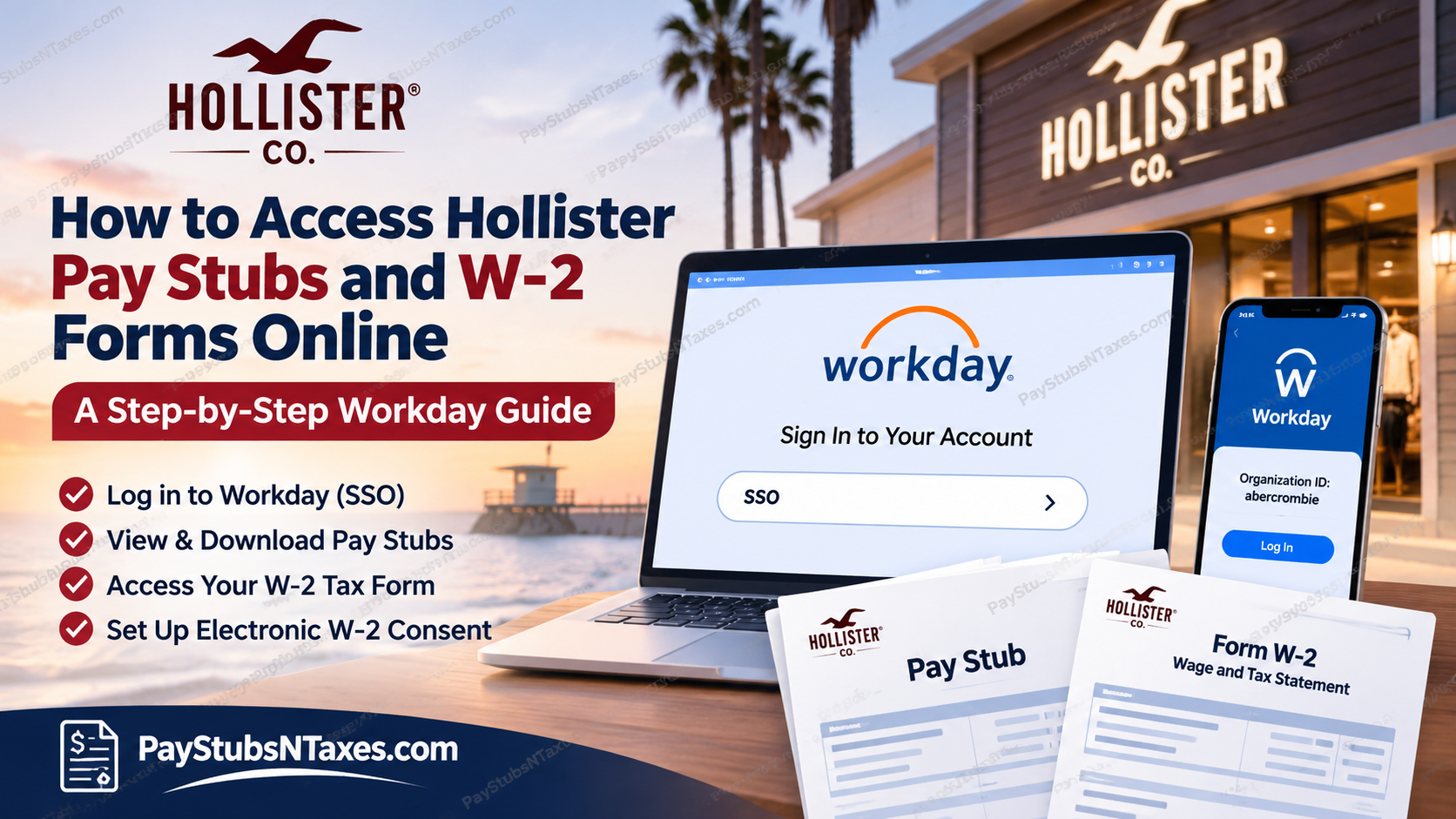
Current Hollister Co. associates can use Abercrombie & Fitch Co.’s Workday portal to view pay stubs, retrieve available W-2 forms, and manage tax document delivery preferences. To get started, open the Hollister Workday sign-in page, select SSO, and sign in with your company credentials. Once you reach the Workday home page, go to Pay → Payslips for your pay stubs or Pay → My Tax Documents for your W-2. This comprehensive guide explains how to access Hollister pay stubs and W-2 forms online, log in to the Abercrombie Workday employee portal, download payslips, submit electronic W-2 consent, and resolve common login or payroll-related issues.
How to Sign In to Hollister Workday
Whether you’re checking your latest paycheck from home or downloading a tax form on your phone, use the company’s Workday sign-in page or the Workday mobile app.
Sign in from a computer or tablet.
- Open the Abercrombie & Fitch Co. Workday portal in a supported browser, such as Google Chrome.
- Select SSO on the Sign In to Your Account screen.
- Enter your company username and password, then select Sign On.
- Complete PingID verification if prompted.
- Once Workday opens, select Menu or View All Apps to find Pay.
If you’re a new hire and received a temporary username and password, follow the sign-in instructions in your onboarding materials. You may be prompted to reset the temporary password the first time you sign in. Once your employment begins and your company account is active, use SSO for routine access.
Sign in using the Workday mobile app
- Download Workday from the Apple App Store or Google Play Store.
- Open the app and tap Log In.
- Enter abercrombie as the Organization ID.
- Select SSO when the company sign-in page appears.
- Sign in with your company credentials and complete PingID verification if prompted.
How to View, Print, or Download Hollister Pay Stubs
Workday calls pay stubs payslips. Each payslip corresponds to a specific paycheck, so check the pay date or pay period before opening the statement. This is particularly helpful when you need a record for a rental application, an income verification request, or a payroll inquiry.
- Sign in to Workday and open Menu or View All Apps.
- Select Pay.
- Under View, select Payslips.
- Find the pay period you need and select View to open the statement.
- Select Print next to the applicable payslip to generate a printable copy. To keep a digital copy, use the available PDF download option or choose Save as PDF in your browser’s print dialog.
Your payslip is the place to check gross earnings, taxes withheld, deductions, and net pay. If a local tax entry appears in a different format after the move to Workday, you can review the election on file under Pay → Actions → Withholding Elections → Local Elections. Select Update if you need to revise an available election. If the amount withheld still looks wrong, have Payroll review the specific pay period.
How to Consent to Electronic Delivery of Your 2026 W-2
If you want to receive your 2026 Hollister W-2 electronically, record your delivery preference in Workday. Even if you previously opted in through the former payroll system, submit your election in Workday so your choice is recorded in the current system.
- Sign in to Workday and open Pay.
- Under View, select My Tax Documents.
- Find Printing Election and select Edit.
- Choose the electronic delivery option for your 2026 and future W-2 forms.
- Select OK, then Done to save the election.
To confirm that your choice was saved, reopen My Tax Documents and review the displayed Printing Election. The delivery election and the tax form itself appear in the same area, so you can set your preference before the year’s W-2 becomes available.
How to Download Your Hollister W-2 From Workday
Once your W-2 has been posted, return to My Tax Documents and select the form for the tax year you need.
- Log in to Workday and select Menu.
- Open Pay, which may appear under Personal.
- Under View, select My Tax Documents.
- Locate the correct tax year and select the available View or Print option for its W-2.
- Allow Workday time to generate the document, then open the PDF when it becomes available.
- Download it to a secure location or print it using a printer you can access directly.
If the form is taking a while to generate, give Workday a moment before submitting the request again. If the tax year you need is missing, contact Payroll to ask whether the form has been issued or whether an older record must be requested through a different channel.
What to Do If You Can’t Sign In or Find a Payroll Document
| Issue | What to do |
| Your SSO password is rejected, or PingID verification fails | Use your company’s sign-in recovery process or ask your manager for the appropriate IT support channel. |
| The Pay app is missing. | Check both Menu and View All Apps. If it still doesn’t appear, ask HR to check your Workday access. |
| A pay stub is missing, or the figures look incorrect | Note the pay period and contact Payroll so they can identify the exact statement. |
| Your W-2 is missing or contains an error. | Give Payroll the tax year and describe the issue. Use the secure channel they provide for any sensitive information. |
| You’ve left Hollister and can no longer use SSO. | Ask your former manager or HR for the approved process for requesting pay stubs or tax forms after separation. |
For payroll and tax document requests, start with your manager or the HR or Payroll channel provided to associates. Hollister publicly lists hollisterco@hollisterco.com as a customer service contact, so keep payroll documents and personal identifiers within the employee support channels.
Conclusion
Accessing Hollister pay stubs and W-2 forms online is a straightforward process for employees with authorized access to the Abercrombie & Fitch Workday system. By signing in through the employer’s designated portal and navigating to the Pay application, associates can review earnings statements, download available tax documents, manage payment elections, and update relevant withholding information.
Employees who prefer digital tax statements should also review their electronic W-2 consent settings, particularly following a transition from an earlier payroll platform. Whether you are checking your latest paycheck, obtaining proof of income, or preparing for tax season, becoming familiar with Hollister’s Workday employee self-service features can save time, improve recordkeeping, and help you remain informed about your compensation. For login difficulties, missing tax documents, or questions concerning former-employee access, the most reliable course of action is to contact your designated Hollister HR or payroll representative.
Hollister Pay Stub and W-2 FAQs
1. What is the Hollister employee payroll portal?
Hollister associates use Abercrombie & Fitch Co.’s Workday portal to access payroll records. Select SSO to sign in with your company account.
2. Can I log in to Hollister Workday from home?
Yes. Open the Workday sign-in page in a supported browser, select SSO, and enter your company credentials. Complete PingID verification if prompted.
3. What is the Workday Organization ID for Hollister?
Enter abercrombie as the Organization ID in the Workday mobile app. When the company sign-in page opens, select SSO.
4. How do new Hollister employees sign in to Workday?
If you receive a temporary username and password, follow the instructions in your onboarding materials and reset the password if prompted. Once your company account is active, use SSO for routine access.
5. Where can I find my Hollister pay stubs in Workday?
Open Menu or View All Apps, select Pay, and choose Payslips under View. Find the relevant pay date and select View beside the statement.
6. How do I save or print a Hollister pay stub?
Go to Pay → Payslips and select Print beside the pay stub you need. To keep a digital copy, download the generated PDF or choose Save as PDF in your browser’s print dialog.
7. How do I find a pay stub from an earlier pay period?
Open Pay → Payslips and look for the relevant pay date. If the statement is missing, ask Payroll how to obtain a copy.
8. Where can I review my local tax withholding elections?
Go to Pay → Actions → Withholding Elections → Local Elections. Review the information on file and select Update if you need to revise an available election.
9. Where is my Hollister W-2 in Workday?
Open Pay → My Tax Documents and locate the tax year you need. Once the W-2 has been posted, use the available View or Print option to open it.
10. How do I download my Hollister W-2 as a PDF?
In My Tax Documents, select the appropriate W-2 and open the available View or Print option. Allow Workday time to generate the document, then save the PDF to your device.
11. How do I opt in to electronic delivery of my 2026 Hollister W-2?
Go to Pay → My Tax Documents → Printing Election → Edit. Choose electronic delivery, select OK, and then select Done. Reopen the page to confirm your election was saved.
12. Do I need to opt in again if I consented in the previous payroll system?
Yes. If you chose electronic delivery in the previous payroll system, submit your election in Workday to record your preference for the 2026 W-2 and future forms.
13. What should I do if my Hollister W-2 is missing or incorrect?
Contact Payroll with the tax year and a brief description of the issue. If you need to share sensitive information, use the secure channel Payroll provides.
14. Who can help if Hollister Workday SSO or PingID isn’t working?
Use your company’s account recovery process or ask your store manager to direct you to associate IT support. If you can sign in but the Pay app is missing, ask HR to check your Workday access.
15. How can former Hollister employees request pay stubs or W-2 forms?
If your company sign-in no longer works, contact your former store manager or HR for the approved process. Specify the pay period or tax year so they can direct your request.
