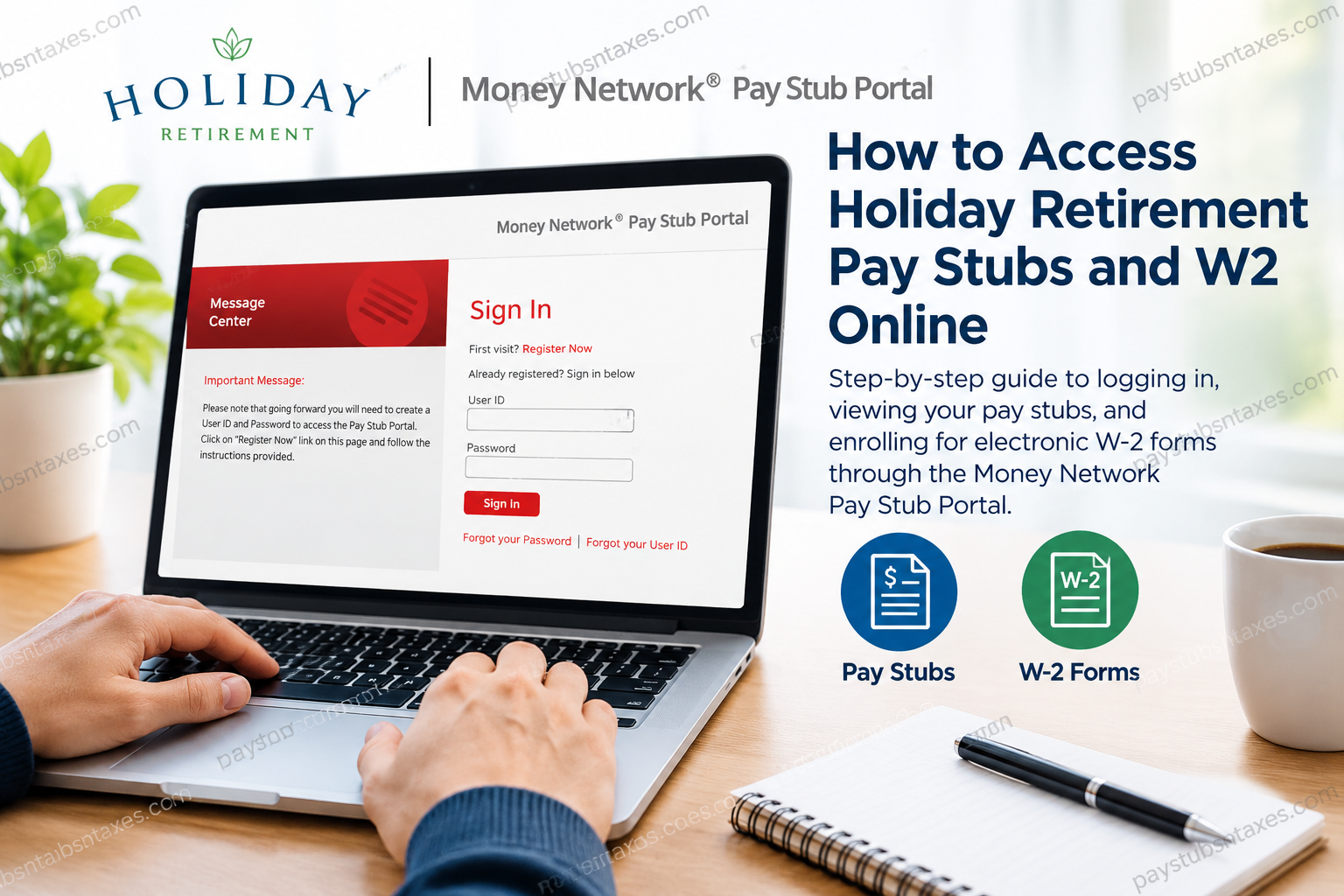
You can access Holiday Retirement pay stubs and W-2 forms through the Money Network Pay Stub Portal. Sign in and select View Pay Stubs to review your earnings by pay period, or open W-2 Forms to opt in to electronic delivery and retrieve available tax documents. First-time users need their employee ID, date of birth, and the last three digits of their Social Security number to register. This comprehensive guide explains how to access Holiday Retirement pay stubs and W-2 forms online, register for the Money Network Pay Stub Portal, retrieve historical pay statements, enroll in electronic W-2 delivery, and resolve common login difficulties.
About Holiday Retirement
Holiday Retirement, originally established as Holiday Management Company in 1971 by William E. Colson and his father, Hugh Colson, became one of the United States’ largest providers of independent senior living accommodations.
Previously headquartered in Winter Park, Florida, the organization managed more than 240 retirement communities serving over 25,000 residents. Its longstanding commitment to creating welcoming, supportive environments helped establish its reputation within the senior living industry.
Following its acquisition by Fortress Investment Group in 2007, Holiday Retirement underwent significant organizational changes. In 2021, its operations became part of Atria Senior Living, while Welltower acquired an associated portfolio of retirement properties. The former Holiday Retirement business subsequently became associated with the Holiday by Atria brand.
Throughout its history, Holiday Retirement relied on dedicated employees across numerous professional disciplines, including community administration, resident services, hospitality, maintenance, and operational support.
To facilitate payroll administration, Holiday Retirement introduced electronic access to employee pay statements through the Money Network Pay Stub Portal.
Important: Because Holiday Retirement underwent organizational restructuring, employees currently working at Holiday by Atria should confirm with their payroll department whether the legacy Money Network portal remains applicable to their employment records.
How to Register for the Holiday Retirement Pay Stub Portal
If this is your first visit, have a recent paper pay stub handy. It contains information that can help you get started. Type the Holiday Retirement portal address directly into your browser’s address bar so you land on the employer-specific sign-in page.
- Open the Holiday Retirement registration page and click Register Now.
- Enter your employee ID, date of birth, and the last three digits of your Social Security number.
- When prompted, create a four-digit PIN. Retype it in the Confirm PIN field and click Submit.
- Follow the remaining prompts to create the User ID and password you’ll use to sign in.
- Return to the portal, enter your new credentials, and click Sign In.
The registration PIN is part of the setup process. On subsequent visits, the sign-in page asks for your User ID and password.
How to View, Print, or Download Holiday Retirement Pay Stubs
Once you’re signed in, select View Pay Stubs from the home screen. The portal lists processed pay statements by pay period, so you can open the one that corresponds to the paycheck you want to review.
Each statement shows your earnings, deductions, and net pay. If you’re trying to reconcile a deposit, check the pay period and net pay against the corresponding transaction in your bank account. To keep a copy for your records, open the statement and use the available print option. You can also select Save as PDF from your browser’s print dialog.
How to Get Your Holiday Retirement W-2 Online
The W-2 Forms tab uses the same portal and login as your pay stubs. To receive your W-2 electronically, you must first opt in.
- Sign in to the Money Network Pay Stub Portal.
- Open the W-2 Forms tab.
- Select the checkbox labeled Check the box to opt-in for your W-2.
- Click Electronic W2 OPT-IN to submit your election.
- When your form is available, select the relevant Tax Year to open it.
- Print the form or save it as a PDF for your tax records.
Selecting electronic delivery means you’ll retrieve your W-2 through the portal and print a copy yourself if you need one. If you’ve opted in and the year you need is missing, contact payroll to confirm whether the form has been issued and how you can obtain a copy.
What Happens If You Don’t Opt In?
If you leave electronic delivery disabled, Holiday Retirement’s payroll instructions indicate that a printed W-2 will be mailed to your last known address, with a January 31 postmark under the stated mailing schedule. If you’ve moved or recently left the company, check with payroll that your mailing address is current.
What to Do If You Can’t Sign In
The portal provides separate recovery links for a forgotten password and a forgotten User ID. Choose Forgot your Password or Forgot your User ID beneath the sign-in button and follow the prompts. If registration fails because your details don’t match, check your employee ID against a recent pay stub and make sure you entered only the last three digits of your Social Security number.
If you work at a community now branded Holiday by Atria and the Money Network portal doesn’t show your records, ask your local payroll office which system applies to your community and the pay period or tax year you need. Former employees who can’t sign in can also ask payroll how to request a copy. For assistance, contact your local office or call 860-233-8208.
Conclusion
The Holiday Retirement Money Network Pay Stub Portal offers an accessible means of reviewing payroll records, downloading electronic pay statements, and obtaining eligible W-2 tax forms through a centralized employee self-service system. Employees using the legacy Holiday Retirement payroll arrangement can begin by visiting https://www.paystubportal.com/HolidayRetirement, registering with their employment information, and signing in using their established credentials.
Once authenticated, they can navigate to View Pay Stubs to examine available earnings statements or select W-2 Forms to enroll in electronic tax document delivery and retrieve issued statements. Employees who prefer paper W-2 forms should ensure that their mailing addresses remain accurate, while former employees and individuals affected by organizational restructuring should verify which payroll administrator currently maintains their records. Ultimately, keeping payroll information accessible, accurate, and securely stored helps employees remain organized, simplifies tax preparation, and minimizes the administrative complications associated with retrieving important employment documents.
Holiday Retirement Pay Stub and W-2 FAQs
1. Where do I log in to view my Holiday Retirement pay stubs?
Open the employer-specific Money Network Pay Stub Portal and select Sign In after entering your User ID and password.
2. How do I register for the Holiday Retirement Pay Stub Portal?
Select Register Now on the sign-in page. Enter the requested information, create and confirm a four-digit PIN when prompted, and follow the remaining steps to set up your User ID and password.
3. What information do I need to register?
You need your employee ID, date of birth, and the last three digits of your Social Security number. If you’re unsure of your employee ID, check a recent paper pay stub or ask your local payroll office.
4. Do I use my four-digit PIN to sign in?
The sign-in page asks for your User ID and password. Create and confirm your four-digit PIN when prompted during registration.
5. How do I find a pay stub for a specific pay period?
After signing in, select View Pay Stubs from the home screen and choose the relevant pay period. The statement shows your earnings, deductions, and net pay.
6. Can I download or print a Holiday Retirement pay stub?
Yes. Open the pay stub you need and use the print option. To keep a digital copy, select Save as PDF in your browser’s print dialog.
7. Are Holiday Retirement pay stubs and W-2s available through the same login?
Yes. The Money Network portal uses the same login for both. Select View Pay Stubs for wage statements or W-2 Forms for tax documents.
8. How do I opt in to receive my Holiday Retirement W-2 electronically?
Open W-2 Forms, select the checkbox for electronic W-2 delivery, and click Electronic W2 OPT-IN to submit your election.
9. How do I download my Holiday Retirement W-2 after opting in?
Open W-2 Forms and click the applicable Tax Year link once it appears. When the form opens, print it or choose Save as PDF in your browser’s print dialog.
10. Will I still receive a paper W-2 if I opt in online?
When you opt in to electronic delivery, you’ll retrieve your W-2 through the portal. You can print a copy yourself if you need one.
11. What if I don’t opt in to electronic W-2 delivery?
Payroll sends a paper W-2 to your last known mailing address. If you’ve moved, check with payroll to confirm the address on file. If you’re waiting for a form, ask payroll when it was mailed.
12. What if I forget my Money Network password or User ID?
Select Forgot your Password or Forgot your User ID beneath the sign-in button and follow the recovery prompts.
13. Why isn’t my W-2 showing in the portal?
Confirm that you completed the electronic delivery opt-in and selected the correct tax year. If that year still doesn’t appear, ask payroll whether the form has been issued and how you can request a copy.
14. How can former Holiday Retirement employees get an old W-2?
If you can still sign in, check W-2 Forms for the tax year you need. If your account is inaccessible or the form is missing, contact your former community’s payroll office and provide the tax year so they can direct your request.
15. What if the Money Network portal doesn’t show my Holiday by Atria payroll records?
Ask your local payroll office which system handles records for your community and the pay period or tax year you need. This is especially helpful when you’re looking for records from before a payroll transition.
