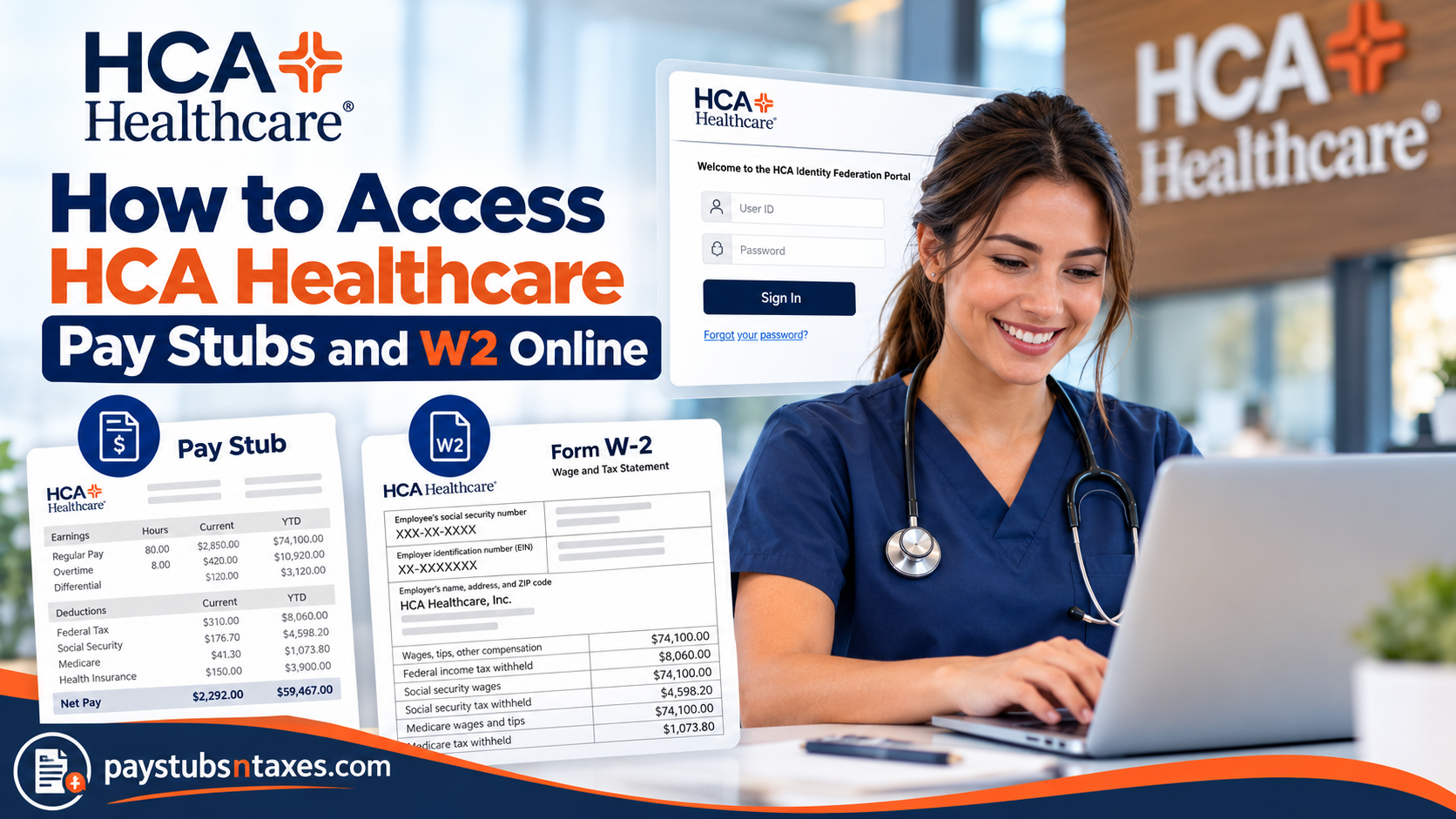
Managing payroll records should be straightforward, particularly for healthcare professionals whose demanding schedules leave little room for administrative complications. Whether you need to verify your earnings, review payroll deductions, obtain previous pay statements, or download your annual W-2 form, HCA Healthcare provides electronic payroll resources designed to simplify access to essential employment and tax documents.
Through the HCA Global HR portal, employees can conveniently retrieve paycheck information, review compensation details, and access tax documents without relying exclusively on traditional paper statements. Additionally, the Electronic Pay Stub (E-Stub) platform offers another avenue for accessing current and historical wage statements.
However, navigating these systems can occasionally prove challenging, especially for newly hired employees, former colleagues, and healthcare professionals working across different HCA-affiliated facilities. This comprehensive guide explains how to access HCA Healthcare pay stubs and W-2 forms online, including the login process, electronic W-2 enrollment, payroll history retrieval, password recovery, former employee access, and available HR support resources.
Understanding HCA Healthcare and Its Employee Payroll System
HCA Healthcare is one of the United States’ leading healthcare service providers, operating an extensive network of hospitals, outpatient facilities, surgical centers, emergency departments, and physician practices.
With 189 hospitals and approximately 2,600 ambulatory sites of care across 19 states and the United Kingdom, the organization serves millions of patients annually while employing more than 320,000 healthcare professionals and supporting personnel.
Its commitment to improving human life extends beyond patient care to encompass the professional development, well-being, and administrative needs of its workforce.
To facilitate efficient payroll administration, HCA Healthcare uses electronic human resources and payroll platforms through which eligible employees can access employment information, paycheck records, tax statements, and other work-related resources.
The principal systems relevant to accessing payroll documentation include:
HCA Global HR: The organization’s central employee portal, accessible through HCAGHR.com, provides access to payroll information, benefits, and various employment-related services.
Electronic Pay Stub (E-Stub): A secure electronic wage statement platform that allows authorized users to retrieve, review, save, and print current or historical payroll statements and available tax documents.
Although these resources share the overarching objective of making employee information more accessible, their precise features and navigation options may differ according to an employee’s facility, payroll arrangement, and employment status.
Sign In to the HCA Global HR Portal
To get started, open HCA Global HR and enter your HCA Identity user ID and password. Complete any additional authentication requested before proceeding to your employee homepage.
Because payroll documents contain sensitive personal and financial information, use a trusted device and keep your login credentials confidential.
If you cannot remember your password, select Forgot your password? on the HCA Identity Federation Portal. Remote password recovery may be available if you previously registered your mobile number in your password profile. Otherwise, contact your local IT support desk for assistance.
Review Your E-Stub Enrollment
After signing in, look under My Quick Links for E-Stub Opt In or Out Request. If you have not enrolled, follow the instructions displayed to review or update your electronic statement preferences.
Keep electronic statement enrollment and direct deposit in mind as separate settings: one concerns how you receive payroll documents, while the other concerns how your wages reach your bank account. Follow the portal’s instructions for each, and ask payroll for clarification if necessary.
If your E-Stub access is already established, proceed to My Paycheck.
How to View Your Current HCA Healthcare Pay Stub
Your latest wage statement provides a useful opportunity to check your earnings and deductions before a discrepancy slips through the cracks.
To open it:
- Sign in to HCA Global HR.
- Select the My Paycheck tile.
- Choose Current Pay Period from the left navigation menu.
- Review the wage statement displayed.
Check the pay period, earnings, deductions, and net pay shown on your statement. If something appears incorrect, contact payroll with the relevant pay date and a clear explanation of the issue.
How to Access Previous HCA Pay Statements
Earlier pay stubs can be useful when reviewing your earnings history, organising financial records, or responding to a request for proof of income.
To retrieve available statements:
- Open My Paycheck.
- Select Wage Statements from the left navigation menu.
- On the Wage Statement History page, locate the statements you need.
- Select individual checkboxes, or choose Check All to select all available statements.
- Click View Selected Wage Statements.
Your selected documents will appear for review. When several statements are open, use the scroll bar beside them to move through the records.
How to Download or Print HCA Healthcare Pay Stubs
Once you have opened the required wage statement, choose the appropriate option:
- Print to produce a paper copy.
- Save as PDF to download an electronic copy.
Use clear filenames, such as “HCA-Pay-Statement-2026-10-16.pdf,” so that individual records are easy to find later.
If you print a statement on a shared printer, collect it promptly. Store downloaded files in a protected folder, particularly if other people use the same computer.
How to Access Your HCA Healthcare W-2 Online
For employees enrolled in electronic W-2 delivery, Tax Documents becomes available when the relevant forms have been posted.
To view an available W-2:
- Sign in to HCAGHR.com.
- Open My Paycheck.
- Select Tax Documents from the left navigation menu.
- Find the required Tax Year and Company.
- Select W2 beside the appropriate entry.
- Review the form and use the available download or print option.
Choose the year and company carefully, especially if more than one entry appears. A missing form should be checked with payroll rather than assumed to be unavailable permanently.
How to Update E-W2 Preferences and Security Settings
The My Profile link in E-Stub allows you to review available account preferences, including:
- Wage statement notifications.
- Electronic W-2 delivery preferences.
- Multifactor authentication settings.
Follow the on-screen instructions and save any changes before leaving the page. Keeping your authentication details current can help prevent access problems when you need a document urgently.
What to Do If You Cannot Find a Pay Stub or W-2
An unsuccessful search does not necessarily mean your document is missing. Start by confirming that you have selected the correct section: Wage Statements contains pay statements, while Tax Documents contains available tax forms.
Next, check the pay period, tax year, and company associated with the record. If Tax Documents is absent, review your electronic W-2 preferences and ask payroll whether the form has been posted.
For questions about employment records, payroll, W-2 forms, or benefits, current and former HCA employees can call HCAhrAnswers at (844) 472-6797. Current employees can also access employment, pay, and benefits information through HCAGHR.com.
If you have left HCA Healthcare and your previous login no longer works, contact HCAhrAnswers to confirm the appropriate retrieval process for your employing organisation.
Conclusion
Accessing HCA Healthcare pay stubs and W-2 forms online is straightforward once you know the route through Global HR and My Paycheck. Use Current Pay Period for your latest statement, Wage Statements for earlier payroll records, and Tax Documents for available W-2s. By checking your records regularly and keeping secure copies, you can approach tax season with greater confidence and less last-minute pressure.
Frequently Asked Questions
1. Where can I access HCA Healthcare pay stubs online?
Sign in to HCAGHR.com, select My Paycheck, and open Current Pay Period or Wage Statements to view available payroll records.
2. How do I log in to the HCA Global HR portal?
Visit HCAGHR.com, enter your HCA Identity user ID and password, and complete any additional authentication requested.
3. How do I view my latest HCA pay stub?
After opening My Paycheck, select Current Pay Period from the left navigation menu. Your current wage statement will appear for review.
4. How can I access previous HCA Healthcare pay statements?
Select Wage Statements, choose the required records on the Wage Statement History page, and click View Selected Wage Statements.
5. Can I download HCA pay stubs as PDF files?
Yes. Open the required wage statement and select Save as PDF. Save the downloaded document in a secure location.
6. How do I print my HCA Healthcare pay stub?
Open the statement through Current Pay Period or Wage Statements, then select Print. Collect printed copies promptly to protect your payroll information.
7. How do I access my HCA Healthcare W-2 online?
Open My Paycheck, select Tax Documents, and locate the appropriate Tax Year and Company. Click W2 to view the available form.
8. Why is the Tax Documents option missing?
The Tax Documents option may not appear until electronic W-2 forms have been posted for eligible employees. Review your E-W2 preferences and contact payroll if the option remains unavailable.
9. What does W2 C mean in the HCA E-Stub system?
W2 C identifies a corrected W-2, commonly called Form W-2c. This option appears only when a corrected form has been issued for an applicable year.
10. How do I enroll in HCA electronic pay statements?
In Global HR, look under My Quick Links for E-Stub Opt In or Out Request. Follow the on-screen instructions to review or update your electronic statement enrollment.
11. Is E-Stub enrollment the same as direct deposit?
No. E-Stub enrollment concerns electronic payroll statements, while direct deposit determines how wages reach your bank account. Review each setting separately in the applicable payroll system.
12. How do I update my electronic W-2 preferences?
Open My Profile within E-Stub and follow the instructions to update your E-W2 preferences. This section also provides available notification and multifactor authentication settings.
13. What should I do if I forget my HCA login password?
Select Forgot your password? on the HCA Identity login page. Remote recovery may be available if your mobile number is registered in your password profile; otherwise, contact your local IT support desk.
14. How can former HCA employees obtain pay stubs or W-2 forms?
Former employees should contact HCAhrAnswers at (844) 472-6797 to confirm the retrieval process for their employing organization, particularly if their previous employee login no longer works.
15. Who should I contact about missing or incorrect payroll documents?
Call HCAhrAnswers at (844) 472-6797 for help with payroll records or W-2 questions. Have the relevant pay date, tax year, and a description of the issue ready.
