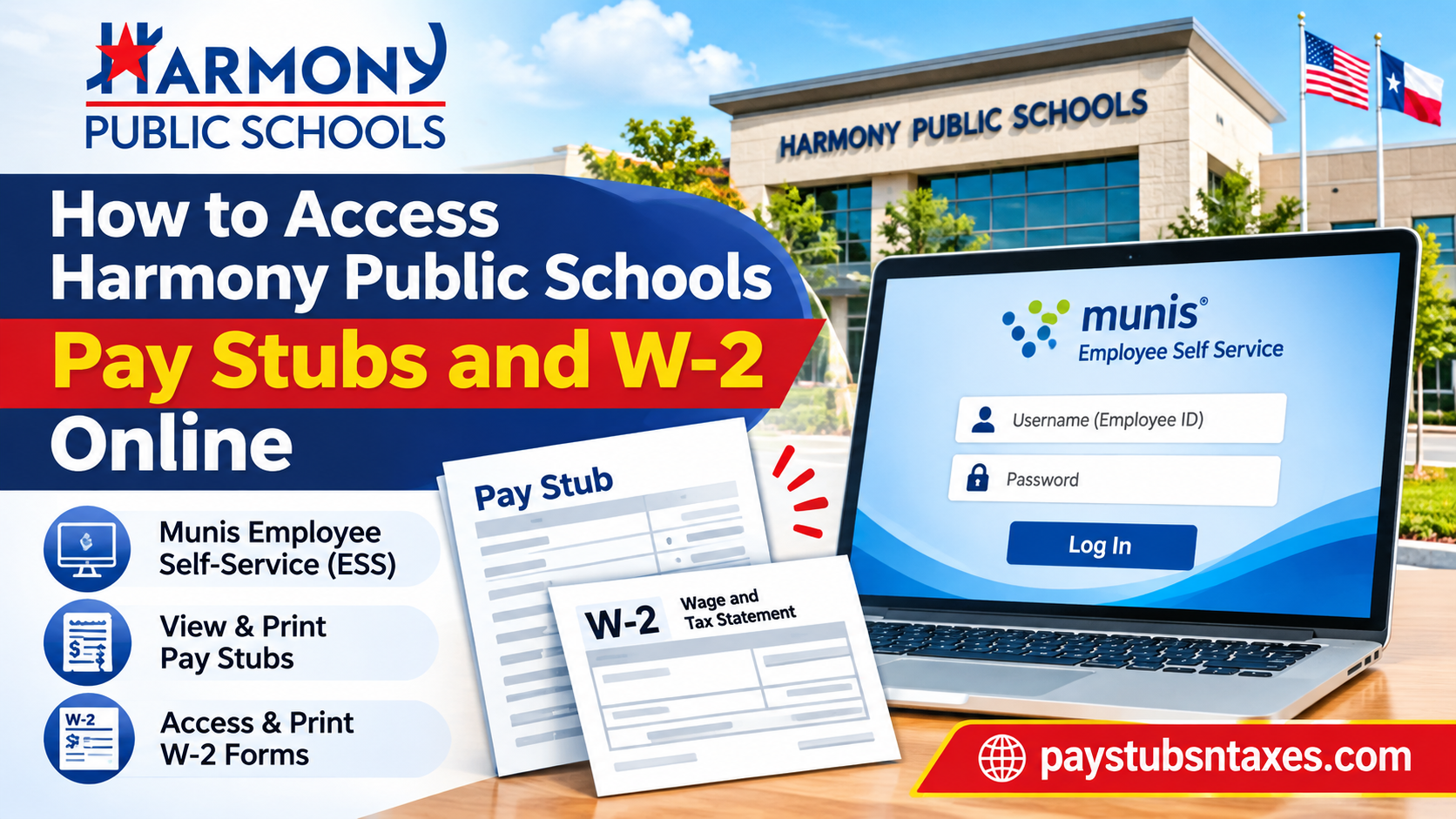
Harmony Public Schools employees can view and print their monthly pay stubs and annual W-2 forms through Munis Employee Self Service (ESS). Sign in with your employee ID and password, then open Employee Self Service → Pay/Tax Information. To view a pay stub, select the year and click Details beside the relevant check date. To print a tax form, select W-2, choose the tax year, and click View W-2 Image. Whether you need a recent pay stub for a loan application or a prior-year W-2 for your tax records, the year selector lets you find the document you need without scrolling through unrelated payroll entries.
This comprehensive guide explains how to log in to the Harmony Public Schools Munis ESS portal, view and print pay stubs, retrieve current and previous W-2 forms, update personal information, and resolve common login difficulties.
How to Log In to Harmony Public Schools Munis ESS
- Open the Harmony Public Schools Employee Self Service portal.
- Click Log In in the upper-right corner of the homepage.
- Enter your employee ID number in the Username field and your ESS password in the Password field.
- If this is your first visit, follow the initial password instructions displayed on the portal homepage. ESS will prompt you to change your password immediately after you sign in. Your new password is case-sensitive.
- Once you are signed in, click Employee Self Service in the left-hand menu, then select Pay/Tax Information.
If you have used ESS before, enter the password you set when you activated your account. The login screen also offers Forgot your username? and Forgot your password? links. If you still cannot sign in or need help with your first login, contact your district’s HR department.
How to View and Print Your Harmony Public Schools Pay Stubs
The Pay/Tax Information screen lists paycheck dates for the selected year. If you are looking for a particular pay period, confirm the year before selecting the check date, especially when retrieving a statement from a previous calendar year.
- Go to Employee Self Service → Pay/Tax Information.
- Use the year drop-down menu to display the appropriate payroll records.
- Find the check date you need and click Details to review the complete breakdown for that paycheck.
- Click View paycheck image to open a copy of the selected paycheck in a new window.
- Use your browser’s print command to print the document. If your browser offers Save as PDF, choose it to keep an electronic copy.
The Details screen is useful when you want to review a specific paycheck. If a lender or another organization asks for a copy of the statement, open View paycheck image and check that the document shows the requested pay date before submitting it.
How to View and Print Your Harmony Public Schools W-2
Munis ESS displays the most recent available W-2 information when you open the W-2 section. If you need a form from an earlier year, select that tax year before opening the printable copy.
- Expand Pay/Tax Information in the left-hand menu.
- Click W-2.
- Review the tax year displayed on the screen. To retrieve an earlier form, choose the correct year from the drop-down menu.
- Click View W-2 Image to open the selected form in a new window.
- Print the form or save it as a PDF if your browser supports that option.
If clicking View W-2 Image or View paycheck image appears to do nothing, check whether your browser blocked the new window. You can allow pop-ups for the ESS portal and try again.
What to Do If Your W-2 Is Missing or Your Address Has Changed
Start by checking the tax-year selector in ESS. If the year you need is unavailable, or if you no longer have access to your account, contact the HR team for the region where you worked. Ask how to obtain a copy of the form and how to verify your identity through a secure channel.
If you have moved, review your mailing address in Employee Self Service. Contact your regional HR team if you cannot update it online or need to confirm which address is on file. In your initial email, state the tax year you need and the campus or department where you worked. Share sensitive details, such as your full Social Security number or date of birth, only through a secure verification process provided by HR.
| Harmony Public Schools region | HR email |
| Central Texas | hraustin@harmonytx.org |
| West Texas | hrelpaso@harmonytx.org |
| Houston North | hrhoustonnorth@harmonytx.org |
| Houston South | hrhoustonsouth@harmonytx.org |
| South Texas | hrsanantonio@harmonytx.org |
| Dallas/Waco | tdantzler@harmonytx.org |
What Else Can Employees Do in Munis ESS?
Employees can also use ESS to review personal and employment information, update their mailing address and emergency contacts, and manage available withholding elections. If you are unsure where to make a change or whether a particular option is available for your account, contact your district’s HR department.
Conclusion
The Harmony Public Schools Munis Employee Self-Service portal offers a convenient way for employees to manage essential payroll and tax documentation without unnecessary administrative delays.
By logging in with their Employee ID and password, authorized employees can navigate to Pay/Tax Information, review available paycheck records, print pay stubs, and retrieve annual W-2 statements for supported tax years.
The platform also provides access to selected personal information and tax withholding functions, making it a useful resource for maintaining accurate employment records throughout the year.
For former employees, access to historical documents may remain possible through existing Munis credentials, although account permissions can change after employment ends.
Ultimately, whether you need proof of income for a financial application, an earlier paycheck for your records, or a W-2 to complete your tax return, Harmony Public Schools Employee Self-Service provides a practical starting point for retrieving the information you need.
If technical difficulties or account restrictions prevent access, contacting your designated Harmony Public Schools district HR department is the recommended next step.
Harmony Public Schools Pay Stubs and W-2 FAQs
1. Where is the Harmony Public Schools employee payroll portal?
Harmony Public Schools uses Munis Employee Self Service for payroll records. Open the Harmony Public Schools ESS portal and select Log In in the upper-right corner.
2. What is my Harmony Public Schools ESS username?
Your ESS username is your employee ID number. If you cannot locate it, use the Forgot your username? link on the login screen or contact your district HR team.
3. How do I sign in to Harmony Public Schools ESS for the first time?
Enter your employee ID and follow the initial password instructions on the ESS homepage. After you sign in, the portal will prompt you to create a new, case-sensitive password.
4. How do I reset my Munis ESS password?
Select Forgot your password? on the login screen and follow the prompts. If you still cannot sign in, contact your district HR team for help with the reset.
5. How do I view my latest Harmony Public Schools pay stub?
Go to Employee Self Service → Pay/Tax Information. Find the most recent check date and click Details to review the paycheck breakdown.
6. Can I access Harmony Public Schools pay stubs from previous years?
Yes. In Pay/Tax Information, use the year drop-down menu to display paycheck dates for an earlier year. Select Details beside the check date you need.
7. How do I print or save a Harmony Public Schools pay stub as a PDF?
Open the paycheck details and select View paycheck image. When the statement opens in a new window, use your browser’s print menu to print it or choose Save as PDF, if available.
8. Where can I find my W-2 in the Harmony Public Schools portal?
Select Employee Self Service → Pay/Tax Information → W-2. ESS displays the most recent available W-2 information when you open that section.
9. How do I print or save my Harmony Public Schools W-2?
Select the appropriate tax year and click View W-2 Image. Use your browser’s print menu to print the form or save it as a PDF, if that option is available.
10. Can I retrieve a prior-year Harmony Public Schools W-2?
Yes, if the form is available in ESS. Open the W-2 section, choose the tax year from the drop-down menu, and click View W-2 Image.
11. Why won’t my paycheck or W-2 image open?
Both links open documents in a new browser window. If nothing appears, look for a blocked pop-up notification, allow pop-ups for the ESS portal, and click the link again.
12. What should I do if my Harmony Public Schools W-2 is missing?
Confirm that you selected the correct tax year. If the form still does not appear, contact your regional HR team and specify the year you need.
13. How can former Harmony Public Schools employees get a W-2?
If you can still sign in to ESS, open Pay/Tax Information → W-2 and select the tax year. If your access has ended, contact HR for the region where you worked and ask how to request a copy.
14. Can I change my mailing address in Harmony Public Schools ESS?
Yes. Sign in to Employee Self Service and review your personal information to update your mailing address. If you recently moved and are waiting for a W-2, ask regional HR to confirm which address is on file.
15. Who should I contact for Harmony Public Schools payroll or W-2 help?
Email the HR team for your work region. In your initial message, include the tax year or paycheck date you need and ask how to verify your identity securely.
