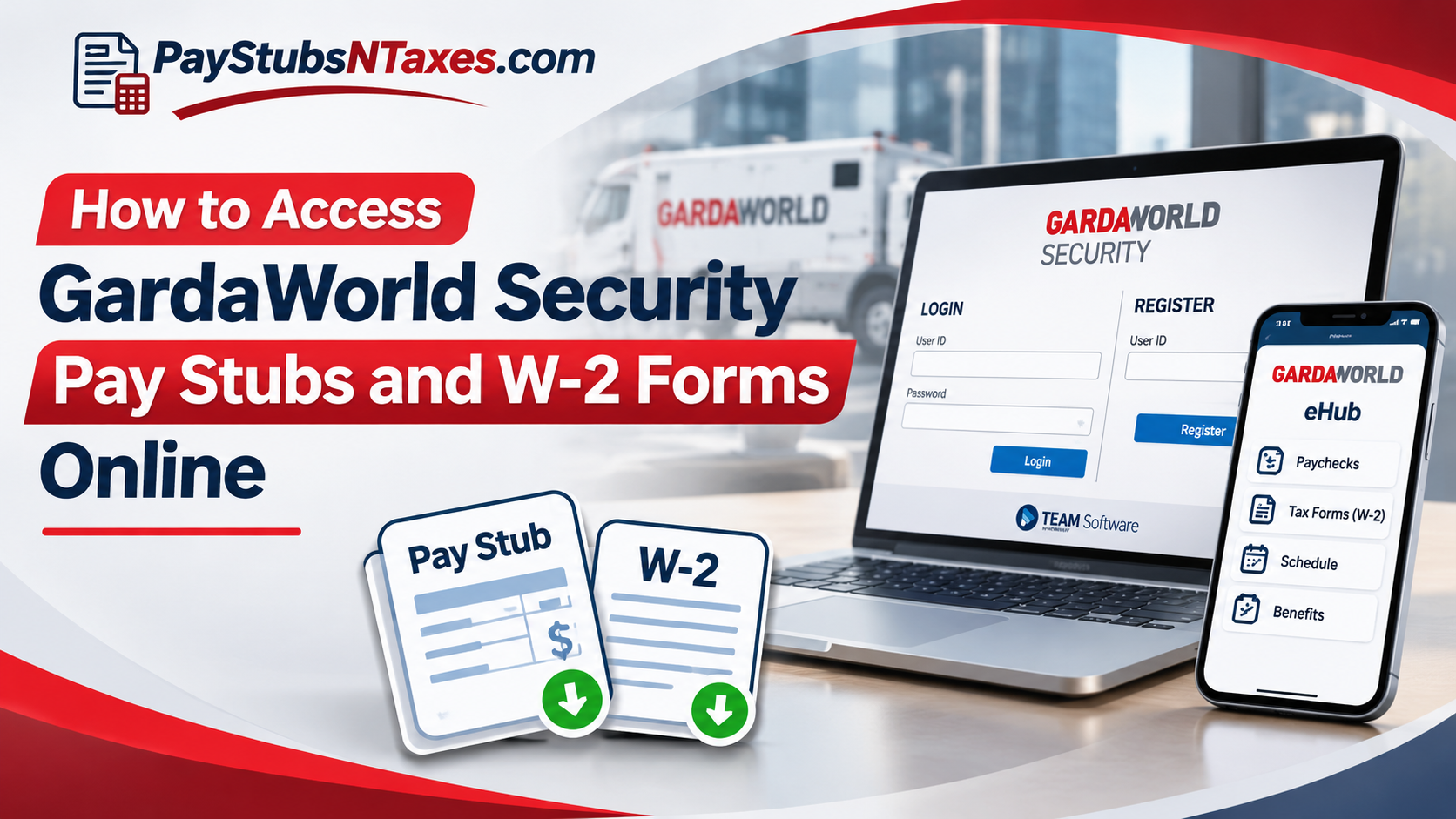
GardaWorld Security employees in the United States can view, download, and print their pay stubs and W-2 forms through the eHub Employee Self-Service Portal. Sign in with your employee number and password, then select View All under Paychecks for your pay stubs or under Tax Forms for your W-2. If you’re using eHub for the first time, register on a desktop or laptop before setting up the mobile app. Whether you are a newly hired security officer registering for the first time, an existing employee reviewing your earnings, or someone preparing documents for tax season, understanding how to navigate the GardaWorld eHub payroll portal can save considerable time and eliminate unnecessary administrative complications. This comprehensive guide explains how to access GardaWorld Security pay stubs and W-2 forms online, register for an eHub account, download payroll documents, use the eHub mobile application, and resolve common login difficulties.
How to Register for GardaWorld Security eHub
Your GardaWorld Security employee number serves as your eHub User ID. For first-time registration, you’ll also need your date of birth and Social Security number.
- Open the GardaWorld Security eHub portal on a desktop or laptop.
- Find the Register section on the right-hand side of the sign-in page.
- Enter your employee number in the User ID field and click Register.
- Follow the prompts to verify your identity and set up your password.
- Return to the sign-in page and use your employee number and new password to log in.
Once your account is set up, use the Login section on the left-hand side of the page whenever you need to access eHub. If your credentials slip your mind, select Forgot User ID or Forgot Password and follow the recovery prompts.
How to View and Download GardaWorld Security Pay Stubs
Whether you’re checking the deductions on your latest paycheck or gathering proof of income, eHub lets you open and download individual pay statements from your paycheck history.
- Sign in to the GardaWorld Security eHub portal.
- Locate Paychecks and click View All to open your paycheck history.
- Find the paycheck you need and select Details.
- Click Download to save a copy of the pay stub.
- Open the downloaded statement and select Print if you need a paper copy.
When reviewing your paycheck history, check the pay date and pay period before downloading a statement. This is especially helpful if you need several consecutive pay stubs for a rental application, employment verification, or your own records.
How to Download Your GardaWorld Security W-2 Online
GardaWorld Security posts available W-2 forms in the Tax Forms section of eHub. If you’re retrieving a form for a previous year, check the tax year before downloading it.
- Sign in to the GardaWorld Security eHub portal.
- Find Tax Forms and click View All.
- Locate the W-2 for the tax year you need.
- Click the download icon next to the form.
- Open the PDF in your browser or a PDF reader. You can then save or print a copy for your records.
If the year you need is missing or the details on your W-2 appear incorrect, submit a payroll or tax-form request through GardaWorld’s employee support page. Include the tax year and a brief description of the issue so the request can be routed to the appropriate department.
How to Set Up the GardaWorld eHub Mobile App
Once you’ve registered on a computer, you can use the free eHub app on an iPhone or Android device. The app gives you access to pay stubs, work schedules, and employee communications while you’re away from your computer.
- Download eHub from the Apple App Store or Google Play.
- Open the app and enter your employee number as your User ID.
- Enter the password you set up when you registered on a computer.
- In the Website field, enter https://gardaworldus.teamehub.com.
- Accept the user agreement and create a four-digit passcode.
If you’d like an alert when a new shift is added, enable eHub notifications in your phone’s settings.
How to Contact GardaWorld Security Payroll or HR Support
When employees encounter difficulties that cannot be resolved through the eHub portal, GardaWorld provides a centralized support channel for routing inquiries to the appropriate department.
Official GardaWorld Support Page:
https://www.garda.com/contact/support
Employees can use this contact channel for assistance with matters involving:
- Payroll and missing pay statements.
- W-2 tax forms.
- Employee benefits.
- Background checks.
- Other employment-related inquiries.
When submitting a request, clearly describe the issue and include enough relevant information for the support team to identify the appropriate records. For example, if a W-2 is missing, mention the tax year and explain whether you are a current or former employee.
Avoid including your full Social Security number, password, or other highly sensitive information in an ordinary contact message unless an authenticated, secure process specifically requires it. If the issue concerns your employee number, work schedule, or personal information, your local branch office may also be able to provide assistance.
Conclusion
Accessing GardaWorld Security pay stubs and W-2 forms online is a convenient process through the eHub Employee Self-Service Portal, which consolidates essential payroll, tax, scheduling, and employment information within a secure digital platform. Current employees can visit https://gardaworldus.teamehub.com, sign in using their employee ID and password, and navigate to Paychecks → View All → Details → Download to retrieve available pay statements. Similarly, annual tax documents can be obtained by selecting Tax Forms → View All and downloading the appropriate W-2.
New employees must first register through a desktop or laptop computer, using their employee number, date of birth, and Social Security number to verify their identities. Once registered, they can also configure the eHub mobile application for convenient access to available workforce information.
For former employees or individuals experiencing account-related difficulties, GardaWorld’s official support page at https://www.garda.com/contact/support provides a practical route for requesting assistance. Ultimately, becoming familiar with the GardaWorld eHub portal not only streamlines payroll administration but also empowers employees to maintain greater oversight of their earnings, tax documentation, and employment records.
GardaWorld Security Pay Stub and W-2 FAQs
1. Where do I log in to GardaWorld Security eHub?
Use your employee number and password in the Login section of the U.S. employee portal.
2. How do I register for eHub for the first time?
Open eHub on a desktop or laptop, enter your employee number under Register, and follow the prompts to verify your identity and create a password.
3. What information do I need to register for GardaWorld eHub?
Have your employee number, date of birth, and Social Security number ready. Your employee number serves as your eHub User ID.
4. Can I register through the eHub mobile app?
Complete your first-time registration on a desktop or laptop. Once your account is active, use the same employee number and password to sign in to the app.
5. How do I view past GardaWorld Security pay stubs?
Select View All under Paychecks to see your paycheck history. Find the pay date you need and click Details to open the statement.
6. How do I download or print a GardaWorld pay stub?
Open the paycheck’s Details page and click Download. Open the saved file and use the Print option to make a paper copy.
7. Where is my GardaWorld Security W-2 in eHub?
Go to Tax Forms → View All. Find the W-2 for the tax year you need and click the download icon next to it.
8. Can I print my W-2 after downloading it?
Yes. Open the downloaded W-2 PDF in a browser or PDF reader and select Print.
9. How can I get a GardaWorld W-2 from a previous year?
Check Tax Forms → View All for the year you need. If it’s missing, request a copy and specify the tax year.
10. Can I view GardaWorld Security pay stubs on my phone?
Yes. Once you’ve registered on a computer, you can view pay stubs through the free eHub app for iPhone or Android.
11. What website do I enter in the eHub mobile app?
Enter https://gardaworldus.teamehub.com in the Website field. Sign in with your employee number and existing eHub password, then follow the prompts to set a four-digit passcode.
12. What if I forget my GardaWorld eHub password?
Select Forgot Password on the eHub sign-in page and follow the recovery prompts.
13. What if I forget my eHub User ID?
Select Forgot User ID on the sign-in page. If you still need help locating your employee number, contact your branch staff.
14. How can former GardaWorld Security employees get pay stubs or W-2s?
If you can no longer sign in to eHub, submit a support request. Specify the document you need and include the relevant pay period or tax year.
15. Who should I contact about an incorrect paycheck or W-2?
Use GardaWorld’s employee support form to describe the discrepancy. Include the pay date for a paycheck issue or the tax year for a W-2 issue, so your request reaches the appropriate department.
