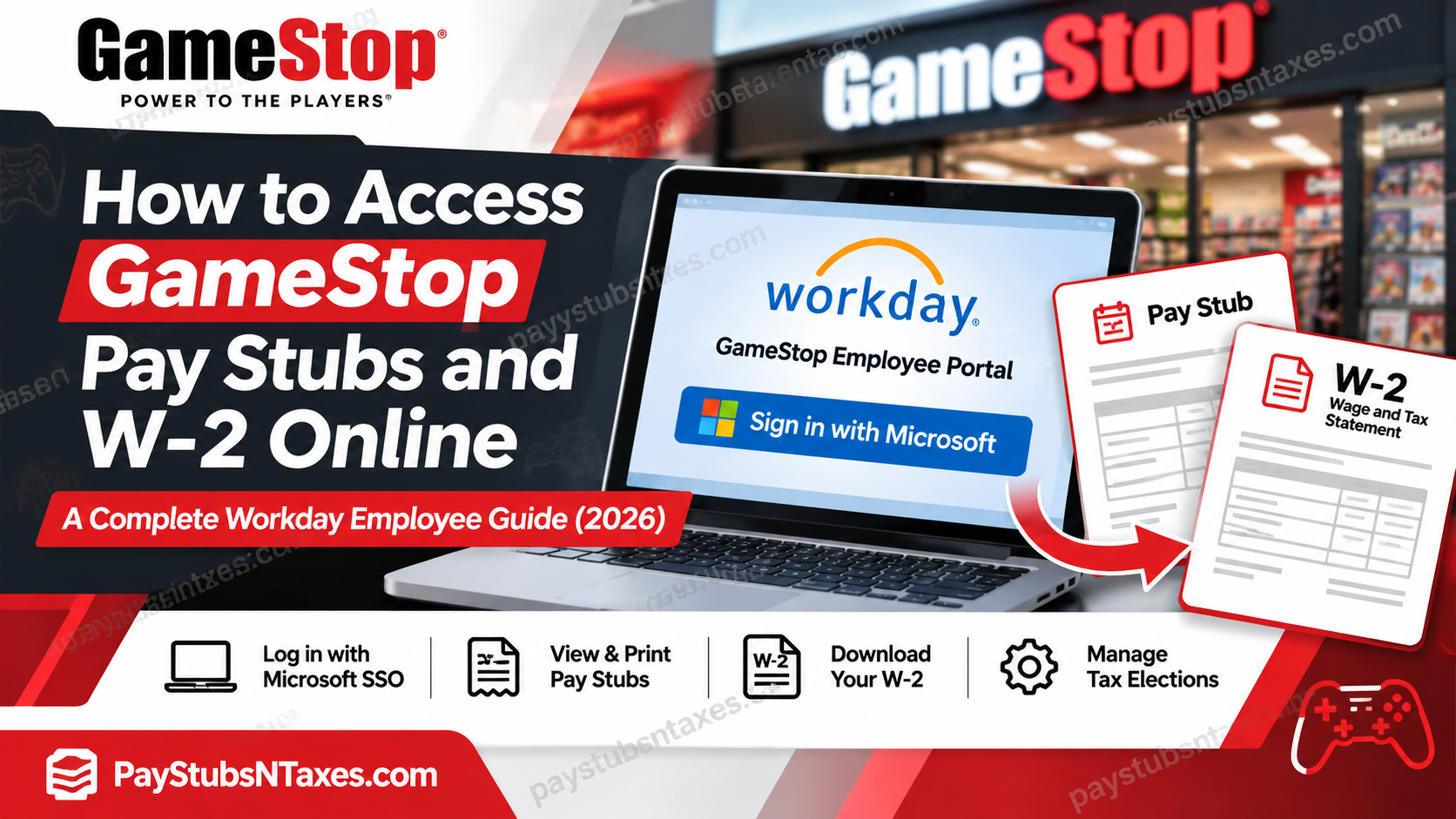
GameStop employees can view, download, and print their pay stubs and W-2 forms through Workday. Sign in with your GameStop Microsoft work account, open the Pay app, and select Payslips for individual pay statements or My Tax Documents for your annual W-2. The two records serve different purposes. A payslip shows what you earned and what was withheld for a particular pay period, while a W-2 reports your wages and tax withholdings for the year. Both are available from the same area of Workday, so choosing the right menu is all it takes to get started. This comprehensive guide explains how to log in to GameStop Workday, view and print pay stubs, download W-2 forms, update electronic tax-document preferences, review local tax withholding elections, and resolve common login difficulties.
How to sign in to GameStop Workday
- From a home computer or tablet, open the GameStop Workday portal.
- Enter your assigned GameStop work username on the Microsoft sign-in screen and select Next.
- Enter your password and complete any additional verification Microsoft requests.
- Once the Workday home page loads, select View All Apps → Pay. You can also open Menu in the upper-left corner and select Pay.
GameStop uses Microsoft single sign-on (SSO) for Workday. If you still have an old Okta bookmark, start from the GameStop Workday portal above. New hires should use the username and temporary password issued during onboarding and follow the prompt to set a new password at first sign-in.
How to view, download, or print a GameStop pay stub
Workday calls its pay stubs payslips. Once you open the Pay app, you can choose the statement you need by its pay date.
- Under View, select Payslips.
- Locate the payslip for the relevant pay date.
- Select View to review the statement on screen, or select Print beside that payslip to open the printable copy.
- To keep a digital copy, choose Save as PDF or the equivalent option in your print dialog. For a paper copy, check the selected printer before sending the document.
If you are comparing a payslip with a direct deposit, start with the pay date and net pay. You can then work through the earnings, deductions, and tax withholding entries for that period.
How to check local tax withholding in Workday
Local tax withholding may appear differently on a Workday payslip even when your withholding elections are unchanged. If an entry looks unfamiliar, check the election on file before making any changes.
Open Pay → Actions → Withholding Elections, then select the Local Elections tab. If the information is correct, you can leave it as it is. If you need to revise an election, scroll to the bottom of the page and select Update. If the election looks correct but the amount withheld still seems wrong, contact payroll with the pay date and the withholding entry you want reviewed.
How to get your GameStop W-2 online
Use My Tax Documents to find your W-2 once GameStop posts it for the relevant tax year.
- Sign in to GameStop Workday.
- Open Menu in the upper-left corner and select Pay under Personal.
- Under View, choose My Tax Documents.
- Find the W-2 for the tax year you need.
- Under Employee Copy, select View/Print.
- When the form opens, save a copy as a PDF or print it using your preferred printer.
Workday may take a few minutes to generate the document. If you see a processing message, you can wait for the form to open or select Notify Me Later if that option appears. Workday will make the download link available through its Notifications icon once the document is ready.
How to choose electronic delivery for your GameStop W-2
If you prefer to receive your W-2 electronically, update your Printing Election in Workday. This is where you set your delivery preference for the 2026 tax year and future W-2s.
- Open Pay → My Tax Documents.
- Find Printing Election and select Edit.
- Choose the electronic delivery option displayed in Workday.
- Select OK, then Done, to save your election.
To open a W-2 that has already been posted, return to the list of tax documents and select View/Print next to the appropriate year.
What to do if you cannot access Workday or find a document
If you are stuck at the Microsoft sign-in screen, check that you are using the GameStop work account issued to you. You can also select Can’t access your account? on the sign-in page to see the available recovery options.
If you can sign in but a document is missing, confirm that you are looking under Payslips for a specific paycheck or My Tax Documents for an annual W-2. Check the pay date or tax year before calling. For payroll or HR assistance, including requests for older records or help after leaving GameStop, call (866) 637-4387 and specify which document and period you need.
Conclusion
Accessing GameStop pay stubs and W-2 forms online is considerably easier when employees understand the company’s Workday navigation and updated Microsoft SSO authentication process. By visiting myworkday.gamestop.com, eligible employees can sign in to Workday, retrieve available earnings statements through Pay → Payslips, and obtain annual tax documents through Pay → My Tax Documents.
The platform also enables employees to review applicable tax withholding elections and manage available electronic W-2 delivery preferences, bringing several essential payroll functions together in one convenient location. Although GameStop previously used Okta SSO, employees should now follow the designated Microsoft authentication procedure. Those who encounter account restrictions, missing documents, or payroll discrepancies should contact the appropriate support team rather than relying on outdated login methods.
Ultimately, maintaining secure access to Workday and keeping accurate copies of employment records can help GameStop employees approach financial planning, income verification, and annual tax preparation with greater confidence and considerably less administrative hassle.
GameStop Pay Stubs and W-2 FAQs
1. What is the GameStop Workday login website?
GameStop employees can access Workday from a home computer or tablet at myworkday.gamestop.com. Use the work username and password assigned to you by GameStop.
2. Does GameStop use Microsoft or Okta for Workday sign-in?
GameStop uses Microsoft single sign-on (SSO) for Workday. If you have a saved Okta bookmark, open the GameStop Workday portal directly and sign in with your Microsoft work account.
3. How do new GameStop employees sign in to Workday for the first time?
Enter the username and temporary password provided during onboarding. At your first sign-in, follow the prompt to replace the temporary password.
4. Where can I find my GameStop pay stubs in Workday?
Open Menu → Pay, then choose Payslips under View. Find the relevant pay date and select View beside the statement.
5. Can I download or print my GameStop pay stub?
Yes. Select Print next to the payslip you need. In the print dialog, choose Save as PDF to keep a digital copy or select the appropriate printer for a paper copy.
6. Why does local tax withholding look different on my GameStop pay stub?
Workday displays local tax withholding differently, so a change in how an entry appears may reflect the payslip layout. If the amount withheld looks incorrect, check your local elections and contact payroll with the pay date and the entry you want reviewed.
7. How do I check or update my local withholding elections?
Go to Pay → Actions → Withholding Elections → Local Elections. Review the information on file. If you need to make a change, scroll to the bottom and select Update.
8. Where can I find my GameStop W-2 online?
In Workday, go to Pay → My Tax Documents. Find the W-2 for the tax year you need and select View/Print under Employee Copy.
9. Can I access a prior-year GameStop W-2 in Workday?
Yes, if that year’s form appears under My Tax Documents. Select the relevant tax year and choose View/Print. If the form is missing, contact GameStop HR or payroll to request a copy.
10. What should I do if my GameStop W-2 is still processing?
Give Workday a few minutes to generate the form. If Notify Me Later appears, select it and check the Workday Notifications icon for the download link once your W-2 is ready.
11. How do I save my GameStop W-2 as a PDF?
Open the form through View/Print and use the PDF viewer’s download button. If your browser opens a print dialog, select Save as PDF.
12. How do I opt in to electronic GameStop W-2 delivery?
Open Pay → My Tax Documents, then select Edit under Printing Election. Choose the electronic delivery option and select OK, then Done, to save your preference.
13. What should I do if I cannot sign in to GameStop Workday?
Check that you are using your assigned GameStop Microsoft work account. If you still cannot sign in, select Can’t access your account? on the Microsoft sign-in screen to see the available recovery options.
14. How can former GameStop employees request a pay stub or W-2?
If your GameStop work account no longer lets you sign in, call HR or payroll at (866) 637-4387. Specify whether you need a pay stub or W-2 and provide the pay date or tax year.
15. Who should I contact about a missing or incorrect GameStop payroll document?
Call GameStop HR or payroll support at (866) 637-4387. Have the pay date or tax year ready, and identify the specific entry you want reviewed if the document contains an error.
