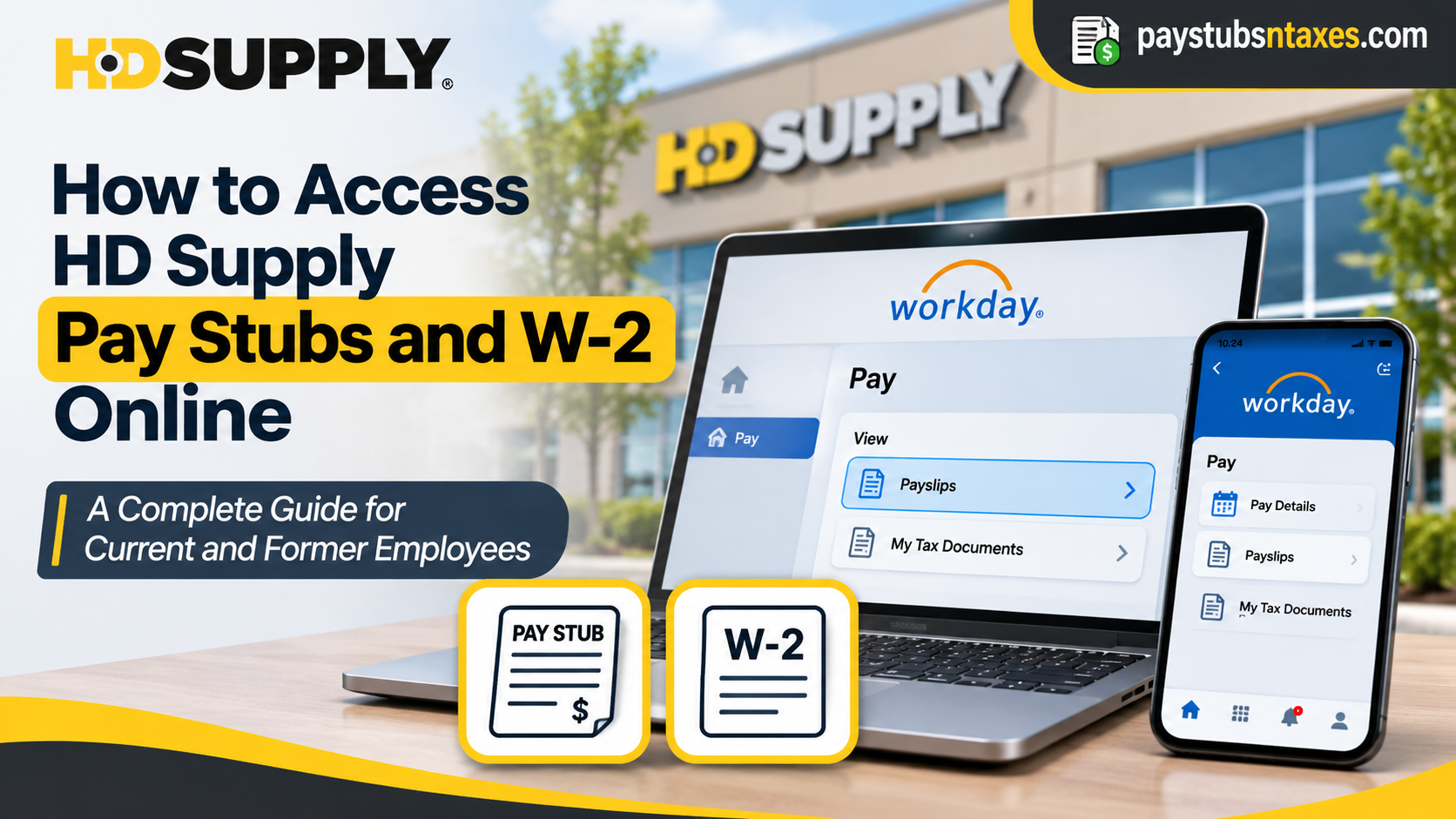
Current HD Supply associates can view their pay stubs in Workday under Pay → Payslips and retrieve available W-2s under Pay → My Tax Documents. If you’ve left the company, start on the Former Associates page for browser-based Workday access. That same page directs former associates to ADP for prior W-2 forms.
The quickest route depends on two things: whether you still have an active HD Supply account and which year’s records you need. A pay stub is tied to a particular pay date, while a W-2 is tied to a tax year. Keep both dates handy if you’re gathering records from more than one system.
| What you need | Where to start |
| Current associate pay stubs | Workday → Pay → Payslips |
| Current associate W-2 | Workday → Pay → My Tax Documents |
| Former associate pay stubs | HD Supply Former Associates page → Visit Workday |
| Prior W-2 forms | HD Supply Former Associates page → Visit ADP |
How to Sign In to HD Supply Workday as a Current Associate
Open the HD Supply Associates page and select Associate Portal. Follow the prompts using your HD Supply work credentials. The portal instructions refer to your NTID, such as xy123456. If the sign-in screen asks for a company email address, enter your assigned HD Supply email address. Complete any authentication prompts and open Workday from the employee portal.
Once you reach the Workday home page, select Pay. If it isn’t among your shortcuts, open the full app list or look for Pay Hub. The exact label may vary between the browser and mobile versions.
How to View and Download HD Supply Pay Stubs in Workday
Workday calls pay stubs payslips. Each payslip shows the earnings, taxes, deductions, and net pay associated with a particular payment. To download a specific statement on the web:
- Sign in to Workday and select Pay from the home page.
- Under View, select Payslips.
- On the My Payslips screen, find the payment date you need and select View.
- Check the pay period and payment date to confirm you’ve opened the right statement.
- Select Print Payslip Image to generate a PDF. Save it to your device or print a copy.
If you’re checking a deduction or comparing two payments, open the individual payslips for both dates. The summary on the Pay screen can give you a quick overview, while the PDF shows the breakdown for the specific payment you selected.
View HD Supply Pay Stubs on the Workday Mobile App
Current associates can install the official Workday app from their device’s app store. Open it, choose Log In, and enter hdsupply when prompted for the organization ID. Follow the company sign-in and authentication prompts.
After signing in, open Pay, using View All if the tile is hidden. Select the relevant payment. View Pay Details shows taxes and deductions, while Payment Information shows direct deposit details. To save the actual statement, select Get PDF, then Open PDF. Use your device’s controls to save or print the file.
How to Download Your HD Supply W-2 Online
A W-2 reports wages and withholding for a U.S. tax year. To retrieve a copy through Workday on a computer:
- Sign in to Workday and open the Pay app.
- Under View, choose My Tax Documents.
- Find the W-2 for the tax year you need.
- Under Employee Copy, select View/Print.
- Open the generated PDF and download or print it.
If Workday says it’s processing your request, you can wait for the file or select Notify Me Later. If you choose the latter, open the bell icon on the Workday home page and follow the link in the notification. Confirm the tax year on the form before saving it.
On the Workday mobile app, open Pay Hub → My Tax Documents, select View/Print beside the W-2, and return to the home screen. Tap the Notifications bell when the PDF is ready and open the document from the notification.
How Former HD Supply Associates Can Access Payroll Records
After separation, use the Visit Workday button under Print/View Pay Stubs on the Former Associates page. This takes you to the browser sign-in for former employees. Use this route once you’ve lost access to company single sign-on or the Workday mobile app. Check your personal inbox about three days after your employment ends for Workday login instructions. Check your spam folder if the message doesn’t appear.
- Open the former-associate Workday sign-in and enter the User ID from your login instructions.
- If you received a temporary password, enter it exactly as provided and follow the prompts. If you need to reset it, select Forgot Password.
- If no email arrived or your personal email address was never added to Workday, ask your former HR partner or manager to update it. Once it’s on file, request a password reset. If you’re asked for your employee number, check your separation paperwork or ask your former HR partner.
- Download the payslips and any tax documents available in your account while you still have access.
If you expect a paper W-2, confirm your mailing address and delivery method with your former HR partner, especially if you moved after leaving HD Supply.
How to Retrieve Older HD Supply W-2s Through ADP
If the W-2 you need predates the move to Workday or is missing from your Workday tax documents, check Access Prior W-2 Forms on HD Supply’s Former Associates page. Use the Visit ADP button to sign in. If you’re new to ADP, follow HD Supply’s registration instructions from that section before looking for the form by tax year. If neither portal shows the document, give your former HR partner the exact tax year and ask how to request a copy.
What to Do if a Payslip or W-2 Is Missing
Start by checking the date on the document you need. For a payslip, look for the payment date as well as the pay period. A pay period may end several days before the corresponding payment appears in Workday, so the statement can be easy to overlook if you search by the period end date alone. For a W-2, look for the tax year printed on the form, even if you downloaded or received it the following year.
If you can see the right document in Workday but the PDF hasn’t opened, check the Notifications bell before submitting another request. If the mobile app still won’t open the file, try the browser version of Workday. For an older W-2 that’s absent from Workday, check ADP through the Former Associates page. If you can sign in but the record is missing from both systems, tell your HR partner which portals you checked and specify the pay date or tax year. That gives them a clearer starting point for locating the document.
Who to Contact if You Can’t Access Your Pay Stub or W-2
For an HD Supply Workday login issue or a missing statement, contact your HD Supply HR partner. Former associates who need their personal email address added can also ask their former manager. If you’re a former HD Pro associate, HD Supply lists The Home Depot HR Service Center at 866-698-4347 for payroll questions. Have your employee ID, pay date, or tax year handy so the team can identify the right record.
Conclusion
Start with Workday for HD Supply payslips and available tax documents. Current associates can use the Associate Portal, while former associates should open Workday from the Former Associates page and use the login instructions sent to their personal email. For an earlier W-2, follow the ADP link on that same page. If the record still doesn’t turn up, your pay date or tax year is the most useful detail to include when you contact HR.
HD Supply Pay Stubs and W-2 FAQs
1. Where do HD Supply employees log in to Workday?
Current employees can start at the HD Supply Associates page, select Associate Portal, and sign in with their HD Supply work credentials. If prompted for an email address, enter your assigned company email.
2. How do I view my HD Supply pay stub online?
In Workday, select Pay, then choose Payslips under View. Find the payment date you need and select View to open the statement.
3. How do I download an HD Supply pay stub as a PDF?
Open the statement under Pay → Payslips and select Print Payslip Image to generate a PDF. Open the file and check the payment date before saving or printing it.
4. What is the HD Supply organization ID for the Workday app?
Enter hdsupply when the Workday mobile app asks for your organization ID. Follow the sign-in and authentication prompts using your active HD Supply credentials.
5. Can I view my HD Supply pay stubs on my phone?
Current associates can open Pay in the Workday app and select the relevant payment. Choose Get PDF, then Open PDF to view the statement.
6. How do I download my HD Supply W-2 from Workday?
Open Pay → My Tax Documents, find the correct tax year, and select View/Print under Employee Copy. Once Workday generates the PDF, open it to save or print a copy.
7. Can I get my HD Supply W-2 through the Workday mobile app?
Current associates can open Pay Hub → My Tax Documents and tap View/Print beside the W-2. When the PDF is ready, open it from the Notifications bell on the Workday home screen.
8. Where is my W-2 if I selected “Notify Me Later” in Workday?
Open the Notifications bell on your Workday home screen. Select the message about your tax document and follow the link to open the PDF.
9. How do former HD Supply associates access pay stubs?
Open the HD Supply Former Associates page and select Visit Workday under Print/View Pay Stubs. Sign in through your browser using the credentials provided for former associates.
10. When should I expect my former-associate Workday login instructions?
Check your personal inbox three days after your employment ends. If the message is missing, check your spam folder and contact your former manager or HR partner to confirm that your personal email is on file.
11. How do I reset my HD Supply Workday password after leaving?
Select Forgot Password on the former-associate Workday sign-in page. If you can’t receive the reset email, ask your former HR partner or manager to verify or update your personal email address.
12. Where can I find my HD Supply employee ID after leaving?
Check your separation paperwork for your employee number. If you can’t find it, contact your former HD Supply HR partner.
13. How do I retrieve an older HD Supply W-2 through ADP?
Go to Access Prior W-2 Forms on the HD Supply Former Associates page and select Visit ADP. If you need to create an account, use the registration instructions in the same section.
14. What should I do if my HD Supply payslip or W-2 is missing?
Confirm the payment date for a payslip or the tax year for a W-2. If an older W-2 is missing from Workday, check ADP. If you still need help, give your HR partner the exact date or tax year and tell them which portal you checked.
15. Who handles payroll questions for former HD Pro associates?
Former HD Pro associates can call The Home Depot HR Service Center at 866-698-4347 for payroll questions. For HD Supply account access or missing payroll records, contact your HD Supply HR partner.
