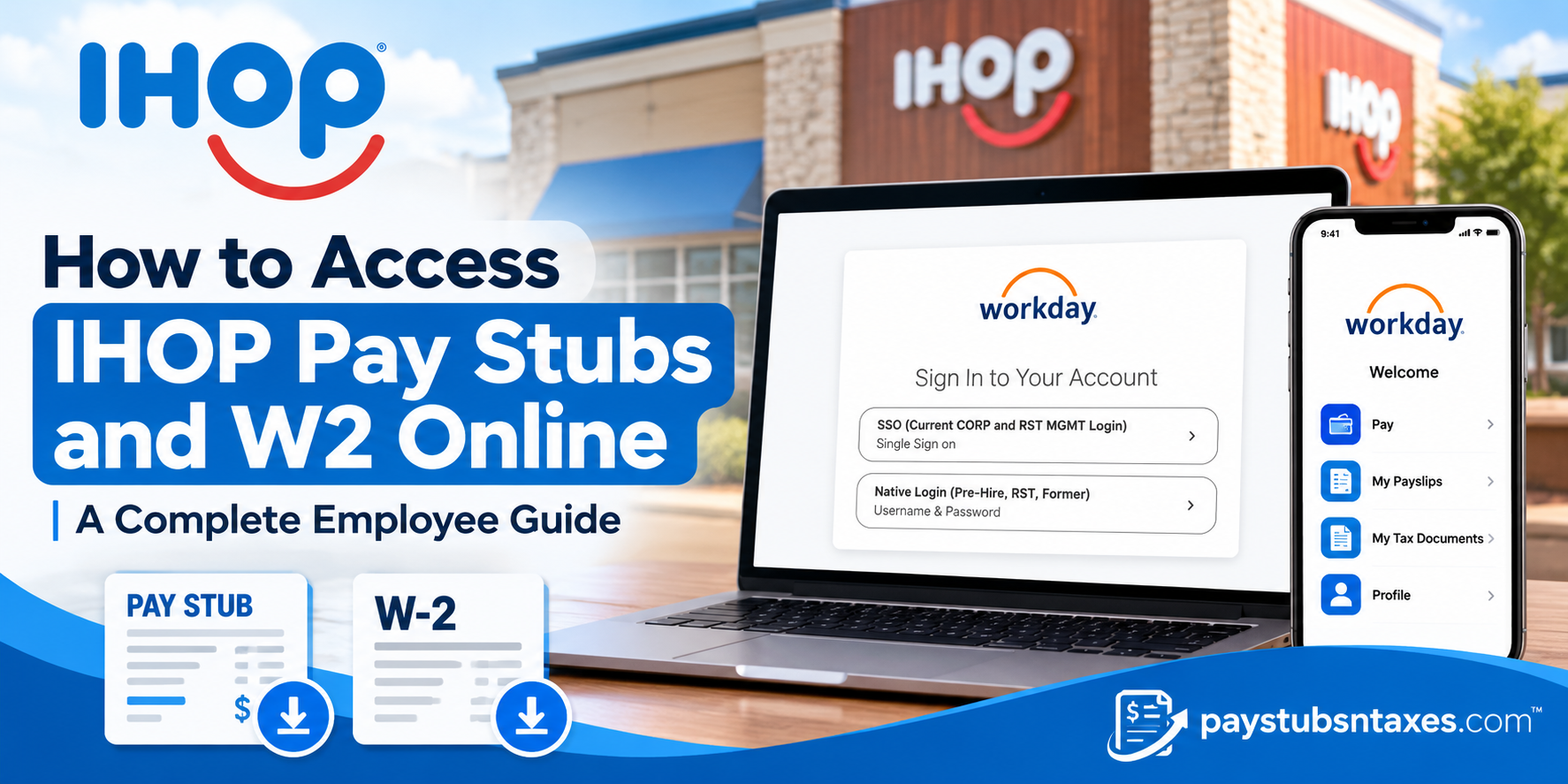
Eligible IHOP employees whose payroll is managed through Dine Brands Workday can view, download, and print pay stubs and W-2 forms online. Sign in to the Dine Brands Workday portal, open My Payslips for earnings statements, or select Pay → My Tax Documents for available W-2 forms. Mobile users can access Workday using the organization ID dinebrands. Because IHOP restaurants are largely operated by independent franchisees, payroll arrangements vary by employer. If you work for a franchise, contact your franchise home office to confirm which payroll platform you should use.
Understanding IHOP’s Online Payroll Access
International House of Pancakes, better known as IHOP, is an American restaurant brand owned by Dine Brands. Although its restaurants share a familiar name, individual locations may have different employers and payroll procedures.
For employees covered by Dine Brands Workday, the platform provides a convenient way to manage payroll information without having to request each document from HR. Whether you need to check your latest earnings, retrieve an earlier payslip, or download a year-end tax statement, Workday puts available records within reach.
You can access the system through a desktop browser or the Workday mobile app. However, the documents and options displayed in your account depend on your employer’s configuration and your access permissions.
How to Log In to IHOP Workday
To get started, visit the Dine Brands Workday login page.
The portal offers two sign-in options:
| Login option | Intended users |
| SSO (Current CORP and RST MGMT Login) | Current corporate employees and restaurant management using single sign-on |
| Native Login (Pre-Hire, RST, Former) | Pre-hires, restaurant team members, and former team members |
Native Login for Restaurant Team Members
If you belong to the restaurant team member group covered by Native Login:
- Select Native Login (Pre-Hire, RST, Former).
- Enter your eight-digit employee ID as your username.
- Enter your password.
- Complete any additional verification requested.
Former restaurant team members should use the same credentials they used during active employment, provided their account remains accessible. If those credentials no longer work, contact your employer’s HR or payroll team for assistance.
Single Sign-On for Corporate and Restaurant Management
If your account uses corporate or restaurant management single sign-on, select SSO (Current CORP and RST MGMT Login) and follow the authentication prompts.
Choosing the correct login route from the outset can help prevent unnecessary sign-in problems.
How to View IHOP Pay Stubs Online
Once you have signed in, open My Payslips from your Workday dashboard or payroll navigation.
The page displays your name, payslip delivery preference, and a list of available earnings statements. The table may include:
- Payment date.
- Pay period start and end dates.
- Company name.
- Gross amount.
- Net amount.
- View and Print actions.
To review a particular pay stub:
- Locate the payment date you need.
- Click View beside the corresponding payslip.
- Review the earnings statement.
Check that you have selected the correct pay period before downloading or printing your document, especially when gathering records for income verification or personal bookkeeping.
How to Download or Print IHOP Pay Stubs
After opening a payslip, select Print Payslip Image to access its printable version.
If your browser or device offers a PDF destination in the print window, choose Save as PDF to download a copy. Otherwise, select your printer and follow the prompts.
Additional options may include:
- Previous Payslip to review an earlier statement.
- Return to My Payslips to return to the list.
- Print Multiple Payslips to prepare several statements together.
- Change Payslip Printing Election to review or change available delivery preferences.
For printed payroll records, use a private computer and a trusted printer. Store downloaded copies securely, since they contain personal and financial information.
How to Access IHOP W-2 Forms in Workday
Eligible employees can retrieve available W-2 forms through the My Tax Documents page.
Follow these steps:
- Sign in to Dine Brands Workday.
- Open the Pay application on the main dashboard.
- Find the View section.
- Click More, if needed, to expand the menu.
- Select My Tax Documents.
- Locate the W-2 for the tax year you need.
- Click View/Print to open the document.
- Download or print a copy using the available controls.
Only documents released to your account will appear. If the W-2 you need is missing, contact your employer’s payroll team to confirm its availability and the correct delivery method.
How to Choose Electronic W-2 Delivery
Workday allows eligible employees to update their year-end tax document printing preferences.
To change your election:
- Open the Pay application.
- Select My Tax Documents.
- Find Printing Election and click Edit.
- On the Change Year-End Tax Documents Printing Elections page, locate New Election.
- Choose your preferred option:
- Receive electronic copy of my Year-End Tax Documents.
- Receive both electronic and paper copies of my Year-End Tax Documents.
- Click OK to save.
Review the saved election before leaving the page. Your selection determines your delivery preference; it does not mean that a new tax document is immediately available.
How to Access IHOP Workday on a Mobile Device
The Workday mobile app offers another way to access your account.
To set it up:
- Install the Workday app from your device’s official app store.
- Open the app.
- When prompted for the organization ID or tenant, enter dinebrands.
- Select the appropriate sign-in option.
- Enter your credentials and complete any verification steps.
Once signed in, look for the available pay, payslip, or tax document options. Mobile navigation may differ from the desktop layout, and some document or printing functions may be easier to complete in a browser.
If you cannot locate a document in the app, try the desktop Workday portal.
Can Former IHOP Employees Access Pay Stubs and W-2s?
Former restaurant team members covered by Dine Brands Workday should select Native Login (Pre-Hire, RST, Former) and try their existing employee ID and password.
Access depends on whether the account remains enabled and which records are available. If you cannot sign in, or an earlier document is missing, contact the HR or payroll department responsible for your employment.
Former franchise employees should contact their franchise home office, which can explain how to obtain historical pay stubs and W-2 forms.
Where to Get Help
For a specific Dine Brands Workday access issue, the support number provided for this process is 866-444-5144. Have your employee ID and a brief description of the problem ready, but never disclose your password.
If you work for an independently operated IHOP franchise, contact your franchise home office or payroll representative for help with login credentials, missing statements, and W-2 requests.
Final Thoughts
Accessing IHOP pay stubs and W-2 forms online becomes considerably easier once you understand your employer’s payroll arrangements and the corresponding Workday login procedures.
For employees covered by Dine Brands’ centralized Workday system, the platform provides a practical way to review earnings, download payslips, retrieve annual tax statements, and manage electronic document preferences—all without depending exclusively on printed paperwork.
Current employees can use the appropriate Single Sign-On or native authentication method, while eligible former restaurant team members may continue accessing historical payroll records through the native login option, subject to account availability.
Nevertheless, because IHOP operates predominantly through independent franchise agreements, employees should not assume that every restaurant uses the same payroll infrastructure. When in doubt, your franchise home office or designated payroll administrator is the most reliable starting point.
By keeping your login credentials secure, reviewing payroll statements regularly, and downloading essential tax documents when they become available, you can maintain accurate employment records and approach each tax season with greater confidence.
Frequently Asked Questions
1. How do I access my IHOP pay stubs online?
If your employer uses Dine Brands Workday, sign in and open My Payslips. Find the payment date you need, then click View to review the corresponding earnings statement.
2. Where can I find my IHOP W-2 online?
Log in to Workday and select Pay → My Tax Documents. If necessary, click More under the View section to reveal the option. Locate your available W-2 and select View/Print.
3. What is the IHOP Workday login URL?
The Dine Brands Workday login address is https://wd503.myworkday.com/dinebrands/login.htmld. Employees at independently operated IHOP franchises should confirm their payroll portal with their employer.
4. Do all IHOP employees use Workday?
Payroll systems vary because many IHOP restaurants are independently operated franchises. These Workday instructions apply to employees covered by Dine Brands Workday. Franchise employees should contact their franchise home office for the correct access instructions.
5. Which IHOP Workday login option should I choose?
Current corporate employees and restaurant management using single sign-on should select SSO (Current CORP and RST MGMT Login). Pre-hires, restaurant team members, and former team members covered by Native Login should choose Native Login (Pre-Hire, RST, Former).
6. What is my IHOP Workday username?
For eligible users signing in through Native Login, the username is their eight-digit employee ID. If you do not know your employee ID, contact your manager, HR department, or payroll representative.
7. Can former IHOP employees access Workday?
Former restaurant team members covered by Dine Brands Workday can try Native Login (Pre-Hire, RST, Former) using their previous credentials. Access depends on whether their account remains enabled. If login fails, contact the employer’s HR or payroll team.
8. How do I access IHOP Workday on my phone?
Install the Workday mobile app, enter “dinebrands” when prompted for the organization ID, and select the appropriate login option. After signing in, locate the available payroll and document features.
9. What is the organization ID for IHOP Workday?
The organization ID, also called the tenant, for Dine Brands Workday is dinebrands. This applies to employees whose employer uses that Workday environment.
10. How do I download or print my IHOP pay stub?
Open My Payslips, select the statement you need, and click Print Payslip Image. Choose your printer, or select Save as PDF if your browser or device provides that option.
11. Can I print multiple IHOP pay stubs at once?
The My Payslips page includes a Print Multiple Payslips option. Select it and follow the prompts to prepare the available statements you need.
12. How do I choose paperless W-2 delivery in Workday?
Go to Pay → My Tax Documents, then click Edit under Printing Election. Select Receive electronic copy of my Year-End Tax Documents and click OK to save your preference.
13. Can I receive both electronic and paper W-2 copies?
If the option is available in your account, select Receive both electronic and paper copies of my Year-End Tax Documents under the tax document printing elections. Click OK to save the change.
14. What should I do if my IHOP W-2 or pay stub is missing?
Check that you are looking for the correct tax year or payment date. If the document is still unavailable, contact your employer’s payroll department. Franchise employees should direct the request to their franchise home office.
15. What should I do if I cannot log in to IHOP Workday?
Confirm that you selected the correct sign-in option and entered your credentials accurately. Native Login users should check their eight-digit employee ID. Use any available password recovery option, or contact your employer’s HR or payroll team for assistance.
