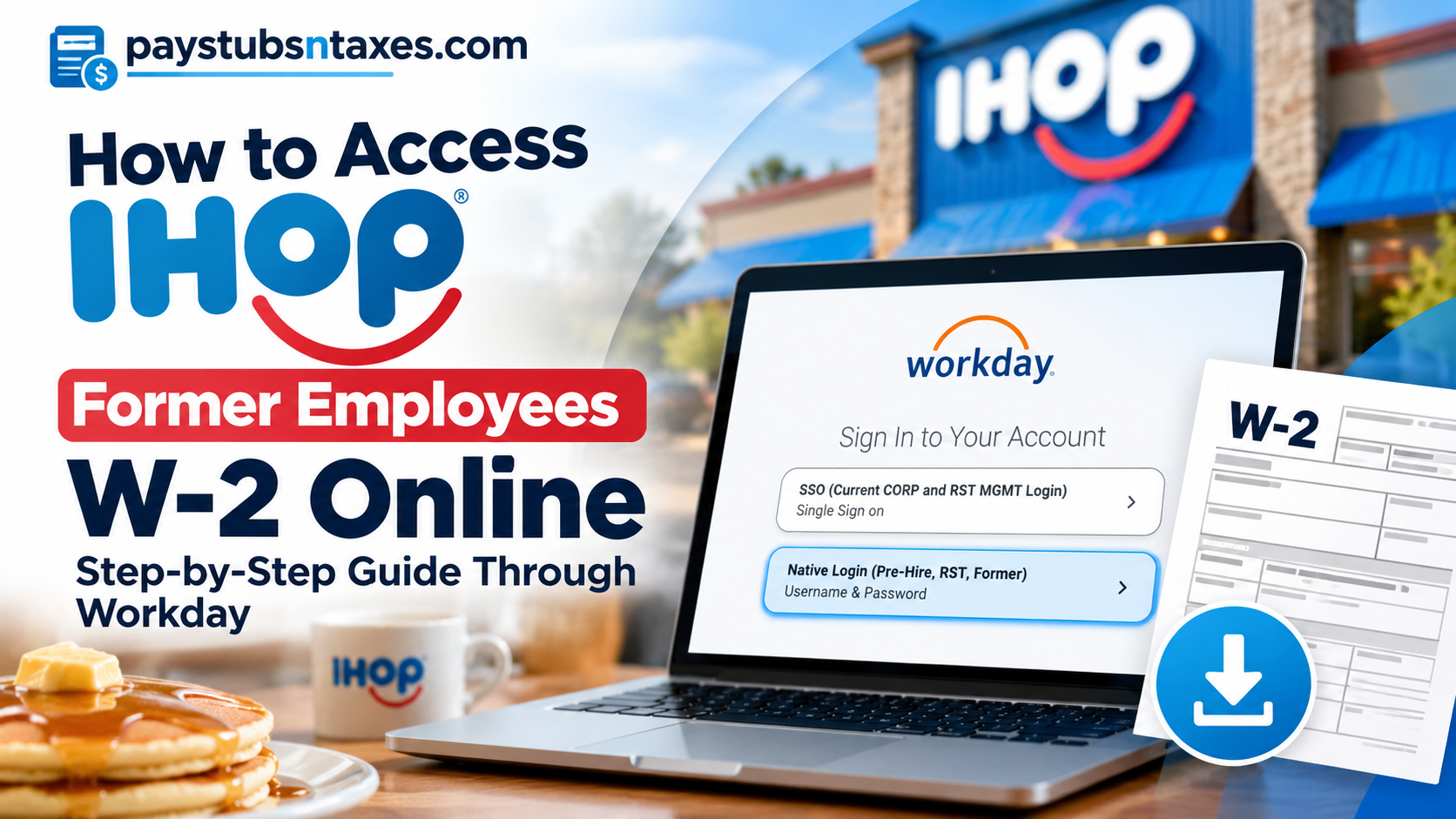
Former IHOP employees who need copies of their W-2 tax forms can access their year-end tax documents through the Dine Brands Workday employee self-service portal, provided their accounts remain active and their employment records are maintained within the Dine Brands payroll system. Unlike current corporate employees, who generally authenticate through Single Sign-On (SSO), former employees must use the Native Login (Pre-Hire, RST, Former) option to retrieve their tax statements.
Although leaving a job typically means losing access to internal company systems, Dine Brands provides eligible former team members with temporary access to Workday, allowing them to obtain essential payroll documents after their employment ends.
This comprehensive guide explains how to log in to the IHOP former employee Workday portal, download and print W-2 forms, access tax documents through the Workday mobile app, manage paperless delivery preferences, and resolve common login difficulties.
About IHOP and Its Employee Payroll System
Founded in 1958, the International House of Pancakes, commonly known as IHOP, is an internationally recognized American restaurant chain celebrated for its pancakes, breakfast specialties, and extensive selection of lunch and dinner offerings.
IHOP operates under Dine Brands Global, Inc., the parent company of both IHOP and Applebee’s. Its extensive restaurant network encompasses company-affiliated operations and independently managed franchises across the United States and numerous international markets.
Because most IHOP restaurants operate under independent franchise agreements, payroll administration and employee self-service systems may differ depending on the entity responsible for an individual’s employment.
For eligible employees whose payroll records are administered through Dine Brands, Workday serves as a centralized human resources and payroll management platform, facilitating access to employment information, pay statements, tax documents, and other personnel records.
Importantly, former IHOP employees should distinguish between corporate-managed payroll accounts and independently operated franchise payroll systems. While the Dine Brands Workday portal may accommodate former corporate and certain restaurant employees, individuals employed by independent franchise operators may need to obtain their W-2 statements directly from their respective franchise organizations.
Can Former IHOP Employees Access Their W-2 Forms Online?
Yes. Eligible former IHOP employees can access their W-2 forms online through the Dine Brands Workday portal using the Native Login option. They must enter their eight-digit employee ID and the password associated with their Workday account. Once authenticated, they can navigate to Pay > My Tax Documents > View/Print to retrieve available W-2 statements.
However, former employee access is generally available for a limited period following termination. Consequently, employees should download their tax documents promptly rather than assuming their Workday accounts will remain accessible indefinitely.
Former employees who cannot access Workday may still receive their W-2 forms through postal mail or request assistance from the appropriate payroll department.
IHOP Former Employee Workday Login Requirements
Before attempting to retrieve your IHOP W-2 online, ensure that you have the necessary login information.
You will generally need:
- Workday login URL: https://wd503.myworkday.com/dinebrands/login.htmld
- Username: Your eight-digit employee ID number.
- Password: Your existing Workday password or the non-SSO credentials provided during offboarding.
- Internet connection: A secure connection using a computer, smartphone, or tablet.
- Access authorization: An active former employee Workday account.
During the offboarding process, eligible former employees may receive information about their continued Workday access through the personal email address registered with their employer.
If you previously worked at an IHOP restaurant covered by the Dine Brands payroll system, your Native Login credentials may remain the same as those used during your employment.
Nevertheless, access arrangements can vary, particularly when an employee’s previous authentication method depended on corporate SSO credentials.
Important: The eight-digit employee ID serves as the username for the relevant Dine Brands Native Login account. Employees should avoid substituting their Social Security number or personal email address unless specifically instructed by the authorized payroll administrator.
How to Access IHOP Former Employees W-2 Online: Step-by-Step Instructions
Retrieving your IHOP W-2 through Workday is relatively straightforward, provided your former employee account remains active.
Follow these instructions to access, download, and print your year-end tax statement.
Step 1: Visit the IHOP Workday Login Portal
Open a secure web browser, preferably on your personal computer, and navigate to the Dine Brands Workday login page:
IHOP Workday Login: https://wd503.myworkday.com/dinebrands/login.htmld
The login page displays the Workday authentication interface alongside Dine Brands information and relevant employee notices.
You will encounter two distinct authentication options:
1. SSO (Current CORP and RST MGMT Login)
This option uses Single Sign-On and is intended primarily for authorized current corporate employees and restaurant management personnel.
2. Native Login (Pre-Hire, RST, Former)
This option uses a traditional username and password and accommodates eligible pre-hire personnel, restaurant employees, and former team members.
Since corporate SSO access is generally revoked following termination, former employees should select the Native Login option.
Step 2: Select Native Login for Former Employees
On the Workday sign-in page, locate and click:
Native Login (Pre-Hire, RST, Former)
This selection directs you to the appropriate username-and-password authentication process.
Selecting the correct login method is particularly important because attempting to authenticate through a discontinued corporate SSO account may result in repeated login failures.
Step 3: Enter Your Eight-Digit Employee ID
Once the Native Login screen appears, enter your eight-digit employee ID number in the username field.
For example, if your assigned employee ID is 00123456, enter all eight digits, including any leading zeros.
Next, enter your Workday password.
Former restaurant employees may be able to use the same credentials they used while actively employed, provided the account has not been disabled or the password changed.
Alternatively, check your personal email inbox for any non-SSO login instructions provided during the offboarding process.
Step 4: Sign In to Your Workday Account
After entering your credentials, click Sign In.
Depending on the security settings associated with your account, Workday may request additional identity verification.
Complete any required authentication prompts to access your former employee dashboard.
Once successfully authenticated, you should be able to view the applications and employment-related resources available under your account permissions.
Step 5: Navigate to the Pay Application
From the Workday home dashboard, locate the Pay application.
Click the Pay icon to access available payroll-related information.
The Pay application generally provides access to features such as pay statements, payment information, tax documents, and other payroll records, although the specific options displayed depend on the employee’s permissions.
Step 6: Select My Tax Documents
Within the Pay application, locate the View section.
If the complete menu is not immediately visible, click More to expand the available options.
Next, select:
My Tax Documents
This section contains available year-end tax statements associated with your employment records.
Depending on your payroll history and document availability, you may see W-2 forms from one or more previous tax years.
Step 7: Locate Your IHOP W-2 Statement
On the My Tax Documents screen, review the available tax statements.
The document listing may display information such as:
- Tax year
- Company name
- Tax form type
- Issue date
- Employee copy
- View/Print option
Locate the W-2 corresponding to the tax year you need.
For instance, if you are preparing your 2026 income tax return in 2027, you would generally need the W-2 issued for the 2026 tax year.
Make sure you select the appropriate statement, particularly if your account contains documents covering multiple years.
Step 8: Click View/Print to Download Your W-2
After identifying the appropriate W-2 statement, locate the View/Print option in the Employee Copy column.
Click View/Print to generate your tax document.
Workday may display a processing notification indicating that your request is being prepared.
If the system offers a Notify Me Later option, you may choose to wait for the document or receive a notification once it becomes available.
When processing is complete, open the generated document and download it to your computer.
Most downloadable W-2 statements are provided in PDF format, allowing you to save an electronic copy or produce a printed version for tax preparation.
Step 9: Save and Print Your W-2 Securely
Once your W-2 appears, download the document and save it in a secure location.
If you need a printed copy, open the PDF file and select the Print option.
For security reasons, use a private computer and printer rather than public devices, particularly because W-2 forms contain sensitive information, including Social Security numbers and employment earnings.
After completing the process, sign out of your Workday account to prevent unauthorized access.
How to Access IHOP Former Employee W-2 Through the Workday Mobile App
Former IHOP employees who prefer using their smartphones may be able to retrieve available tax documents through the Workday mobile application.
Workday supports Android and iOS devices, making employee self-service functionality accessible without a desktop computer.
However, mobile access for former employees depends on the organization’s security configuration and the permissions assigned to their accounts.
Step 1: Download the Workday Mobile App
For Android devices, open the Google Play Store, search for Workday, and install the official application.
For iPhones or iPads, open the Apple App Store, search for Workday, and download the application.
Once installation is complete, launch Workday.
Step 2: Enter the Dine Brands Organization ID
During the initial setup process, Workday may request your employer’s Organization ID or tenant information.
Enter the following:
Organization ID: dinebrands
Follow the on-screen instructions to connect the application to the appropriate organization’s Workday environment.
Step 3: Select the Appropriate Login Method
When prompted to authenticate, use the Native Login option associated with eligible former team members.
Enter your eight-digit employee ID and Workday password.
Complete any additional authentication requirements.
Step 4: Open the Pay Application
After signing in, locate the Pay application or an equivalent payroll-related menu.
Navigate to My Tax Documents to review any available year-end tax statements.
Step 5: Download Your W-2
Select the appropriate tax year and open the available W-2 document.
If Workday provides a download or sharing option, save the document securely to your device.
Depending on your mobile operating system and account configuration, the application may open the document through a browser or PDF viewer.
If the mobile interface does not provide the necessary download functionality, try accessing Workday through a desktop browser instead.
How to Opt In to Paperless W-2 Delivery in Workday
Workday allows employees in participating organizations to manage their year-end tax document delivery preferences.
For eligible former IHOP employees whose accounts still permit these changes, choosing electronic delivery can simplify future document retrieval and reduce dependence on traditional postal services.
Step 1: Sign In to Workday
Access your Dine Brands Workday account using Native Login.
Step 2: Open the Pay Application
From the Workday dashboard, select Pay.
Step 3: Select My Tax Documents
Under the View section, click My Tax Documents.
Step 4: Locate Printing Election
Within the My Tax Documents page, find the Printing Election section.
Click Edit to review or modify your existing delivery preferences.
Step 5: Choose Your Preferred Delivery Method
On the Change Year-End Tax Documents Printing Elections page, locate the New Election field.
If both options are available, choose your preferred method:
Option A: Receive Electronic Copy of My Year-End Tax Documents
This option allows you to receive your year-end tax statements electronically rather than relying on paper delivery.
Option B: Receive Both Electronic and Paper Copies of My Year-End Tax Documents
This option provides electronic access while retaining paper delivery.
Step 6: Save Your Selection
After selecting your preferred delivery method, click OK to save the changes.
Review any confirmation message to ensure that your election has been successfully recorded.
Important: The availability of paperless elections and the ability to modify them after termination depend on your account permissions. If the Printing Election option is unavailable, contact the appropriate payroll department for assistance.
How Long Can Former IHOP Employees Access Workday?
Former IHOP employees may retain access to the Dine Brands Workday portal for a limited period following their departure.
This temporary access is particularly valuable because it enables eligible individuals to retrieve employment-related documents without returning to their former workplace.
However, the precise duration of post-termination Workday access is not specified, and employees should not assume that their credentials will remain valid indefinitely.
Once the designated access period expires, the account may be deactivated, preventing further retrieval of payroll records through the employee self-service portal.
To avoid unnecessary complications, download your available W-2 forms and other essential tax documents as soon as possible.
If your W-2 has not yet been issued when your account becomes inaccessible, contact the payroll department responsible for your employment to arrange alternative delivery.
IHOP Former Employee Payroll Support Contact Information
Former employees who encounter difficulties retrieving their tax documents may contact the appropriate support team.
The following contact information is provided for IHOP-related employee assistance:
| Contact Information | Details |
| Company | IHOP / Dine Brands |
| Employee Self-Service Platform | Workday |
| Former Employee Login | Native Login |
| Workday Organization ID | dinebrands |
| Workday Username | Eight-digit employee ID |
| Support Center Phone | 866-444-5144 |
| IHOP Restaurant Support Center | 10 West Walnut Street, Pasadena, CA 91103 |
| Official IHOP Website | https://www.ihop.com |
| Workday Login | https://wd503.myworkday.com/dinebrands/login.htmld |
Note: The availability and scope of centralized support services may vary. Former employees of independently operated IHOP franchises should contact their franchise home office for payroll-specific assistance.
Final Thoughts
Accessing your IHOP W-2 after leaving the company does not have to become an administrative headache. For eligible former employees whose payroll records are maintained within the Dine Brands system, Workday provides a convenient way to retrieve year-end tax statements without visiting a restaurant or requesting paper documents.
The essential distinction lies in choosing the correct authentication method: former employees should use Native Login (Pre-Hire, RST, Former), not the corporate SSO option. Once signed in, the W-2 retrieval process generally involves opening the Pay application, selecting My Tax Documents, and downloading the appropriate statement through View/Print.
Nevertheless, because post-termination access is temporary, former employees should retrieve their available tax records without delay. Those whose accounts have expired—or whose employment was administered by an independent IHOP franchise—should contact the appropriate payroll office to arrange alternative delivery.
Ultimately, keeping your personal information up to date, safeguarding downloaded tax documents, and understanding which organization administered your wages will help ensure a smoother, more secure tax-filing experience.
Frequently Asked Questions About IHOP Former Employee W-2 Forms
1. How do I get my W-2 from IHOP after quitting?
Eligible former IHOP employees can retrieve their W-2 forms through the Dine Brands Workday portal by selecting Native Login, entering their employee credentials, and navigating to Pay > My Tax Documents > View/Print. Franchise employees may need to contact their franchise payroll department.
2. What is the IHOP former employee Workday login URL?
The Dine Brands Workday login address is https://wd503.myworkday.com/dinebrands/login.htmld. Former employees should select the Native Login option rather than corporate SSO.
3. Can former IHOP employees still access Workday?
Yes, eligible former employees may retain temporary Workday access following termination. However, the availability and duration of continued access depend on their employer’s policies.
4. What is the IHOP Workday Organization ID?
The Workday Organization ID for Dine Brands is dinebrands. This identifier may be required when configuring the Workday mobile application.
5. What username should former IHOP employees use?
Eligible former employees using the Dine Brands Native Login option should enter their eight-digit employee ID number as their Workday username.
6. Does IHOP mail W-2 forms to former employees?
W-2 statements may be mailed to former employees using the addresses maintained in their payroll records, depending on the employer’s delivery procedures and the employee’s paperless election.
7. How can I get my IHOP W-2 if my Workday account is locked?
Contact your former employer’s payroll department or the appropriate support center. Employees of independently operated IHOP franchises should contact their franchise home office.
8. Can I download my IHOP W-2 on my phone?
Eligible employees may be able to access their tax documents using the Workday mobile application. Enter dinebrands as the Organization ID and sign in using your authorized credentials.
9. Can I print my IHOP W-2 at home?
Yes. If your W-2 is available electronically, select View/Print in Workday, download the document, and print it using a secure personal computer and printer.
10. What if I worked for an IHOP franchise?
If your restaurant was operated by an independent franchisee, contact the franchise home office or its payroll department. Your W-2 may be administered through a system other than Dine Brands Workday.
