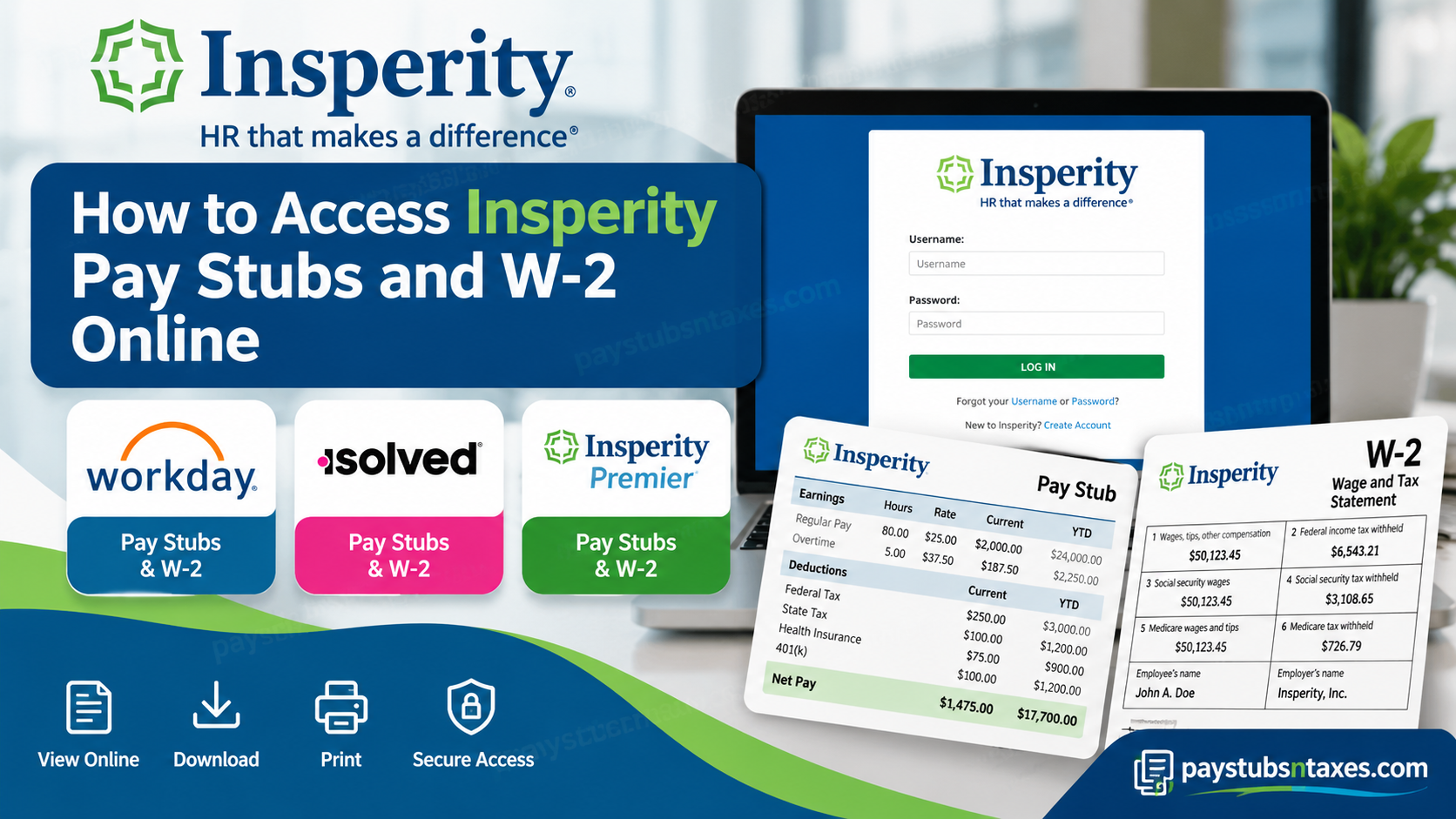
Accessing your Insperity pay stubs and W-2 forms begins with identifying the payroll platform assigned by your employer. Depending on your workplace, you may use Workday, isolved, or Insperity Premier. Once you have signed in to the appropriate account, you can locate your payroll records, select the relevant pay period or tax year, and download or print the available documents. Insperity, Inc., formerly known as Administaff, provides human resources and administrative services to businesses across the United States. Because its services support different employment arrangements and technology platforms, there is no single login procedure that applies to every employee. This guide explains how to find the correct Insperity employee login and retrieve your pay statements and year-end tax documents.
Understanding Insperity and Its Payroll Services
Founded in 1986 and formerly known as Administaff, Inc., Insperity, Inc. is a prominent American professional employer organization (PEO) headquartered in Kingwood, Texas. The company specializes in delivering comprehensive human resources solutions, payroll administration, employee benefits, workforce management, and business support services to organizations throughout the United States.
With four decades of experience, Insperity has established itself as a trusted HR partner for small and medium-sized businesses, providing an integrated combination of professional expertise and innovative technology.
The company’s extensive portfolio includes payroll processing, employee benefits administration, regulatory compliance assistance, talent management, and sophisticated workforce management solutions.
Through its technology-enabled HR services, Insperity empowers organizations to streamline administrative operations while giving employees greater autonomy over their employment-related information.
For employees, one of the most valuable features of these solutions is the ability to view, download, and print pay stubs and W-2 tax documents electronically, often without contacting the payroll department.
Nevertheless, because Insperity operates several employee self-service systems, identifying the correct platform is essential before attempting to access payroll records.
Which Payroll Platform Does Insperity Use?
Insperity supports multiple payroll and human capital management systems, and the platform available to an individual employee depends on the employer’s contractual arrangement and HR technology configuration.
The following systems are particularly relevant to employees seeking electronic payroll records.
| Payroll Platform | Employee Login Portal | Available Payroll Services |
| Workday | https://wd12.myworkday.com/wday/authgwy/insperity/login.htmld | Pay stubs, W-2 forms, payroll information, and employee self-service |
| isolved | https://insperity.myisolved.com | Pay history, pay statements, tax documents, and direct deposit information |
| Insperity Premier | https://portal.insperity.com | Paycheck information, W-2 statements, and employee self-service resources |
Important: Not every employee has access to all three systems. Employees working directly for Insperity may use a different payroll environment from individuals employed by businesses that contract with Insperity for HR and payroll services.
Therefore, before proceeding, confirm your designated payroll system with your employer’s HR department, payroll administrator, or onboarding coordinator.
Some organizations may also use other enterprise HR systems, including PeopleSoft, but access arrangements must be verified directly with the employer.
How to Access Insperity Pay Stubs Through Workday
If your employer has assigned Workday, you can use the portal to view the payslips made available to your account.
Step 1: Sign In to Insperity Workday
- Open the Insperity Workday login page.
- Choose Microsoft SSO if that is the sign-in option provided by your employer.
- Enter your assigned work credentials.
- Complete any required identity verification.
New employees should follow the account setup instructions provided during onboarding. If your access has not been activated, contact HR rather than waiting until payday to resolve the issue.
Step 2: Open Your Payslips
After signing in, use either of these navigation routes, depending on your Workday layout:
- Open your profile, select Pay, and choose Payslips.
- Open the Pay application from your home page and select Payslips under View.
If the Pay application is not visible, check Configure Applications to see whether you can add it to your home page.
Step 3: Download or Print a Pay Stub
- Find the pay period you need.
- Select the corresponding payslip or PDF link.
- Open the document.
- Download a copy or use the PDF viewer’s print option.
Before saving the file, confirm that you have selected the correct pay period. Keeping clearly labelled copies can make it easier to retrieve records when you need proof of income or want to review previous earnings.
How to Access Your Insperity W-2 in Workday
Your W-2 is available separately from your regular payslips. To find an available tax statement:
- Sign in to Insperity Workday.
- Open the Pay application.
- Locate the View section.
- Click More, if necessary, to expand the menu.
- Select My Tax Documents.
- Find the relevant tax year.
- Click View/Print beside the W-2.
- Download or print the PDF.
Menu names may vary with your employer’s Workday configuration. If the expected document is missing, ask payroll whether it has been released and whether you are using the correct account.
How to Use the Workday Mobile App
If mobile access is enabled for your account, you can also check your payroll information through the Workday app.
- Install the official Workday app from your device’s app store.
- When prompted for the organization identifier, enter Insperity, following your employer’s instructions.
- Sign in using the authentication method assigned to you.
- Open the available Pay or Payslips options.
- Select the pay statement you want to review.
The mobile layout may differ from the desktop portal. If you cannot find a tax document or print a statement from your phone, try the browser version on a private computer.
How to Activate Your Insperity isolved Account
Employees assigned to isolved generally need to activate their account before accessing payroll records.
Find Your Activation Email
Look for the account activation message sent to the email address held by your employer. The onboarding instructions supplied for this setup identify insperity@myisolved.com as the sender.
If you cannot find the message, check your spam or junk folder and confirm your email address with HR. An expired activation link will need to be replaced.
Complete Your Account Setup
Open the activation link and follow the prompts. Depending on your employer’s configuration, you may need to:
- Confirm the prefilled username and client code.
- Enter the authorization PIN specified in your activation instructions.
- Create and confirm a password.
- Set up a challenge question and answer, if requested.
- Add a mobile number for account verification.
- Review and accept the terms and conditions.
- Choose whether to receive eligible tax documents electronically.
If your instructions identify the authorization PIN as the last four digits of your Social Security number, enter it only within the verified account setup page.
Follow the password requirements displayed on screen. Where the supplied setup rules apply, the password must contain at least 12 characters, including an uppercase letter, a lowercase letter, a number, and a special character.
How to View Insperity Pay Stubs in isolved
Once your account is active:
- Visit Insperity isolved.
- Enter your username and password.
- Complete any security verification.
- Open Pay History.
- Select the pay statement you want to review.
- Click View/Print Pay Stub.
- Download or print the statement.
Viewing Pay Stubs on a Mobile Device
In the mobile experience described in your employer’s instructions:
- Sign in to your isolved account.
- Open Pay and Tax.
- Select Pay History.
- Choose the year and pay period.
- Open the relevant pay stub.
- Use Download, where available, to save the document.
If the interface offers a selection option, you may be able to download multiple statements together.
How to Access W-2, ACA, and 1099 Forms in isolved
To retrieve the year-end documents available to your account:
- Sign in to Insperity isolved.
- Open W2/ACA/1099 Forms, or the equivalent Year-End Tax Forms section.
- Select the appropriate year and document.
- Click View PDF.
- Download or print your copy.
The documents shown depend on your employment circumstances and the forms issued to you. An account will not necessarily contain every document type listed in the menu.
How to Access Pay Stubs and W-2s Through Insperity Premier
If your employer directs you to Insperity Premier:
- Go to portal.insperity.com.
- Sign in with your assigned account credentials.
- Complete any required verification.
- Find the payroll, paystub, or W-2 options.
- Select the available statement or tax year.
- Follow the on-screen instructions to view, download, or print it.
Insperity identifies both paystubs and W-2s among the records accessible through Premier. The exact navigation depends on the services and account access available to you.
If your employer supplies separate PaperlessEmployee instructions, follow that specific link and registration process.
Conclusion
To access Insperity pay stubs and W-2 forms online, first confirm whether your employer uses Workday, isolved, or Insperity Premier. Sign in to the assigned portal, open the relevant payroll or tax-document section, and select the statement you need. If access fails or a document is missing, your employer’s HR or payroll team can help you resolve the issue.
Frequently Asked Questions
1. What is the Insperity employee login website?
Your login website depends on your employer’s payroll platform. Use Insperity Workday, Insperity isolved, or Insperity Premier, as directed by your HR department.
2. How do I know which Insperity payroll portal to use?
Check your onboarding email, employee handbook, or HR instructions. Your employer can confirm whether you should use Workday, isolved, or Insperity Premier.
3. How do I view Insperity pay stubs in Workday?
Sign in to Workday, open your profile, and select Pay → Payslips. Alternatively, open the Pay application and select Payslips under View. Choose the relevant pay period to open your statement.
4. How do I download or print an Insperity Workday payslip?
Open Payslips, select the pay period, and click the corresponding payslip or PDF link. Use the document viewer’s download or print option to save or print your statement.
5. How do I access my Insperity W-2 in Workday?
Sign in to Workday and open Pay → View → More → My Tax Documents. Locate the relevant tax year and click View/Print beside your W-2. Menu labels may vary by account configuration.
6. Can I access Insperity pay stubs through the Workday mobile app?
Yes, if your employer enables mobile access. Install the Workday app, enter Insperity as the organization identifier when instructed, and sign in. Open the available Pay or Payslips section to view your statements.
7. Do I use Microsoft SSO to sign in to Insperity Workday?
Use Microsoft SSO if your employer has assigned that sign-in method. Enter your work credentials and complete any required verification. Otherwise, follow the login instructions provided by HR.
8. How do I activate my Insperity isolved account?
Open the activation email sent to the address registered with your employer. Follow the link, confirm your account details, enter the requested authorization information, and create your password. Complete any security settings and electronic tax-document delivery preferences shown.
9. What should I do if my isolved activation email is missing or expired?
Check your spam or junk folder first. If the email is missing or the activation link has expired, contact HR or payroll to confirm your registered email address and request a new invitation.
10. How do I view Insperity pay stubs in isolved?
Sign in at insperity.myisolved.com, open Pay History, and select the required pay statement. Click View/Print Pay Stub to open, download, or print it.
11. How do I download Insperity pay stubs on my phone using isolved?
Sign in to your assigned isolved mobile experience and open Pay and Tax → Pay History. Choose the year and pay period, open the statement, and select Download, where available.
12. Where can I find my W-2 in Insperity isolved?
Open W2/ACA/1099 Forms or Year-End Tax Forms in your isolved account. Select the relevant year and click View PDF beside the available W-2 to download or print it.
13. How do I access pay stubs and W-2s through Insperity Premier?
Visit portal.insperity.com, sign in, and locate the payroll, paystub, or W-2 section. Select the available statement or tax year and follow the on-screen instructions to view or download your document.
14. What should I do if I cannot sign in to my Insperity payroll account?
Confirm that you are using the correct portal, then use its password recovery option where available. For Workday accounts using Microsoft SSO, follow your employer’s work-account recovery process. Contact HR if you still cannot sign in.
15. Why is my Insperity pay stub or W-2 missing?
The document may not yet be available, or you may have selected the wrong year, pay period, or account. Check these details first, then contact payroll to confirm availability. Former employees should ask their previous employer how to retrieve historical records.
