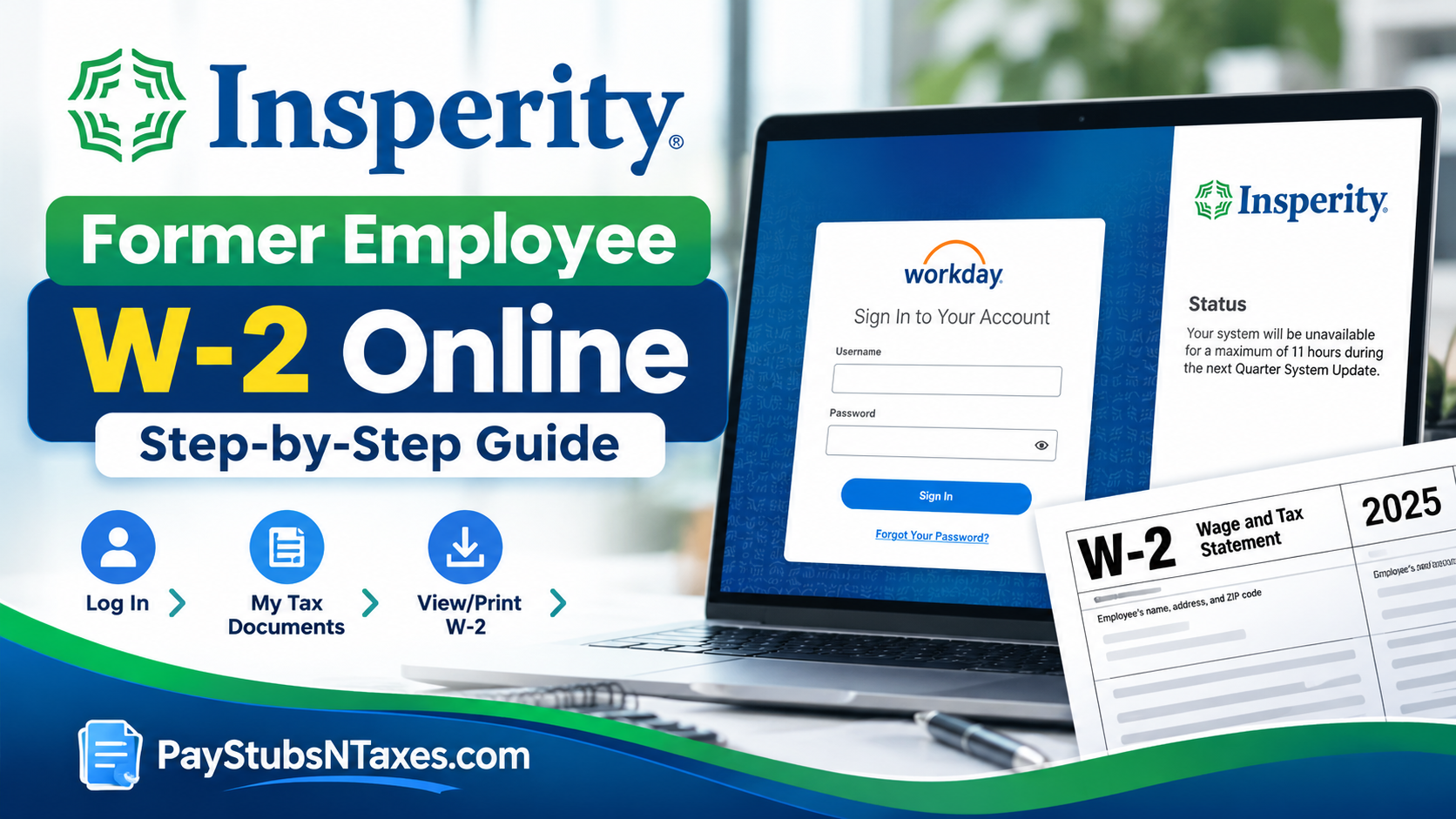
Leaving a job involves more than handing over responsibilities and saying goodbye to colleagues. Former employees must also ensure they can retrieve essential employment records, particularly their Form W-2, which plays a pivotal role in preparing accurate federal and state income tax returns. Fortunately, former employees of Insperity, Inc. can access their available W-2 tax statements through the Workday employee self-service portal, provided their post-employment account access remains active.
Insperity uses Workday to facilitate access to payroll information, tax documents, and other employment-related records. Even after an employee’s departure, the company’s Non-SSO Workday portal may provide temporary access to important financial documents without requiring an active corporate Microsoft Single Sign-On (SSO) account.
This comprehensive guide explains how to access Insperity former employee W-2 forms online, sign in to the Non-SSO Workday portal, download or print tax statements, update paperless W-2 preferences, and resolve common login difficulties.
Understanding Insperity’s Former Employee Workday Access
Insperity, formerly known as Administaff, provides human resources and administrative services to small and medium-sized businesses. For former Insperity corporate employees whose payroll records are maintained in Workday, the platform offers access to available year-end tax documents after employment ends.
During the offboarding process, former employees should receive non-SSO Workday login credentials at their personal email address. These credentials allow you to access the portal directly, using a Workday username and password instead of Microsoft single sign-on.
Because access remains available for a limited period, it is advisable to download your available payroll and tax documents promptly. The precise access period should be confirmed with Insperity.
Important: This guide addresses former Insperity employees using the Insperity Workday portal. If you worked for a separate business that uses Insperity’s HR or payroll services, confirm your correct employee portal with that employer.
Can Former Insperity Employees Access Their W-2 Forms Online?
Yes. Former Insperity employees with active post-employment Workday credentials can access their available W-2 tax statements through the Insperity Non-SSO Workday portal. After successfully signing in, users can navigate to the Pay application, select My Tax Documents, and use the View/Print option to retrieve their W-2 forms.
During the offboarding process, departing employees should receive separate Non-SSO Workday login credentials through their designated personal email addresses.
Unlike the regular employee login, which may rely on corporate authentication, the Non-SSO portal allows eligible former employees to sign in using their assigned Workday username and password.
However, post-termination Workday access is generally available for a limited period, and the precise duration may depend on Insperity’s applicable account-access policies. Former employees should therefore retrieve and securely save their payroll and tax documents as soon as possible after leaving the company.
What You Need Before Signing In
Before accessing your Insperity former employee W-2 online, have the following ready:
- Your Workday username and password.
- Access to the personal email account used during offboarding.
- A private computer with a reliable internet connection.
- A secure location for saving your downloaded tax documents.
If you need a printed copy, use a trusted printer connected to your personal computer. Since W-2 forms contain sensitive information, including your Social Security number and earnings, avoid downloading them on shared or public devices.
How to Access Your Insperity Former Employee W-2 Online
Step 1: Open the Insperity Non-SSO Workday Portal
Visit the Insperity former employee Workday login page.
Use this direct login page to enter your Workday credentials.
Step 2: Sign In With Your Workday Credentials
Enter the Workday username and password provided during your offboarding process.
Use your Workday credentials rather than Microsoft SSO. If your former company Microsoft account has been deactivated, the non-SSO portal provides the separate sign-in route intended for this access.
If you cannot find your credentials, search your personal email inbox, including spam and junk folders, for messages relating to Workday or your offboarding.
Step 3: Open the Pay Application
Once you have signed in, locate the Applications section on the main dashboard and select Pay.
This application provides access to the payroll and tax document options available to your account.
Step 4: Select My Tax Documents
Within the Pay application, find the View section.
If My Tax Documents is not immediately visible, click More to expand the menu, then select My Tax Documents.
Step 5: Find the Correct W-2
On the My Tax Documents screen, review the available documents and locate the W-2 for the tax year you need.
Check the year carefully before downloading, particularly if your account contains several years of tax records.
Step 6: View, Download, or Print Your W-2
Click View/Print beside the appropriate document.
Once the W-2 opens, you can:
- Review it on screen.
- Download a copy for your records.
- Print a copy for tax preparation or other financial needs.
Save the downloaded file in a secure folder with a clear filename, such as Insperity-W2-2025.pdf, so it is easy to locate later.
How to Opt In to Paperless W-2 Delivery Through Insperity Workday
Workday also allows eligible users to manage their year-end tax document printing elections.
Depending on the options available to your account, you may choose electronic-only delivery or a combination of electronic and paper copies.
Electronic delivery can be particularly convenient because it provides direct access to tax documents without waiting for postal delivery.
Step 1: Sign In to Workday
Access the Insperity Non-SSO Workday portal using your assigned username and password.
Step 2: Open the Pay Application
From the Workday dashboard, click Pay to access payroll and tax-related services.
Step 3: Select My Tax Documents
Under the View heading, select My Tax Documents.
This page contains your available W-2 statements and relevant tax document delivery settings.
Step 4: Locate Printing Election
Find the section labeled Printing Election, which is generally displayed toward the upper-right portion of the My Tax Documents page.
Click Edit to modify your current delivery preference.
Step 5: Select Your Preferred Delivery Method
Workday will display the Change Year-End Tax Documents Printing Elections page.
Under New Election, select one of the available options:
Option 1: Receive Electronic Copy of My Year-End Tax Documents
This option indicates your preference for receiving tax statements electronically without requesting routine paper delivery.
Option 2: Receive Both Electronic and Paper Copies of My Year-End Tax Documents
This option allows you to retain electronic access while also requesting a printed copy through the applicable delivery process.
Step 6: Save Your Printing Election
After selecting your preferred option, review your choice and click OK to complete the process.
Your updated election should be recorded in Workday.
Keep in mind that changes to electronic delivery preferences may be subject to applicable consent requirements, processing deadlines, and employer policies. Updating an election does not necessarily change the delivery method for tax documents that have already been issued.
How to Contact Insperity for Workday, Payroll, or W-2 Assistance
Former employees who encounter difficulties accessing their Workday accounts or retrieving their W-2 statements can seek assistance through Insperity’s designated support channels.
Insperity Workday and Payroll Help Desk
Phone: 281-348-3237
Official Website: https://www.insperity.com/
Workday Portal: https://wd12.myworkday.com/wday/authgwy/insperity/login.htmld?redirect=n
You may also use the applicable Insperity service portal if access is available.
When contacting support, be prepared to provide sufficient information to verify your employment history and identity.
Depending on the circumstances, you may be asked for your full name, former employee identification number, employment dates, or registered contact information.
For security reasons, avoid sending sensitive personal details, particularly your complete Social Security number or Workday password, through unsecured communication channels.
If your former employment was with an Insperity client organization rather than Insperity itself, you may also need to contact that organization’s designated HR or payroll representative.
Conclusion
Accessing your Insperity former employee W-2 online is a manageable process when you have the appropriate Non-SSO Workday credentials and your post-employment account remains active.
By visiting the dedicated Insperity Workday portal, signing in with your assigned username and password, and navigating to Pay > My Tax Documents > View/Print, you can retrieve available W-2 statements for tax preparation and personal recordkeeping.
Workday also provides options for managing year-end tax document printing elections, allowing eligible users to select their preferred delivery method.
Because former employee access may be temporary, downloading and securely storing your documents as soon as they become available is the most practical approach.
If you encounter login problems, discover that your Workday access has expired, or cannot locate your W-2, contact the Insperity Help Desk at 281-348-3237 for assistance with the appropriate next steps.
With the right credentials and a clear understanding of the process, you can obtain your essential tax documentation efficiently and approach tax season with greater confidence.
Frequently Asked Questions About Insperity Former Employee W-2 Access
1. Can former Insperity employees access W-2 forms online?
Yes. Former Insperity employees with active non-SSO Workday access can view, download, and print their available W-2 forms through Pay → My Tax Documents.
2. What is the Insperity former employee Workday login link?
The Insperity non-SSO Workday login link is:
https://wd12.myworkday.com/wday/authgwy/insperity/login.htmld?redirect=n
Sign in using your separate Workday username and password.
3. How do I receive my former employee Workday credentials?
Your non-SSO Workday credentials should be sent to your personal email address during offboarding. Check your inbox, spam, and junk folders. Contact Insperity if you cannot locate the message.
4. Should I use Microsoft SSO to access my Insperity W-2?
No. For former employee access through the non-SSO portal, use your Workday username and password rather than your former Microsoft single sign-on credentials.
5. Where can I find my W-2 after signing in?
Open Pay from the Workday dashboard. Under View, select My Tax Documents. If that option is hidden, click More to expand the menu.
6. How do I download my Insperity W-2?
Go to Pay → My Tax Documents, locate the appropriate tax year, and click View/Print. When the document opens, use the available download or save option to keep a copy.
7. Can I print my Insperity W-2 at home?
Yes. Open your W-2 using View/Print, then print it from a private computer connected to a trusted printer. Keep the printed document secure because it contains sensitive personal information.
8. How long does Insperity Workday access remain active after employment ends?
Former employee access is available for a limited period. Confirm the exact duration with Insperity and download your available documents before access expires.
9. Can I retrieve W-2 forms from previous years?
You can retrieve previous years’ W-2 forms if they appear in My Tax Documents. If the year you need is missing, contact Insperity for assistance obtaining a copy.
10. How do I opt in to electronic W-2 delivery?
Navigate to Pay → My Tax Documents → Printing Election → Edit. Under New Election, select the electronic delivery option and click OK to save your preference.
11. Can I choose both electronic and paper tax documents?
If the option is available in your account, select Receive both electronic and paper copies of my Year-End Tax Documents under your printing elections, then click OK.
12. What should I do if my Workday credentials do not work?
Confirm that you are using the non-SSO portal and entering your Workday credentials correctly. If you still cannot sign in, contact the Insperity Help Desk for assistance.
13. How can I get my W-2 if my Workday access has expired?
Contact Insperity to request help obtaining your W-2. Explain that you are a former employee and specify the tax year you need.
14. Who should I contact if my W-2 is missing or incorrect?
Contact Insperity payroll or HR support if your W-2 is unavailable or contains incorrect information. Explain the issue and request instructions for obtaining the document or correcting the error.
15. What is the Insperity Help Desk phone number?
For Workday, payroll, or HR assistance, contact the Insperity Help Desk at 281-348-3237. You can also use the service portal if you still have access.
