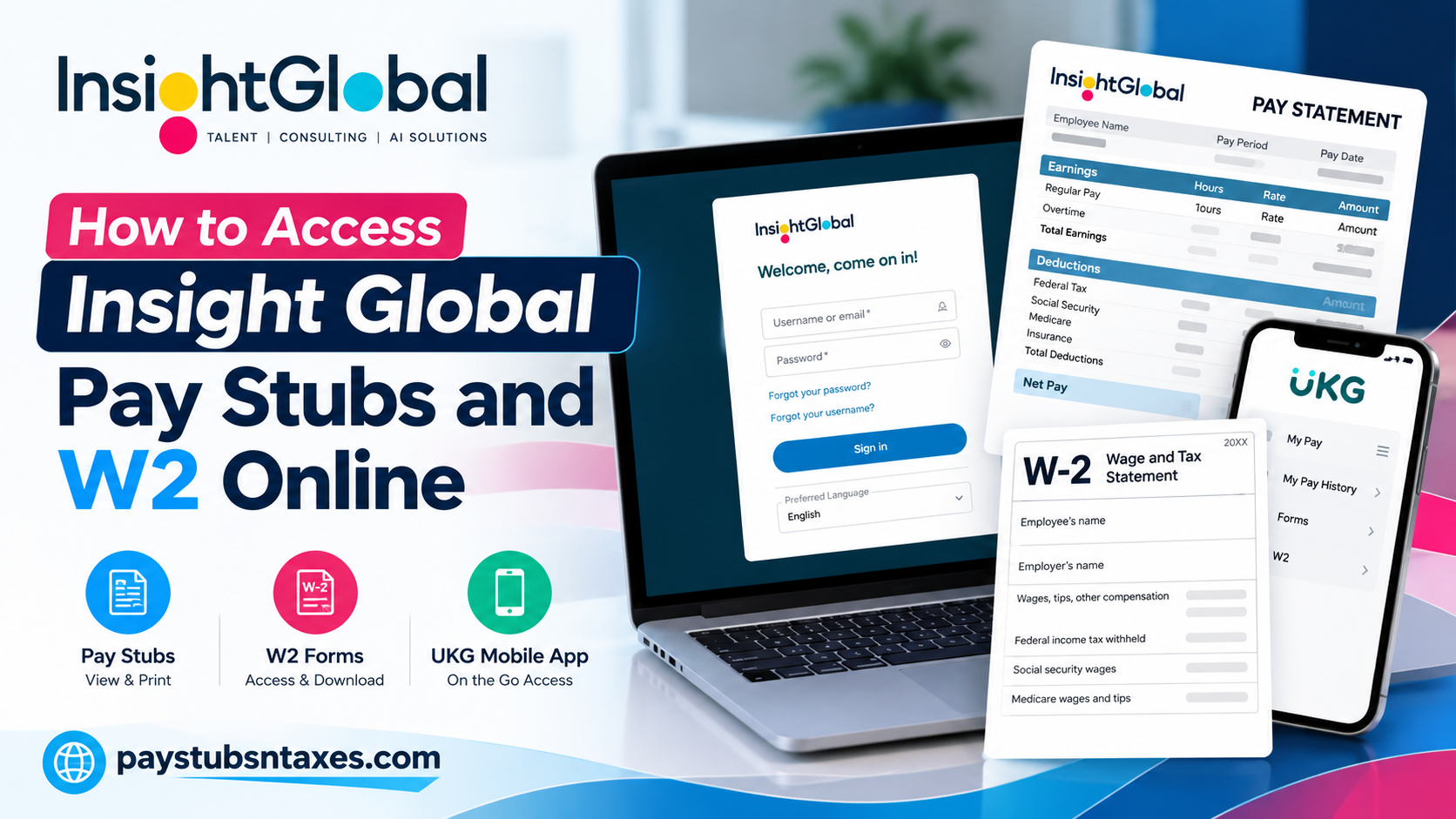
Insight Global employees can access their pay stubs and W-2 statements through the company’s UltiPro self-service portal, also known as UKG. Whether you need to review your latest earnings, download a previous pay statement, or print your annual tax documents, the portal puts essential payroll information at your fingertips. This guide explains how to sign in, locate current and historical pay statements, and retrieve W-2 forms using a computer or the UKG mobile app.
How Do I Access My Insight Global Pay Stubs and W-2 Online?
To access your Insight Global pay stubs and W-2 forms, visit https://insightglobal-dl.ultipro.com/ and sign in with your UltiPro credentials. For pay stubs, navigate to Myself > Pay > Current Pay Statement. For tax documents, select Myself > Pay > W-2, choose the available tax year, and open or print your form.
If you prefer mobile access, use the UKG app with the company access code insightglobal-dl.
About Insight Global
Insight Global is a talent, consulting, and AI company that helps organizations build teams, solve complex problems, and deliver business outcomes. With access to talent in more than 50 countries, the company combines recruiting capabilities with technical expertise across Cloud, AI, Data, Enterprise Operations, and Applied Engineering.
Since its establishment in 2001, Insight Global has focused on developing people personally, professionally, and financially. Its employee self-service payroll tools support that commitment by making important earnings and tax records easier to access and manage.
What You Need Before Signing In
Before accessing your Insight Global payroll account, have the following ready:
- Your UltiPro username and password.
- Access to the personal email address used during onboarding.
- A computer, smartphone, or tablet with an internet connection.
- A private device if you intend to download or print payroll documents.
Your UltiPro login credentials are provided through your personal email during onboarding. If you cannot find them, check your inbox and spam folders before contacting your Insight Global representative.
Use your UltiPro or UKG credentials when signing in. Workday credentials are for a separate system.
How to Log In to the Insight Global UltiPro Portal
Follow these steps to access your account:
- Open your browser and visit the Insight Global UltiPro portal.
- Enter your assigned username and password.
- Complete any additional verification requested.
- Open the employee self-service menu to access your payroll information.
Once signed in, you can navigate to the relevant pay or tax section.
How to View Your Current Insight Global Pay Stub
To review your latest available pay statement:
- Open Myself.
- Select Pay.
- Click Current Pay Statement.
- Review the statement displayed.
- Use the available download or print option if you need a copy.
The current statement reflects the most recently processed payroll. Consequently, a pay stub may become visible before its scheduled payday. Its appearance in the portal does not necessarily mean the corresponding payment has already reached your bank account.
When reviewing your statement, check the pay period, earnings, deductions, and net pay. If something appears incorrect, contact your local office or payroll representative so the discrepancy can be investigated.
How to Print Your Current Pay Statement
While viewing your current statement:
- Click the Print icon.
- Select the preferred Social Security number display option, including whether to hide it.
- Click Finish to open the printer-friendly statement.
- Print the document, or save it as a PDF if your device provides that option.
For greater privacy, hide your Social Security number whenever a full display is unnecessary.
How to Access Historical Insight Global Pay Statements
Previous pay statements can be useful when verifying income, checking earlier deductions, or maintaining personal financial records.
Within the portal’s Myself > Pay section, look for the available pay history or historical statement option. Select the relevant statement or pay period, then open the document to review, download, or print it.
Menu labels may differ between the desktop portal and mobile app. On mobile, previous statements are available through My Pay History.
How to View Insight Global Pay Stubs in the UKG Mobile App
The UKG mobile app allows you to review payroll records while on the move.
Set Up Mobile Access
- Open the UKG mobile app provided for your employee account.
- When prompted for the company access code, enter insightglobal-dl.
- Sign in with your UltiPro or UKG username and password.
- Complete any required verification.
Open Your Pay Statements
After signing in:
- Tap the Main Menu icon, shown as three horizontal lines in the upper-left corner.
- Select My Pay.
- Tap My Pay History.
- Review your recent statements.
- To locate older records, open the Historical tab and select the desired date range.
- Tap Pay Statement beneath the entry you want to view.
- Open the preview to review the details and use the available download or print options.
Saving statements periodically can help you keep your financial records in order without having to search for them later.
How to Access Your Insight Global W-2 Online
Your W-2 reports the wages and tax withholding associated with the relevant tax year. Once the form is available in your account, you can retrieve it through the payroll portal.
To view your W-2:
- Sign in to the Insight Global UltiPro portal.
- Open Myself.
- Select Pay.
- Click W-2.
- Review the list of available tax years.
- Click the Year link for the form you need.
- Open and review the statement.
The W-2 screen also indicates whether you have elected paper or electronic delivery.
How to Print Your Insight Global W-2
Once the form is open, click Print and follow your device’s printing instructions. If your print settings include a PDF option, you can also save a digital copy for your records.
Before printing, confirm that you have selected the correct tax year and that all pages are included.
Can You Import Your W-2 Into TurboTax?
If a TurboTax button appears beside your W-2, you can select it to begin the available import process. Follow the on-screen instructions and review the imported information before proceeding.
Availability depends on the features enabled for your account and the selected form.
How to Access Your Insight Global W-2 in the UKG Mobile App
To retrieve a W-2 from your mobile device:
- Sign in to the UKG app.
- Tap the three-line menu in the upper-left corner.
- Open My Pay.
- Select Forms.
- Choose W2.
- Locate the desired tax year.
- Tap the View icon to open the form.
- Save or print it using the options available on your device.
You may also be able to access tax forms from the Employee Home tab. Find the My Pay widget and select View year-end tax forms.
Does Insight Global Mail Paper W-2 Forms?
Insight Global’s W-2 delivery depends on your selected delivery preference. To receive a mailed copy, you need to choose the paper W-2 option rather than assume that a form will automatically be sent to your home.
Review your election in the W-2 section and confirm that your mailing address is accurate. If you want to change your preference but cannot locate the setting, contact your local office or payroll representative for assistance.
How to Contact Insight Global for Payroll Help
For login difficulties, missing documents, or payroll questions, contact your local Insight Global office or assigned representative.
You can also call 855-485-8853 and request assistance reaching the appropriate team. Have your name, relevant pay period or tax year, and a brief description of the issue ready, but never share your password.
Conclusion
Accessing Insight Global pay stubs and W-2 forms online is a convenient process when employees have the appropriate UltiPro login credentials and know where to locate their payroll documents.
Through the Insight Global UKG Pro employee self-service portal, authorized users can review current earnings, retrieve historical payroll statements, and access available annual tax documents without unnecessary paperwork or administrative delays.
The UKG mobile application offers additional flexibility, allowing employees to manage supported payroll functions from their smartphones. Meanwhile, features such as password recovery, downloadable statements, and electronic W-2 access help simplify routine payroll administration.
Whether you are preparing your annual income tax return, verifying employment income, or reviewing your paycheck, the quickest starting point is the Insight Global UltiPro login page at https://insightglobal-dl.ultipro.com/.
If you encounter difficulties accessing your account or retrieving a particular document, contact your local Insight Global representative for assistance.
Ultimately, maintaining secure access to your payroll information—and retaining copies of important employment records—can help you stay organized, financially informed, and better prepared whenever official income documentation is required.
Frequently Asked Questions
1. Where can I access my Insight Global pay stubs online?
Access your pay stubs through the Insight Global UltiPro portal. After signing in, navigate to Myself > Pay > Current Pay Statement to view your latest available statement.
2. How do I get my Insight Global UltiPro login credentials?
Your UltiPro login credentials are sent to your personal email during onboarding. Check your inbox and spam folders. If you cannot locate the message, contact your Insight Global representative.
3. What is the Insight Global UKG mobile access code?
The Insight Global UKG mobile access code is insightglobal-dl. Enter this code when prompted, then sign in with your UltiPro or UKG credentials.
4. How do I view Insight Global pay stubs in the UKG app?
Open the UKG app, sign in, and tap the three-line menu. Select My Pay > My Pay History, locate the desired statement, and tap Pay Statement to view its details.
5. How can I find older Insight Global pay statements?
In the UKG app, navigate to My Pay > My Pay History > Historical. Select the relevant date range, locate the statement you need, and open it to review or save a copy.
6. How do I print my Insight Global pay stub?
Open your current pay statement and click the Print icon. Choose how your Social Security number should appear, then click Finish to generate the printer-friendly version and print it.
7. Can I download my Insight Global pay stub as a PDF?
Use the statement’s download option if available. Alternatively, open the printer-friendly statement and choose Save as PDF from your device’s print settings, if supported.
8. Why is my Insight Global pay stub visible before payday?
The portal displays the most recently processed payroll, so a statement may appear before its scheduled pay date. A visible pay stub does not necessarily mean the payment has already reached your bank account.
9. How do I access my Insight Global W-2 online?
Sign in to the UltiPro portal and select Myself > Pay > W-2. Click the link for the available tax year to open your W-2, then use the print option if you need a copy.
10. How can I view my Insight Global W-2 in the UKG app?
Open the app’s three-line menu, then select My Pay > Forms > W2. Find the desired tax year and tap the View icon. Once the form opens, use your device’s available save or print options.
11. Is there another way to find my W-2 in UKG?
You may also find it on the Employee Home tab. Locate the My Pay widget and select View year-end tax forms to access available tax documents.
12. Does Insight Global mail paper W-2 forms?
W-2 delivery depends on your selected preference. Choose the paper W-2 option if you want a mailed copy, and confirm that your mailing address is accurate. Contact your representative if you need help reviewing your election.
13. Can I import my Insight Global W-2 into TurboTax?
If a TurboTax button appears when viewing your W-2, select it and follow the import instructions. This feature depends on availability for your account and the selected tax form.
14. What should I do if I cannot log in to UltiPro?
Use the login page’s account recovery option, if available. If you still cannot access your account, contact your local Insight Global office or assigned representative for assistance.
15. Who should I contact about missing pay stubs or W-2 forms?
Contact your local Insight Global office or assigned representative. You can also call 855-485-8853 and request help reaching the appropriate team. Have the relevant pay period or tax year ready.
