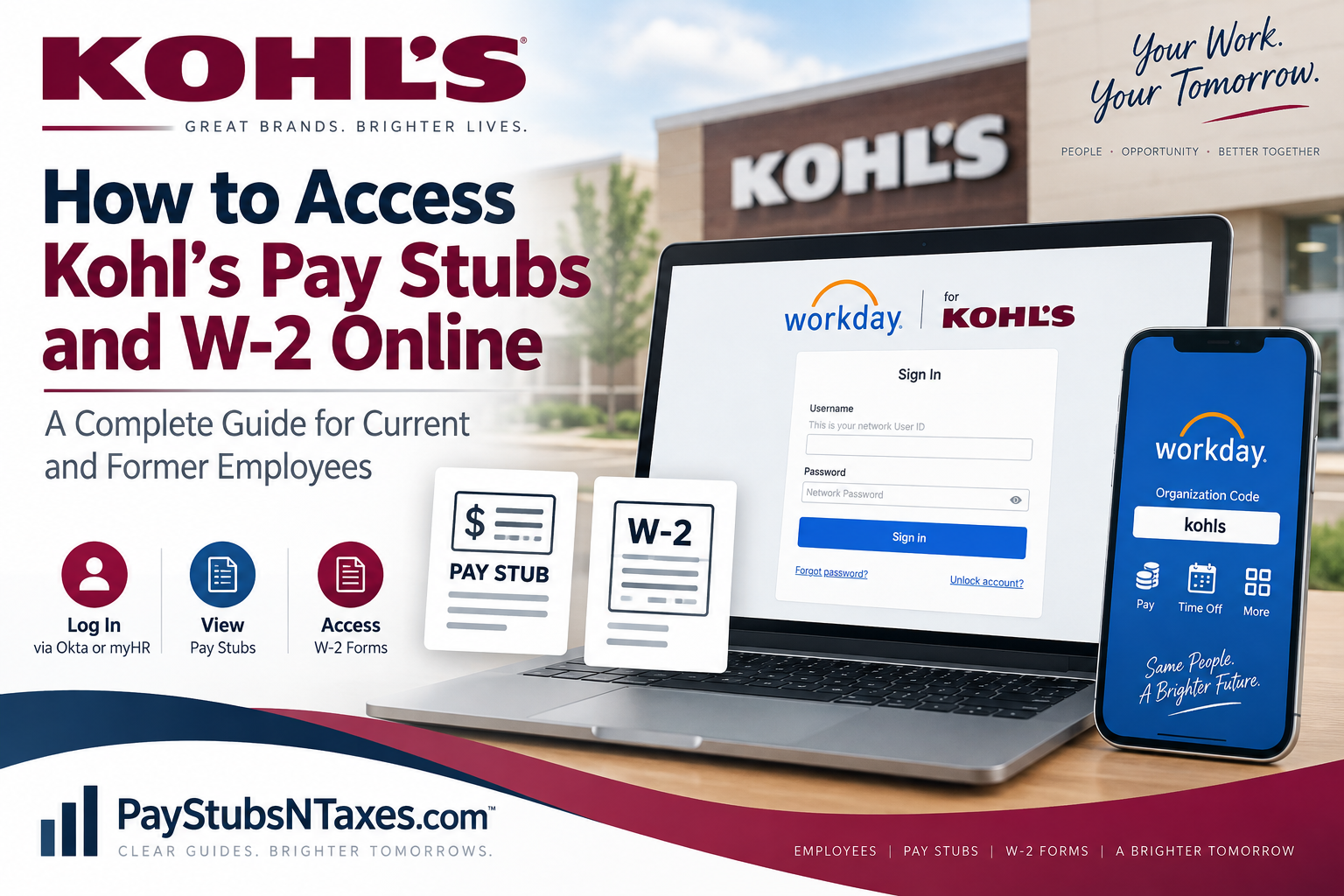
Kohl’s Corporation employees can access their pay stubs and tax documents electronically through Workday. However, the correct sign-in route depends on whether you are a current associate or a former employee. Current associates generally enter Workday through Kohl’s Okta single sign-on system, using their network credentials. Former associates, by contrast, should begin at the Kohl’s myHR portal. Once inside Workday, users can review payment history, open detailed payslips, and retrieve available W-2 or corrected W-2C forms. This guide walks you through the process from start to finish.
About Kohl’s Corporation
Kohl’s Corporation is an American department-store retailer founded by Polish immigrant Maxwell Kohl. Its roots stretch back to 1927, when Kohl opened a neighborhood grocery store in Milwaukee, Wisconsin. After building a successful local grocery chain, the company entered the department-store business in 1962.
Headquartered in Menomonee Falls, Wisconsin, Kohl’s subsequently developed an extensive retail presence across the United States. The company became publicly traded in 1992 under the ticker symbol KSS.
How Current Kohl’s Employees Can Access Workday
Current Kohl’s associates can reach the employee Workday system through the following login page:
Kohl’s Workday login:
https://wd504.myworkday.com/kohls/login.htmld
To sign in:
- Open the Kohl’s Workday login page.
- Enter your Kohl’s network user ID.
- Enter your network password.
- Complete any Okta authentication or identity-verification step presented on the screen.
- Select Sign In to open your Workday account.
Because Workday contains confidential payroll and tax information, access it only through a trusted device and a secure internet connection. Avoid saving your password on a shared or public computer.
How Former Kohl’s Employees Can Access Workday
Former or separated associates should not ordinarily use the current-employee login route. Instead, they should visit:
Kohl’s myHR portal:
https://myhr.kohls.com
Open the portal and follow the options provided for former associates. Depending on your account status, you may be asked to verify your identity or use credentials created for post-employment access.
If you recently left Kohl’s, bear in mind that your former-associate credentials may differ from the network ID and password you used while employed.
How to View Kohl’s Pay Stubs in Workday
After signing in to Workday, you can find your electronic payslips through the Pay area. The exact wording or placement of menu items may vary slightly following a Workday update, but the underlying process remains broadly the same.
Method 1: Access payslips through your profile
- Open your Workday profile.
- Select Pay.
- Choose Payslips or the corresponding payment-history option.
- Review the displayed list of pay periods.
- Select the relevant pay-period date.
- Open the associated payslip or PDF statement.
- Download or print the document as required.
Method 2: Use the Pay application
If the Pay application appears on your Workday home page:
- Select Pay from the available applications.
- Find the View section.
- Select Payslips or Payments.
- Choose the pay period you want to examine.
- Select View, Print, or the available PDF link.
A detailed payslip will generally show your gross earnings, net pay, taxes, deductions, payment method, and year-to-date totals. Review the document carefully, particularly when verifying income or preparing financial records.
How to Download or Print a Kohl’s Pay Stub
Once the payslip opens:
- Select the PDF, View PDF Statement, or Print option.
- Allow the document to finish loading.
- Use the download icon to save a copy to your device.
- Use the print icon if you need a paper copy.
Store downloaded pay statements in a secure location. Since these records may contain sensitive personal and financial information, leaving them in an unprotected downloads folder can create an unnecessary security risk.
How to Access Kohl’s W-2 Forms Online
Workday also provides access to available year-end tax documents, including W-2 forms and, when applicable, corrected W-2C forms.
To locate your Kohl’s W-2:
- Sign in to Workday through the appropriate current- or former-employee route.
- From the Workday home page, select the Pay application.
- Locate the View section.
- Select More if the full list of options is not already visible.
- Choose My Tax Documents.
- Find the required tax year.
- Select View/Print beside the appropriate document.
- Open, download, or print the form.
If several documents display a View/Print button, review and download every applicable form. This is particularly important when a corrected W-2C has been issued, as the correction may need to be read alongside the original document.
How to Find a W-2 on the Workday Mobile App
Kohl’s associates may also use the Workday mobile app on a compatible iPhone, iPad, or Android device.
When prompted during setup, enter the following organization code:
Organization ID: kohls
After connecting the app to Kohl’s:
- Sign in through the available Kohl’s or Okta authentication process.
- Open the Pay application or pay-related worklet.
- Select Tax Documents or My Tax Documents.
- Choose the relevant tax year.
- Tap View/Print to open the document.
Mobile menus can vary according to the device, app version, and account permissions. If a tax-document option does not appear in the app, sign in through a desktop or mobile web browser instead.
How to View Pay Stubs in the Workday Mobile App
To review a pay statement from the mobile app:
- Open the Workday app and sign in.
- Select the Pay or Pay Slip section.
- Choose the required payment date from your pay history.
- Review the gross pay, net pay, deductions, and year-to-date information.
- Tap View PDF Statement to open the complete payslip.
If the app offers the option to create a mobile PIN or use your device’s biometric security, enable it only on a personal device that you control.
What to Do If You Cannot Sign In
If Workday rejects your login, first check that you are using the correct portal for your employment status.
Current Kohl’s associates
Current associates who experience login difficulties may:
- Select Forgot password? on the sign-in page.
- Select Unlock account? if their account has been locked.
- Confirm that they are entering their network user ID rather than a personal email address.
- Contact Kohl’s Enterprise Operations Center at 262-703-1515 for current-associate login assistance.
Former Kohl’s associates
Former associates should navigate to https://myhr.kohls.com and use the former-associate access options. Attempting to use an inactive network account on the current-employee login page is unlikely to bear fruit.
Additional troubleshooting tips
If the problem persists:
- Confirm that Caps Lock is turned off.
- Check your internet connection.
- Clear the browser cache or try a private browsing window.
- Try a supported, up-to-date browser.
- Disable pop-up blocking temporarily if the PDF does not open.
- Allow sufficient time for a requested document to generate.
- Sign out fully before attempting to log in again.
Kohl’s Benefits Center Contact Information
If you have a benefits-related question that requires a direct response, contact the Kohl’s Benefits Center:
Phone: 844-564-5747
Hours: Monday through Friday, 7:00 a.m. to 8:00 p.m. Central Time
Have identifying information readily available, but never send passwords, verification codes, or complete Social Security numbers through an unsecured email or text message.
Protecting Your Payroll and Tax Information
Convenient access should not come at the expense of security. A few sensible precautions can keep your personal information out of harm’s way:
- Use a private device whenever possible.
- Do not share your Workday password or authentication code.
- Avoid accessing payroll records over public Wi-Fi.
- Download documents only when necessary.
- Store electronic copies in an encrypted or password-protected location.
- Collect printed documents immediately.
- Sign out of Workday when you finish, especially on a shared device.
Final Thoughts
Accessing Kohl’s pay stubs and W-2 forms online is relatively straightforward once you choose the correct doorway. Current employees should use Kohl’s Workday with their network credentials and Okta authentication, whereas former employees should begin through the myHR portal. After signing in, open the Pay section to review payslips or navigate to My Tax Documents to retrieve W-2 records. Download every applicable tax form, safeguard the files, and remember to sign out when your work is complete.
Frequently Asked Questions About Kohl’s Pay Stubs and W-2 Forms
1. How do I access my Kohl’s pay stubs online?
Sign in to Kohl’s Workday, open the Pay section, and select Payslips, Payments, or the corresponding pay-history option. Choose the relevant pay period and open the available PDF statement.
2. What is the Kohl’s Workday login website?
Current associates can use the Kohl’s Workday login page at https://wd504.myworkday.com/kohls/login.htmld. Sign in with your Kohl’s network user ID and password, then complete any required Okta verification.
3. How do former Kohl’s employees access Workday?
Former or separated associates should begin at the Kohl’s myHR portal. They should follow the former-associate access instructions rather than attempting to use an inactive current-employee network account.
4. How do I get my W-2 from Kohl’s?
Sign in through the appropriate employee portal, open Pay, expand the View menu by selecting More if necessary, and choose My Tax Documents. Find the required year and select View/Print beside the W-2.
5. Can former Kohl’s employees obtain their W-2 forms online?
Yes. Former employees can ordinarily access available tax documents by entering through the Kohl’s myHR portal and following the options for separated associates. Their post-employment credentials may differ from those used while working at Kohl’s.
6. What is the organization ID for the Kohl’s Workday app?
The organization ID for the Kohl’s Workday mobile app is kohls. Enter it when the app asks you to identify or connect to your organization.
7. Can I access my Kohl’s pay stubs from my phone?
Yes. Open the Workday mobile app, sign in, and navigate to Pay or Pay Slip. Select a payment date to review the details, then tap View PDF Statement if you need the complete document.
8. Can I download or print a Kohl’s pay stub?
Yes. After opening the relevant payslip, select PDF, View PDF Statement, or Print. You can then save the file securely to your device or produce a paper copy.
9. Why can’t I sign in to Kohl’s Workday?
You may be using the wrong portal, entering incorrect credentials, or attempting to use a locked or inactive account. Current associates can try Forgot password? or Unlock account?, while former associates should use the myHR portal.
10. Who should current Kohl’s employees contact for login assistance?
Current associates experiencing login difficulties can contact the Kohl’s Enterprise Operations Center at 262-703-1515. Before calling, confirm that you are using your network user ID and the current-associate Workday page.
11. Why is my Kohl’s W-2 not showing in Workday?
The form may not have been released yet, you may be viewing the wrong tax year, or your account may lack the necessary access. Check My Tax Documents again and contact the Kohl’s Benefits Center if the form should already be available.
12. What is a W-2C form in Kohl’s Workday?
A W-2C is a corrected wage and tax statement issued when information on an original W-2 requires amendment. If both forms are available, download every document displaying a View/Print option and retain them with your tax records.
13. Can I access an old Kohl’s W-2?
Previous-year forms may remain available under My Tax Documents in Workday. If the required document is absent, contact the Kohl’s Benefits Center at 844-564-5747 to ask about the appropriate retrieval process.
14. What should I do if my Kohl’s pay-stub PDF does not open?
Allow the document time to generate, permit pop-ups for Workday, and try an up-to-date browser. If the problem continues, clear the browser cache, use a private window, or try opening the statement from another trusted device.
15. How do I contact the Kohl’s Benefits Center?
Call 844-564-5747 between 7:00 a.m. and 8:00 p.m. Central Time, Monday through Friday. Keep any necessary identifying information nearby, but never disclose your password or one-time authentication code.
