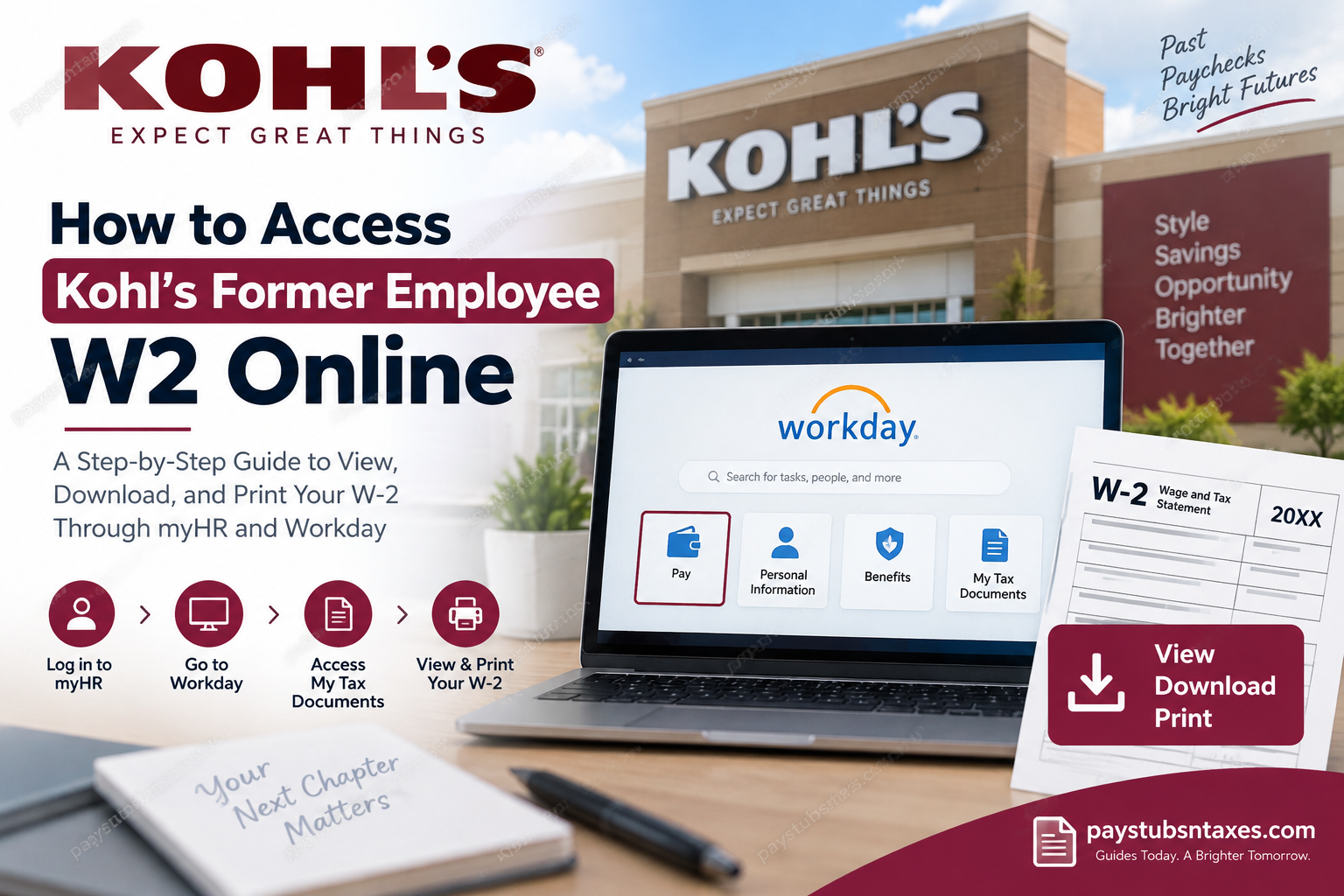
Former Kohl’s associates can access their available W-2 tax forms online through the company’s myHR portal and Workday. Although current employees generally enter Workday through the company’s Okta single sign-on system, former employees must ordinarily begin at the Kohl’s myHR website. The process is relatively straightforward: sign in to myHR, open Workday, navigate to the Pay section, and select the appropriate tax document. This guide walks you through each stage, including what to do if Workday needs additional time to prepare your W-2.
About Kohl’s Corporation
Kohl’s Corporation is an American department-store retailer headquartered in Menomonee Falls, Wisconsin. Its origins date back to 1927, when Polish immigrant Maxwell Kohl opened a neighborhood grocery store in Milwaukee. After establishing a successful local grocery chain, the business entered the department-store market in 1962.
The company subsequently changed ownership, expanded across the country, and became publicly traded in 1992. Today, Kohl’s operates an extensive retail network across the United States and remains one of the country’s most widely recognized department-store brands.
Can Former Kohl’s Employees Access Their W-2 Online?
Yes. Former Kohl’s employees can access available W-2 forms electronically through Workday, even though they no longer use the same sign-in route as active associates.
The essential distinction is as follows:
- Current Kohl’s employees generally access Workday through Okta single sign-on.
- Former or separated employees should begin at the Kohl’s myHR portal and proceed to Workday from there.
If you have never established former-associate access, you may need to complete the new-user registration process before signing in. Employees who previously created an account should use their existing myHR credentials.
What You Need Before You Begin
Before attempting to retrieve your Kohl’s W-2 online, have the following ready:
- Your Kohl’s myHR user ID
- Your myHR password
- Access to the email address or telephone number associated with your account, if identity verification is required
- A device capable of opening PDF files
- A secure internet connection
- Access to a printer, if you require a paper copy
Because a W-2 contains sensitive personal and financial information, avoid downloading it on a public computer or over an unsecured Wi-Fi network. Once downloaded, store the document in a protected location and sign out of both Workday and myHR.
How to Access a Kohl’s Former Employee W-2 Online
Step 1: Visit the Kohl’s myHR Portal
Go to the official Kohl’s myHR website: https://myhr.kohls.com/
Check the web address carefully before entering your credentials. Using the official portal helps protect your personal information from fraudulent websites and phishing attempts.
Step 2: Choose the Former-Associate Option
On the employee selection page, choose Former Associates & Dependents.
The former-associate section may display separate options for new and existing users, as well as a former-associate guide and a W-2 access video. Choose the option that corresponds to your situation:
- Select the new-user option if you have not previously created former-associate access.
- Select the existing-user option if you already have a former-associate account.
Step 3: Sign In to myHR
Enter your myHR user ID and password, then complete any identity-verification prompts that appear.
If your credentials are rejected, verify that Caps Lock is turned off and that you are using your former-associate credentials rather than an old Okta password. Repeatedly entering an incorrect password may lock the account, so use the available password-recovery option when necessary.
Step 4: Open Workday
After signing in, locate and select Go to Workday on the myHR homepage.
Your Workday homepage should display navigation options, notifications, and payroll-related applications. The appearance of the page may vary slightly depending on the device and the version of Workday being used; nevertheless, the underlying route to your tax documents should remain broadly similar.
Step 5: Open the Pay Section
From the Workday homepage, open the main Menu and select Pay.
In some Workday layouts, the Pay application appears directly among the applications on the main dashboard. If it is already visible, you can select it without opening the full menu.
Step 6: Select My Tax Documents
Once the Pay page opens, look for the View section and select My Tax Documents.
If the option is not immediately visible, select More to expand the list. You should then be able to choose My Tax Documents, which contains the tax forms currently available for your account.
Step 7: Select the Appropriate Tax Year
The My Tax Documents page should display a table containing available tax records. Locate the required tax year and confirm that the listed document is the W-2 you intend to retrieve.
If more than one W-2 or related form is available, review every entry carefully. You may need to download and print each document that has its own View/Print button.
Step 8: Click View/Print
Select View/Print beside the appropriate W-2.
Workday may generate the PDF immediately. However, if the request requires additional processing time, you may see a message offering a Notify Me Later option. Select it to allow Workday to continue preparing the file in the background.
Step 9: Check Your Workday Notifications
If you selected Notify Me Later, watch the bell-shaped notification icon in the upper-right corner of Workday.
When the document is ready, a completion notification should appear. Open the notification and select the PDF attachment or document link to view your W-2.
Step 10: Download or Print the W-2
Open the completed PDF, save a copy to a secure location, and print it if necessary.
Before closing the file, check that:
- Your name is correct.
- The tax year is the one you requested.
- All pages and copies are present.
- The document is legible.
- Each available W-2 form has been downloaded when multiple forms are listed.
A partially downloaded or incomplete W-2 can cause unnecessary complications when preparing a tax return, so it pays to verify the document while you are still signed in.
Kohl’s Former Employee W-2 Instructions at a Glance
The complete route is:
Kohl’s myHR → Former Associates & Dependents → Sign In → Go to Workday → Menu or Applications → Pay → More, if required → My Tax Documents → View/Print
If Workday needs time to generate the document, select Notify Me Later, check the bell notification, and open the completed PDF when it becomes available.
What If the W-2 Does Not Open Immediately?
A delay does not necessarily indicate that something has gone awry. Workday may need a short period to assemble the electronic document.
When a processing message appears:
- Select Notify Me Later.
- Remain signed in or return to Workday later.
- Check the bell notification in the upper-right corner.
- Open the document-completion notice.
- Select the PDF file to view, download, or print the W-2.
You should also ensure that your browser allows PDF files and necessary pop-up windows from the Workday portal.
What to Do If Your W-2 Is Missing
If the required tax year does not appear under My Tax Documents, consider the following possibilities:
- The form has not yet been made available.
- You selected the wrong tax year.
- Workday is still processing the request.
- Your account is associated with incomplete or outdated information.
- A separate W-2 was issued for another payroll record or employing entity.
Refresh the page, sign out and sign back in, and inspect the complete list of available documents. If the form remains unavailable, contact the Kohl’s Benefits Center for assistance rather than repeatedly creating new accounts.
Help With myHR or Workday Access
If you have a question that requires a direct response, contact the Kohl’s Benefits Center:
Telephone: 844-564-5747
Hours: Monday through Friday, 7:00 a.m. to 8:00 p.m. Central Time
When calling, have identifying employment information available, but never disclose your password. A legitimate representative may verify your identity; however, there should be no need for anyone to ask for your complete myHR password.
Final Thoughts
Accessing a Kohl’s former employee W-2 online is largely a matter of entering through the correct door. Current associates may use Okta, whereas former associates should start with the Kohl’s myHR portal, proceed to Workday, and retrieve the relevant form from Pay → My Tax Documents. Once the document becomes available, download every applicable W-2, confirm the tax year and personal details, and retain the PDF in a secure location. Should account access or document availability become a stumbling block, the Kohl’s Benefits Center can provide direct assistance.
Frequently Asked Questions About Kohl’s Former Employee W-2 Access
1. How can a former Kohl’s employee get a W-2 online?
Visit myhr.kohls.com, choose Former Associates & Dependents, and sign in with your former-associate credentials. Select Go to Workday, open Pay, and choose My Tax Documents. Find the required tax year and select View/Print to access the W-2.
2. What is the Kohl’s former employee W-2 website?
The starting point for former employees is the official Kohl’s myHR portal at https://myhr.kohls.com/. After signing in, former associates can follow the Go to Workday link and retrieve available W-2 forms from the My Tax Documents section.
3. Can terminated Kohl’s employees access Workday?
Yes. Former and terminated Kohl’s employees may access available tax documents through the former-associate section of the Kohl’s myHR portal. Their sign-in route differs from that of active employees, who generally access Workday through the company’s Okta single sign-on system.
4. Where is the W-2 located in Kohl’s Workday?
After entering Workday, open the main menu and select Pay. Within the Pay application, choose My Tax Documents. If that option is not immediately visible, select More to expand the menu. Your available W-2 forms should be listed by tax year.
5. How do I download my Kohl’s W-2?
Open My Tax Documents in Workday and locate the W-2 for the appropriate year. Select View/Print beside the document. When the PDF opens, use your browser or PDF viewer’s download function to save a secure electronic copy.
6. How do I print my Kohl’s W-2?
Select View/Print beside the required W-2 in Workday. Open the generated PDF and choose the print command in your browser or PDF reader. If several forms have separate View/Print buttons, open and print every form that applies to you.
7. Why is my Kohl’s W-2 not showing in Workday?
The document may not yet be available, the wrong tax year may be selected, or Workday may still be processing it. Refresh the page and inspect the complete tax-document list. If the W-2 remains missing, contact the Kohl’s Benefits Center for individual assistance.
8. What does “Notify Me Later” mean in Workday?
Notify Me Later means Workday requires additional time to generate the requested document. Select the option and check the bell-shaped notification icon in the upper-right corner. Once processing is complete, open the notification and select the PDF attachment or document link.
9. What should I do if my Kohl’s W-2 will not open?
Confirm that your browser permits PDF files, downloads, and necessary pop-up windows from Workday. You can also try refreshing the page or using another supported browser. If the problem persists after the document has been generated, contact the Kohl’s Benefits Center.
10. Can I access my Kohl’s W-2 on a mobile phone?
Workday may be accessible through a supported mobile browser or the Workday mobile application. However, a desktop or laptop often makes it easier to inspect every page, download the PDF, and print all applicable W-2 forms without overlooking additional documents.
11. What if I forgot my Kohl’s myHR password?
Use the account-recovery or password-help option displayed on the official myHR sign-in page. Follow the identity-verification prompts to restore access. If online recovery is unsuccessful, contact the Kohl’s Benefits Center rather than creating multiple accounts or repeatedly attempting an incorrect password.
12. Do current and former Kohl’s employees use the same Workday login?
Not ordinarily. Current employees generally access Workday through Okta single sign-on, whereas former employees should begin at the Kohl’s myHR portal, select Former Associates & Dependents, and enter Workday through the link provided on the myHR homepage.
13. Why are multiple Kohl’s W-2 forms displayed?
Multiple W-2 forms may appear when more than one payroll record or employing entity applies. Review each listed document carefully and download every applicable form with a View/Print button. All relevant W-2 forms may be required when preparing your tax return.
14. How can I contact Kohl’s about a former employee W-2?
Call the Kohl’s Benefits Center at 844-564-5747. Representatives are available Monday through Friday, from 7:00 a.m. to 8:00 p.m. Central Time. Have identifying employment information ready, but never disclose your complete myHR password.
15. How should I store my downloaded Kohl’s W-2?
Save the W-2 in a password-protected or otherwise secure location because it contains sensitive personal and financial information. Avoid public computers and unsecured Wi-Fi networks; do not send the form through unencrypted messaging services; and sign out of both Workday and myHR after downloading it.
