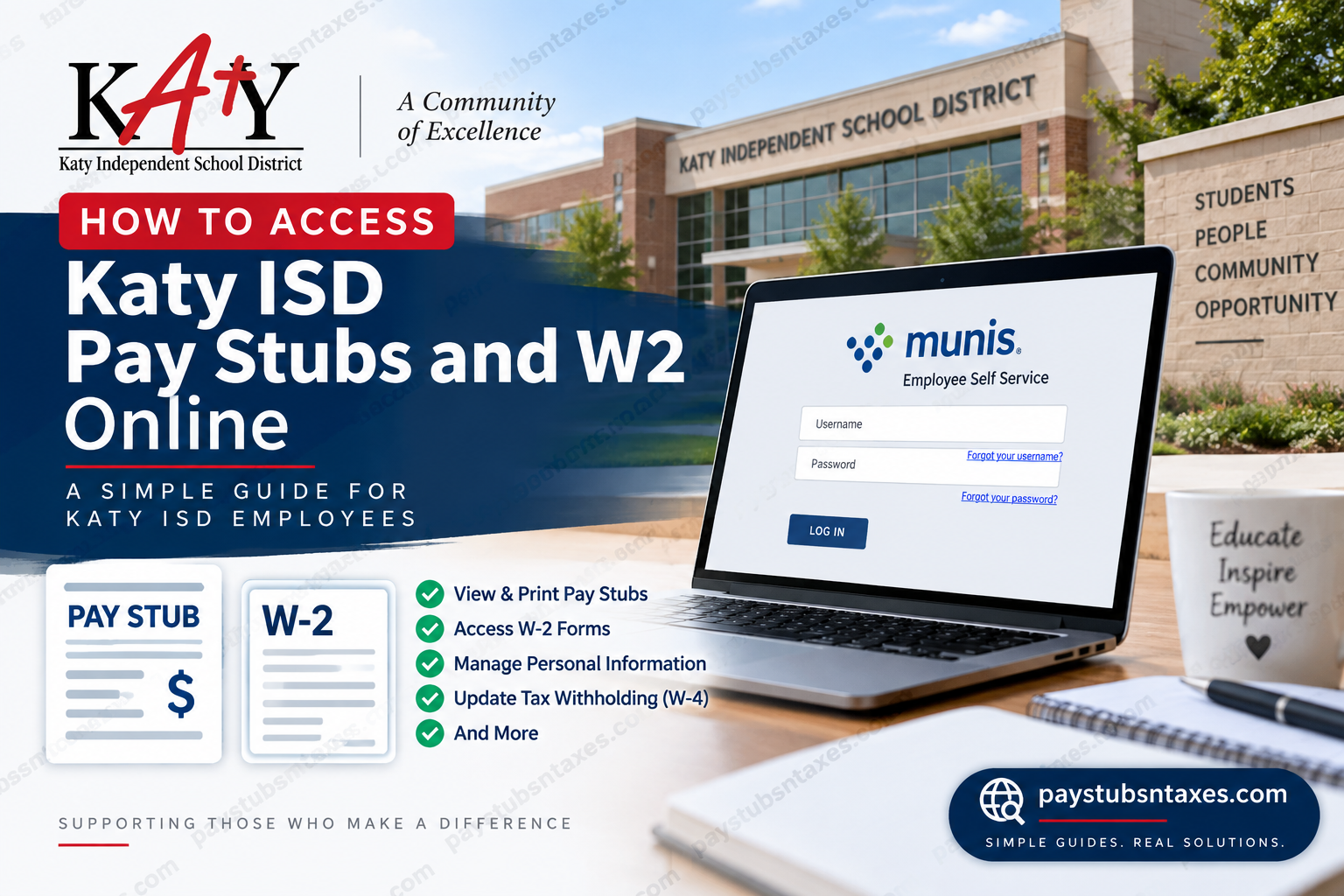
Katy Independent School District (Katy ISD or KISD) is a public school district based in Katy, Texas, serving communities across portions of Harris, Fort Bend, and Waller counties. The district covers approximately 181 square miles and provides educational services to a substantial student population across the greater Katy area. For Katy ISD employees, keeping track of payroll records need not involve hunting through old paperwork or waiting for another copy to arrive in the mail. The district provides access to Munis Employee Self Service (ESS), an online platform through which eligible employees can view and print pay stubs, paycheck details, W-2 tax forms, and other employment information.
Whether you need a recent pay stub for a mortgage application, an older paycheck for income verification, or a previous year’s W-2 to prepare an amended tax return, Munis ESS places these records at your fingertips.
Getting started with Katy ISD Employee Self Service
To access your payroll documents, open the Katy ISD Munis ESS login page. Have your username and password ready before signing in.
Your username follows this format:
First initial + full last name + last four digits of your Social Security number
For example, an employee named John Smith whose Social Security number ends in 6789 would use jsmith6789.
For an account using the default first-time login, the initial password is the last four digits of your Social Security number. You will be prompted to change it when you first sign in. If you have already completed this process, enter the password you created.
To log in:
- Open the Katy ISD ESS login page.
- Enter your username in the Username field.
- Enter your password in the Password field.
- Select LOG IN.
- Complete the password-change prompt if this is your first login.
If the district has issued you different account instructions, follow those credentials.
How to view and print Katy ISD pay stubs
Once you have signed in, you can locate an individual paycheck through the Pay/Tax Information menu.
- Select Pay/Tax Information on the left side of the screen.
- Review the check dates listed for the selected year.
- To retrieve an older pay stub, choose the relevant year from the drop-down menu.
- Find the paycheck you need and select Details.
- Review the breakdown of the selected payment.
- Select View paycheck image to open the paycheck image in a new window.
- Use the document viewer’s or browser’s print option to print your copy.
Before printing, double-check the year and check date, particularly if you are collecting several statements for an application. Selecting the correct records at the outset can save you from having to repeat the process later.
If you prefer a digital copy, choose Save as PDF in the print dialog when that option is available. Give the file a descriptive name that includes the check date so you can find it easily.
How to view and print Katy ISD W-2 forms
Your W-2 is available through the same payroll area, although it has its own menu option.
- Sign in to Katy ISD Munis ESS.
- Open Pay/Tax Information.
- Select W-2 from the menu on the left.
- Review the most recent W-2 data displayed.
- If you need an earlier form, select the appropriate year from the drop-down menu.
- Select View W-2 Image to open an image of the selected form in a new window.
- Print the form using the viewer’s or browser’s print controls, or select Save as PDF if available.
Check the year shown on the form before saving or printing it. Although the screen initially displays the most recent available W-2 data, that may not be the year you need.
How to retrieve records from previous years
You do not need to search through your current-year paycheck list to find an older document. Instead, use the year selector within the relevant section:
- Previous pay stubs: Open Pay/Tax Information, select the year, and choose Details beside the required check.
- Previous W-2 forms: Open W-2, select the year, and choose View W-2 Image.
The years and documents you can retrieve depend on the records available in your account. If a required year is missing, seek assistance rather than assuming the document can no longer be obtained.
What to do if you cannot log in
The Katy ISD ESS login screen includes Forgot your username? and Forgot your password? links beneath the corresponding fields.
If you cannot remember your credentials, select the appropriate link and follow the on-screen recovery instructions. Remember that the default password applies to the initial login; once you have changed it, you must use your updated password.
For assistance with an account you cannot reset, contact the Katy ISD Technology Department at 281-237-HELP (4357). You can also find the district’s ESS access information on its Payroll page.
What if a paycheck or W-2 image will not open?
Because document images open in a separate window, a browser’s pop-up blocker may prevent them from appearing. Allow pop-ups for the Katy ISD ESS website, then select the image link again.
The ESS portal also requires JavaScript and cookies. If it displays a browser-settings message, enable the requested settings for the site and reload the page.
Other information you may be able to manage in ESS
Munis ESS can also support employee information management, including contact details, emergency contacts, tax-withholding information, direct deposit details, and benefit enrollment. The options available to you depend on Katy ISD’s configuration and your account permissions.
Review the menus in your account before attempting an update. If a feature is unavailable or you are unsure how to submit a change, request the district’s current instructions.
Conclusion
Katy ISD employees and eligible former employees can use Munis Employee Self Service (ESS) to retrieve pay stubs and W-2 forms online without turning a routine request into a time-consuming administrative exercise.
For pay stubs, navigate to Pay/Tax Information, select the relevant year and paycheck, and click Details or View paycheck image. For tax documents, open W-2, choose the appropriate year, and select View W-2 Image.
If account recovery proves unsuccessful, contact the Katy ISD Technology Department at 281-237-HELP (4357). With the right credentials in hand, accessing, reviewing, and printing your Katy ISD payroll records should be only a few clicks away.
Frequently asked questions
1. Where can I access the Katy ISD employee payroll portal?
Access the Katy ISD payroll portal through the Munis ESS login page. After signing in, open Pay/Tax Information to find available paycheck records and W-2 forms.
2. What is my Katy ISD ESS username?
Your Katy ISD ESS username consists of your first initial, full last name, and the last four digits of your Social Security number. For example, John Smith, whose SSN ends in 6789, would use jsmith6789. Follow any different login instructions issued directly by the district.
3. What password should I use for my first ESS login?
For an account using the default first-time credentials, your initial password is the last four digits of your Social Security number. You will be prompted to change it upon signing in. If you have already changed your password, use your current password.
4. How do I view my Katy ISD pay stub online?
Sign in to Munis ESS and select Pay/Tax Information. Choose the relevant year, locate the check date, and click Details. The details screen displays a breakdown of the selected paycheck.
5. How do I print a Katy ISD pay stub?
Open Pay/Tax Information, select the paycheck’s Details link, and click View paycheck image. When the image opens in a new window, use the document viewer’s or browser’s print option to print your pay stub.
6. Can I save my Katy ISD pay stub as a PDF?
Yes, if your document viewer or browser supports it. Open the paycheck image and use the download option, if available, or select Print and choose Save as PDF. Check the payment date before saving the file.
7. How do I find pay stubs from a previous year?
In Pay/Tax Information, use the year drop-down menu to select the year you need. Find the relevant check date and click Details. You can retrieve older pay stubs only for the years and records available in your account.
8. Where can I find my Katy ISD W-2 online?
Your W-2 is located under Pay/Tax Information in Munis ESS. Select W-2 from the left-hand menu, choose the appropriate year, and click View W-2 Image to open the form.
9. How do I print or download my Katy ISD W-2?
Select View W-2 Image for the required year, then use the document viewer’s print or download controls. If no download option appears, choose Save as PDF from the browser’s print dialog when supported.
10. Can I access a previous year’s W-2 in ESS?
Yes, if the form is available in your account. Open the W-2 section, select the previous year from the drop-down menu, and click View W-2 Image. Confirm that the displayed form matches the year you requested.
11. What should I do if I forget my ESS username?
Click Forgot your username? beneath the Username field on the Katy ISD ESS login page. Follow the on-screen recovery instructions. If you still cannot recover your account, contact the district’s Technology Department for assistance.
12. How do I reset my Katy ISD ESS password?
Select Forgot your password? beneath the Password field and follow the recovery prompts. If you cannot reset your account, call the Katy ISD Technology Department at 281-237-HELP (4357).
13. Why will my pay stub or W-2 image not open?
A pop-up blocker may prevent the document from opening in a new window. Allow pop-ups for the Katy ISD ESS website and try again. If the portal displays a browser-settings message, ensure JavaScript and cookies are enabled for the site.
14. What should I do if a paycheck or W-2 is missing?
First, confirm that you have selected the correct year and document section. If the record remains unavailable, contact Katy ISD Payroll for guidance through the district’s Payroll page. For login or account-reset problems, contact Technology instead.
15. Who can help me with Katy ISD ESS account access?
The Katy ISD Technology Department provides assistance when you cannot reset your ESS account. Call 281-237-HELP (4357). The district’s Payroll page also provides the ESS access link and account-support information.
