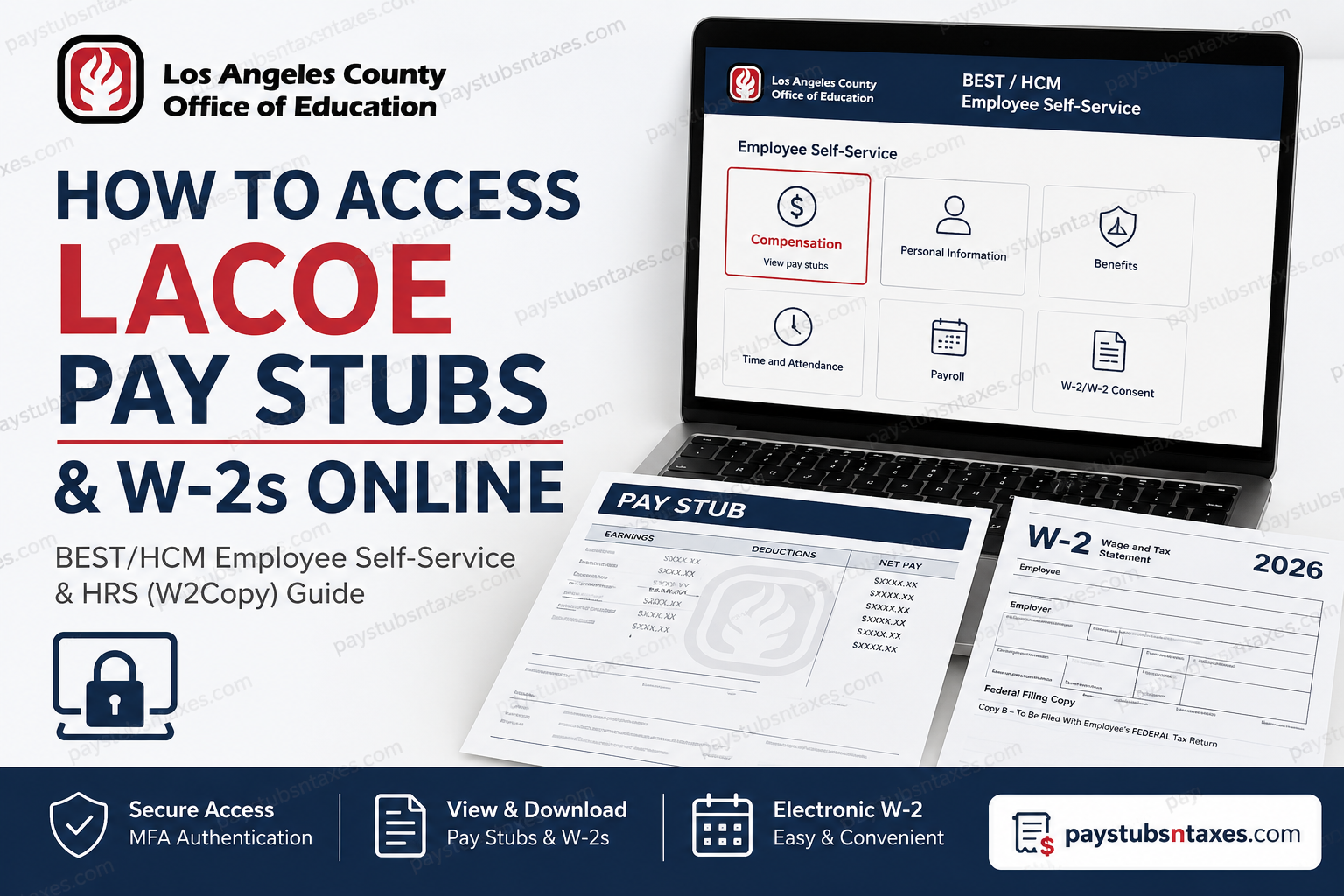
Employees whose payroll services are connected with the Los Angeles County Office of Education (LACOE) may access payroll records through different systems, depending on the school district, agency, or department for which they work. Broadly speaking, employees may encounter either the HRS system, which uses W2Copy for electronic tax documents, or the newer BEST/Human Capital Management (HCM) Employee Self-Service portal, through which eligible employees can view and download pay stubs and manage electronic W-2 access. Knowing which system your employer uses is therefore the first—and arguably most important—step. Attempting to log in through the wrong portal can send you around in circles, whereas identifying whether your district operates through HRS or BEST/HCM will put you on the right track from the outset.
About the Los Angeles County Office of Education
The Los Angeles County Office of Education, commonly known as LACOE, is the nation’s largest regional education agency. Headquartered in Downey, California, it serves as a vital bridge between the California Department of Education and Los Angeles County’s 80 school districts.
LACOE supports nearly two million children and young adults, including approximately 1.3 million students enrolled in elementary, middle, and high schools. Its wide-ranging services encompass financial administration, educator training, curriculum development, school improvement, early learning, specialized education, and leadership development.
The agency is led by the Los Angeles County Superintendent of Schools, who is appointed by the Los Angeles County Board of Supervisors. A seven-member County Board of Education, likewise appointed by the Board of Supervisors, supports LACOE’s governance and educational mission.
Which LACOE Payroll Portal Should You Use?
There is no single portal used uniformly by every school district. Access depends on the payroll and human-resources system adopted by your employer.
- Employees whose agencies use HRS generally obtain electronic W-2 forms through the W2Copy portal.
- Employees whose districts use Advantage HCM or BEST access pay stubs and W-2 information through Employee Self-Service, commonly abbreviated as ESS.
- If you are uncertain which system applies to you, contact your district’s payroll or human-resources department before attempting to register.
Using the wrong portal can lead you down a blind alley, particularly because an HRS W2Copy account and a BEST ESS account are separate services with different credentials.
How to Access Electronic W-2s Through the HRS W2Copy Portal
Employees of HRS-participating districts can register for paperless tax documents through W2Copy.
Step 1: Open the W2Copy website
Visit the official HRS W-2 portal: https://ew2online.w2copy.net/login
Select the employee login option. If you are registering for the first time, choose the new-user or registration option displayed on the page.
Step 2: Gather the required information
Before beginning registration, have the following details at your fingertips:
- Employee name
- Company or employer code
- Social Security number
- Name and address shown on your most recent tax document
Your employer or payroll department should be able to confirm the applicable company code.
Step 3: Create your account
Enter the requested personal information and establish a password. You will then be asked to verify your identity through a series of security questions.
Use an email address that you can access reliably. W2Copy will send a confirmation code or verification message to that address, and you must complete this step before proceeding.
Step 4: Complete identity verification
Follow the prompts to confirm your email address and answer the identity-verification questions. You may then need to create or enter a separate document-access password.
Take careful note of any password rules displayed during registration. The password used to open a W-2 PDF may differ from the password used to sign in to the portal. In some cases, the document password is based on identifying information such as your Social Security number, entered without dashes.
Step 5: Enroll in electronic delivery
Once registration is complete, select the paperless tax-document option and provide your consent to electronic delivery. Employees already enrolled in electronic W-2 delivery do not ordinarily need to register again.
For first-time enrollment for the 2026 tax year, the stated deadline is Thursday, December 31, 2026. Completing registration well before the eleventh hour is advisable, as delayed enrollment may result in a paper form being issued instead.
Step 6: Download your W-2
When your W-2 becomes available, sign in to the portal, locate the relevant tax year, and select the download or viewing option. Save the PDF in a secure location and avoid storing it on a shared or public computer.
If you encounter registration, verification, or document-access problems, contact W2Copy:
- Email: support@w2copy.com
- Telephone: (800) 669-9946
The district may not have access to files held within the W2Copy system, so account-specific or document-download problems should be directed to W2Copy support.
How to Access LACOE Pay Stubs Through BEST Employee Self-Service
Districts using LACOE’s BEST or Advantage HCM system provide employees with secure access to payroll information through the ESS portal.
Depending on your district or department, use one of the following addresses:
- https://bestportal.lacoe.edu
- https://staffportal.lacoe.edu
Because portal arrangements differ among agencies, follow the URL supplied by your employer whenever possible.
Step 1: Locate your BEST account email
New users should receive an email from: BESTAuthentication@lacoe.edu
The message generally contains a BEST username, a temporary password, and initial sign-in instructions. Your BEST username may resemble an email address but may not be the same as your regular district email address.
When copying the temporary password, do not include quotation marks that may appear around it in the message.
Step 2: Sign in to the production portal
Open your district’s designated BEST portal and select Log in to Production. Enter the BEST username supplied in your welcome email, select Next, and then enter the temporary password.
At the first login, the system may require you to change that password before granting full access.
Step 3: Configure multifactor authentication
LACOE requires multifactor authentication to help shield sensitive payroll and tax information from unauthorized access. When the “More information is required” message appears, select Next and choose an available authentication method.
Employees may be able to use:
- Microsoft Authenticator
- Duo Mobile
- A telephone text message or call, where offered
To configure Duo Mobile:
- Install and open the Duo Mobile application on your phone or tablet.
- Select Add or the plus symbol.
- Choose Use QR Code.
- Scan the QR code displayed on the BEST sign-in screen.
- Enter the verification code generated by Duo.
- Complete the remaining prompts and select Done.
If the system asks whether you want to remain signed in, choosing No is the safer course on shared or workplace devices.
Step 4: Open Employee Self-Service
After authentication, the BEST portal will open. Select the Employee Self-Service (ESS) tile to enter your employee account.
Step 5: Find your pay stubs
Inside ESS:
- Select the Compensation tab near the top of the page.
- Open the section for issued checks or check advices.
- Choose the relevant pay period.
- Select the Download icon to save the pay stub as a PDF.
Pay stubs may become visible shortly before the official payment date. Availability can vary by district, although some employers make them accessible approximately three days before payday.
How to Find W-2 Forms in BEST ESS
If your district provides W-2 forms through BEST ESS, sign in using the same secure process and look under the Compensation, payroll, or tax-document area.
The precise menu labels may vary as the system evolves or according to district configuration. If the W-2 section is not visible, contact your district payroll department to determine whether your tax document is issued through ESS, W2Copy, or another approved channel.
Physical W-2 Forms for the 2026 Tax Year
Employees who do not consent to electronic delivery should receive a paper W-2 by mail. Forms for the 2026 tax year should be mailed no later than January 31 of the following year.
W-2 forms are issued and mailed by LACOE rather than necessarily being produced by an individual district payroll office. Nevertheless, if your form has not arrived by February 1, contact your payroll department during the first week of February for assistance.
To prevent delays, make sure your employer has your current mailing address before year-end. An outdated address can throw a spanner in the works, particularly when tax deadlines are approaching.
Final Thoughts
Accessing LACOE pay stubs and W-2 forms online is relatively straightforward once you know which payroll system your district uses. HRS employees should begin with W2Copy, whereas BEST or Advantage HCM employees should enter the appropriate LACOE portal and open Employee Self-Service.
Register early, keep your multifactor-authentication method current, and download important records to a secure location. When in doubt, your local payroll department can identify the correct system, while W2Copy support can address technical issues involving HRS electronic tax documents.
Frequently Asked Questions About LACOE Pay Stubs and W-2s
1. How do I access my LACOE pay stub online?
Sign in to your district’s designated BEST or Advantage HCM portal, complete multifactor authentication, and open Employee Self-Service. Select Compensation, locate the issued checks or check-advices section, and click the download icon beside the relevant pay period.
2. What is the LACOE Employee Self-Service portal?
The LACOE Employee Self-Service portal, or ESS, is a secure online system through which participating school-district employees can view payroll information, download pay stubs, and access certain employment or tax records.
3. What is the official LACOE BEST portal address?
Many participating districts use https://bestportal.lacoe.edu. Some employees may instead be directed to https://staffportal.lacoe.edu or another district-specific page. Follow the link supplied by your employer whenever possible.
4. Where can I find my LACOE W-2 online?
Your W-2 may be available through W2Copy or BEST ESS, depending on the system adopted by your district. HRS employees generally use https://ew2online.w2copy.net/login, while BEST or Advantage HCM employees should check the tax-document or compensation area within ESS.
5. How can I determine whether my district uses HRS or BEST HCM?
Contact your district payroll or human-resources department. Receiving a BEST credentials email from BESTAuthentication@lacoe.edu usually indicates that your employer uses the BEST Employee Self-Service system.
6. What login credentials should I use for BEST ESS?
Use the BEST username and temporary password sent to you by LACOE. These credentials may differ from your regular district Microsoft, Windows, or Google account. Your BEST username may look like an email address without being your normal workplace email address.
7. What should I do if I never received my BEST login email?
Check your inbox and spam folder for a message from BESTAuthentication@lacoe.edu. If you cannot find it, contact your district payroll, human resources, or ESS support team and ask whether your BEST credentials have been issued.
8. Why does LACOE require multifactor authentication?
Multifactor authentication adds another layer of protection to sensitive payroll, tax, and identity information. In addition to entering a password, employees must verify their identity through Duo Mobile, Microsoft Authenticator, a telephone call, or a text message, depending on the options provided.
9. How do I configure Duo Mobile for LACOE ESS?
Open Duo Mobile, select the option to add an account, and choose Use QR Code. Scan the QR code displayed during BEST registration, enter the verification code generated by Duo, and complete the remaining on-screen prompts.
10. When will my pay stub appear in Employee Self-Service?
Availability varies among districts. In some participating districts, pay stubs become visible approximately three days before the official payment date. Contact your payroll department if a record does not appear when expected.
11. How do I download a LACOE pay stub as a PDF?
Open ESS, select Compensation, and navigate to the issued checks or check-advices section. Find the required pay period and select its Download icon. The pay stub should then open or download as a PDF file.
12. Do I need to register again for electronic W-2 delivery?
Employees who are already registered for electronic W-2 delivery generally do not need to enroll again. First-time users must create an account, verify their identity, and provide consent for paperless delivery before the applicable enrollment deadline.
13. When will physical W-2 forms for the 2026 tax year be mailed?
Employees who did not opt for electronic delivery should have their 2026 W-2 mailed no later than January 31, 2027. If it has not arrived by February 1, contact your payroll department during the first week of February for assistance.
14. Who should I contact if W2Copy is not working?
For registration, verification, or document-access problems involving W2Copy, email support@w2copy.com or call (800) 669-9946. A district payroll department may be unable to access files maintained by W2Copy.
15. Can I change my W-4 or direct-deposit information through LACOE ESS?
That depends on your employer’s configuration. Some districts use ESS primarily to display pay stubs and W-2 forms, while requiring W-4 and direct-deposit changes to be submitted directly to payroll. Confirm the correct procedure with your district payroll department.
