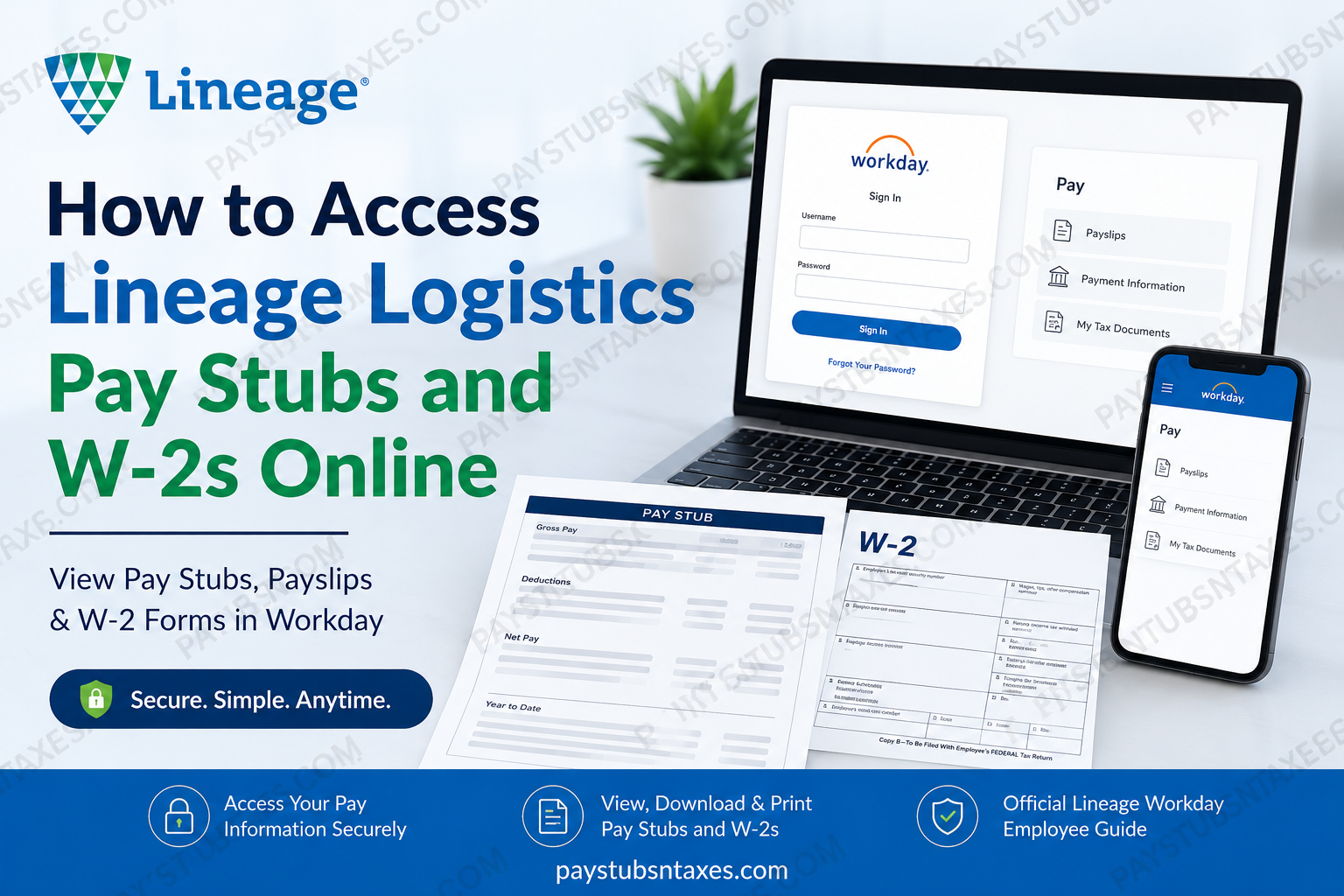
Lineage, Inc., formerly known as Lineage Logistics, uses Workday as its Human Capital Management platform. From payroll and benefits to time tracking and talent management, Workday brings essential employment information under one roof. For team members, this means pay stubs, year-end tax statements, payment details, and other payroll records can be accessed securely online. Whether you need to verify your earnings, review payroll deductions, download a payslip, or retrieve a W-2 for tax filing, the following guide explains how to access your Lineage Logistics payroll documents through the Workday website and mobile app.
What You Need Before Signing In
Before attempting to access your payroll information, make sure you have:
- Your Lineage Workday username, which may be your employee ID
- Your Workday or company-issued password
- Access to the email address registered in Workday
- A smartphone with Okta Verify installed for multifactor authentication
- The Lineage Workday organization ID: onelineage
Because payroll and tax documents contain sensitive personal information, avoid signing in on a public computer or through an unsecured Wi-Fi network.
How to Access the Lineage Workday Portal
On a trusted computer or mobile browser, visit the official Lineage Workday login page:
https://www.myworkday.com/wday/authgwy/onelineage/login.htmld
Enter your Lineage Workday username and password, select Sign In, and complete the requested multifactor authentication step.
Team members who already have access to a Lineage Okta dashboard may also be able to select the Workday tile from that dashboard.
Always use a trusted bookmark or an official company resource when returning to the portal. Payroll-related phishing attempts are not uncommon, so carefully inspect the web address before entering your credentials.
How to Set Up Okta Verify for Workday
Lineage recommends Okta Verify as the supported multifactor authentication application. Although other authenticator apps may sometimes work, using Okta Verify generally makes troubleshooting more straightforward if assistance is required.
1. Install Okta Verify
Open the Apple App Store or Google Play Store, search for Okta Verify, and install the official application.
2. Begin adding your Workday account
If you are opening Okta Verify for the first time, select Other as the account type when prompted.
If Okta Verify is already installed and contains another account, open the app and select the plus (+) icon to add Workday.
3. Sign in to Workday from a web browser
Visit the Lineage Workday portal and enter your username and password. When Workday asks you to configure multifactor authentication, select Set Up Now.
4. Scan the QR code
Workday will display a QR code on the screen. Open Okta Verify on your phone and use it to scan that code. This links your Workday account to the authenticator.
If the browser and Okta Verify are on the same phone, it may be easier to complete this stage on a computer so that your phone can scan the displayed code.
5. Enter the security code
Open Okta Verify, locate the Workday account, and enter the security code shown in the app into the corresponding field in Workday.
Once the code has been accepted, Workday should confirm that the authenticator was configured successfully. Future sign-ins may require a fresh Okta Verify code in addition to your username and password.
If you replace your phone or need to reconfigure Okta Verify, use the applicable MFA-reset option in Workday or contact the Lineage Service Desk. Never approve an authentication request that you did not initiate.
How to Download the Workday Mobile App
The Workday mobile application provides convenient access to payroll information when you are away from a computer.
- Open the Apple App Store or Google Play Store.
- Search for the official Workday application.
- Select Get or Install.
- Open the app and tap the blue Log In button.
- Enter the organization ID onelineage.
- Select the blue arrow to continue.
- Enter your Lineage sign-in credentials.
- Complete the requested Okta Verify or other approved MFA challenge.
- Select Finish, if prompted, to reach the Workday mobile home screen.
The exact wording and placement of buttons may vary slightly after an application update, but the overall path should remain broadly similar.
How to View Lineage Logistics Pay Stubs in Workday
Your Workday payslip provides considerably more than a bottom-line payment amount. Depending on your payroll configuration and location, it may show gross earnings, taxes, pre-tax deductions, post-tax deductions, net pay, year-to-date totals, and payment information.
Using the Workday website
- Sign in to the Lineage Workday portal.
- From the home page, select View All Apps or open the main menu.
- Select the Pay application.
- Choose Payslips or the equivalent payslip option.
- Locate the relevant pay period.
- Select View to open the payslip or Print to produce a printable version.
Available payroll records may include:
- Pay-period beginning and ending dates
- Check or payment date
- Gross pay
- Pre-tax deductions
- Employee taxes
- Post-tax deductions
- Net or take-home pay
- Current and year-to-date totals
- Taxable wages
- Withholding details
- Direct-deposit information
Review the pay period and payment date carefully before downloading a statement, particularly when several records appear close together.
Using the Workday mobile app
- Open Workday and sign in.
- Select the Pay application. If it is not immediately visible, tap View All.
- Review the payroll overview, which may display your take-home pay, gross pay, next payday, and year-to-date take-home pay.
- Select View Pay Details to examine taxes and deductions.
- Select Payment Information to review available direct-deposit details.
- Open the relevant payslip.
- Select Get PDF to create a PDF copy.
- Select Open PDF to view the document.
Once the PDF opens, use your device’s available sharing or printing controls to save or print it securely. If the document is downloaded to a shared device, remove the local copy after you have finished using it.
How to Access Your Lineage W-2 in Workday
Workday houses available year-end tax documents, including Form W-2 and, where applicable, Form W-2C.
Using the Workday website
- Sign in to Workday.
- Open the Pay application.
- Find the View section.
- If the full list is not visible, select More.
- Choose My Tax Documents.
- Locate the appropriate tax year and document.
- Select View/Print.
- Open, download, or print the generated document.
Using the Workday mobile app
- Sign in to the Workday app.
- Select Pay. If necessary, choose View All to locate it.
- Under View, select My Tax Documents.
- Find the required W-2.
- Select View/Print.
If both a W-2 and a W-2C are available for the same year, retain all applicable forms. A W-2C is issued when information on the original W-2 requires correction, so the documents may need to be used together when preparing or amending a tax return.
After downloading a tax form, confirm that you selected the correct year and that your name and other identifying information are accurate. Store the file in a secure, password-protected location rather than leaving it in an ordinary downloads folder.
How to Reset Your Lineage Workday Password
If you cannot remember your password, use the Forgot Your Password? link on the Lineage Workday sign-in page.
- Open the Workday login screen.
- Select Forgot Your Password?
- Enter your username or employee ID.
- Enter a work or personal email address already stored in Workday.
- Select Submit.
- Check your inbox for the password-reset message.
- Open the reset link and enter your new password twice.
- Submit the change and return to the login page.
Your new password must:
- Contain at least 10 characters
- Include uppercase and lowercase letters
- Include at least one numeral
- Include at least one permitted special character
- Differ from your username and current password
- Not match any of your previous 10 passwords
The reset email may take several minutes to arrive. Check your spam or junk folder before requesting another message. For security, never send your password or an Okta verification code by email.
If no work or personal email address is registered in Workday, self-service password recovery may not be available. In that event, contact the Lineage Service Desk.
Final Thoughts
Workday gives Lineage team members a secure, centralized route to their payroll and tax information. Once your account and Okta Verify are configured, retrieving a pay stub or W-2 should be a matter of minutes: sign in, open Pay, select the appropriate document, and download or print it as required. Before closing Workday, verify that you have chosen the correct pay period or tax year, saved the document securely, and signed out—particularly when the device is shared. A little vigilance goes a long way when safeguarding financial and personal information.
Frequently Asked Questions About Lineage Pay Stubs and W-2s
1. How do I access my Lineage Logistics pay stubs online?
Sign in to the Lineage Workday portal, complete multifactor authentication, and open the Pay application. Select Payslips, locate the required pay period, and choose View, Print, or the available PDF option.
2. What is the Lineage Workday login website?
The Lineage Workday login page is:
https://www.myworkday.com/wday/authgwy/onelineage/login.htmld
Use a trusted device and confirm that the address is correct before entering your credentials.
3. What is the Lineage organization ID for the Workday app?
The Lineage Workday organization ID is onelineage. Enter it as one word, without spaces or quotation marks, when setting up the Workday mobile app.
4. How do I download a Lineage pay stub as a PDF?
Open the Pay application in Workday and select the relevant payslip. On the mobile app, choose Get PDF, followed by Open PDF. You can then save or print the file using your device’s secure document controls.
5. How do I find my Lineage W-2 in Workday?
After signing in, open Pay and select My Tax Documents. If this option is not visible, select More under the View section. Locate the appropriate tax year and choose View/Print.
6. Can I access my Lineage W-2 from the Workday mobile app?
Yes. Sign in to the Workday app, open Pay, select My Tax Documents, and choose View/Print beside the relevant W-2. Menu names or positions may vary slightly depending on the app version.
7. Why is my Lineage W-2 not showing in Workday?
The W-2 may not yet have been issued, the wrong tax year may be selected, or your account may not have access to that record. Confirm the tax year, check again after year-end payroll processing, and contact the Lineage Service Desk if the form remains unavailable.
8. What is a W-2C in Lineage Workday?
A W-2C is a corrected wage and tax statement issued when information on an original W-2 needs to be amended. If Workday displays both forms, download and retain the original W-2 and every applicable W-2C.
9. How do I reset my Lineage Workday password?
Select Forgot Your Password? on the Workday login page. Enter your username or employee ID and an email address registered in Workday. Open the reset link sent by email, create a compliant password, and submit the change.
10. What are the Lineage Workday password requirements?
A new Workday password must contain at least 10 characters, including uppercase and lowercase letters, a number, and an accepted special character. It cannot match your username, current password, or any of your previous 10 passwords.
11. Why did I not receive my Workday password-reset email?
The email address entered may not match the address stored in Workday, or the message may have gone to your spam folder. Allow several minutes for delivery. If it still does not arrive, contact the Lineage Service Desk.
12. How do I set up Okta Verify for Lineage Workday?
Install Okta Verify, sign in to Workday through a web browser, and select Set Up Now when prompted. Add an account in Okta Verify, scan the QR code displayed by Workday, and enter the generated security code to complete enrollment.
13. What should I do if I get a new phone and Okta Verify stops working?
Your Workday account may need to be enrolled in Okta Verify again. Use the available MFA-reset option in Workday or ask the Lineage Service Desk to help reset your authentication enrollment. Never approve a request you did not initiate.
14. What information appears on a Lineage Workday payslip?
A payslip may show gross pay, employee taxes, pre-tax and post-tax deductions, net or take-home pay, taxable wages, payment dates, year-to-date totals, withholding information, and direct-deposit details.
15. How do I contact the Lineage Service Desk for Workday help?
Employees in the United States can email servicedesk@onelineage.com or call (877) 531-9883. Describe the error without sharing your password, Okta security code, Social Security number, or complete banking information.
