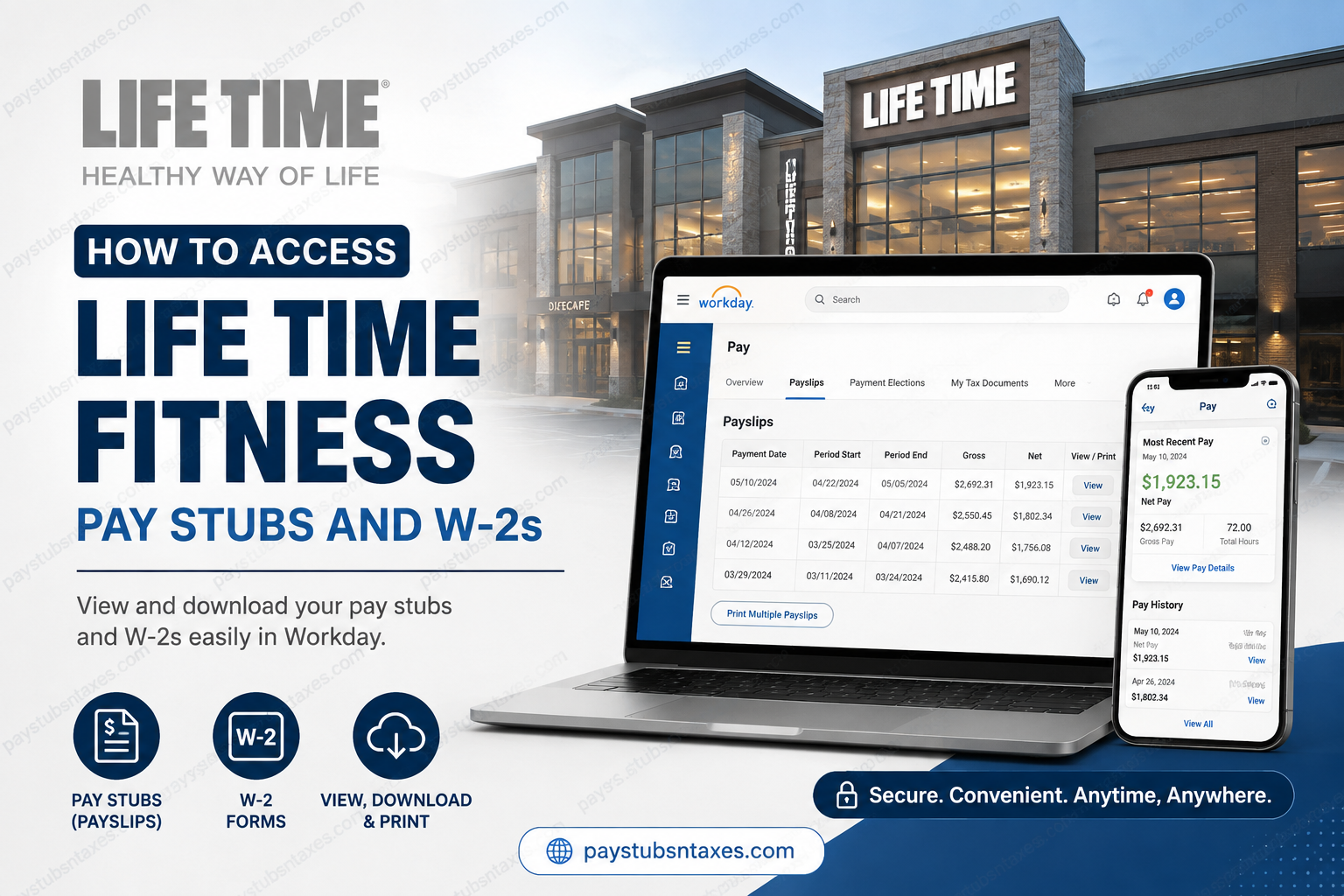
Life Time, Inc., formerly known as Life Time Fitness, Inc., is a prominent health and wellness company operating athletic clubs across the United States and Canada. Rather than viewing wellness through the narrow lens of conventional fitness, Life Time has built a broader ecosystem around healthy living, bringing together athletic resorts, fitness programs, recreation, workspaces, and other lifestyle-oriented services. Behind the scenes, employees need equally convenient access to the administrative side of their employment. For U.S. team members, Workday serves as an important HR and payroll platform, providing access to payroll information, payslips, tax documents, benefits, and other employment-related records. If you are looking for a Life Time Fitness pay stub or W-2, you can generally retrieve the document electronically by signing in to Life Time’s Workday Employee Portal. This guide walks you through the process on both a computer and the Workday mobile app, explains how to locate W-2 forms, and provides troubleshooting information if you cannot sign in.
Life Time Workday Employee Portal
Life Time employees can access Workday through the following employee portal:
Workday employee portal:
https://wd1.myworkday.com/lifetime/login.htmld
Open the portal and follow the Life Time sign-in process. Depending on how your account is configured, you may be directed through the company’s single sign-on system or asked to enter your employee username and password.
For security reasons, avoid searching indiscriminately for the login page and entering your credentials on an unfamiliar website. Whenever possible, use the Workday link supplied by Life Time or a trusted company resource.
How to Access Lifetime Pay Stubs on a Computer
After signing in to Life Time Workday, complete the following steps:
- Select your profile icon in the upper-right corner of the Workday page.
- Choose View Profile.
- If Pay is not immediately visible, select More to reveal additional options.
- Select Pay.
- Open Payslips.
- Scroll down to review the available payroll records. Depending on your screen size, you may also need to scroll horizontally.
- Locate the pay period you wish to review.
- Select View to open the full payslip or Print to generate a printable version.
Some Workday layouts also provide a Pay application directly on the home page. If it is available, you may open Pay and then select Payslips, thereby taking a useful shortcut to the same destination.
The payslip list may display the payment date, pay-period dates, company, gross amount, net amount, and options for viewing or printing each document. Opening the detailed version ordinarily reveals the underlying breakdown of earnings, taxes, benefits, and deductions.
If your Workday account provides a Print Multiple Payslips option, you can use it to generate several statements in one fell swoop rather than downloading each document separately.
How to View and Download Lifetime Payslips on the Workday Mobile App
The Workday mobile app provides a convenient alternative when a computer is not readily available.
During the app’s initial setup, enter the LifeTime organisation code:
Organisation code: lifetime
Then follow these steps:
- Sign in to the Workday mobile app.
- On the landing page, select the Pay application.
- If Pay is not visible, select View All and locate it among the available applications.
- Find Pay History.
- Select the payslip you want to review.
- On the Pay Details screen, examine the payment information.
- To download a copy, select Get PDF.
- Wait while Workday generates the document.
- When it is ready, select Open PDF.
- Use your device’s Share, Upload, or Save control to store the file in your preferred location.
The final saving process may look slightly different on an iPhone, iPad, or Android device. If the document does not appear immediately, allow Workday a little time to finish generating the PDF before trying again.
How to Get a Life Time W-2 from Workday
Life Time employees in the United States can use Workday to retrieve available year-end tax statements, including Form W-2. To find your tax documents:
- Sign in to Life Time Workday.
- Open the Menu or locate the Pay application on the main dashboard.
- Select Pay.
- Find the View section.
- If the full list is not displayed, select More.
- Choose My Tax Documents.
- Locate the W-2 for the required tax year.
- Select View/Print.
- Wait for Workday to generate the document.
- Open, download, or print the completed W-2.
Generating a tax document may take several minutes. Repeatedly selecting the button can create unnecessary confusion, so give the system a reasonable opportunity to complete the request.
If a corrected tax form is available, it may appear as a W-2C. Download the original W-2 and every applicable corrected form bearing a View/Print option, as the correction does not necessarily stand alone.
When Does Life Time Mail W-2 Forms?
Life Time generally sends paper W-2 forms to the mailing address recorded for an employee by January 31 of the following year, unless the employee has consented to electronic-only delivery or another applicable arrangement is in place.
Because a tax form sent to an outdated address may be delayed or returned, employees should keep their personal and mailing information current in Workday. If you have elected paperless delivery, retrieve the electronic W-2 through Pay > My Tax Documents instead of waiting for a mailed copy.
What to Do If a Payslip or W-2 Is Missing
A document may not appear because it has not yet been processed, the wrong section is open, the selected tax year is incorrect, or access to the employee account has changed.
Before seeking assistance:
- Confirm that you are using the Life Time Workday portal.
- Check Pay > Payslips for payroll statements.
- Check Pay > My Tax Documents for W-2 and W-2C forms.
- Select More if the required menu option is hidden.
- Verify the payment date or tax year.
- Allow sufficient time for a requested PDF to generate.
- Sign out, close the browser or app, and sign in again.
- Try a supported browser or the latest version of the Workday mobile app.
Workday menus can vary slightly according to device, software version, location, and employee permissions. If a label differs, look for the closest equivalent under Pay, Payslips, Pay History, or My Tax Documents.
Life Time Workday Login Assistance
Employees who need help with their Life Time username or password can contact IT Support:
Life Time IT Support: 1-888-848-7070
Never disclose your password, authentication code, Social Security number, or complete tax document to an unverified caller or email sender. Legitimate support personnel may help you restore access, but you should not be asked to reveal your existing password.
Final Takeaway
Accessing Life Time Fitness pay stubs and W-2 forms is relatively straightforward once you know where Workday keeps them. For payroll statements, navigate to Pay > Payslips; for year-end tax forms, use Pay > My Tax Documents. Employees using the Workday mobile app can enter the organisation code lifetime, select Pay, and download individual payslips as PDF files. Above all, treat every payroll or tax document with care. Once you have downloaded or printed the information you need, sign out of Workday and store the document securely.
Frequently Asked Questions About Life Time Pay Stubs and W-2s
1. How do I access my Life Time pay stub?
Sign in to Life Time Workday and navigate to Pay > Payslips. Find the appropriate payment date, then select View to examine the statement or Print to obtain a printable copy.
2. What is the Life Time Workday employee portal?
The Life Time Workday employee portal is: https://wd1.myworkday.com/lifetime/login.htmld
Use the sign-in method associated with your Life Time employee account.
3. What is the Life Time organisation code for the Workday app?
The Life Time organisation code is lifetime. Enter it when setting up the Workday mobile app and follow the prompts to connect to the company’s Workday environment.
4. Where can I find my Life Time W-2 in Workday?
Open Pay, locate the View section, and select My Tax Documents. Choose the W-2 for the required tax year and select View/Print.
5. Can I access Life Time pay stubs from home?
Yes. Eligible employees can ordinarily access available payroll documents from home through the Life Time Workday portal using an internet-connected computer and the required employee credentials.
6. Can I download a Life Time pay stub on my phone?
Yes. In the Workday mobile app, select Pay, open a payslip from Pay History, and choose Get PDF. When the file is ready, select Open PDF and save it to a secure location.
7. Are pay stubs called something different in Workday?
Yes. Workday generally calls pay stubs payslips. A payslip contains payroll information such as gross earnings, deductions, taxes, benefits, and net pay.
8. What information appears on a Life Time payslip?
A Life Time payslip may display the payment date, pay-period dates, gross earnings, net pay, taxes, benefit deductions, retirement contributions, and other payroll adjustments.
9. How can I print several Life Time payslips at once?
If the option is enabled in your Workday account, open Payslips and select Print Multiple Payslips. Choose the statements you require and follow the instructions to generate them.
10. Why is my Life Time W-2 not showing in Workday?
The form may not have been issued yet, the wrong tax year may be selected, or the option may be hidden under More. Check Pay > My Tax Documents again and contact the appropriate Life Time support channel if the form remains unavailable.
11. How long does a Workday W-2 take to generate?
A Workday W-2 may take several minutes to generate. After selecting View/Print, wait for the system to complete the request instead of repeatedly pressing the button.
12. Does Life Time mail paper W-2 forms?
Life Time generally mails paper W-2 forms to the employee’s recorded mailing address unless the employee has consented to electronic-only delivery or another delivery arrangement applies. Employees should keep their addresses current in Workday.
13. What is a W-2C in Workday?
A W-2C is a corrected wage and tax statement issued when information on an original W-2 requires amendment. Retain the original W-2 together with every applicable corrected form.
14. Who should I call if I cannot log in to Life Time Workday?
Employees who need assistance with their Life Time username or password can call Life Time IT Support at 1-888-848-7070.
15. How should I protect a downloaded payslip or W-2?
Save the document to a secure device or protected folder, avoid public Wi-Fi and shared computers, collect printed copies promptly, and sign out of Workday when finished. Never send an unprotected W-2 through an insecure channel.
