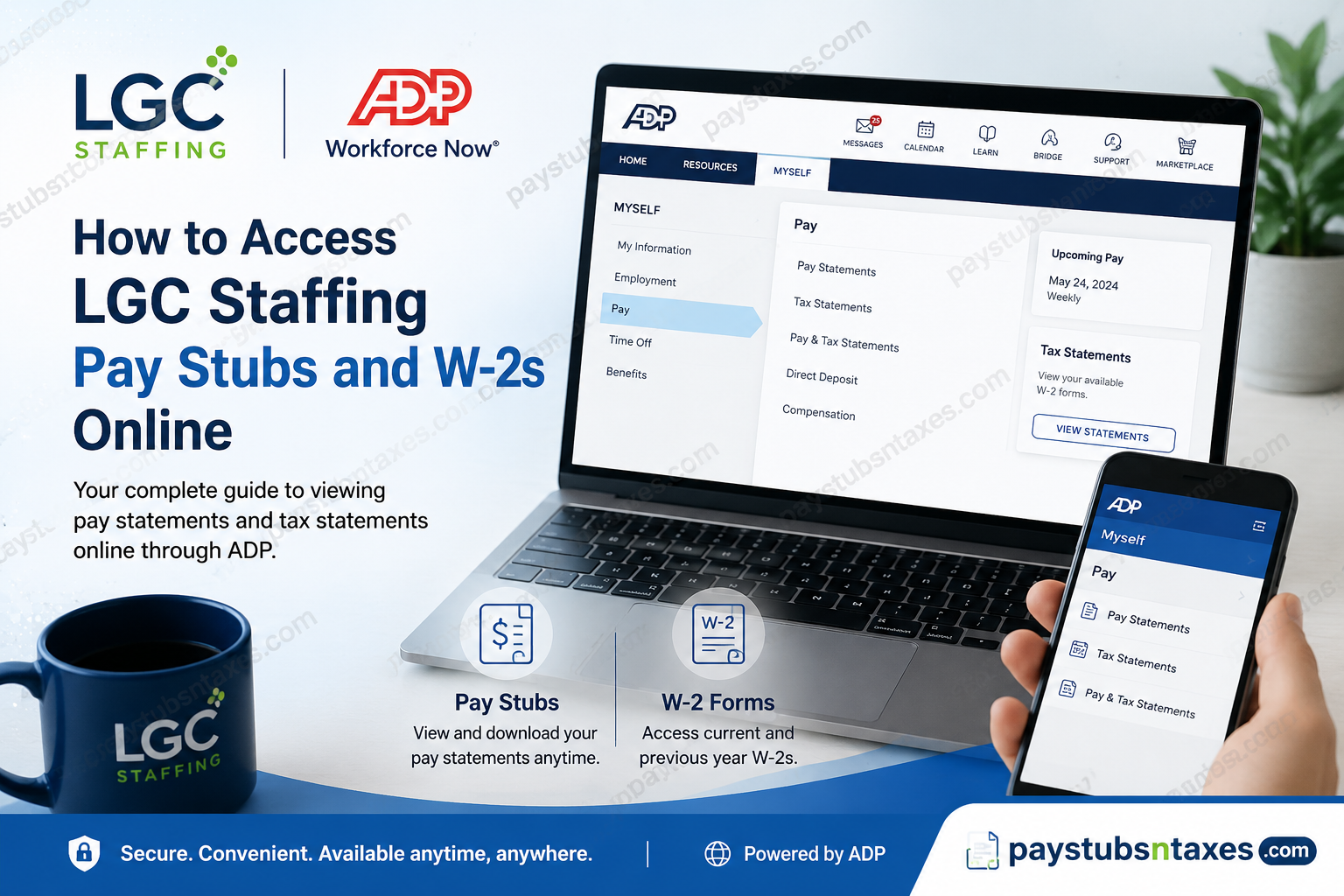
LGC Staffing associates can access their pay stubs and W-2 forms securely through ADP, either from an internet-connected computer or through the ADP Mobile Solutions app. This convenient digital system places essential payroll and tax documents at your fingertips, allowing you to view, download, or print them whenever the need arises. Whether you are registering for the first time, retrieving an earlier W-2, or simply checking your latest earnings statement, this guide explains how to access your LGC Staffing payroll records online.
About LGC Staffing
Since 2003, LGC Staffing has connected businesses in need of dependable talent with job seekers pursuing meaningful employment opportunities. Through temporary placements, permanent recruitment, and flexible staffing arrangements that fall somewhere in between, LGC supports clients and candidates across a broad range of industries.
With offices located nationwide, LGC draws upon a dynamic pool of talented professionals while maintaining strong ties to the communities it serves. Its team is built by individuals from diverse backgrounds who share a passion for cultivating long-lasting relationships between clients and candidates.
At the heart of LGC’s work lies a commitment to inclusion, professional connection, economic empowerment, and mutual respect. By helping businesses and job seekers achieve their employment goals, LGC continues to change the staffing industry—one placement at a time.
Where Can LGC Staffing Employees Access Pay Stubs and W-2s?
LGC Staffing uses ADP to provide associates with electronic access to payroll and tax documents. You can sign in through the official MyADP portal:
ADP website: https://my.adp.com
You may also download the ADP Mobile Solutions app from the Apple App Store or Google Play Store. Once you have registered, the same ADP credentials can generally be used on both the website and mobile application.
For security, access ADP only through its official website or mobile app, and avoid signing in on an unfamiliar or publicly shared device. Payroll records contain highly sensitive personal and financial information, so it is wise to err on the side of caution.
How to Register for ADP as a New LGC Staffing Employee
New LGC Staffing associates ordinarily receive an invitation to join ADP during the onboarding process. The invitation may arrive by email or text message, depending on the contact information supplied to LGC.
If you received the invitation, open it and follow the instructions to verify your identity and create your account.
If the invitation has slipped through the cracks, do not worry. You may still be able to locate your employment record by using ADP’s Find Me option, or you can request a personal registration code from your local LGC office.
First-Time ADP Registration Steps
- Visit https://my.adp.com.
- Select the “New User? Get Started” option.
- Choose the registration method available to you:
- Use Find Me to locate your employment record; or
- Enter the personal registration code supplied by your local LGC office.
- Provide the requested identifying information.
- Make sure your name and other personal details match the information held in LGC’s payroll system.
- Complete the identity-verification process. ADP may send a verification code to your registered email address or mobile number.
- Enter the verification code when prompted.
- Create a secure password and complete any additional security requirements.
- Save your assigned ADP user ID in a secure place.
- Sign in to confirm that your account is working properly.
If ADP cannot find your record, avoid repeatedly creating new accounts. Instead, contact your local LGC office and ask the team to confirm the name, email address, mobile number, and other identifying details associated with your payroll profile.
How to Access LGC Staffing Pay Stubs Online
After signing in to MyADP, follow this navigation path:
Myself > Pay > Pay Statements
Your available pay statements should be listed by pay date. Select the statement you wish to review, and then choose the option to view it.
Depending on your device and the version of ADP being used, you may also be able to download or print the statement. The wording and arrangement of the menu may vary slightly, but your earnings records will ordinarily appear within the Pay section.
An LGC Staffing pay stub may include:
- Gross earnings for the pay period
- Taxes and other deductions
- Net pay
- Hours worked, where applicable
- Year-to-date earnings and deductions
- Direct-deposit information
- Employer and employee details
Review each pay statement promptly. If something appears to be amiss—such as incorrect hours, an unfamiliar deduction, or missing earnings—contact your local LGC office as soon as possible.
How to Access an LGC Staffing W-2 Online
To find your electronic W-2, sign in to ADP and follow this navigation path:
Myself > Pay > Tax Statements
Select the relevant tax year, open the available W-2, and choose the appropriate option to view, download, or print it.
If ADP displays a View All Statements option, you may be able to use it to retrieve W-2 forms from previous tax years as well. This feature can be particularly helpful when preparing an amended tax return, verifying past income, or supplying earnings documentation to a lender or government agency.
Before printing, check that the correct tax year has been selected. It is an easy detail to overlook, especially when several years of tax statements appear in the same account.
Does LGC Staffing Mail W-2 Forms?
LGC Staffing has moved to a predominantly digital W-2 process and no longer routinely sends forms by postal mail to employees’ home addresses. Associates are therefore expected to retrieve their W-2s through ADP unless a physical copy is genuinely required.
If you absolutely need a paper copy or cannot obtain the electronic form, contact your local LGC office for guidance. Keep your mailing address and contact information current, particularly if you have moved since your last assignment.
Can Former LGC Staffing Employees Access Their W-2s?
In many cases, former employees can continue using ADP to retrieve tax statements issued during their employment. Try signing in with the ADP user ID and password you previously used.
If you registered in an earlier year, you generally should not create another account merely because a new W-2 has been issued. Your existing credentials should remain your first port of call.
If you cannot access your former account, use ADP’s account-recovery options or contact the LGC office through which you worked.
What Should You Do If You Forget Your ADP User ID?
From the MyADP sign-in page, select Forgot User ID and follow the prompts. You may be asked to provide:
- Your first and last name
- Your registered email address or mobile number
- Additional identity-verification information
- A verification code sent by email or text message
Once ADP confirms your identity, it should display or send your user ID. Store it securely, as you will need it whenever you sign in.
What Should You Do If You Forget Your ADP Password?
Select Forgot Password on the ADP sign-in page and complete the verification process. ADP will usually send a security code to the email address or mobile number associated with your account.
Enter the code, create a new password, and then sign in again. Choose a strong, unique password rather than reusing one from another account.
If you no longer have access to the email address or telephone number on file, contact your local LGC office. The office may need to verify or update your information before you can regain access.
What If ADP Cannot Find Your LGC Employment Record?
Several factors may prevent ADP from matching you with the correct payroll record. For example, your name may have been entered differently, your contact information may have changed, or the system may still contain details from an earlier stage of your employment.
Try the following:
- Confirm that your legal name is entered exactly as it appears in LGC’s payroll records.
- Check the spelling of your email address and telephone number.
- Use the Your Information option if the email address or mobile number originally associated with your employment is no longer available.
- Ask your local LGC office whether a personal registration code is required.
- Avoid opening several ADP accounts, as duplicate profiles can muddy the waters.
Your local office is best placed to confirm the information attached to your employment record and help you get back on track.
How to Download or Print an LGC Pay Stub or W-2
Once the document is open, look for a download, save, or print icon. On a computer, ADP may open the document as a PDF, which can then be saved or printed using your browser’s controls. On a mobile device, you may need to use the app’s sharing or download options.
When saving a copy:
- Use a clear filename that includes the document type and year.
- Store it in a secure, password-protected location.
- Do not save payroll documents on a public or shared computer.
- Remove downloaded copies from public devices immediately.
- Avoid sending unencrypted payroll documents through unsecured messaging services.
Who Should LGC Staffing Employees Contact for Help?
If you have questions about an LGC Staffing W-2, pay stub, payroll entry, or ADP access problem, contact your local LGC office first.
The local team can help determine whether your contact information is correct, whether your ADP invitation was issued, and whether you need a personal registration code. They can also direct payroll-related questions to the appropriate department when necessary.
When requesting assistance, be prepared to provide enough information for the office to identify your employment record. However, never send your complete Social Security number, ADP password, or one-time verification code through an unsecured email or text message.
Access Your LGC Payroll Records with Confidence
ADP gives LGC Staffing associates a secure and convenient way to manage pay stubs and W-2 forms without waiting for paperwork to arrive in the mail. Once your account is established, the process is straightforward: sign in, open the Pay section, and select either Pay Statements or Tax Statements. Keep your ADP credentials secure, review payroll documents carefully, and download important records before you need them. Should you run into difficulty, contact your local LGC office first; a timely conversation can often cut through the red tape and resolve the issue before it becomes a larger headache.
Frequently Asked Questions About LGC Staffing Pay Stubs and W-2s
1. How do I access my LGC Staffing pay stubs online?
Sign in to MyADP and follow Myself > Pay > Pay Statements. Select the appropriate pay date to view, download, or print your LGC Staffing pay stub.
2. How do I get my LGC Staffing W-2 online?
Visit https://my.adp.com, sign in, and go to Myself > Pay > Tax Statements. Select the relevant tax year and open your W-2.
3. What is the official ADP website for LGC Staffing employees?
The official MyADP website is https://my.adp.com. Employees can use it to register, sign in, recover an account, and access available payroll and tax documents.
4. Can I access my LGC pay stubs and W-2s on my phone?
Yes. LGC Staffing associates can access available pay stubs and W-2s through the ADP Mobile Solutions app. The app is available for compatible Apple and Android devices.
5. How do new LGC Staffing employees register for ADP?
Go to MyADP and select “New User? Get Started” or Create Account. You can locate your employment record through Find Me or enter a personal registration code supplied by your local LGC office.
6. What should I do if I missed my ADP invitation?
Use the Find Me option during ADP registration. If ADP cannot locate your employment record, contact your local LGC office to verify your information or request a personal registration code.
7. Where can I get an ADP personal registration code?
Contact your local LGC Staffing office. Registration codes may be employer-specific, so use only the code provided directly by an authorized LGC representative.
8. Does LGC Staffing mail W-2 forms to employees?
LGC Staffing primarily provides W-2 forms digitally through ADP and no longer routinely mails them to employees’ home addresses. If you absolutely require a physical copy, contact your local LGC office for assistance.
9. Can former LGC Staffing employees access their W-2s?
Former employees may still be able to sign in to MyADP and retrieve W-2s issued during their employment. If the existing account cannot be accessed, use ADP’s recovery options or contact the local LGC office through which you worked.
10. Do I need to create a new ADP account every year?
No. If you previously registered for an ADP account linked to LGC Staffing, try signing in with your existing user ID and password. You should not create a new account solely because another W-2 has been issued.
11. How do I recover a forgotten ADP user ID?
Select Forgot User ID on the MyADP sign-in page. Enter the requested personal and contact information, complete identity verification, and follow the instructions to recover your user ID.
12. How do I reset my ADP password?
Select Forgot Password on the MyADP sign-in page. ADP will ordinarily ask you to verify your identity using a code sent to the email address or mobile number associated with your account.
13. Why can’t ADP find my LGC Staffing employment record?
ADP may be unable to match your record if your name, email address, telephone number, or other identifying information differs from the details held in LGC’s payroll system. Check your entries carefully and contact your local LGC office if the problem continues.
14. Can I access LGC W-2s from previous years?
Previous W-2 forms may be available under Myself > Pay > Tax Statements. Select the desired year or use View All Statements if that option appears in your ADP account.
15. Who should I contact about an LGC pay stub, W-2, or ADP login problem?
Contact your local LGC Staffing office first. The office can help verify your payroll information, resolve registration difficulties, and direct pay-related concerns to the appropriate team.
