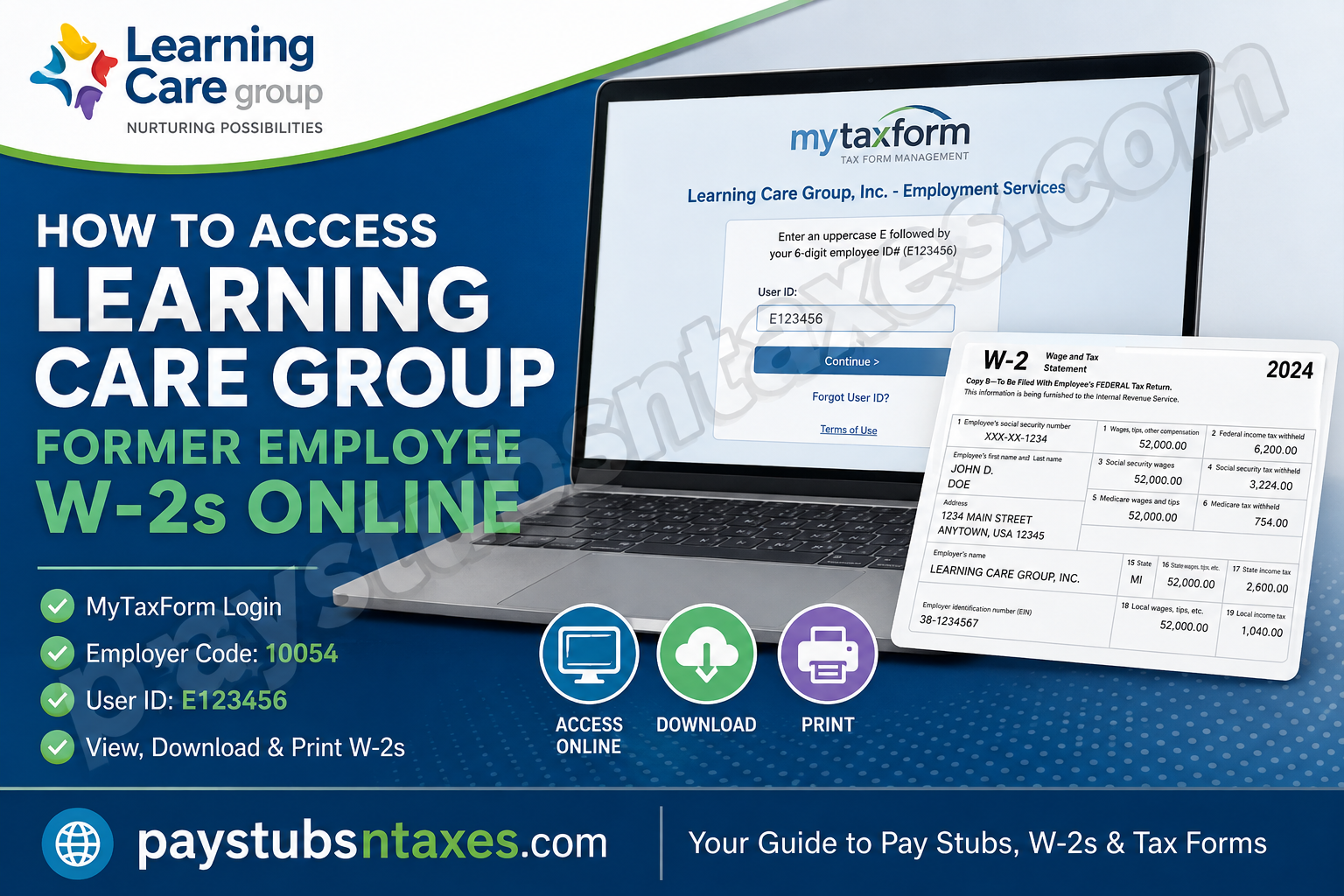
Former employees of Learning Care Group can access their year-end tax statements online through Tax Form Management, the secure service available at MyTaxForm.com. Whether you need to download a W-2 for tax preparation, print a replacement copy, or request delivery by mail or fax, the online portal brings the principal options together under one roof.
Learning Care Group is a Michigan-based provider of child care and early childhood education. For more than 50 years, the organization has supported children, families, and educators through a nationwide community of schools operating under brands such as La Petite Academy, Childtime, Tutor Time, The Children’s Courtyard, Montessori Unlimited, Everbrook Academy, AppleTree & Gilden Woods, Creative Kids Learning Center, U-GRO, Young School, and Pathways Learning Academy.
If your employment with Learning Care Group has ended, you can still use the following instructions to retrieve your available W-2 statements.
Information You Will Need
Before opening the Tax Form Management website, have the following details close at hand:
- Tax Form Management website: https://mytaxform.com/
- Learning Care Group employer code: 10054
- User ID: An uppercase E followed by your six-digit employee ID
- Example User ID: E123456
Enter the letter E in uppercase. Using a lowercase “e,” omitting the letter, or entering an incomplete employee number may prevent the portal from recognizing your account.
You may also be asked to complete additional identity-verification or account-recovery steps. Keep access to the email address or telephone number associated with your employee record, if available.
How to Access Your Learning Care Group W-2 Online
1. Visit the official Tax Form Management website
Open a current web browser on a trusted computer, tablet, or smartphone and go directly to MyTaxForm.com.
Because a W-2 contains sensitive personal and financial information, avoid following unfamiliar links from unsolicited emails or text messages. It is safer to type the website address into your browser yourself.
2. Enter the Learning Care Group employer code
When prompted to identify your employer, enter: 10054
Continue to the Learning Care Group employment-services login page. Check that the employer name displayed on the screen is Learning Care Group, Inc. before entering your personal credentials.
3. Enter your former employee User ID
Your initial User ID consists of: Uppercase E + your six-digit employee ID
For example, an employee whose ID was 123456 would enter: E123456
Select Continue and follow the instructions displayed on the screen. Depending on your account history, the portal may ask for a password or require you to verify your identity before granting access.
4. Recover your account if necessary
If you previously created personalized login credentials but cannot remember your User ID, select Forgot User ID? on the login page.
Complete the requested personal-information fields and any identity-verification measures. If the portal offers to send a one-time passcode, choose an available delivery method, enter the code when it arrives, and continue with the account-recovery process.
Do not repeatedly guess your credentials, as doing so may complicate access. When in doubt, use the recovery option or contact Learning Care Group for assistance.
5. Locate your available tax forms
After signing in, look on the home page for your most recent tax documents. Select the checkbox beside the W-2 you need.
If you are searching for a statement from an earlier year, review the available tax-form history or other document sections within your account.
6. View, download, or print your W-2
Tax Form Management provides several ways to obtain a copy:
- Select View to open the W-2 electronically.
- Select Download to save a copy directly to your device.
- After opening the form, use the available options to save or print it.
- Select Postal Mail if you want a paper copy sent by mail.
- Select Fax if you want the document delivered to a fax number.
When saving the form, choose a secure folder and use a clear filename, such as Learning-Care-W2-2025.pdf. Avoid storing an unprotected copy on a shared or public computer.
How to Choose Paperless W-2 Delivery
If you want to receive tax documents electronically, look for the Online Delivery Consent section within Tax Form Management.
Select the applicable tax document, choose Receive Forms Online, read the electronic-delivery disclosure, and accept the terms if you agree. Confirm your email and mailing information before submitting the request.
If you have already provided consent, the option may no longer appear on the home page. In that case, open the My Account area to review or update your delivery preferences.
Electronic delivery can make a W-2 available sooner, eliminate the wait for postal delivery, and allow you to download replacement copies whenever necessary. It may also enable you to import W-2 information into compatible tax-preparation software.
Will Learning Care Group Mail My W-2?
Learning Care Group W-2 forms are scheduled to be mailed by January 31, unless the employee has chosen paperless delivery.
Bear in mind that January 31 is the mailing date rather than a guaranteed arrival date. Postal delivery may take additional time, particularly if your address has changed since you left the company.
If you moved after leaving Learning Care Group, check your Tax Form Management account and contact the company’s support team to determine whether your mailing information needs to be updated.
What Is the W-2 Import Code?
An import code may appear on your W-2 near the employee name and address section. Supported tax-preparation programs can use this code to transfer information from the W-2 into a tax return, sparing you the trouble of entering every figure by hand.
Follow the instructions provided by your chosen tax software. After importing the information, carefully compare it with the original W-2; automated imports are convenient, but a final accuracy check remains indispensable.
Learning Care Group W-2 Support
Former employees who have questions about W-2 forms or need help accessing their accounts can contact Learning Care Group through the following channels:
- Telephone: (877) 767-5241
- Email: payandbenefits@learningcaregroup.com
When requesting assistance, be ready to provide enough information for the support representative to identify your employment record. Nevertheless, never send your Social Security number, password, one-time passcode, or complete W-2 through an unsecured email.
Conclusion
Accessing a Learning Care Group former employee W-2 online is relatively straightforward once you know where to look. Visit MyTaxForm.com, enter employer code 10054, and proceed to the Learning Care Group Employment Services login. Your initial User ID should be an uppercase E followed by your six-digit employee ID, such as E123456.
Once inside the portal, select the appropriate W-2 from the home page and use the available options to view, download, save, or print the document. You can also review your online-delivery preferences if you prefer paperless tax statements.
If the portal does not recognize your credentials, your W-2 is missing, or you encounter an identity-verification problem, contact Learning Care Group at (877) 767-5241 or payandbenefits@learningcaregroup.com. With the correct employer code and login details in hand, retrieving a former-employee W-2 should be considerably less taxing than tax season itself.
Frequently Asked Questions About Learning Care Group W-2s
1. How can a former Learning Care Group employee get a W-2 online?
Visit MyTaxForm.com, enter employer code 10054, and sign in using an uppercase E followed by your six-digit employee ID. Once logged in, select the required W-2 and choose View or Download.
2. What is the Learning Care Group employer code for MyTaxForm?
The Learning Care Group employer code is 10054. Enter this code when MyTaxForm asks you to identify your employer.
3. What User ID should a former Learning Care Group employee use?
Enter an uppercase E followed immediately by your six-digit employee ID. For example, if your employee ID is 123456, your initial User ID will be E123456.
4. Where can I download my Learning Care Group W-2?
You can download an available Learning Care Group W-2 from MyTaxForm.com. After signing in, select the correct tax form and click Download.
5. Can I access a Learning Care Group W-2 after leaving the company?
Yes. Former employees can use Tax Form Management to access available W-2 statements online, provided they can verify their identity and successfully access their accounts.
6. When does Learning Care Group mail W-2 forms?
Learning Care Group states that W-2 forms will be mailed by January 31 unless the employee has chosen paperless delivery. January 31 is the mailing deadline, so delivery may occur later.
7. How do I print my Learning Care Group W-2?
Sign in to MyTaxForm, select the appropriate W-2, and click View. When the document opens, use the available print option or your browser’s print command.
8. Can I request a Learning Care Group W-2 by mail?
Yes. After selecting the required tax form in MyTaxForm, choose Postal Mail if that delivery option is available. Confirm that your mailing address is correct before submitting the request.
9. Can Tax Form Management send my W-2 by fax?
Yes. Select the appropriate W-2 and choose Fax. Follow the instructions carefully and verify the fax number before authorizing delivery.
10. What should I do if I forgot my MyTaxForm User ID?
Select Forgot User ID? on the login page and complete the account-recovery process. You may be asked to provide personal information and verify your identity using a one-time passcode.
11. What should I do if MyTaxForm does not recognize my employee ID?
Make sure the User ID begins with an uppercase E and contains all six digits of your employee ID, with no spaces. If the problem persists, contact Learning Care Group’s pay and benefits support team.
12. How do I choose paperless W-2 delivery?
Sign in to MyTaxForm and locate Online Delivery Consent. Select the applicable tax document, choose Receive Forms Online, accept the electronic-delivery terms, and confirm your contact information.
13. Why is my Learning Care Group W-2 not showing online?
The form may not have been issued yet, you may be viewing the wrong tax year, or your account may not be correctly linked to your former employment record. Check the tax year first, then contact support if the form remains unavailable.
14. Who should I contact about a missing Learning Care Group W-2?
Call Learning Care Group W-2 support at (877) 767-5241 or email payandbenefits@learningcaregroup.com. Never send your password, one-time passcode, or full Social Security number through an unsecured email.
15. Is it safe to download a W-2 from MyTaxForm?
MyTaxForm is Learning Care Group’s designated Tax Form Management service. For safer access, type mytaxform.com directly into your browser, use a private device and trusted network, confirm the employer name before signing in, and store the downloaded W-2 securely.
