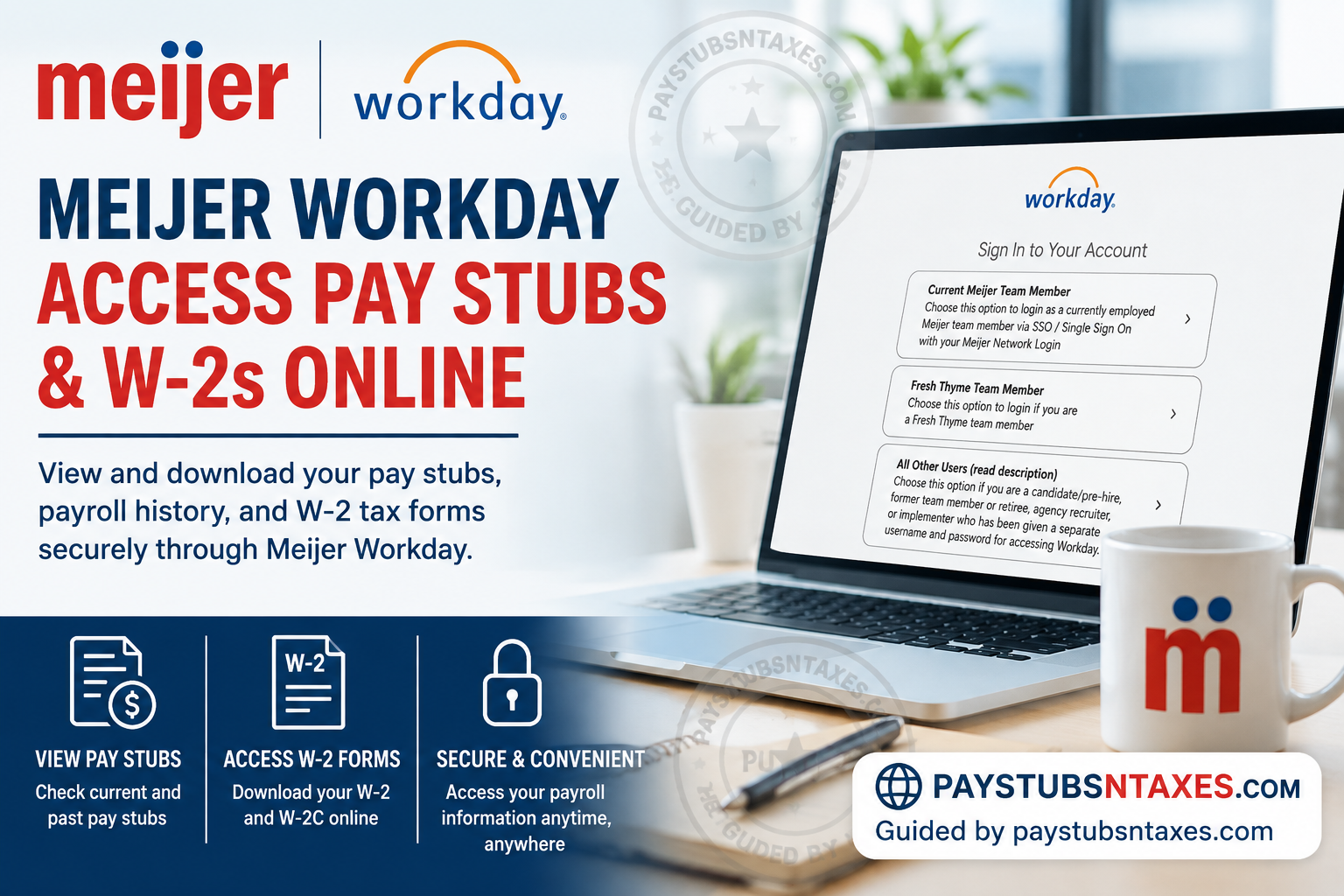
Meijer team members can use the Meijer Workday employee portal to access payroll information, review previous pay stubs, and retrieve year-end tax documents such as Form W-2. For current employees, access is generally straightforward because Workday is connected to the Meijer network through Single Sign-On (SSO). Former employees, however, must use a separate Workday login because their Meijer network credentials cease to function after separation. Founded in 1934 in Greenville, Michigan, Meijer has grown into one of the largest privately held retailers in the United States. The company is headquartered in Walker, Michigan, and has a substantial presence throughout Michigan, Illinois, Indiana, Kentucky, Ohio, and Wisconsin. This guide explains how current and former Meijer team members can sign in to Workday, view and print pay stubs, retrieve W-2 tax forms, reset their credentials after leaving the company, and obtain assistance when access problems arise.
About Meijer
Founded in 1934, Meijer has grown from a family-run grocery business in Greenville, Michigan, into a major privately owned retailer. The company employs more than 70,000 people and operates stores, distribution centers, manufacturing facilities, and corporate offices throughout the Midwest.
Its principal operating territory includes Michigan, Illinois, Indiana, Kentucky, Ohio, and Wisconsin, while its corporate offices are located in the Grand Rapids, Michigan, area. Workday supports the employee lifecycle by bringing payroll and other human-resources services together in one centralized system.
Meijer Workday Login
The official Meijer Workday portal is:
When the sign-in page opens, you will see three access options:
- Current Meijer Team Member
- Fresh Thyme Team Member
- All Other Users (read description)
Choosing the right option is essential. Selecting an account category that does not correspond to your employment status may prevent you from reaching the appropriate login screen.
Current Meijer Team Members
If you are actively employed by Meijer, select Current Meijer Team Member. This option allows you to sign in through Single Sign-On using your Meijer network credentials.
In short:
- Visit the Meijer Workday portal.
- Select Current Meijer Team Member.
- Enter your Meijer network login credentials.
- Complete any additional identity-verification prompt that appears.
- Continue to the Workday home page.
Your precise screen layout may vary slightly depending on your device and the version of Workday currently in use.
Fresh Thyme Team Members
Fresh Thyme employees should select Fresh Thyme Team Member. This sign-in route is separate from the standard Meijer employee option.
If you cannot access your Fresh Thyme account, contact:
Email: helpdesk@freshthyme.com
Former Meijer Employees, Retirees, and Other Users
Former team members, retirees, candidates, pre-hires, agency recruiters, and authorized implementers should select All Other Users (read description).
This option is intended for users who have been issued a separate username and password rather than active-employee network credentials.
After separation from Meijer, your Single Sign-On access is generally revoked. Consequently, the password you used as an active employee may no longer work. Follow the password-reset and post-employment access instructions sent to the personal email address recorded in Workday.
Because former-employee access may be available only for a limited period, it is prudent to download your required pay statements and tax documents without unnecessary delay.
How to View Meijer Pay Stubs in Workday
Once you have signed in successfully, use the Pay area to find your available payslips.
- Open the Workday home page.
- Select View All Apps, Menu, or the equivalent application launcher.
- Choose Pay.
- Look for Payslips in the available view options.
- Locate the relevant pay period.
- Select View to open the payslip or Print to create a printable copy.
Depending on the portal configuration, Workday may generate the document in a separate window or prepare a downloadable PDF. If nothing appears, check whether your browser has blocked a pop-up or download.
Information Commonly Shown on a Workday Payslip
A Workday payslip may include:
- Pay-period beginning and ending dates
- Check or payment date
- Current and year-to-date gross pay
- Federal, state, and local taxes
- Pre-tax deductions
- Post-tax deductions
- Net pay
- Taxable earnings
- Hours worked and other eligible earnings
- Withholding details
- Employer-paid benefits
- Direct-deposit information
A check number may be blank when wages are delivered through direct deposit. Likewise, the categories displayed on a payslip can differ according to an employee’s position, benefits, deductions, location, and tax elections.
Before relying on a downloaded statement, verify that the employee name, pay period, gross earnings, deductions, taxes, and net pay are correct. If something appears amiss, raise the matter promptly rather than allowing a small discrepancy to snowball into a larger problem.
How to Download a Meijer Pay Stub
To keep an electronic copy:
- Open the required payslip.
- Select Print or the available download option.
- Choose Save as PDF if your browser opens a print window.
- Save the file in a secure folder.
- Give it a descriptive name, such as
Meijer-Pay-Stub-2026-07-31.pdf.
Payroll documents contain sensitive personal and financial information. Avoid storing them on a public computer, shared device, or unsecured cloud account.
How to Access Meijer W-2 Forms Online
Available W-2 and corrected W-2C forms are normally located under the Pay section of Workday.
- Sign in to Meijer Workday.
- Open Menu, View All Apps, or the application launcher.
- Select Pay.
- Find My Tax Documents. You may need to select More to display additional options.
- Locate the required tax year.
- Select View/Print beside the relevant W-2 or W-2C form.
- Download the document or print a copy.
If Workday prepares the form in the background, allow the process to finish and then open the completed document from your notifications or document window.
What Is a W-2C?
A W-2C is a corrected wage and tax statement issued when information on an original W-2 requires amendment. If both a W-2 and a W-2C are available, retain every applicable form. The corrected document does not necessarily render every detail on the original form irrelevant, so keep the complete set for your records and tax preparation.
Former Meijer Employee Workday Access
Losing active-employee SSO access does not necessarily mean that your payroll records disappear overnight. Former team members may be able to enter Workday through a separate account using personal credentials.
For a smoother transition:
- Confirm that Workday contains a personal email address you can access.
- Read the offboarding instructions sent to that email address.
- Select All Other Users instead of Current Meijer Team Member.
- Follow the former-employee password-reset instructions.
- Do not expect your previous SSO password to work after separation.
- Download important pay stubs and tax forms while access remains available.
If you did not receive the offboarding email or cannot use the personal email address associated with your account, contact Ask HR and request assistance with your personal contact information.
Meijer Workday Password Reset
If you are a former team member and your old password no longer works, do not repeatedly attempt the current-employee SSO route. Instead:
- Visit the Meijer Workday sign-in page.
- Review the notice for former-team-member password-reset instructions.
- Select All Other Users.
- Use the applicable password-reset option.
- Check the personal email account recorded in Workday.
- Follow the verification instructions to establish or reset your password.
Reset links can expire, so complete the process promptly. If an email does not arrive, inspect your spam or junk folder before requesting further help.
Meijer Workday Help and Contact Information
Meijer Employees and Former Team Members
Ask HR: 833-864-6947
Ask HR may assist when:
- Your post-employment Workday instructions did not arrive.
- Your personal email address needs to be updated.
- You cannot access the former-employee login.
- You need guidance concerning payroll or tax-document access.
For security reasons, you may be asked to verify your identity. Never send a password, Social Security number, bank-account information, or complete tax document through an insecure message.
Fresh Thyme Employees
Email: helpdesk@freshthyme.com
Fresh Thyme team members should use this contact rather than Meijer Ask HR for account-specific technical assistance.
Final Takeaway
The Meijer Workday portal provides a convenient route to pay statements, payroll history, W-2 forms, and other employment records. Current Meijer team members should sign in through the Current Meijer Team Member SSO option, whereas former employees and retirees should use All Other Users with their separate credentials. The key to avoiding post-employment access difficulties is to ensure that an accessible personal email address is recorded in Workday before separation. Once access is available, download important payroll and tax documents, store them securely, and sign out when finished. If the process reaches a dead end, Meijer Ask HR can be contacted at 833-864-6947.
Frequently Asked Questions About Meijer Workday
1. What is the official Meijer Workday login website?
The Meijer Workday login website is https://workday.meijer.com/. Employees should use this portal to access available payroll, payslip, tax, and employment information.
2. How do current Meijer employees log in to Workday?
Current employees should open the Meijer Workday portal, select Current Meijer Team Member, and sign in through Single Sign-On using their Meijer network credentials.
3. How do former Meijer employees access Workday?
Former employees should select All Other Users (read description) on the Workday login page. They must use their separate Workday credentials rather than their former Meijer SSO password.
4. Where can I find my Meijer pay stubs?
Sign in to Workday, open Menu or View All Apps, select Pay, and choose Payslips. You can then view or print the statement for the required pay period.
5. How can I download a Meijer pay stub?
Open the required payslip and select Print or the available download option. If a print window appears, choose Save as PDF and store the file in a secure location.
6. How do I access my Meijer W-2 online?
Log in to Workday, open Pay, and select My Tax Documents. If the option is not visible, choose More. Select View/Print beside the W-2 for the applicable tax year.
7. Can former Meijer employees obtain old pay stubs?
Former employees may be able to retrieve old pay stubs while post-employment Workday access remains active. They should select All Other Users and download important records as soon as possible.
8. Why does my Meijer SSO password not work after termination?
Meijer generally revokes active-employee SSO access after separation. Former employees must use the dedicated non-SSO login option and follow the applicable password-reset instructions.
9. How do I reset my Meijer Workday password after leaving the company?
Visit the Meijer Workday portal, review the former-team-member password-reset instructions, and select All Other Users. Complete the reset using the personal email address associated with your Workday account.
10. What should I do if I did not receive my former-employee login instructions?
Check your spam or junk folder first. If the instructions are still missing, call Meijer Ask HR at 833-864-6947 and ask for help confirming or updating your personal email address in Workday.
11. How long can former Meijer employees access Workday?
Post-employment access may remain available for a limited period, but the precise duration can vary. Former employees should retrieve their pay stubs and tax forms promptly rather than assuming indefinite access.
12. What information appears on a Meijer Workday payslip?
A payslip may show gross pay, net pay, taxes, pre-tax and post-tax deductions, taxable earnings, payment dates, year-to-date totals, withholding information, benefits, and direct-deposit details.
13. What is a W-2C in Meijer Workday?
A W-2C is a corrected wage and tax statement issued when information on an original W-2 needs amendment. If both forms appear, download and retain all applicable W-2 and W-2C documents.
14. Who should Meijer employees contact for Workday assistance?
Current or former Meijer employees can contact Ask HR at 833-864-6947 for help with Workday access, personal contact information, payroll records, or tax-document questions.
15. How do Fresh Thyme employees get Workday login help?
Fresh Thyme employees should select Fresh Thyme Team Member on the login page. For account assistance, they can contact helpdesk@freshthyme.com.
