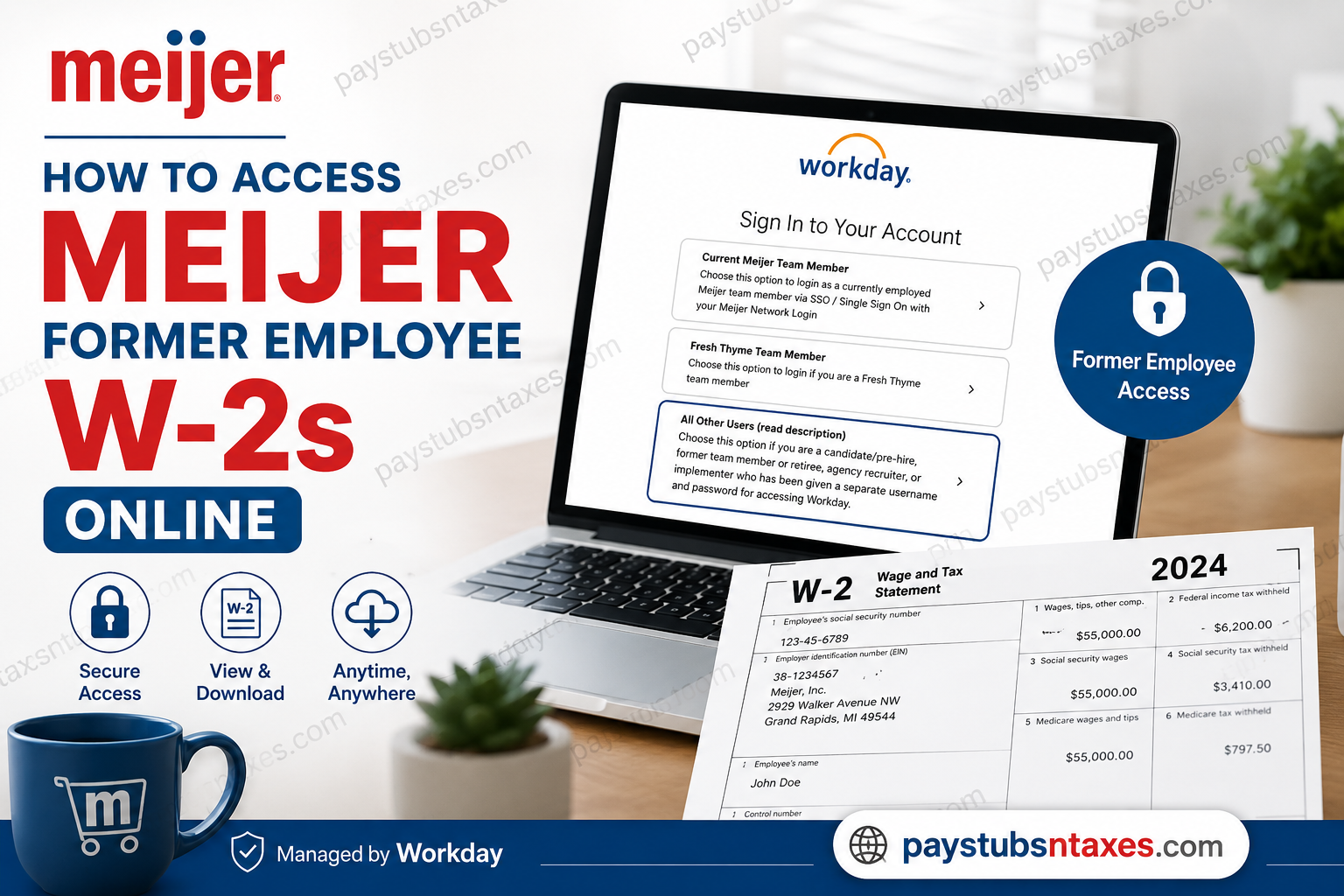
If you are a former Meijer team member and need a copy of your W-2, W-2C, or another year-end tax document, you may still be able to retrieve it through Meijer Workday after your employment ends. The key difference is that your regular Meijer Single Sign-On credentials no longer work once you separate from the company. Instead, former employees must use the “All Other Users” sign-in option and access Workday with their employee ID and a separate password. Meijer, founded in 1934 in Greenville, Michigan, has grown into a major regional supercenter retailer operating throughout Michigan, Illinois, Indiana, Kentucky, Ohio, and Wisconsin. This guide explains how to sign in, reset your password, retrieve a Meijer W-2 online, and obtain assistance if your account information is no longer current.
Meijer Workday Access for Former Employees
While you are actively employed by Meijer, Workday access is normally tied to the company’s Single Sign-On, or SSO, system. Once your employment ends, that SSO access is revoked.
That does not necessarily mean your Workday account disappears immediately. Former team members may continue to have access through a separate Workday login so they can retrieve employment and payroll information, including previous pay statements and year-end tax forms.
Instead of attempting to use your old Meijer network password, go directly to the Meijer Workday portal and choose the login option intended for former employees.
Meijer Workday Login Options
When you open the Meijer Workday sign-in page, you may see three options:
Current Meijer Team Member
This option is for currently employed Meijer team members who sign in through Meijer SSO using their Meijer Network Login.
Fresh Thyme Team Member
This option is intended for active Fresh Thyme team members.
All Other Users
This is the appropriate option for candidates, pre-hires, former team members, retirees, agency recruiters, and other authorized users who have been assigned separate Workday credentials.
Therefore, if you have already left Meijer, select All Other Users.
What You Need Before Signing In
Having the correct information at your fingertips can make the process considerably smoother. Before beginning, prepare:
- Your Meijer employee ID, also called your EmplID
- Access to the personal email address registered in Workday
- A device with a secure internet connection
- A PDF reader or browser capable of displaying downloaded tax forms
- Access to a printer, if you require a paper copy
Do not use a former company email address during password recovery. The verification code must be sent to a personal email address that you can still access.
Step 1: Open the Meijer Workday Website
Go to the official Meijer Workday portal:
The sign-in page presents three options:
- Current Meijer Team Member
- Fresh Thyme Team Member
- All Other Users (read description)
As a former Meijer employee, retiree, or other external user with separate credentials, choose All Other Users. Do not select the current-team-member option, because it relies on Meijer Single Sign-On credentials that are normally deactivated after separation.
Step 2: Sign In as a Former Employee
Enter your employee ID in the Username field and your separate Workday password in the Password field. Then select Sign In.
Your employee ID serves as your Workday username. If you know your employee ID but cannot remember your password, use the password-recovery procedure below.
How to Reset Your Meijer Workday Password
Losing access to an old password need not bring the process to a standstill. Former employees can reset their Workday password by verifying their identity through the personal email address stored in the system.
Password-reset instructions
- Visit workday.meijer.com.
- Select All Other Users (read description).
- Enter your employee ID in the Username field.
- Click Forgot Your Password.
- Enter your employee ID again if prompted.
- Enter the personal email address registered in Workday.
- Click Send Code.
- Check your email for a six-digit, one-time passcode.
- Enter the code on the verification screen.
- Click Verify Code.
- Create and confirm a new password.
- Click Reset Your Password.
- Return to All Other Users and sign in with your employee ID and new password.
The verification message may take a few minutes to arrive. Check your spam or junk folder before requesting further assistance.
Meijer Workday password requirements
Your new password must be at least 12 characters long and contain at least one character from each of the following categories:
- An uppercase letter
- A lowercase letter
- A number
- A special character
Choose a strong, unique password that you do not use for email, banking, or other personal accounts.
Step 3: Find Your Meijer W-2 in Workday
After signing in, navigate to your tax documents:
- Open the Pay application from the Workday home page. Depending on the page layout, you may need to select View All Apps or open the main Menu first.
- Find the View section.
- Click More if My Tax Documents is not immediately visible.
- Select My Tax Documents.
- Review the available tax forms.
- Find the W-2 for the required tax year.
- Click View/Print to generate the document.
- Open the file and save it securely or print a copy.
Workday may display both W-2 and W-2C forms. A W-2C is a corrected wage and tax statement issued when information on an original W-2 requires amendment.
What to Do If a W-2C Appears
If Workday displays a W-2C alongside your original W-2, download every relevant form that has a View/Print option. The corrected statement may need to be reviewed together with the original form when preparing or amending a tax return.
Because tax circumstances differ, consult a qualified tax professional if you are uncertain about how a corrected form affects a return that has already been filed.
How to View Previous Meijer Payslips
Your former-employee account may also provide access to available pay statements. To look for previous payslips:
- Sign in to Workday through All Other Users.
- Open the Pay application.
- Select Payslips from the View section.
- Choose View beside the relevant pay period.
- Select Print if you need a printable copy.
A payslip may show the pay-period dates, check date, gross pay, taxes, deductions, taxable wages, net pay, and payment information. However, a payslip is not a substitute for an official W-2 when completing a tax return.
What If the Password-Reset Email Does Not Arrive?
A missing verification email usually indicates that the address entered does not match the personal email recorded in Workday. It may also mean that the account still contains an inaccessible or outdated address.
First, confirm that:
- You entered your personal email address correctly.
- You did not use a Meijer company email address.
- The message is not in your spam or junk folder.
- Your mailbox has sufficient storage to receive new messages.
If the email still does not arrive, contact Meijer Ask HR at 833-864-6947. Ask the representative to update the Personal Contact information in Workday with a personal email address you can access.
Updating your contact information may be necessary before the automated password-reset system can send a verification code successfully.
What If You Do Not Know Your Employee ID?
Because the employee ID is used as the Workday username, you may be unable to complete the standard sign-in or password-reset process without it. Contact Meijer Ask HR at 833-864-6947 and request assistance recovering or confirming the identifying information required for former-employee Workday access.
Be prepared to verify your identity. For your protection, never post your employee ID, password, Social Security number, or tax documents in a public message or on social media.
Fresh Thyme Former Employees
Former Fresh Thyme employees should use the Fresh Thyme Workday portal rather than the Meijer portal:
https://workday.freshthyme.com
For help with an inaccessible account or an outdated personal email address, contact helpdesk@freshthyme.com.
Final Thoughts
Accessing a Meijer former employee W-2 online is considerably easier once you understand that post-employment Workday access operates differently from active-employee SSO access. After separation, go directly to workday.meijer.com, select All Other Users, and sign in with your employee ID and separate Workday password. If the password has slipped your mind, use the Forgot Your Password option and verify your identity through the personal email address stored in Workday. The system sends a six-digit one-time passcode when the email address matches the account information, after which you can create a new password and regain access. Once inside Workday, navigate to the Pay area and look for My Tax Documents, where available W-2 and W-2C forms can be opened through View/Print. If the password-reset process reaches a dead end because your personal email address is missing or outdated, contact Meijer Ask HR at 833-864-6947. Having your personal contact information properly maintained in Workday can be the difference between retrieving your tax records in minutes and going around in circles.
Frequently Asked Questions About Meijer Former Employee W-2s
1. How do former Meijer employees access their W-2s online?
Visit workday.meijer.com, choose All Other Users, and sign in with your employee ID and separate Workday password. Open Pay > My Tax Documents, locate the correct W-2, and select View/Print.
2. What is the Meijer Workday login website for former employees?
The Meijer Workday website is https://workday.meijer.com/. Former employees, retirees, candidates, and other authorized external users should select All Other Users (read description) rather than the current-team-member SSO option.
3. Which Meijer Workday sign-in option should a former employee select?
A former employee should select All Other Users (read description). This option is intended for former team members and other authorized users who have a separate Workday username and password.
4. What username should a former Meijer employee use for Workday?
Your Meijer employee ID, also known as your EmplID, is generally used as your Workday username. If you cannot locate or remember it, contact Meijer Ask HR at 833-864-6947.
5. Can a former employee use a Meijer SSO password to access Workday?
No. Meijer Single Sign-On access is revoked after employment ends, so the former network or SSO password will not work. Former employees must use the All Other Users option and a separate Workday password.
6. How do I reset my Meijer Workday password after leaving the company?
Select All Other Users, enter your employee ID, and click Forgot Your Password. Enter the personal email address stored in Workday, request a verification code, enter the six-digit code, and create a new password.
7. What are the Meijer Workday password requirements?
A new Workday password must contain at least 12 characters, including an uppercase letter, a lowercase letter, a number, and a special character. Use a unique password that is not shared with your email or financial accounts.
8. Why did I not receive my Meijer Workday password-reset email?
The personal email address you entered may not match the address recorded in Workday. Check your spam folder and confirm the spelling first. If the message still does not arrive, call Meijer Ask HR at 833-864-6947 and request an update to your Personal Contact information.
9. Can I use my old Meijer email address to reset my Workday password?
No. Password recovery requires an accessible personal email address associated with your Workday account. Do not enter an old Meijer company email address, because you may no longer have access to that mailbox.
10. Where can I find “My Tax Documents” in Meijer Workday?
After signing in, open the Pay application and look under the View section. If My Tax Documents is not displayed immediately, click More to expand the available options.
11. How do I download or print a Meijer W-2?
Open Pay > My Tax Documents, locate the W-2 for the appropriate tax year, and click View/Print. Once the document opens, save it to a secure device or send it to a trusted printer.
12. What should I do if a W-2C appears in Workday?
A W-2C is a corrected wage and tax statement. Download every relevant document displaying a View/Print button, including the original W-2 and available W-2C forms. Consult a qualified tax professional if you are unsure how the correction affects a previously filed return.
13. Can former Meijer employees view old pay stubs online?
Former employees may be able to access available pay statements through Workday. Open the Pay application, select Payslips, and choose View or Print beside the relevant pay period. Availability depends on the account and the duration of former-employee access.
14. How long can a former Meijer employee access Workday?
Former employees may retain Workday access for a limited period after separation, but a precise universal timeframe is not specified. It is prudent to download any available W-2s, payslips, and other records promptly and store them securely.
15. Who should I contact if I cannot access my Meijer W-2?
Contact Meijer Ask HR at 833-864-6947 if you cannot sign in, do not know your employee ID, need to update your personal email address, or cannot locate an expected tax document. Former Fresh Thyme employees should contact helpdesk@freshthyme.com instead.
