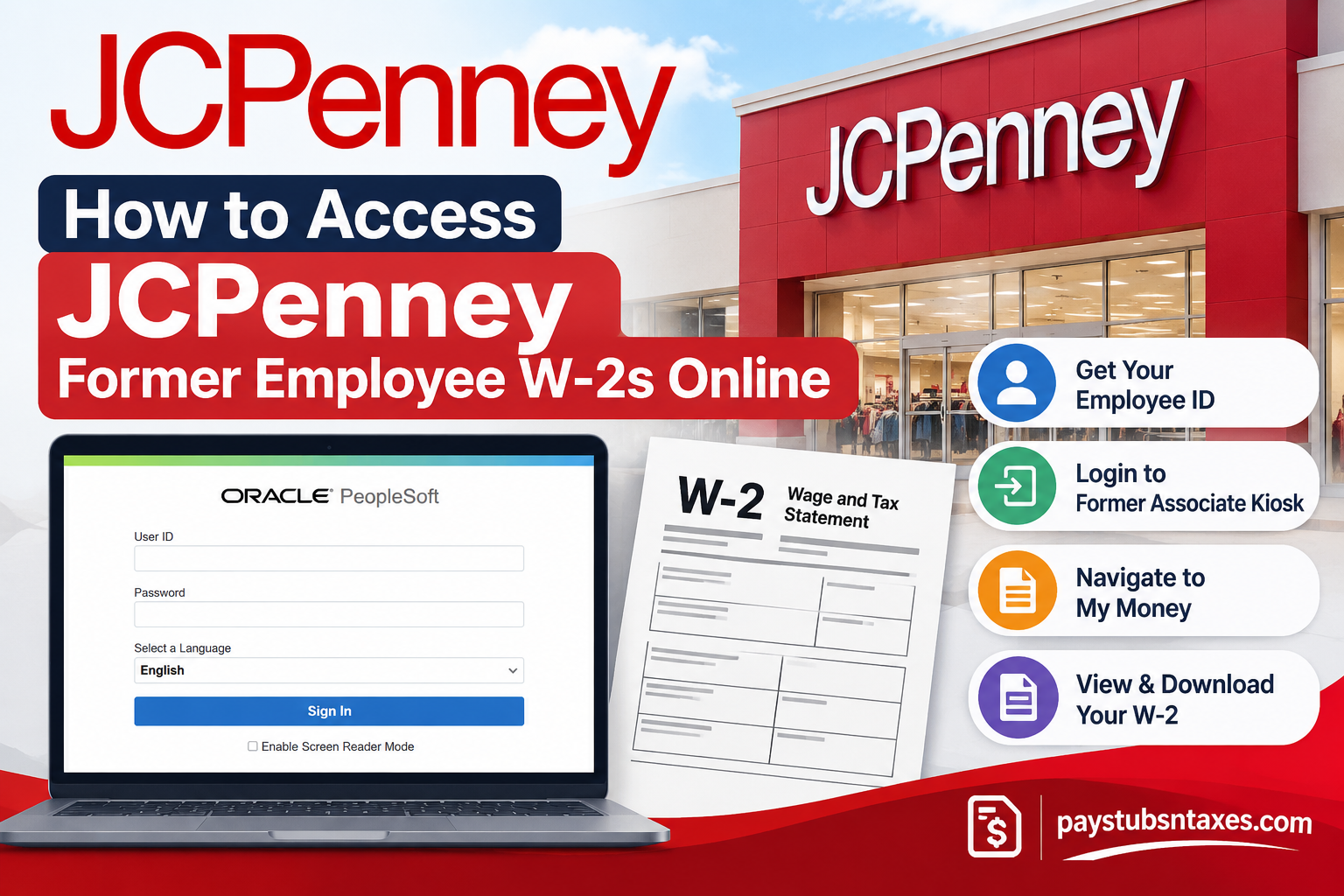
Former JCPenney associates can retrieve eligible W-2 statements through the company’s Former Associate Kiosk. The online system offers a comparatively straightforward way to find, view, and download tax documents without waiting for a paper replacement to arrive by mail.
Nevertheless, gaining access requires several pieces of information, including a nine-digit employee ID, the appropriate password, and a valid email address or mobile number for two-factor authentication. This guide explains the entire process, from finding a forgotten employee ID to resolving pop-up and login problems.
The Former Associate Kiosk is generally available for up to 18 months after an associate’s termination date. If that window has passed—or if online access is otherwise unavailable—you may need to request a mailed copy.
About JCPenney
Founded in 1902 by James Cash Penney in Kemmerer, Wyoming, JCPenney is one of America’s most established department store chains. Originally operating under the Golden Rule name, the company gradually evolved into a nationwide retailer offering apparel, footwear, cosmetics, jewelry, home furnishings, and an extensive selection of lifestyle products.
Throughout its long history, JCPenney has undergone substantial transformations in response to changing consumer preferences, technological advancements, and the increasingly competitive retail landscape. Following its Chapter 11 bankruptcy restructuring in 2020, the company emerged under new ownership and continued repositioning itself within the American retail industry.
In January 2025, JCPenney joined SPARC Group’s portfolio of retail brands to establish Catalyst Brands, a joint venture involving Authentic Brands Group, Brookfield Corporation, Shein, and Simon Property Group.
Despite these corporate changes, JCPenney continues to provide essential employment-related services, including payroll documentation and year-end tax statements, to eligible current and former associates.
For former employees, one particularly important resource is the JCPenney Associate Kiosk, which serves as a centralized platform for accessing historical payroll information and W-2 tax documents.
What Is the JCPenney Former Associate Kiosk?
The Former Associate Kiosk is an employee self-service portal intended for people who previously worked for JCPenney, legally known as Penney OpCo LLC. It provides access to certain payroll and tax records, including Forms W-2 and W-2c.
The portal is especially useful during tax season, when former associates may need to retrieve a prior-year wage statement promptly. Instead of searching through old correspondence or waiting for postal delivery, an eligible user can open the document online and save or print the PDF.
What You Need Before Signing In
A little preparation can spare you a considerable amount of frustration. Before opening the kiosk, have the following information or resources at hand:
- Your JCPenney employee ID
- Your birth month and two-digit birth year
- The last four digits of your Social Security number
- Access to the email account or mobile number registered with the kiosk
- A browser that permits pop-up windows from the Associate Kiosk
Because the login process uses personal and tax-related information, access the portal only through a trusted device and a secure internet connection. Never disclose your complete Social Security number, password, or authentication code to an unsolicited caller or message sender.
How to Find Your JCPenney Employee ID
If your employee ID has slipped your mind, visit www.jcpassociates.com and look for the employee ID retrieval option near the top of the page.
The kiosk will ask for personally identifying information to confirm your identity. Once verification is complete, it should provide the employee ID associated with your employment record.
Your User ID for the Former Associate Kiosk must contain exactly nine digits. If your employee number appears shorter, review the instructions displayed on the login page carefully, as leading zeros may be required.
How to Log In to the JCPenney Former Associate Kiosk
Step 1: Open the Associate Kiosk
Go directly to www.jcpassociates.com. Check the address before entering personal information so that you do not inadvertently submit your credentials to an unofficial website.
Step 2: Select “Former Associate Kiosk”
Choose Former Associate Kiosk, rather than the option intended for active associates. The former-associate link will take you to the relevant PeopleSoft sign-in page.
Step 3: Enter Your User ID
Enter your nine-digit employee ID in the User ID field. The number must be exactly nine digits long.
Step 4: Enter Your Default Password
The default password follows this 11-character format:
JCP + two-digit birth month + two-digit birth year + last four digits of your Social Security number
For example, a person born in January 1999 whose Social Security number ends in 1234 would use: JCP01991234
In this example:
- JCP is entered in uppercase.
- 01 represents the birth month.
- 99 represents the final two digits of the birth year.
- 1234 represents the last four digits of the Social Security number.
Treat this example solely as a formatting guide. Do not post your real password, employee ID, or Social Security information publicly.
If you previously changed your password, use the updated password instead of the default formula.
Step 5: Sign In
Select your preferred language if necessary, click Sign In, and follow any additional prompts displayed by the PeopleSoft system.
How to View and Download a JCPenney W-2
After signing in successfully, follow this navigation path:
My Money → View W-2/W-2c Forms → Select the required tax year
The system will send a two-factor authentication code to the email address or mobile number held in your account. Enter that code when prompted.
Once your identity has been confirmed, select the tax year you need. The W-2 should open as a PDF in a separate browser window, from which you can download or print it.
To locate an older statement, select View a Different Tax Year. To open the current year’s statement, choose Year End Form when that option is displayed.
Store downloaded tax documents securely. If you are using a shared or public computer, do not save the PDF locally, and remember to sign out and close the browser when finished.
What to Do If the W-2 Does Not Open
If nothing happens after you select a tax year, a pop-up blocker is the most likely culprit. The kiosk normally opens the W-2 PDF in a new browser window, so a browser that blocks pop-ups may prevent the document from appearing.
Allow pop-ups specifically for the Associate Kiosk, refresh the page, and try again. You may also need to clear the browser’s cache and cookies if the portal is loading outdated information or behaving erratically.
Avoid disabling browser security features indiscriminately. Granting a site-specific pop-up exception is generally safer than permitting pop-ups everywhere.
What If Your Email Address or Phone Number Has Changed?
Two-factor authentication depends on the contact details attached to your employee record. If you can no longer access the registered email account or telephone number, you will not be able to receive the verification code.
In that situation, contact JCPenney’s support channel for assistance with updating the relevant details. Be prepared to verify your identity before any information is changed.
How to Request a Paper W-2
W-2 statements are not sent by email because they contain sensitive personal and tax information. If you would prefer a physical copy—or cannot obtain the document electronically—you can request a reissue through the Associate Kiosk.
Navigate to: Main Menu → Self Service → Payroll and Compensation → JCP W-2 Reissue Request.
Then:
- Enter the tax year you require.
- Choose where the W-2 should be delivered.
- Review the information for accuracy.
- Click Submit.
Allow approximately two to three business days for the request to be processed, followed by an estimated seven to fourteen days for standard mail delivery. Postal times can vary, so submit the request well before any tax-filing deadline.
Special Rule for Former Associates in Puerto Rico
W-2 forms are not available electronically through the kiosk for Puerto Rico. They must be sent or reissued by mail.
If you worked in Puerto Rico, plan for the additional processing and postal-delivery time rather than relying on immediate online access.
What If You Cannot Access the Associate Kiosk?
Former JCPenney associates who cannot use the kiosk may contact:
Legacy JCP: reprintW2-sm@catalystbrands.com
Include the information needed to locate the correct employment and tax record:
- Employee ID, if known
- Full legal name
- Last four digits of the Social Security number
- Former store or unit location
- Tax year being requested
- Current mailing address
Send sensitive information only to the verified company address shown above. Do not include your full Social Security number, kiosk password, or two-factor authentication code.
For matters associated with a legacy SPARC employer, the designated contact is:
Legacy SPARC: payroll@catalystbrands.com
Final Takeaway
Accessing a JCPenney former employee W-2 online is usually a matter of visiting the Associate Kiosk, signing in with the correct nine-digit employee ID and password, completing two-factor authentication, and choosing the appropriate tax year under My Money.
The process may come unstuck if your registered contact information is obsolete, the browser blocks pop-ups, or more than 18 months have passed since your employment ended. Even then, all is not lost: a mailed reissue can be requested through the kiosk, while the Legacy JCP support address provides an alternative route when online access is unavailable.
Frequently Asked Questions
1. Where can former JCPenney employees access their W-2s?
Former employees can access eligible W-2 statements through the Former Associate Kiosk at www.jcpassociates.com.
2. How do I access my JCPenney W-2 online?
Sign in to the Former Associate Kiosk and navigate to My Money → View W-2/W-2c Forms. Complete two-factor authentication, then select the tax year you wish to view.
3. What is my JCPenney Former Associate Kiosk User ID?
Your User ID is your JCPenney employee ID. It must contain exactly nine digits, including any required leading zeros.
4. How can I find my former JCPenney employee ID?
Visit www.jcpassociates.com and use the employee ID retrieval option near the top of the page. You will be asked to provide identifying information before the number is displayed.
5. What is the default password for the JCPenney Former Associate Kiosk?
The default password contains 11 characters and follows this format: uppercase JCP, your two-digit birth month, your two-digit birth year, and the last four digits of your Social Security number.
6. What is an example of the JCPenney kiosk password format?
If someone was born in January 1999 and the last four digits of their Social Security number were 1234, the default password format would be JCP01991234. This is only an example; never share your real password or Social Security information.
7. Where can I find my W-2 after logging in?
Open My Money, select View W-2/W-2c Forms, and click the tax year you need. The W-2 should open as a PDF in a separate browser window.
8. Why does JCPenney require two-factor authentication?
Two-factor authentication helps protect sensitive payroll and tax information. The kiosk sends a verification code to the email address or mobile number associated with your account.
9. What if my registered email address or phone number has changed?
You will need assistance updating your contact information before you can receive the authentication code. Contact the appropriate former-associate support channel and be prepared to verify your identity.
10. Why will my JCPenney W-2 not open?
Your browser may be blocking the pop-up window used to display the W-2 PDF. Allow pop-ups specifically for the Associate Kiosk, refresh the page, and select the tax year again.
11. How do I view a different W-2 tax year?
Select View a Different Tax Year within the W-2 section. To access the current year’s statement, choose Year End Form when that option appears.
12. How long can former employees access the JCPenney kiosk?
The Former Associate Kiosk is generally available for up to 18 months after the termination date. After that period, you may need to request a paper W-2.
13. Can JCPenney email my W-2 to me?
No. W-2 statements are not emailed because they contain sensitive personal and tax information. You can view an eligible statement securely online or request a paper copy by mail.
14. How do I request a paper copy of my JCPenney W-2?
In the Associate Kiosk, navigate to Main Menu → Self Service → Payroll and Compensation → JCP W-2 Reissue Request. Enter the tax year and delivery information, then submit the request. Processing generally takes two to three business days, plus approximately seven to fourteen days for standard mail delivery.
15. Who should I contact if I cannot access my JCPenney W-2?
Legacy JCP associates can email reprintW2-sm@catalystbrands.com. Include your full legal name, employee ID if known, last four digits of your Social Security number, former store or unit, requested tax year, and mailing address. Legacy SPARC associates can contact payroll@catalystbrands.com.
