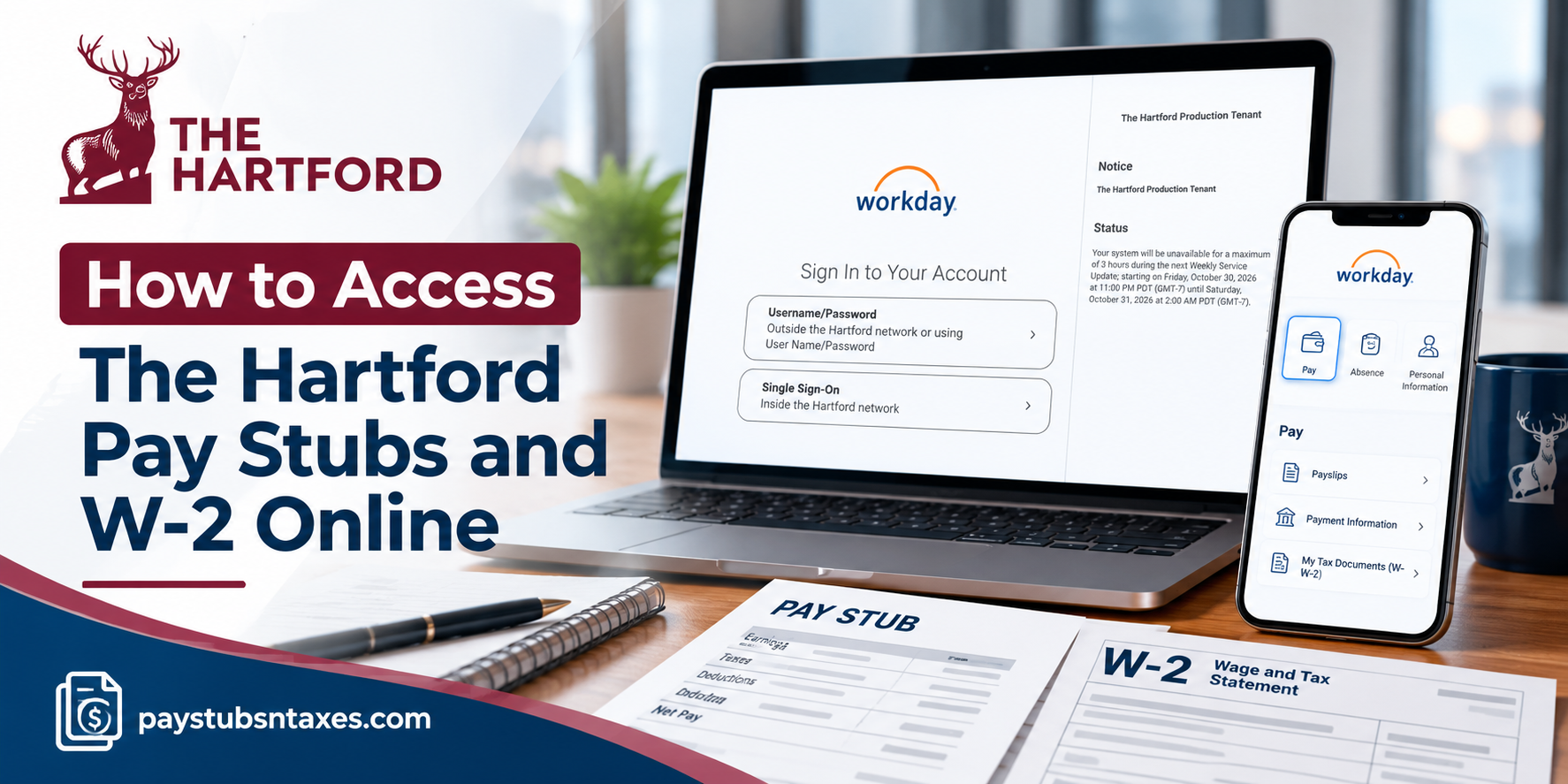
The Hartford Insurance Group, Inc. provides employees with access to Workday, a comprehensive human capital management platform that simplifies payroll administration and enables employees to retrieve essential employment-related documents. Through The Hartford Workday employee portal, authorized employees can view their earnings, examine payroll deductions, download pay stubs, and access annual W-2 tax statements without navigating cumbersome administrative procedures. Whether you are reviewing your latest paycheck, keeping track of deductions, or preparing your tax return, Workday puts essential payroll documents within easy reach. This guide explains how to access The Hartford payroll information through a web browser or the Workday mobile app.
The Hartford’s Employee Payroll Portal
The Hartford Insurance Group, Inc., commonly known as The Hartford, is an insurance company headquartered in Hartford, Connecticut. With a history dating back to 1810, the company provides property and casualty insurance and employee benefits.
For employees, Workday serves as a central platform for accessing payroll information and managing certain employment details. Available features include viewing payslips, downloading tax documents, reviewing payment information, and updating personal information.
The Hartford and Hartford HealthCare are separate organizations. The instructions below are intended for employees of The Hartford Insurance Group.
How to Log In to The Hartford Workday Portal
Employees can access The Hartford Workday login page from a desktop computer, laptop, or compatible mobile browser.
- Visit The Hartford Workday portal.
- Choose the appropriate sign-in option.
- Enter the credentials required for that option.
- Complete any additional authentication prompts.
- Once authenticated, proceed to the Workday home screen.
Signing In Through the Company Network
When accessing Workday through the company network or an authorized workplace device, select Single Sign-On, where available, and follow the prompts using your Network ID and password.
Signing In From Home or Outside the Company Network
When accessing Workday outside the company network, use the alternative Username/Password option where provided. This option requires your Workday username and password, which may differ from your network credentials.
Choosing the correct login method at the outset can help prevent unnecessary sign-in difficulties. If the options displayed differ from those described here, follow the instructions on The Hartford’s current login screen.
How to View and Download The Hartford Pay Stubs Online
Once you have signed in, you can locate individual pay statements through the Pay application.
- From the Workday home page, open the Pay app.
- Under the View heading, select Payslips.
- On the My Payslips screen, locate the pay statement you want.
- Click View beside the relevant statement.
- Review your payslip.
- Select the option to print the payslip image or generate a printable copy.
- Download the PDF and save it, or print a paper copy.
Before downloading a statement, check the payment date to ensure you have selected the correct record. This is particularly useful when gathering documents for income verification or reviewing a previous payment.
What Can You Review on Your Payslip?
Your payslip provides a breakdown of your earnings and deductions for the selected payment period. Depending on the statement, you may see:
- Gross earnings before deductions.
- Employee taxes withheld.
- Pre-tax and post-tax deductions.
- Net pay, or take-home pay.
- Year-to-date payroll totals.
- Payment details.
Reviewing these figures regularly can help you spot discrepancies early and keep your financial records in order. If something appears incorrect, contact the appropriate payroll or HR support team for clarification.
How to Set Up The Hartford Workday Mobile App
The Workday mobile app provides a convenient way to review payroll information while away from your computer.
Download and Configure the App
- Open the Apple App Store or Google Play Store on your device.
- Search for Workday and install the app.
- Open Workday and tap Log In.
- When prompted for an organization ID, enter thehartford.
- Tap the arrow to continue to The Hartford’s login screen.
- Choose the appropriate sign-in option.
- Enter your credentials and complete authentication.
- Continue to the Workday mobile home screen.
As with browser access, the credentials you need depend on the sign-in method selected. Follow the options presented on your screen.
How to View The Hartford Payslips in the Workday Mobile App
After signing in to the mobile app, follow these steps to access your pay information:
- Select the Pay application. If it is not immediately visible, tap View All.
- Review the available payroll summary, which may include take-home pay, gross pay, your next payday, and year-to-date take-home pay.
- Select View Pay Details to review taxes and deductions.
- Open the relevant payslip, if prompted.
- Tap Get PDF to generate a PDF version.
- Select Open PDF to view the statement.
- Save the document or print it using your device’s available options.
You can also select Payment Information to review the direct deposit information available in your account.
Although the mobile app offers convenient access, printing may require a compatible printer or saving the PDF for use on another device.
How to Access and Print The Hartford W-2 Online
Workday allows employees to view, save, and print available W-2 forms. These year-end documents can be located through the My Tax Documents report.
Download Your W-2 From Workday
- Sign in to your Workday account.
- From the home page, enter My Tax Documents in the search bar.
- Select the My Tax Documents report from the results.
- Locate the tax year you need.
- In the Employee Copy column, click View/Print.
- Wait while Workday processes your request.
- If prompted, remain on the page or select Notify Me Later.
- Once the document is ready, open it and use the available controls to download or print it.
The document viewer may also allow you to rotate the page and adjust the zoom level. Before saving or printing, confirm that you have opened the correct tax year.
When Are The Hartford W-2 Forms Available?
The Hartford’s stated distribution schedule provides for electronic W-2 delivery through Workday on or before January 31 each year. Once released, available forms can be viewed, saved, and printed from your account.
If the form you need has not appeared, check that you are viewing the correct tax year. For questions about availability, delivery, or a missing document, contact HR support.
Do Former Employees Receive a Mailed W-2?
Under The Hartford’s stated distribution arrangement, W-2 forms are mailed to individuals who are no longer employed by the company, while current employees receive electronic access through Workday.
If you have left The Hartford, keep your mailing address up to date with HR so that your tax documents reach the correct destination. Former employees who cannot access Workday should contact the HR Service Center for assistance with obtaining payroll records or resolving W-2 delivery questions.
Contact The Hartford HR Service Center
For assistance with Workday access, pay stubs, or W-2 forms, contact The Hartford HR Service Center at 877-472-8967.
Have the relevant pay date or tax year ready when you call. Once you have downloaded your documents, store them securely and sign out of Workday, particularly when using a shared device.
Final Thoughts
Accessing The Hartford pay stubs and W-2 forms online is considerably more convenient when employees understand the capabilities of the Workday employee self-service platform.
By signing in through the designated Workday portal, eligible employees can review their compensation, monitor payroll deductions, download paycheck statements, and retrieve available annual tax documents without unnecessary administrative delays.
The Workday mobile application further enhances accessibility by enabling employees to review supported payroll information while away from their desks, although some document-management functions may be more readily available through the desktop interface.
For former employees, maintaining accurate contact information and communicating with the HR Service Center remain particularly important, especially when tax documents must be delivered after employment has ended.
Ultimately, becoming familiar with The Hartford Workday payroll system allows employees to manage their financial records more confidently, maintain accurate documentation, and approach important financial and tax-related responsibilities with greater peace of mind.
Frequently Asked Questions
1. How do I access The Hartford pay stubs online?
Log in to The Hartford’s Workday portal, open Pay, and select Payslips under the View heading. Find the relevant payment date and click View to open your statement.
2. What is The Hartford Workday login URL?
The Hartford employee Workday portal is https://wd5.myworkday.com/thehartford/login.htmld. Use the appropriate sign-in option and complete authentication to access your account.
3. Can I access The Hartford Workday from home?
Yes. When accessing Workday outside the company network, select the Username/Password option where available and enter your Workday credentials. These may differ from your Network ID and password.
4. How do I use Single Sign-On for The Hartford Workday?
When using the company network or an authorized workplace device, select Single Sign-On, where available. Follow the prompts using your Network ID and password.
5. How do I download or print a Hartford pay stub?
In Workday, navigate to Pay → Payslips, select a statement, and click View. Choose the print or PDF option, then save the document or print a copy.
6. Can I view The Hartford pay stubs on my phone?
Yes. Install the Workday mobile app, sign in to The Hartford account, and open Pay. Access your payslip and select Get PDF → Open PDF to view a printable version.
7. What is The Hartford organization ID for the Workday app?
The Hartford’s Workday mobile organization ID is thehartford. Enter it during app setup, continue to the login screen, and complete authentication.
8. Why can’t I find the Pay app in Workday Mobile?
Select View All to display additional applications, then look for Pay. If the application remains unavailable, contact HR support for assistance.
9. How can I review my taxes and deductions in Workday Mobile?
Open Pay and select View Pay Details. This displays available payroll information, including employee taxes, pre-tax deductions, and post-tax deductions.
10. Where can I check my direct deposit information?
In the Workday mobile app, open Pay and select Payment Information to review the direct deposit details available in your account.
11. How do I access The Hartford W-2 online?
Sign in to Workday and search for My Tax Documents. Open the report, locate the appropriate tax year, and select View/Print in the Employee Copy column.
12. When does The Hartford make W-2 forms available?
The Hartford’s stated schedule provides for electronic W-2 delivery through Workday on or before January 31 each year. Once available, employees can view, download, and print their forms.
13. What does “Notify Me Later” mean when opening a W-2?
Notify Me Later allows you to leave the processing screen while Workday prepares your document. Workday then provides a notification when the W-2 is ready to view or print.
14. Does The Hartford mail W-2 forms to former employees?
Under The Hartford’s stated distribution arrangement, W-2 forms are mailed to individuals who are no longer employed by the company. Former employees should keep their mailing address current with HR.
15. Who can help with The Hartford Workday, pay stub, or W-2 problems?
Contact The Hartford HR Service Center at 877-472-8967 for assistance with login issues, payroll document access, or W-2 delivery questions. Have the relevant payment date or tax year ready.
